Getting and installing the mobile app
Where the platform's Android application is downloaded, the difference between the two files, and how it is installed on a phone.
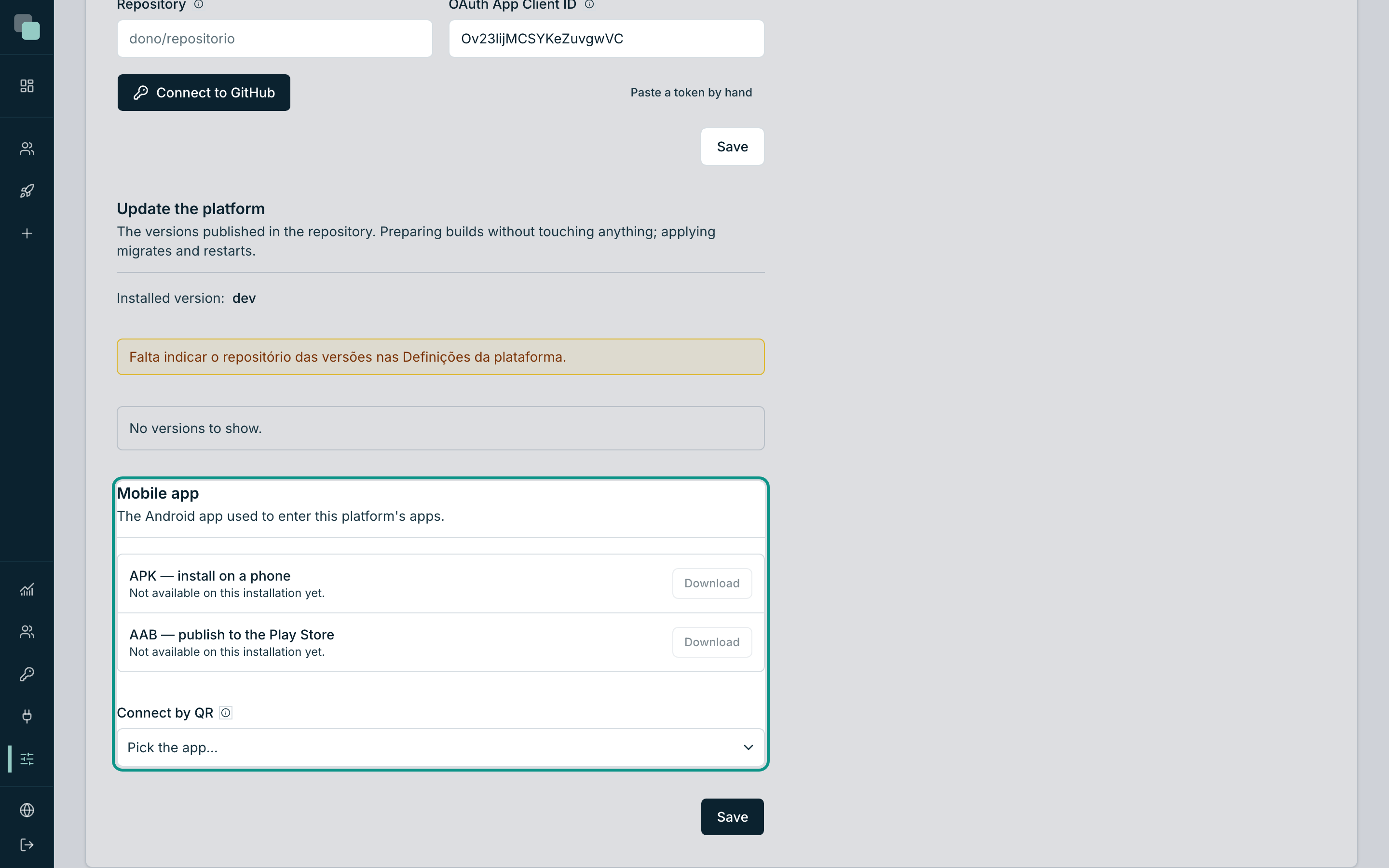
The applications built in Keplin run in the browser of any computer or phone. But there is a second way of using them on an Android phone: the platform's mobile application — KeplinGo —, an app that is installed once and serves to enter any app of this installation.
It is worth it when the application is used in the field: an icon on the phone, no address to type, with the screens drawn in native components and a local copy of the last screen seen for when the network fails.
Where the app is
- Open Settings in the left sidebar, in the administration area.
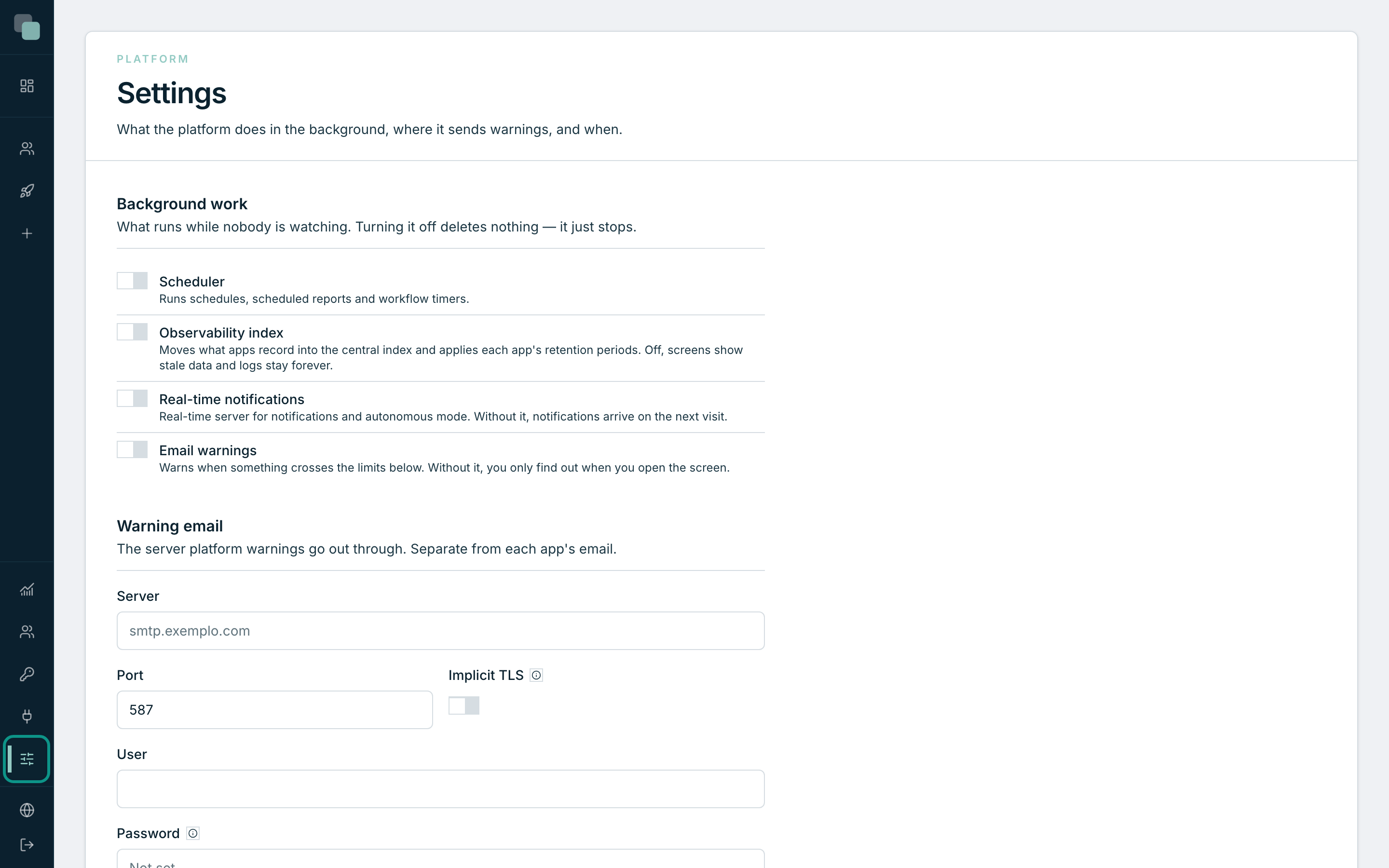
- Scroll down to the Mobile app panel — "The Android app used to enter this platform's apps."
Note
The panel only exists in the platform Settings, and those belong to whoever administers it. With a developer profile, the menu does not appear — ask an administrator to pass you the file.
The two files
The panel has two rows, and the choice between them is simple:
| Row | What it is for |
|---|---|
| APK — install on a phone | The file that installs directly on an Android. This is the one you want. |
| AAB — publish to the Play Store | The store publishing format. It only matters to whoever is going to distribute the app through the organization's Play Store. |
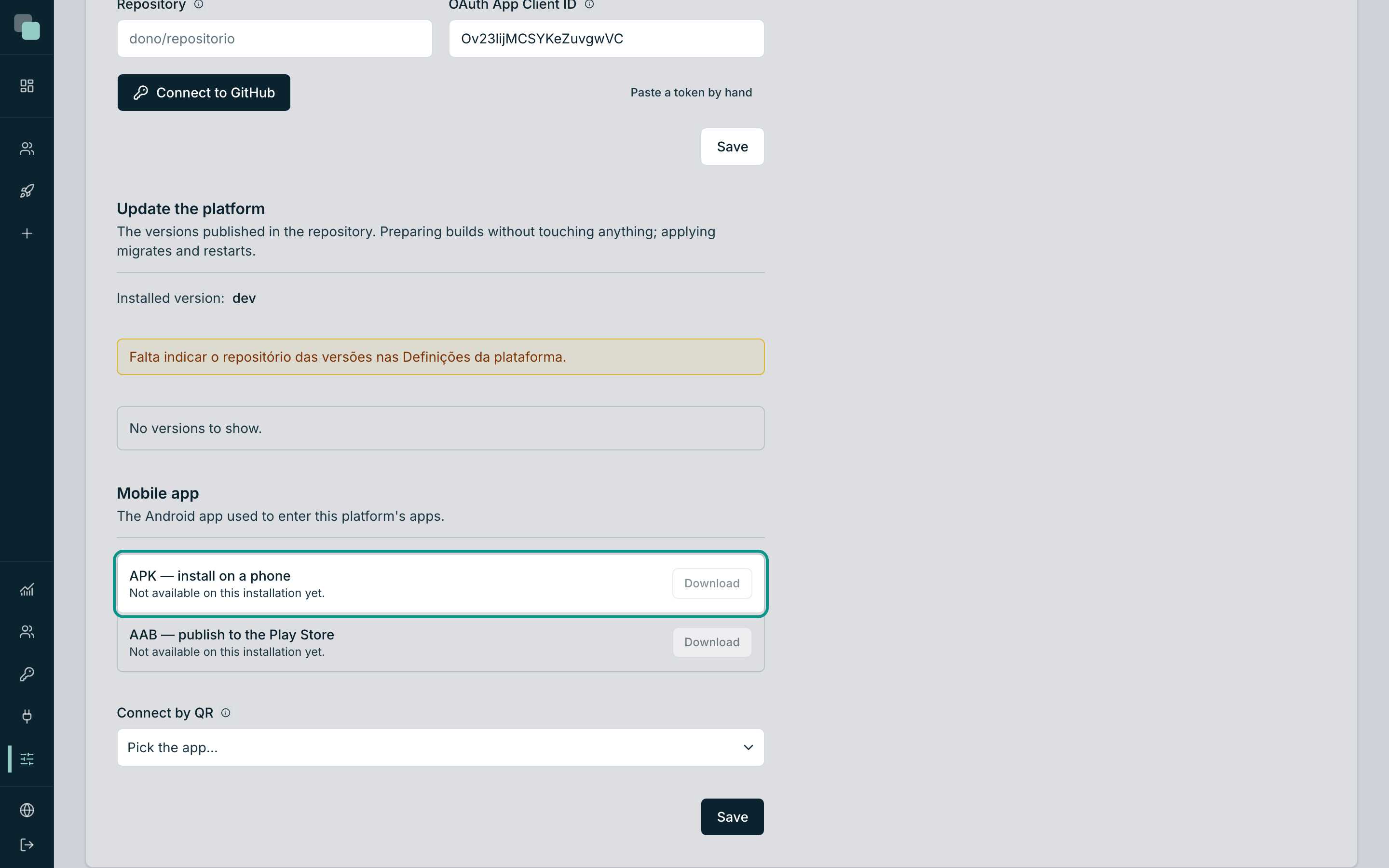
Each row shows the file name and the size in MB, and has a Download button. While the platform confirms what it has available, the row says "Checking…".
If instead of the size you see "Not available on this installation yet.", the Download button is disabled: this installation does not have that file yet. It is not a configuration mistake of yours — it is the platform saying it has none to give. Talk to whoever administers the installation.
Installing on an Android
- In the Settings, click Download on the APK — install on a phone row.
- Get the file onto the phone — by email, through a shared folder, or download it directly from the phone by opening the platform on it.
- On the phone, open the file. Android asks for permission to install applications from this source — it is the normal request for applications that do not come from the store. Allow it.
- Confirm the installation. A KeplinGo icon stays on the phone.
It is installed and empty: the binary is generic and knows nothing about your installation or your apps. Connecting it is the subject of the next page.
Tip
One installation, many apps. There is no Android app for each application you build — the same KeplinGo enters any of them. Whoever needs an icon and a name of their own on the Play Store uses the AAB.
Publishing to the organization's store
The AAB file exists for whoever wants to distribute the application through the normal channels — the Play Store, or the company's device management console. Download it with the same button, on the second row of the panel.
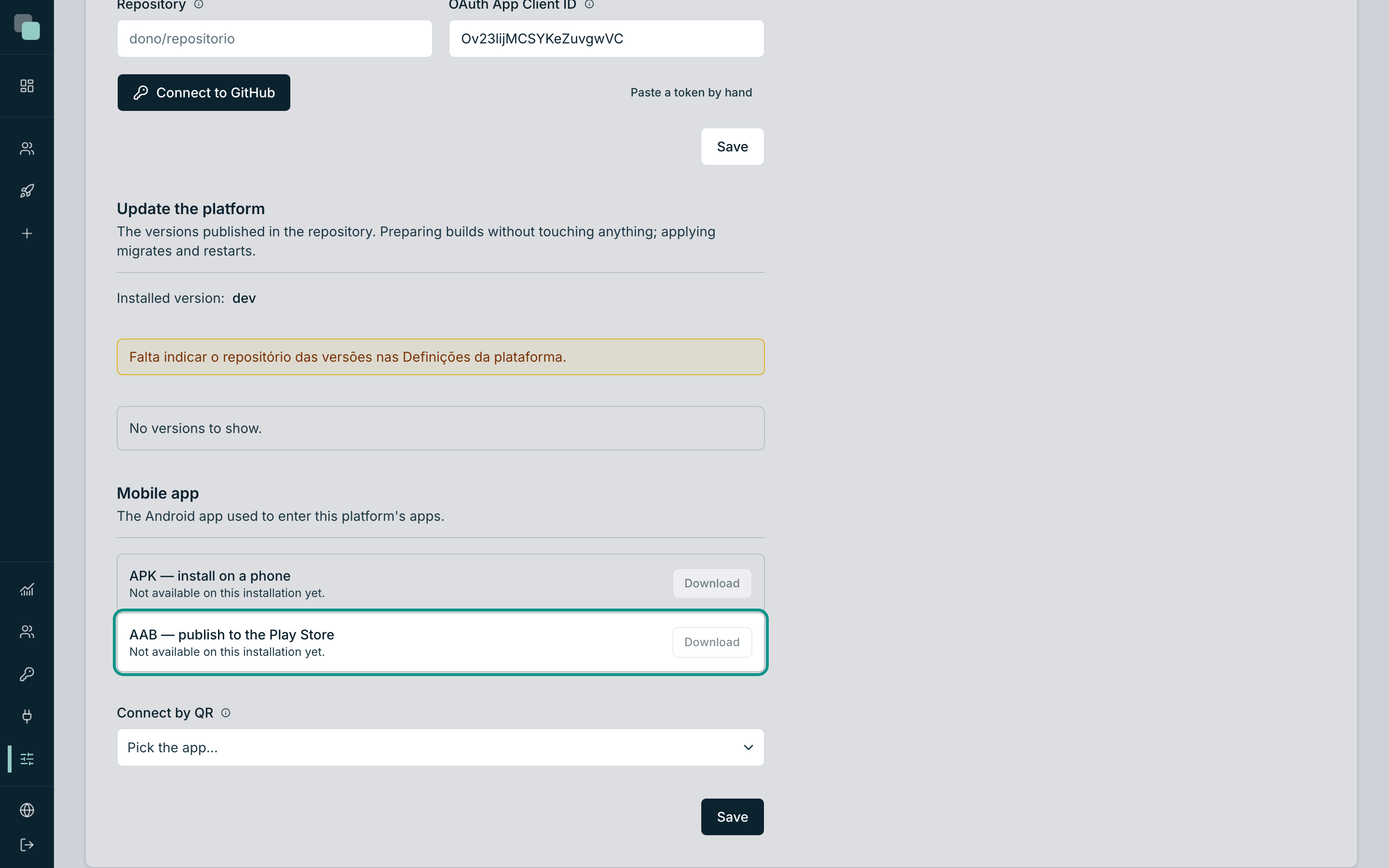
It is the way to go when the phones are managed centrally and it is not practical to ask each person to allow the installation of a loose file.
Updating the app
KeplinGo updates by replacing the file: download the new APK from the same panel and install it on top. The address and the app configured on the phone are kept.
What does not need updating is the content: the screens, the data and the rules always come from the server. A change you make in the editor appears the next time the screen opens, without installing anything.
Note
The local copy the app keeps exists only for when the network fails — and it never gets in the way. With the server in sight, what you see is always what is published.
Why don't I see…?
- …the Mobile app panel? You are in the settings of an app. The panel lives in the platform Settings, in the sidebar menu.
- …the Download button enabled? The row says "Not available on this installation yet." — this installation has no such file to give.
- …a version for iPhone? The platform's mobile application is Android. On iPhone, the built applications are used through the browser, with the published address.