Dependencies and files
Organize the script across several files, manage its private folder, install pip packages and reuse code from other scripts.
A script is rarely just main.py. This page covers everything that lives
around it: the script's files (Python modules, configuration, generated
data), the pip packages installed in its environment, and the scripts
used as dependencies — code from another script, in this app or in another
one, imported by yours.
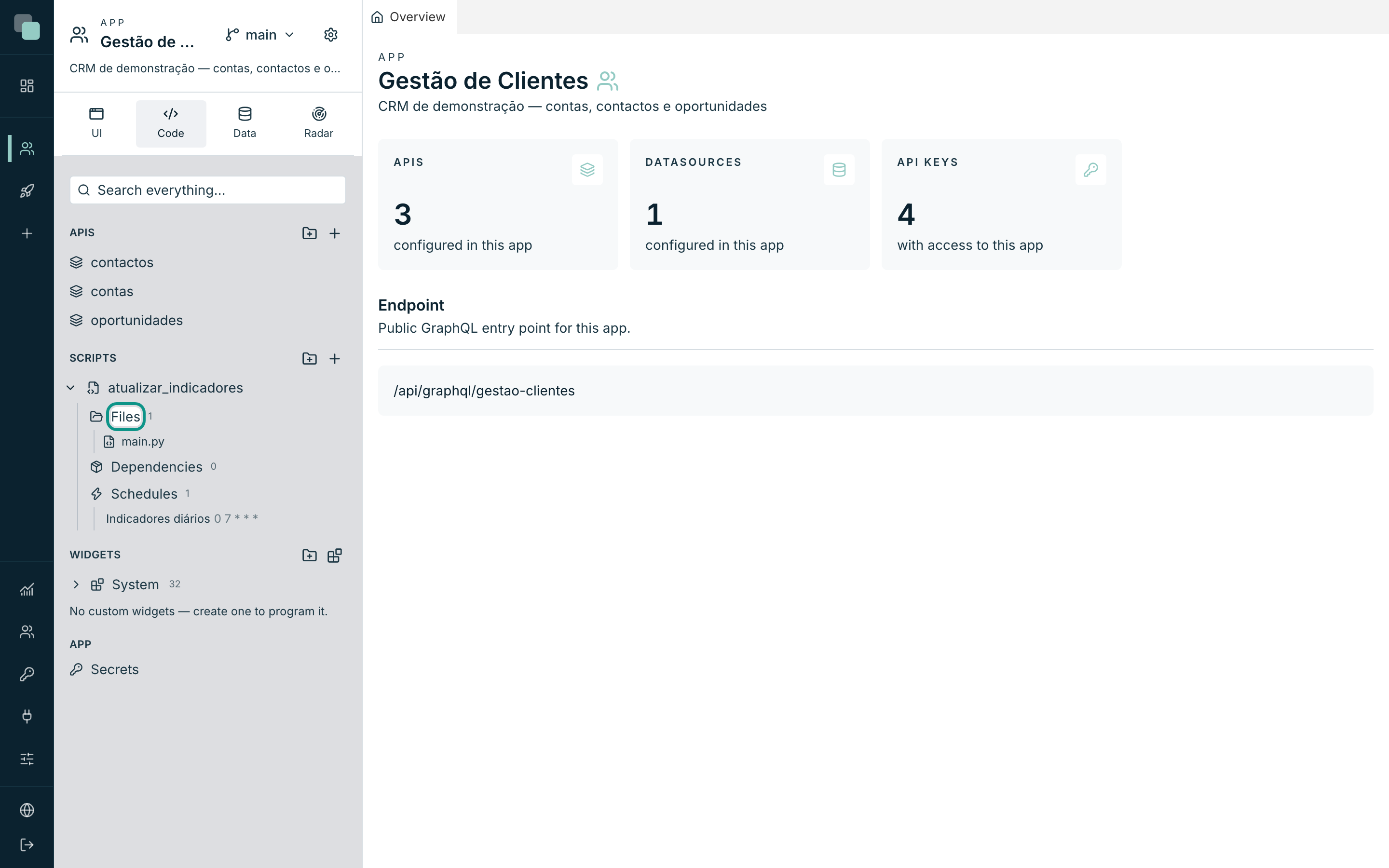
All of this is managed in the side tree: expand the script's node (the arrow to the left of the name) and three entries appear — Files, Dependencies and Schedules. The first two are the subject of this page.
The script's folder
Every script has a private folder on the server. That is where main.py
lives, along with the modules you create, the files you upload and everything
the script writes to disk during runs. Two important points:
- The folder is the runs' working directory: a relative path in the code
(
open("dados/clientes.csv")) reads and writes inside it. - The folder is private to the script — no other script touches it, not even by accident.
The Files node in the tree shows the folder exactly as it is, with the file count next to it. Clicking a file opens it in the script's editor.
Creating files and folders
Hover over the Files row to see its three buttons:
| Button | What it does |
|---|---|
| New file | Creates a file with any extension — code, config, data. |
| New folder | Creates a logical folder inside the script's folder. |
| Upload files | Sends files from your computer to the script's folder. |
To create a file:
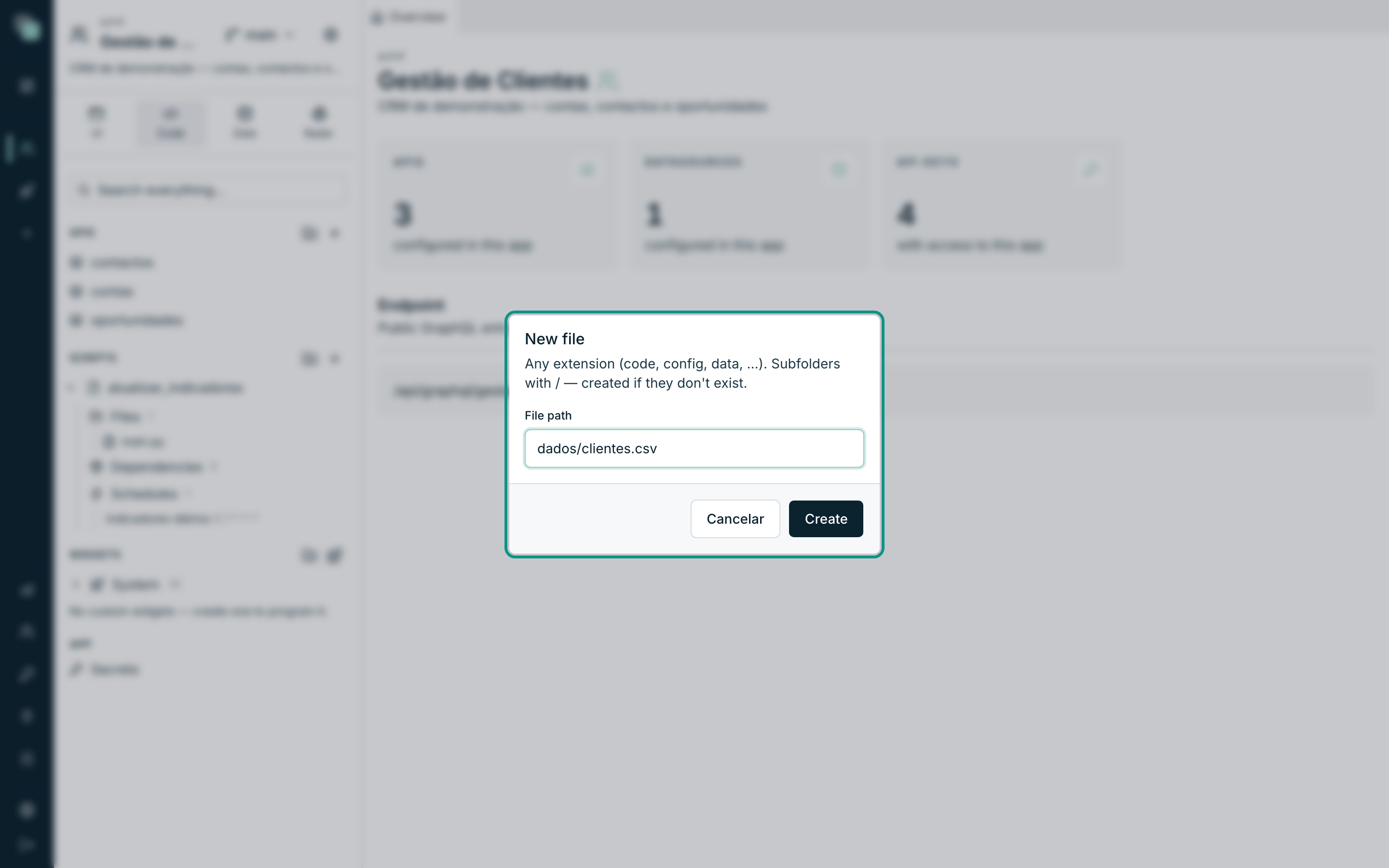
- Click New file.
- Fill in File path — e.g.
utils.pyordados/clientes.csv. Subfolders are written with/and are created if they don't exist. - Click Create. If it is a text file, it opens in the editor right away.
Direct gestures in the tree:
- Rename: double-click the name, type,
Enter. - Move: drag the file (or the folder) onto another folder in the tree.
- Remove: the × that appears when you hover over the row. Removal is
immediate and permanent — and the
importstatements that used the file start failing. - Upload: besides the button, you can drag files from your computer straight onto the tree — dropping them on a folder sends them there.
Warning
Three files are protected and cannot be renamed or removed: main.py (the
script's entry point), api_manager.py (the SDK, put there so autocomplete
works) and requirements.txt (the list of pip packages, managed by the
dependencies panel).
Splitting the script into modules
You can break the code into as many .py files as you like — all in the
script's folder — and import them directly, with no configuration:
# config.py
CONFIG = {"limite": 100, "moeda": "EUR"}
# main.py
from api_manager import db, log
from config import CONFIG


def main(input):
    linhas = db("Dados CRM").query(
        "select * from oportunidades limit ?", [CONFIG["limite"]]
    )
    log(len(linhas), "opportunities read")
    return {"total": len(linhas)}
The editor knows your modules: autocomplete suggests from config import …
just as it suggests the SDK.
Files generated by runs
The script can write files freely — an Excel file generated to send by email, a working CSV, a cache. They stay in the script's folder and show up in the Files node, where you can open them in the editor or remove them.
Tip
A script can run many times. Use deterministic names — e.g.
relatorio_2026-08.xlsx, rewritten on every run — instead of unique names
that pile up until they fill the disk.
Two limits of the editor (not of the script):
- Binary files (an
.xlsx, an image) do not open in the editor — the tree says so. The script keeps reading and writing them normally. - Text files above 10 MB do not open in the editor either, for the same reason — the script can still use them.
Installing pip packages
The Python standard library is always available. For external packages
(requests, pandas, openpyxl, …), each script has its own Python
environment, isolated from the others — installing here changes nothing in
other scripts.
- In the tree, expand the script and click the wrench on the Dependencies row (Manage dependencies (packages and scripts)).
- In the Script dependencies (pip + scripts) modal, section Add PyPI
package, type the exact package name — e.g.
openpyxl— and click Check. The platform confirms on PyPI that it exists and shows the name, the latest version and the description. - Click Install. The package lands in the Installed packages table, with its version.
- In the code, import it normally:
import openpyxl.
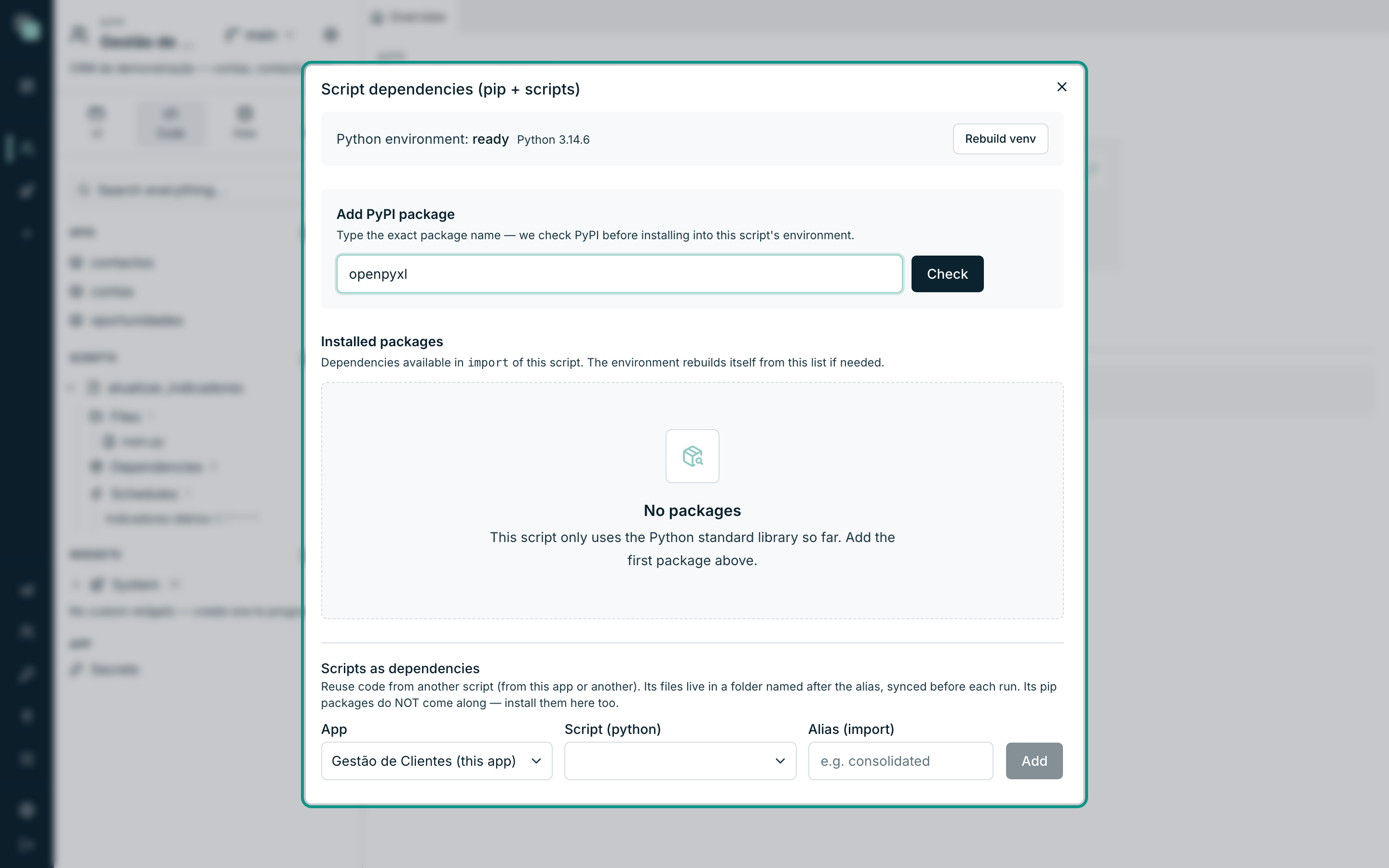
The Python environment: line at the top of the modal states the status of the script's environment:
| Status | Means |
|---|---|
| not created yet (created on the first install or run) | No package has been installed and the script has never run. |
| ready | The environment exists and is usable — the Python version appears next to it. |
| broken | Something broke the environment (e.g. an update on the server). Use Rebuild venv. |
Three more gestures in the same modal:
- Reinstall — appears in place of Install when the package is already there; it forces a reinstall.
- Uninstall — on the installed package's row. That package's
importstatements in the script start failing until it is reinstalled. - Rebuild venv — deletes and recreates the whole environment, reinstalling every package on the list. Useful after a Python update on the server.
Note
The environment rebuilds itself from the package list whenever needed — the list is the truth, the environment is derived from it. The packages also appear under the Dependencies row in the tree, each with its version.
Scripts as dependencies
Beyond packages, a script can reuse another script — from this app or from another one you have access to. The referenced script's files become available in a folder named after the alias you choose, synced before every run: you fix the original script, and whoever depends on it starts using the fixed version.
- Open the dependency manager (the wrench on the Dependencies row).
- In the Scripts as dependencies section: pick the App, pick the
Script, and give it an Alias (import) — e.g.
consolidado. The alias must be a valid Python identifier. - Click Add.
- In the code, import through the alias's modules:
from consolidado.main import main as consolidar


def main(input):
    resultado = consolidar({"args": {}, "prev": None, "context": {}})
    return {"consolidado": resultado}
Rules the platform enforces when you add one:
- Only scripts with the same runtime, from apps you have access to, are listed.
- A script cannot depend on itself.
- The alias cannot be repeated, nor match a file or folder that already exists in the script's folder.
Warning
The referenced script's pip packages do not come along. If its code
imports requests, install requests in this script too. The referenced
script's version appears in the tree as app/script@version — it is the
Version set in its Script settings.
To remove one, use the × on the dependency's row (in the tree or in the
manager). The alias folder is removed from disk and the import statements
that used it fail on the next run.
Frequently asked questions
I installed a package and the import still fails.
Check the module's exact name — the Pillow package is imported as PIL, for
example. The Installed packages table shows the package name; the module
name comes from its documentation.
Why can't I delete requirements.txt?
It is one of the three protected files — it is the script's package list,
maintained by the dependencies panel. To drop a package, use Uninstall in
the dependency manager, not the file.
A colleague changed the script I depend on. When does mine pick up the change? On the next run: the alias folder is synced before every run of your script.