Schedules
Getting a script to run on its own — repeats, set times on the calendar, watch windows with validation, time zones and recovery of missed runs.
A schedule (cron) gets a script running on its own: every day at 7:00, every 15 minutes, on the last Friday of the month, or every 5 minutes inside a night-time window until the day's work is done. A script can have several schedules, each with its own timing, time zone and arguments.
On this page we use the Daily indicators schedule of the Customer
Management app, which runs the atualizar_indicadores script every day at
7:00 (Europe/Lisbon time zone).
Creating and opening schedules
In the side tree, expand the script's node. The Schedules row shows how many there are; underneath it, each schedule appears with its name, a summary of its timing and, when switched off, the (disabled) mark.
- To create one: click the + on the Schedules row (New schedule). The editor opens in a new tab.
- To edit one: click the schedule's name.
- The ⋮ menu on each schedule offers Enable/Disable and Delete. Deleting stops the schedule for good, but the script's run history is kept.
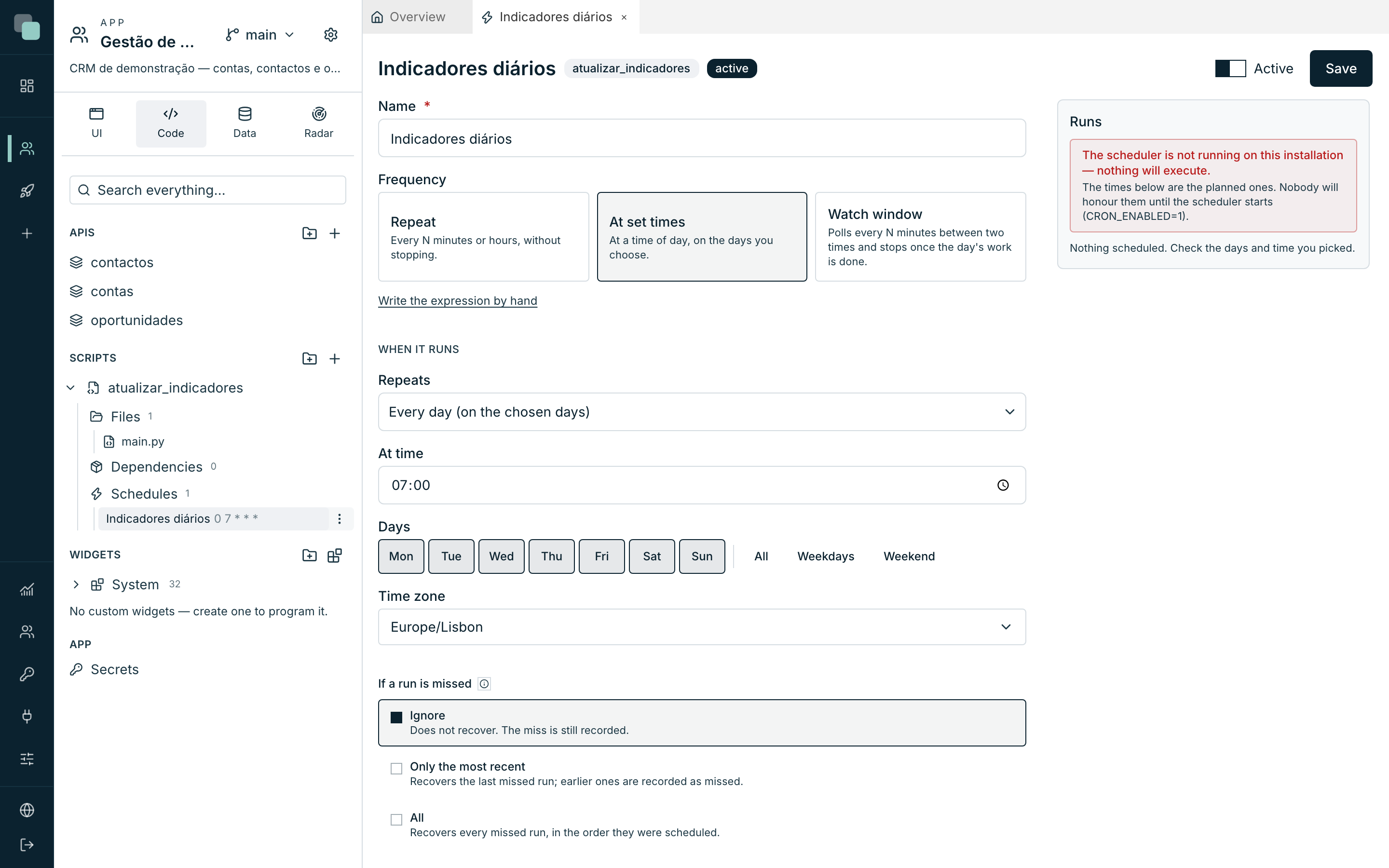
The editor has the form on the left and the Runs panel on the right (only after it is saved — see the end of the page). At the top, the Active switch turns the schedule on and off, and Save saves everything.
Choosing the frequency
The Frequency field offers three cards — three natures of schedule:
| Card | Good for |
|---|---|
| Repeat | "Every N minutes or hours, without stopping." Polling, continuous syncs. |
| At set times | "At a time of day, on the days you choose." The classic: daily, weekly, monthly. |
| Watch window | "Polls every N minutes between two times and stops once the day's work is done." |
Under the cards, the Write the expression by hand shortcut swaps the
controls for a free-form cron Expression field — for those who already
have one. It accepts 5 fields or 6 (with seconds), e.g. 0 9 * * 1-5.
Back to the controls undoes the swap.
Repeat
- Pick the Repeat card.
- In Unit, choose minutes or hours.
- With minutes, set Every how many minutes? (e.g. 15). With hours, set
At minute — the minute of each hour when it fires (e.g.
0runs at 9:00, 10:00, 11:00…).
At set times
Pick the At set times card.
In Repeats, choose the variant:
Option Fields that appear Every day (on the chosen days) At time + Days — seven buttons (Mon…Sun) with the All, Weekdays and Weekend shortcuts. Any combination works: Monday, Wednesday and Friday, for example. Once a week At time + Day of the week. Once a month At time + In the month, it runs (see below). For the monthly one, In the month, it runs has three forms:
Option Example On a fixed day Day 1, day 15… With Day of the month above 28, the editor warns you: "In months without that day it will not run. For “last day”, use the dedicated option." At a position (e.g. last Friday) Position (1st, 2nd, 3rd, 4th, 5th or last) + Day of the week — e.g. the last Friday of the month. On the last day of the month 31, 30, 28 or 29 — whatever the month has.
The time zone
Every schedule has a Time zone — the times you set are times in that
zone, not the server's. The selector lists every IANA zone, with search
(e.g. Lisbon, Sao_Paulo). A schedule at 9:00 in America/Sao_Paulo runs
at 9:00 São Paulo time, even with the server in Europe — and daylight saving
changes are the platform's business.
A new schedule starts in the time zone of its creator's browser; change it if the script has to run in another one.
If a run is missed
Sometimes the scheduled time passes without a run: the server was off, it restarted mid-run, or the previous run was still going. The If a run is missed section decides what to do with those occurrences:
| Option | Consequence |
|---|---|
| Ignore | Does not recover. The miss is still recorded (Missed status in the Runs panel). |
| Only the most recent | Recovers the last missed run; earlier ones are recorded as missed. |
| All | Recovers every missed run, in the order they were scheduled. |
Recovered runs appear in the script's history with the Catch-up trigger.
Note
In a watch window, the unit of recovery is the day: recovering runs the day's work even after the window has closed — it does not replay the polls one by one.
Watch window
The third card solves a pattern that classic cron cannot express: "from 18:00 onwards, try every 5 minutes; when you succeed, run once and stop until tomorrow". Typical for waiting until a file arrives, until a day-end close finishes in another system, or until a table is filled.
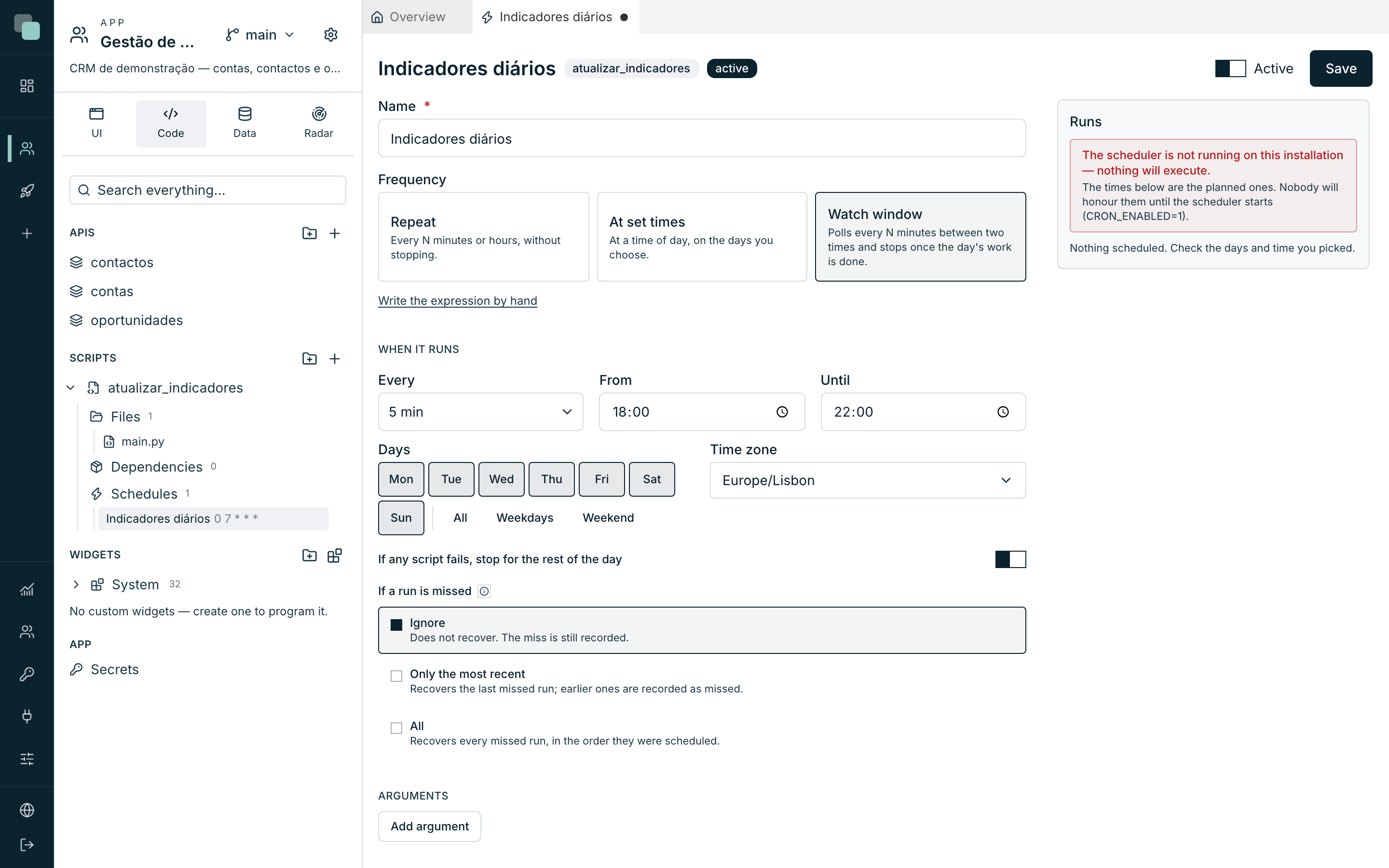
The fields:
| Field | What it sets |
|---|---|
| Every | The polling interval: 1, 2, 3, 5, 10, 15, 20 or 30 minutes. |
| From / Until | The times the window opens and closes, in the chosen zone. |
| Days | The days of the week on which the window exists (the same seven buttons and shortcuts). |
| If any script fails, stop for the rest of the day | When on, an error closes the window until the next day instead of retrying. |
With nothing else, the window runs the script on the first tick of each day and closes until the next day. The real power is in the validation:
The validation script
The Validation script section takes a small piece of Python code that decides, on each poll, whether it can run yet:
- Click Add validation. An editor opens in a modal.
- Write a
main(input)function that returnsTrue(ready — the main script runs once and the window closes until tomorrow) orFalse(not yet — it waits and retries at the next interval). - Use Test validation to run it right away, with the schedule's arguments: you see the verdict (Can run (runs 1×) or Not yet — waiting), the duration and the logs.
- Close the modal and click Save in the schedule's editor.
# Returns True once the day's file has landed on the internal FTP.
from api_manager import db


def main(input):
    linha = db("Dados CRM").query_one(
        "select count(*) as n from cargas_diarias where dia = date('now')"
    )
    return bool(linha and linha["n"] > 0)
The validation runs in the same environment as the main script: it
receives the same input (arguments and context), and has the same files, the
same Python environment and the same SDK (db, http, log, …).
Tip
Having code is using the validation — there is no switch. To stop validating, click the × (Remove the validation): the code is deleted when you save and the main script goes back to running on the window's first tick.
Schedule arguments
The Arguments section defines name/value pairs that reach the script in
input["args"] on every run of this schedule — just as in a manual run,
values arrive as text. This is how the same script serves two different
schedules: a daily exportar with {"ambito": "dia"} and a monthly one with
{"ambito": "mes"}, for example.
Save, enable, follow along
- Save creates (or updates) the schedule. The button only becomes active once the name is filled in and the timing is valid.
- The Active switch at the top turns it on and off without deleting anything — in the tree, a schedule that is off shows (disabled).
- An active schedule on a script that is a Draft does not run: the occurrences end up Skipped, with the note "The script is a draft".
The Runs panel
Once saved, the right-hand side of the editor shows the Runs panel — the schedule seen from the outside, updated live:
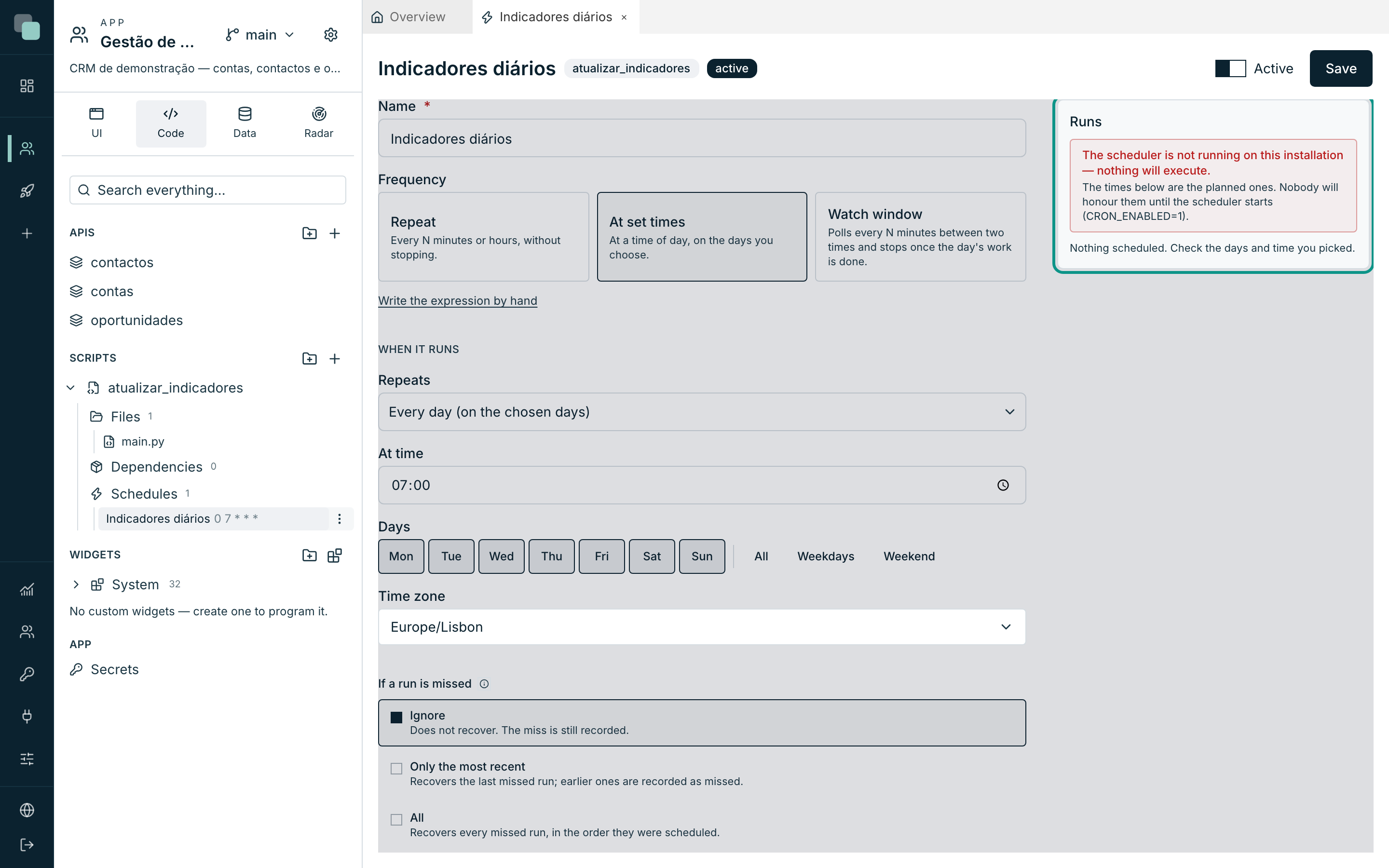
- The first line says whether the installation's scheduling engine is alive ("Scheduler active · last check Ns ago"). If it is not running, a clear warning appears — the planned times exist, but nobody will honour them until the scheduler starts. In that case, talk to whoever administers the installation.
- Below it, the list of occurrences — each scheduled time and its status:
| Status | Means |
|---|---|
| Pending | A future time, still to come. |
| Running | The run is happening right now. |
| Done | It ran. |
| Missed | It was missed and the policy is Ignore (or it was no longer recoverable). The reason appears on the row. |
| Skipped | It never ran — e.g. the script is a draft, or it overlapped with the previous run. |
On a schedule with validation, clicking an occurrence opens the Validation attempts: every poll with its verdict (ready, not yet or error) and the message. Runs of "not yet" appear collapsed — "12 attempts with nothing new" — so the three lines that matter don't get lost in the middle.
Frequently asked questions
I set it to day 31 and there are months when it doesn't run. That is how On a fixed day behaves: in months without that day, it does not run — the editor warns you when you pick 29, 30 or 31. For "the end of the month", use On the last day of the month.
The 9:00 run showed up as Skipped (overlap). The previous run was still going when the new time arrived. The platform never runs the same schedule twice at once. If it happens often, widen the interval or reduce the work done per run.
The validation returned True but the main script only ran once — the condition is still true.
That is deliberate: when the validation returns True, the main script runs
once and the window closes until the next day. Without that, a condition
that stayed true would put the script in a loop until the end of the window.
The clocks changed (summer/winter time) — do I have to adjust the schedules? No. Times are interpreted in the schedule's Time zone; the clock change is handled by the platform.
A run shows as Aborted — «the server restarted» or «it was left hanging». A run that stayed marked «running» with nobody running it — the server restarted halfway, or lost track of it — is taken as aborted, so the overlap lock does not stay stuck forever. The check runs at start-up and every 5 minutes, but a run this server really has in progress is never caught: only the ones with no owner left and, in the periodic check, only those older than 30 minutes.