Designing processes
The workflow canvas — creating a process, choosing the record it is about, dragging steps, declaring variables and reading the design warnings.
A workflow is a business process drawn on a canvas: steps joined by arrows, decisions that open paths, waits that can last weeks and tasks assigned to people. It is the right piece for everything that has states and people in the middle — an expense approval, closing an opportunity, the onboarding of a new customer.
A workflow differs from a scheduled script in two ways:
- Every run is about ONE record. It is not optional: each run is attached to one row of an app entity — opportunity 42, account 17. That record is what the steps read and write.
- A run can sleep. A script runs in seconds; a process can sit for three weeks waiting for someone to click a button, and picks up exactly where it left off.
Throughout this chapter we use the Opportunity approval process of the Customer Management app: opportunities above €25,000 go through management before closing; below that they close on their own.
Where workflows live
Workflows belong to the app's UI side: open the UI minitab and go down the tree to the Workflows group, below the screens and the files. Each process is a row; clicking the name opens the design in a workspace tab.
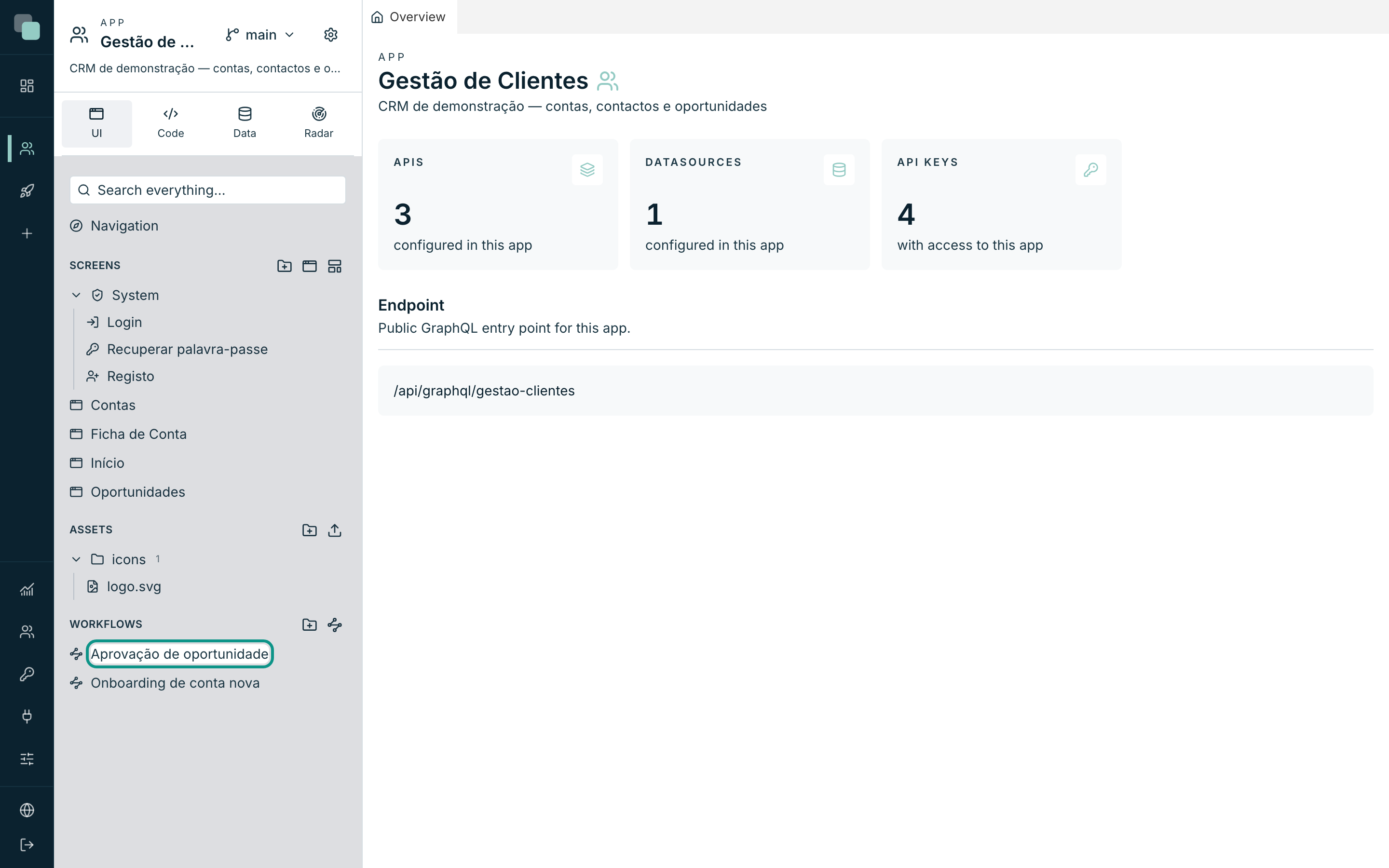
In an app that has none yet, the group simply shows "No workflows yet.".
Creating a workflow
- Hover over the Workflows group row and click the New workflow button (the nodes icon, to the right of the folder one).
- Fill in the Name — for example
Aprovação de despesa. It is the name that appears in the tree, in the run history and in the lists where the process is picked. - Click Create.
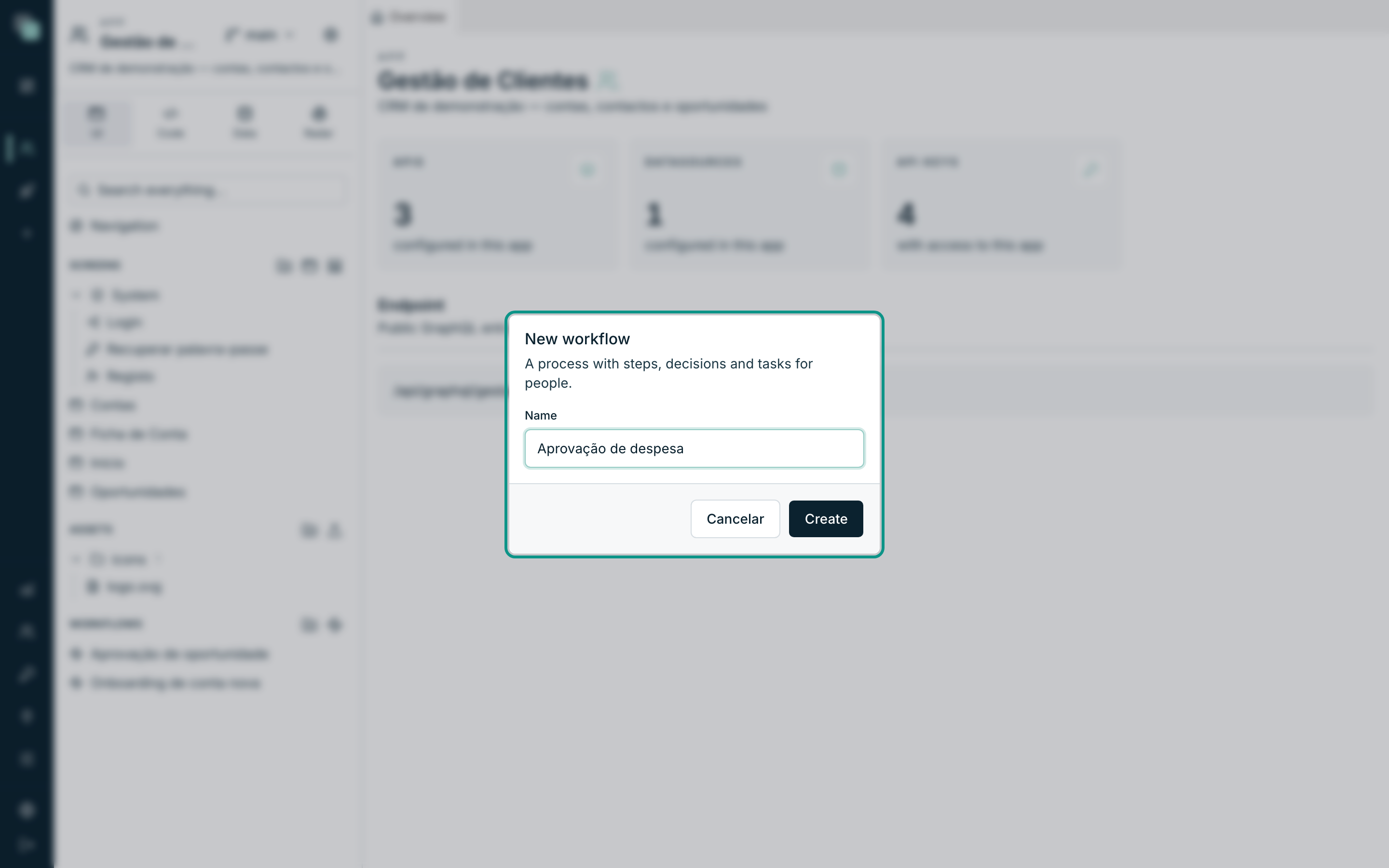
The process is born with a Start node already on the canvas — without one there is nowhere to begin — and the design opens straight away.
Tip
The folder button next to it creates folders inside Workflows. In an app
with many processes, grouping them by area (comercial/, rh/) saves a lot
of hunting time.
The design
A workflow's tab has two views, Design and Runs, and the Design splits into three columns:
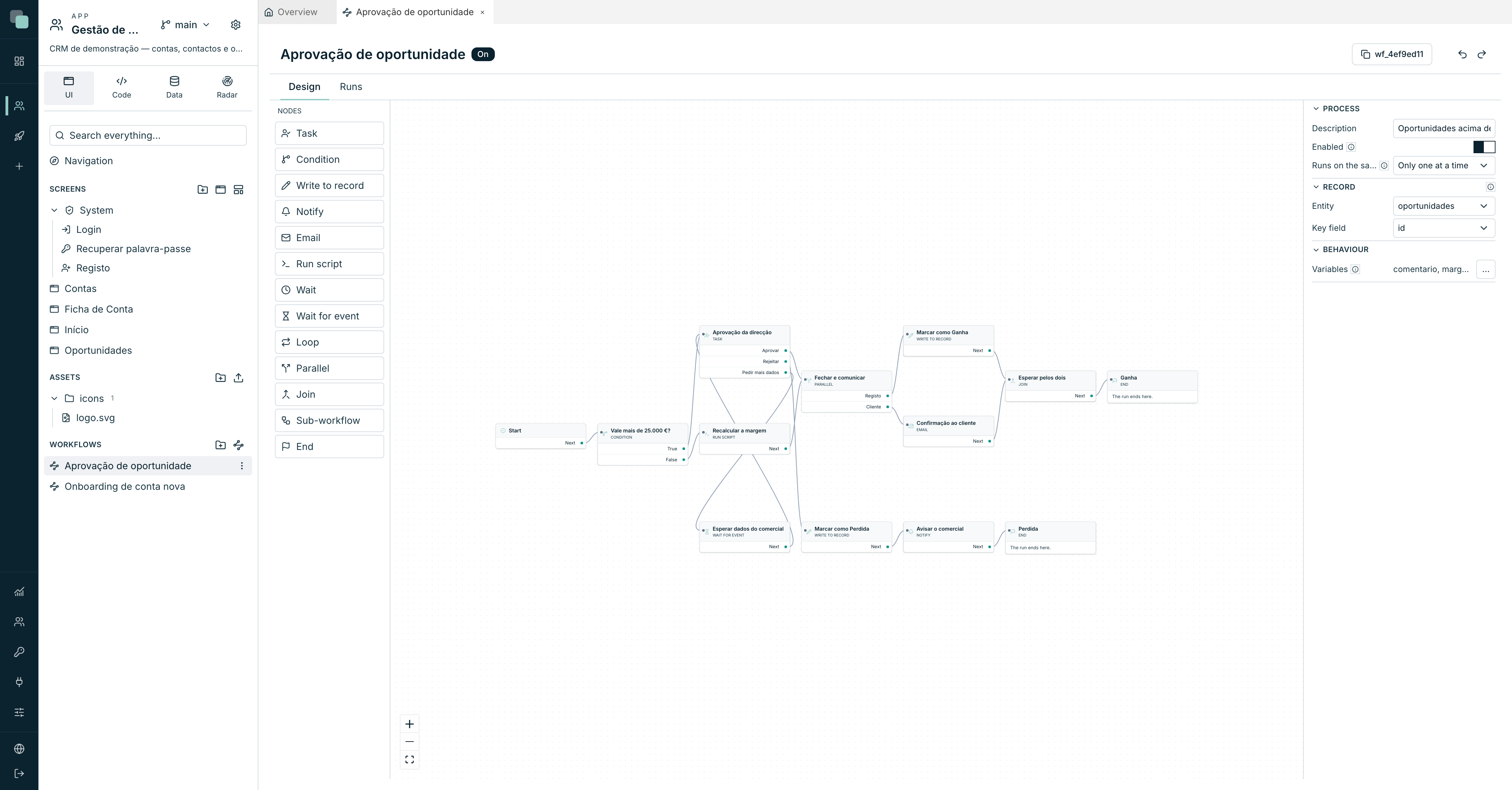
| Area | What it is |
|---|---|
| Nodes (left) | The palette with the step types. You drag one onto the canvas. |
| The canvas (centre) | The drawn process. Drag to move, join an outcome to an input to create arrows. |
| The right-hand panel | The properties — of the process when nothing is selected, of the step when something is. |
In the header, to the right of the name, sit the process identifier (a code
like wf_4ef9ed11, copied with a click — it is what code uses to start the
process), the save state, and the undo and redo arrows.
There is no save button: the design saves itself, an instant after every change.
The node palette
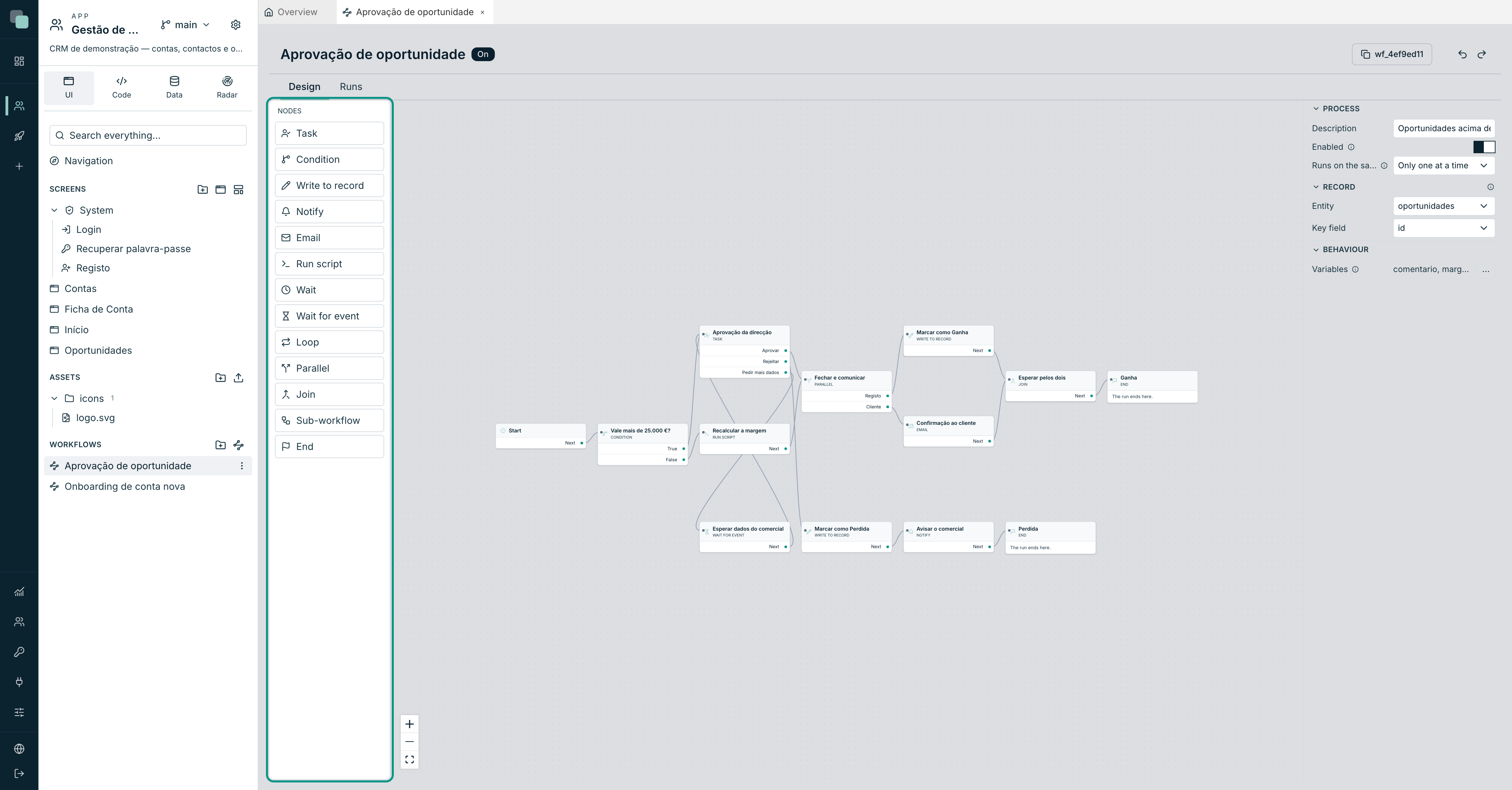
To add a step, drag the type from the palette onto the canvas. To connect
it, pull an arrow from one step's outcome point to the next step's input point.
To delete, select it and press Delete.
The Start node is the exception: there is always one, and it cannot be deleted.
Each type is described on the next page, Steps, decisions and waits. The summary:
| Group | Nodes |
|---|---|
| Deciding and branching | Condition, Parallel, Join, Loop |
| Waiting | Wait, Wait for event |
| Acting | Write to record, Notify, Email, Run script, Sub-workflow |
| People | Task |
| Finishing | End |
In the palette, nodes are grouped by type (People, Actions, Flow control and End); each group collapses with a click on its title, the Search box at the top filters by name, and the width is dragged from the right edge.
Below the header is the toolbar, the same as the screens': the Design and Runs views, undo and redo, Duplicate node and Delete node (with a node selected), and on the right Fit to view (fits the whole process on the canvas) and the zoom, with the clickable percentage to restore 100%.
The process properties
Click any empty area of the canvas to deselect the current step — the right-hand panel then shows the process properties.
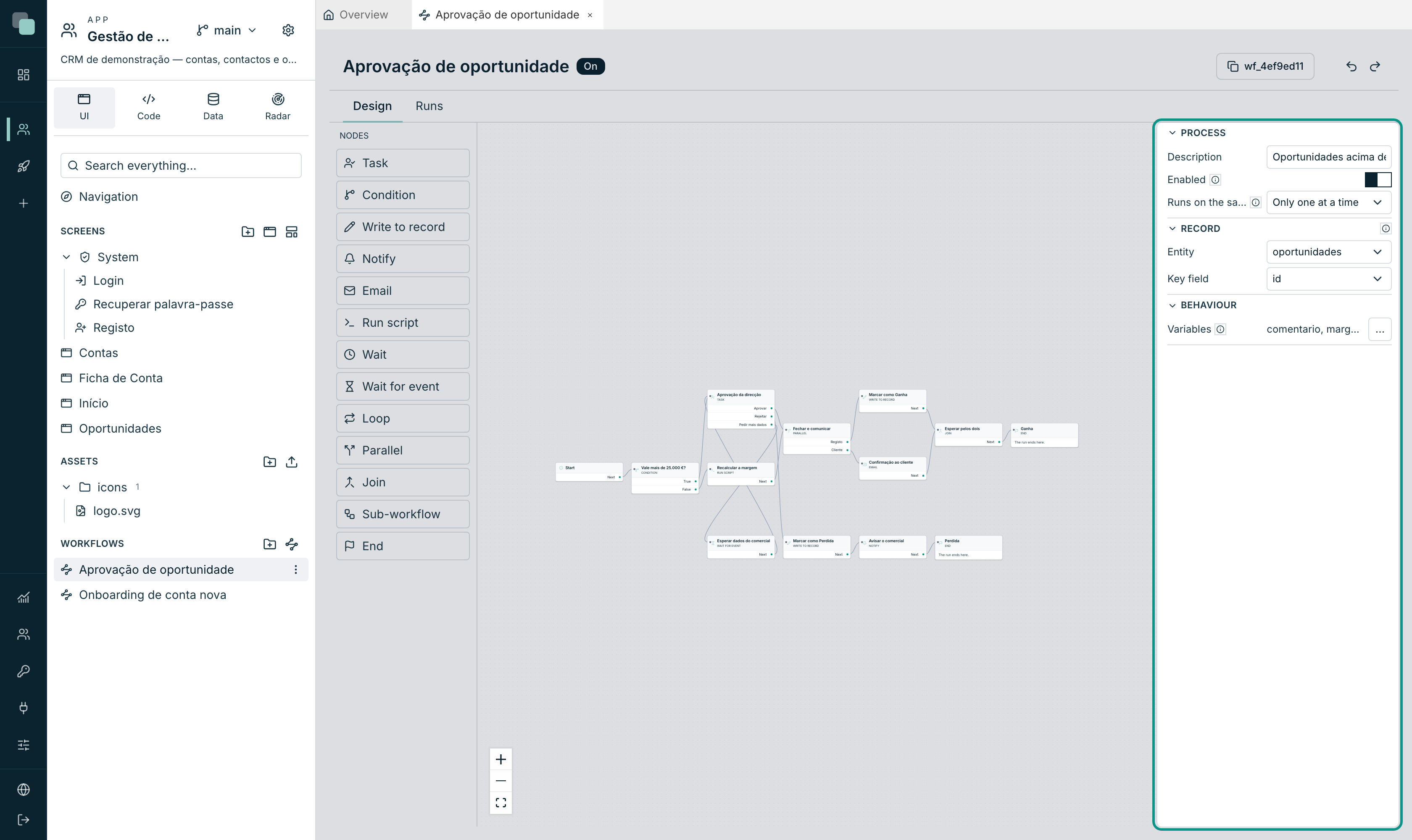
| Field | What it does |
|---|---|
| Description | "What this process is for." Free text, only for whoever builds it. |
| Enabled | Switched off, "the process never starts from an event — it exists only for design". It can still be edited; it just doesn't run. |
| Runs on the same record | As many as needed or Only one at a time. |
| Entity | The entity each run is about — one of the app's table APIs. |
| Key field | The field that identifies the record (normally the primary key). |
| Variables | See the next section. |
About concurrency: with Only one at a time, "raising the event again while a run is alive starts nothing". That is what you want in an approval — the same opportunity should not have two approval processes running at once. In a "holiday request" kind of process, where the same employee can have several requests, you pick As many as needed.
Warning
With no Entity chosen, the design flags an error and the process does not run: "Pick the entity — every run is about one record." It is the first thing to set in a new process.
Process variables
Variables are "what the run carries with it: comments, computed values, decisions". They live as long as the run lives, and they are independent of the record — the comment management wrote does not have to be saved in the opportunities table for the process to use it three steps later.
Open them with the … button on the Variables row:
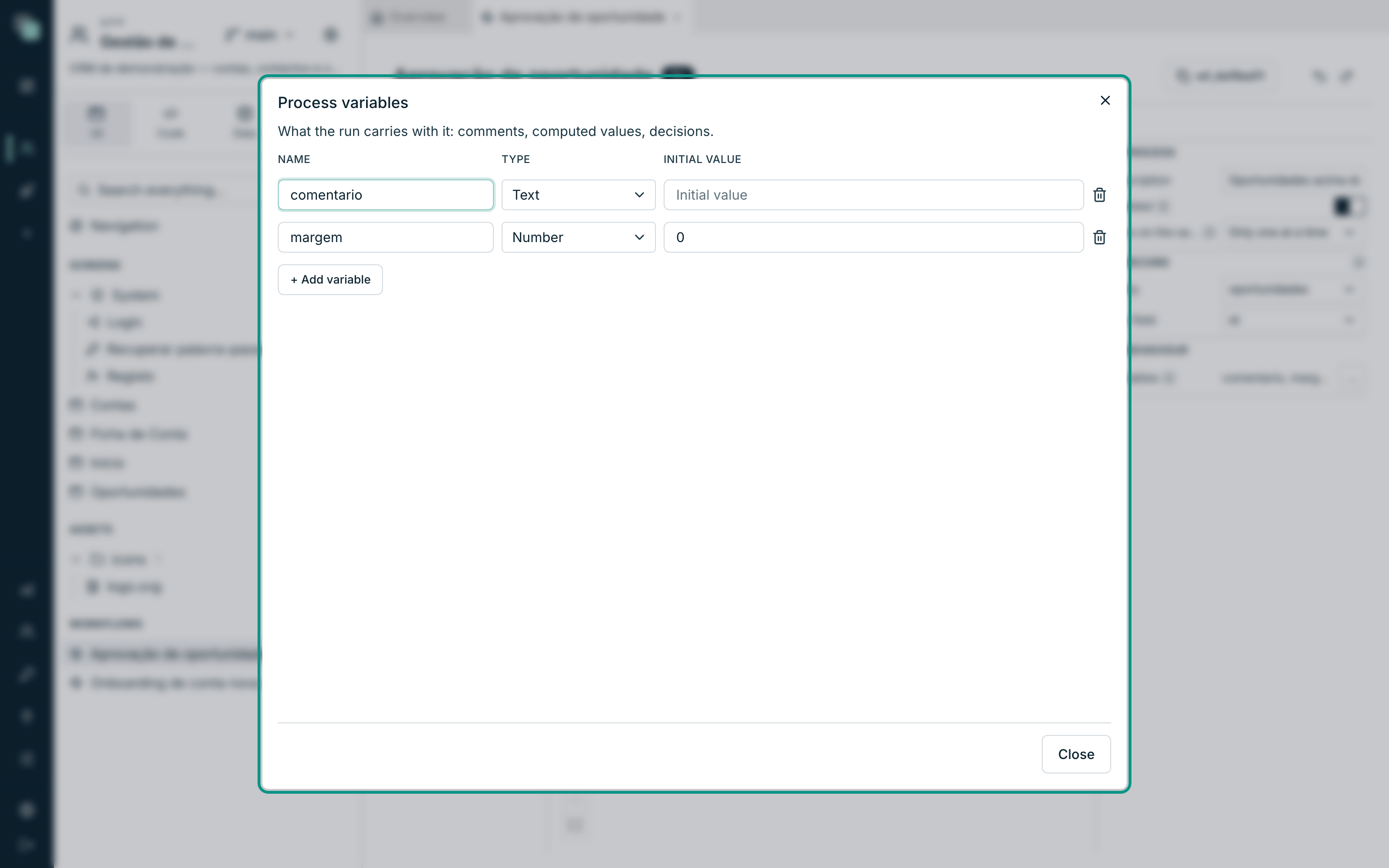
- Click Add variable.
- Give it a Name (no spaces — it is how the steps refer to it).
- Choose the Type: Text, Number, Yes/No or Date.
- Optionally, an Initial value.
From then on, any step that asks for a value can take it from the variable, and the Run script and Task steps can write into it.
The design warnings
Below the canvas a bar appears whenever there are problems — "{n} error(s), {n} warning(s) in the design". Clicking it opens the list; clicking a row selects the step in question.
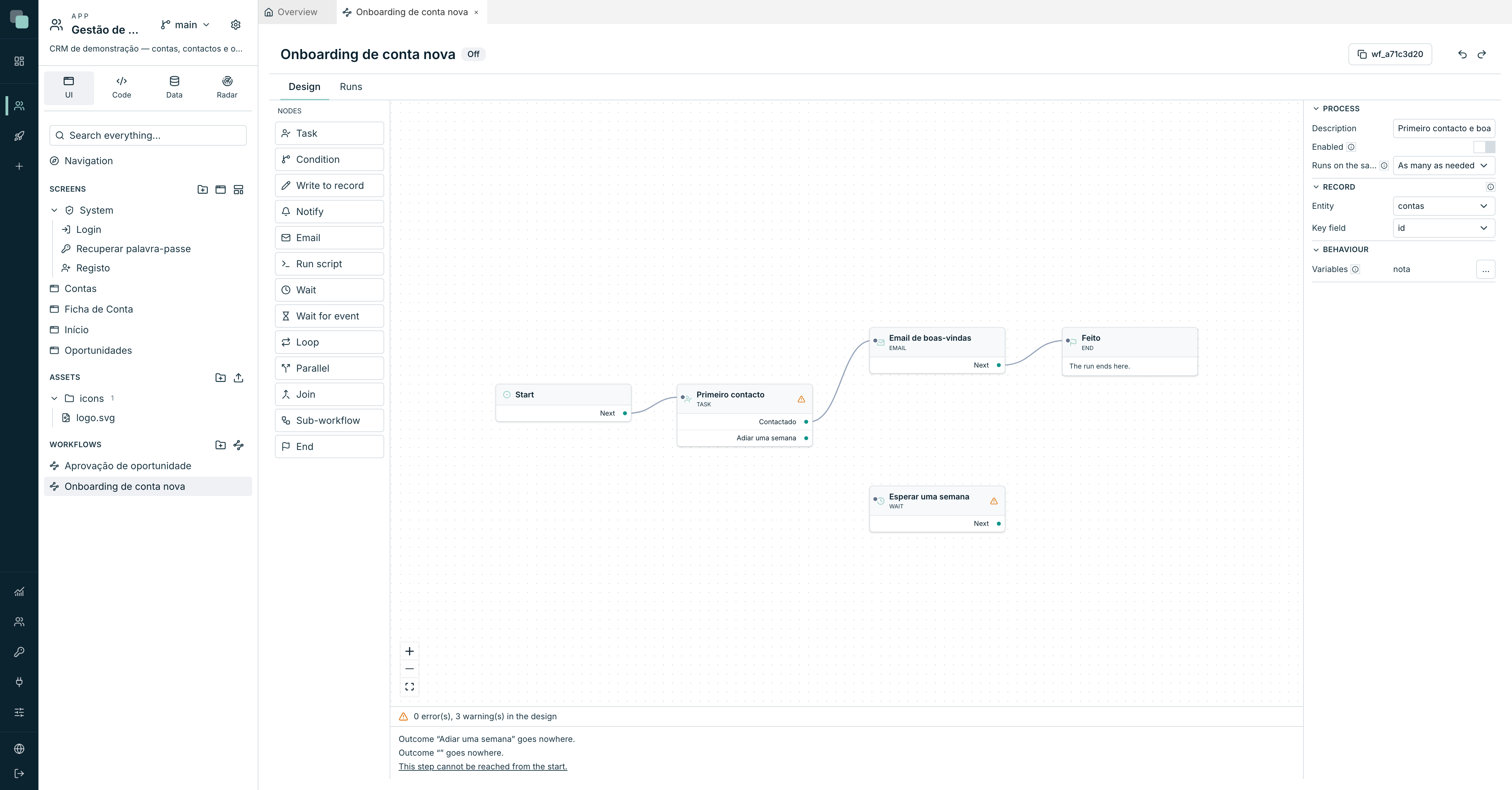
The most common problems:
| Message | What it means |
|---|---|
| "The process has no start node." | Error. With no start it never begins. |
| "Pick the entity — every run is about one record." | Error. Entity is not filled in in the properties. |
| "This task does not say who it is assigned to — the run will fail here." | Error. A task with no recipients never reaches anyone. |
| "This task has no decisions: the person would have nothing to click." | Error. See Tasks for people. |
| "There can be only one Start: whoever starts it names the workflow, not the step." | Error. Delete the extra starts. |
| "Outcome «X» goes nowhere." | Warning. There is a path left unconnected. |
| "This step cannot be reached from the start." | Warning. A step adrift on the canvas. |
| "The process has no end node." | Warning. |
Note
Warnings never stop you saving. Validation happens when you use it, not when you write it — a process takes days to design and nobody wants to lose the work over a missing arrow. But a process with errors should not be enabled.
On or off
The badge next to the name shows On or Off. It is the Enabled switch in the properties that commands it, and the rule is simple: switched off, the process starts from nothing — not from a screen button, not from a script. It is there so you can design calmly, and so you can stop a misbehaving process without deleting it.
Tip
Switching a process off does not cancel the runs already going. The live ones carry on their way; what stops happening is new ones starting.
An app user only starts a process, or sends it a signal, on a record they can see (the role's scope decides). Each run advances one pass at a time: two tasks completed at the same moment, or a timer and a signal, queue up instead of repeating steps. If the server restarts in the middle of a step, the run resumes when the scheduler starts, and that step runs again.
Renaming, moving and deleting
In the ⋮ menu of the workflow's row, in the tree:
- Rename — changes the display name. The process identifier (
wf_…) does not change, so nothing that calls it breaks. - Move — to another folder inside Workflows.
- Delete — deletes the design. The runs that already happened no longer have a process to belong to.
Frequently asked questions
I edited the design with runs in progress. What happens to the ones that are running? Nothing. Each run keeps the copy of the design it started with — whoever is in the middle of a process does not see the ground move. The new version applies to runs that start from then on.
Can I have two Start nodes? No. Whoever starts the process is the screen, the script or the parent process — not the design. A second Start is an error flagged in the warning bar.
The process is On but never starts. Check three things: whether Entity is chosen; whether concurrency is set to Only one at a time and a live run already exists for that record; and whether whoever starts it is actually calling the process — see Tasks for people, section "Ways of starting".