Writing scripts
Create a Python script, understand the main(input) contract, run it by hand and read the run history.
A script is logic written in Python that runs on the server, inside the app. It is the right piece for everything that is neither a screen nor a simple query: syncing data with another system, recalculating indicators every morning, generating an Excel file and emailing it, validating a file uploaded through an API.
The same script can be triggered in three ways — and the code does not change:
| Trigger | How it happens |
|---|---|
| Manual | The Run now button in the editor, with optional arguments. |
| Cron | A schedule (chapter Schedules) — at set times, at intervals, or inside a watch window. |
| API | As a step of an app API — the script receives the request's arguments and the result of the previous step. |
Throughout this page we use the atualizar_indicadores script from the
Customer Management app, which recalculates the CRM's sales indicators
every morning.
Where scripts live
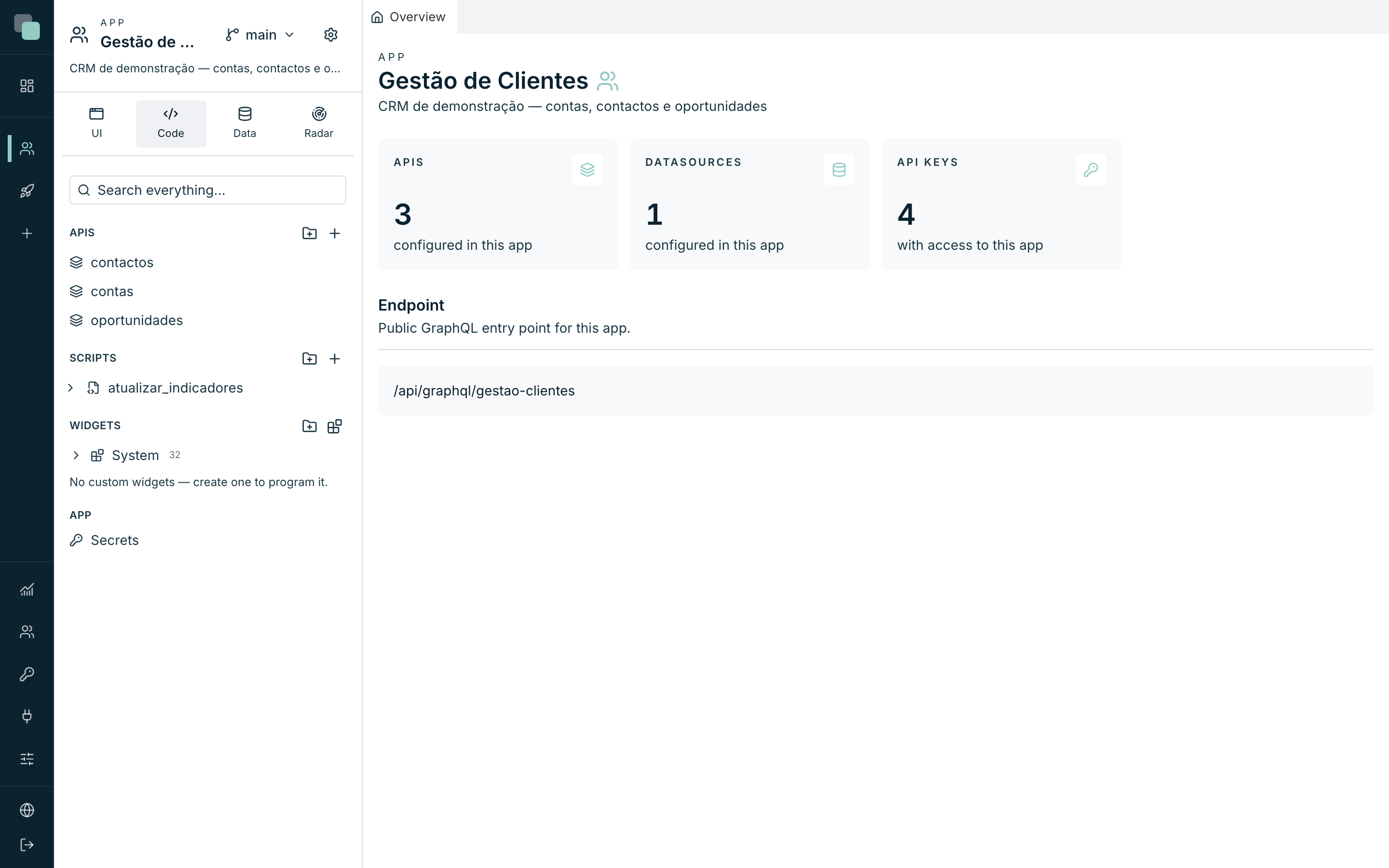
Inside the app, scripts have their own section in the side tree — the Scripts group. Each script is a node in the tree: clicking the name opens the editor in a workspace tab, and the arrow on the left expands the node to show its Files, Dependencies and Schedules (the following pages of this chapter).
There is also a list view — the Scripts page — with one row per script:
| Column | What it shows |
|---|---|
| Name | The script's name and description. |
| Runtime | The execution language (Python). |
| Status | Active or Draft — only active scripts run on a schedule. |
| Schedules | How many schedules exist, how many are active, and Next: with the date of the next planned run. |
| Last run | The status (Success, Error, …) and the time of the most recent run. |
Creating a script
In the side tree, hover over the Scripts group row and click the + button (New script).
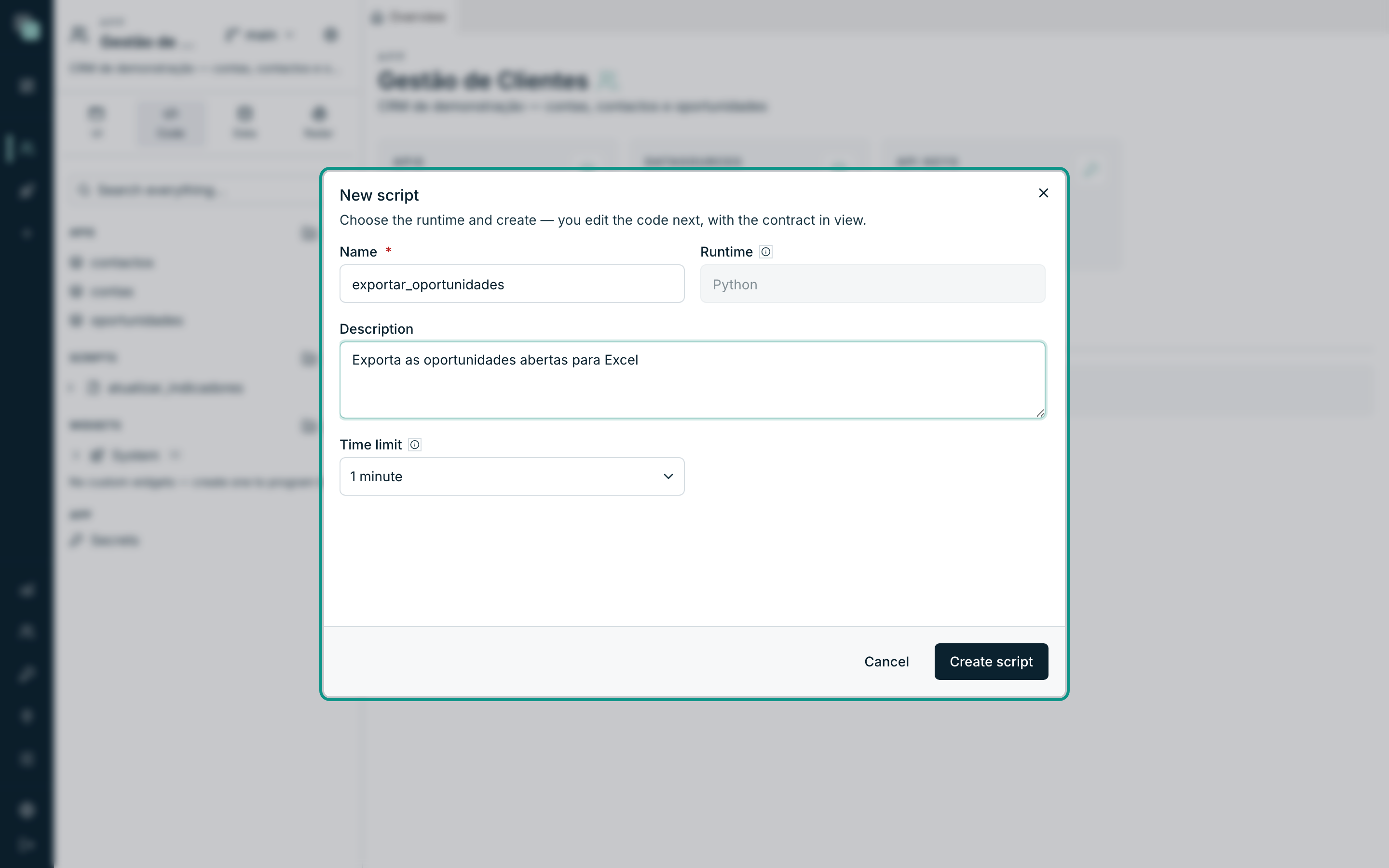
Fill in the New script modal:
Field Notes Name Required. E.g. sincronizar-clientes. This is the name by which schedules and APIs refer to the script.Runtime Fixed: Python. Server-side execution is Python only. Description Optional — "What does this script do?" appears in the list and in the tree. Time limit 30 seconds, 1 minute, 2 minutes, 5 minutes or 10 minutes. When exceeded, the process is killed and the run is marked as timeout. Click Create script. The script is born with its starting code (the contract in plain sight, in comments) and the editor opens immediately in a tab.
Note
The runtime is set at creation and cannot be changed afterwards. Name, description, version and time limit can be changed at any time in Script settings.
The contract: main(input)
Every script has an entry file, main.py, with a main function. The
platform calls it on every run and the returned value is the script's
result:
def main(input):
    return {"ok": True}
The input parameter always carries three keys:
| Key | Contents |
|---|---|
input["args"] |
A dictionary with the run's arguments — the ones you typed in the Run now dialog, the ones defined on the schedule, or the ones the API passed. Values arrive as text. |
input["prev"] |
The result of the previous step, when the script runs inside an API. On manual and scheduled runs it is None. |
input["context"] |
Run metadata: the script's name and identifier, the trigger ("manual", "cron", "api" or "catchup"), the run number, and who called it. |
Rules for the result:
- It must be JSON-serializable: dictionaries, lists, strings, numbers,
booleans or
None. Objects of other types make the run fail. - The maximum result size is 32 MB.
- An uncaught exception ends the run in Error, with the full traceback in the logs.
Everything you print — with print or with the SDK's log(...) — shows up in
the run's logs, line by line. To reach data, HTTP calls, secrets,
notifications and more, use the api_manager SDK, described on the page
The scripts SDK.
The editor
The editor fills the script's tab across the full width. In the bar above the
code you see the path of the active file (main.py to start with) with a
status dot beside it — Saved or Unsaved changes. There is no save
button for code: changes save themselves about a second after you stop
typing.
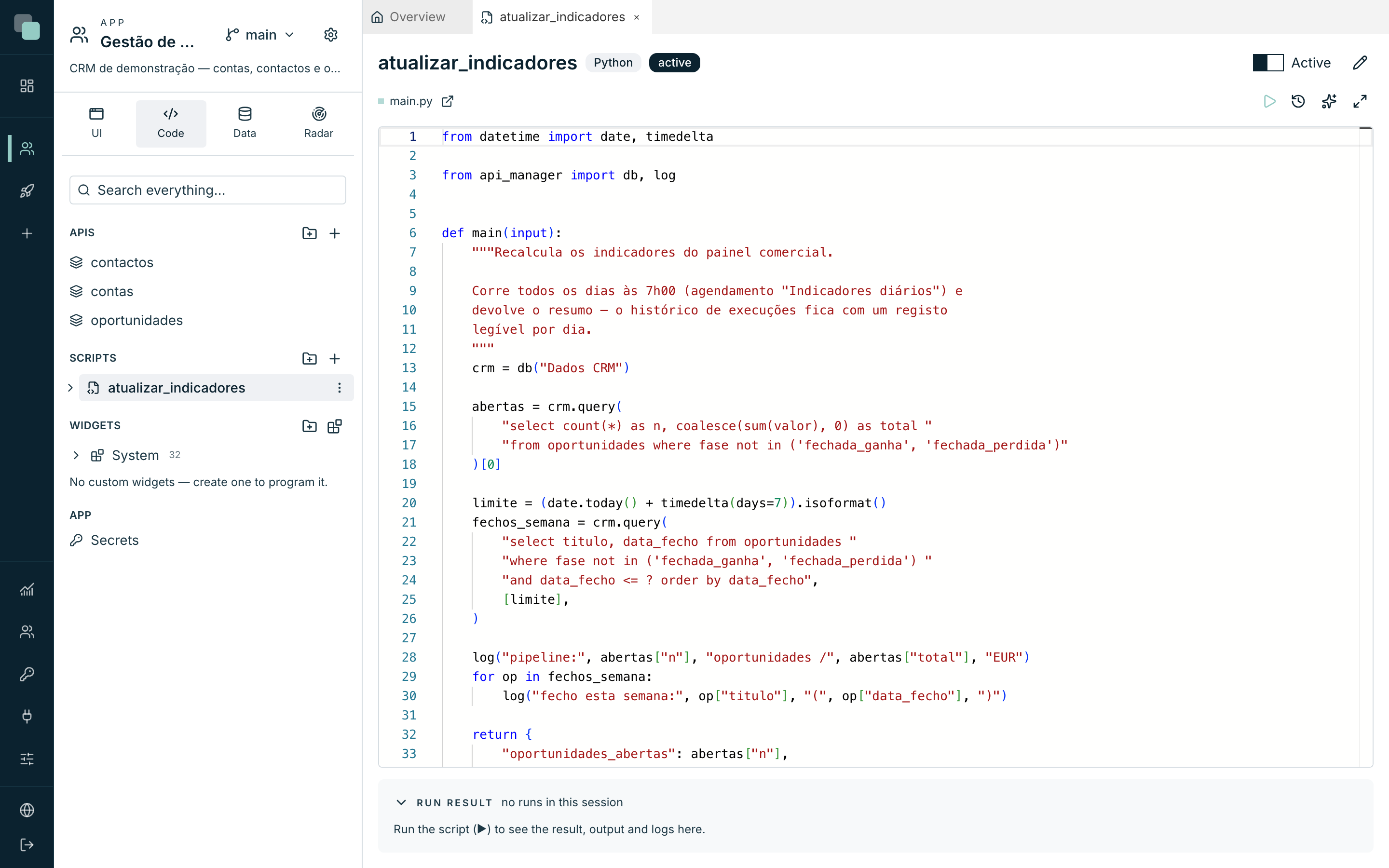
To the right of the bar are the buttons:
| Button | What it does |
|---|---|
| Run now (▶) | Saves everything and opens the manual run dialog. |
| Runs | Opens the script's run history. |
| LLM prompt | Opens a ready-to-copy text with the whole SDK contract, so you can ask an AI assistant for the script — see The scripts SDK. |
| Maximize editor | The editor takes over the whole screen; Esc or Minimize editor brings it back. |
While you write Python, the editor autocompletes: it suggests the SDK's
modules and functions (db, http, log, …), your own files and the pip
packages installed in the script's environment, shows the parameter signature
as you fill in a call, and documentation when you hover over a name.
Tip
The Open in its own tab icon next to the path opens the active file in a tab of its own — handy for seeing two of the script's files side by side. The file leaves the main editor: a file always has a single editor.
Python files are saved formatted by ruff, which the platform installs in an
environment of its own the first time it is needed (it needs access to
pypi.org). The editor does not touch what you are typing while you type: the
formatted code appears when you open the file again, or right away with
Format code (Shift+Alt+F).
Running it by hand
- Click Run now (▶). Anything pending is saved first.
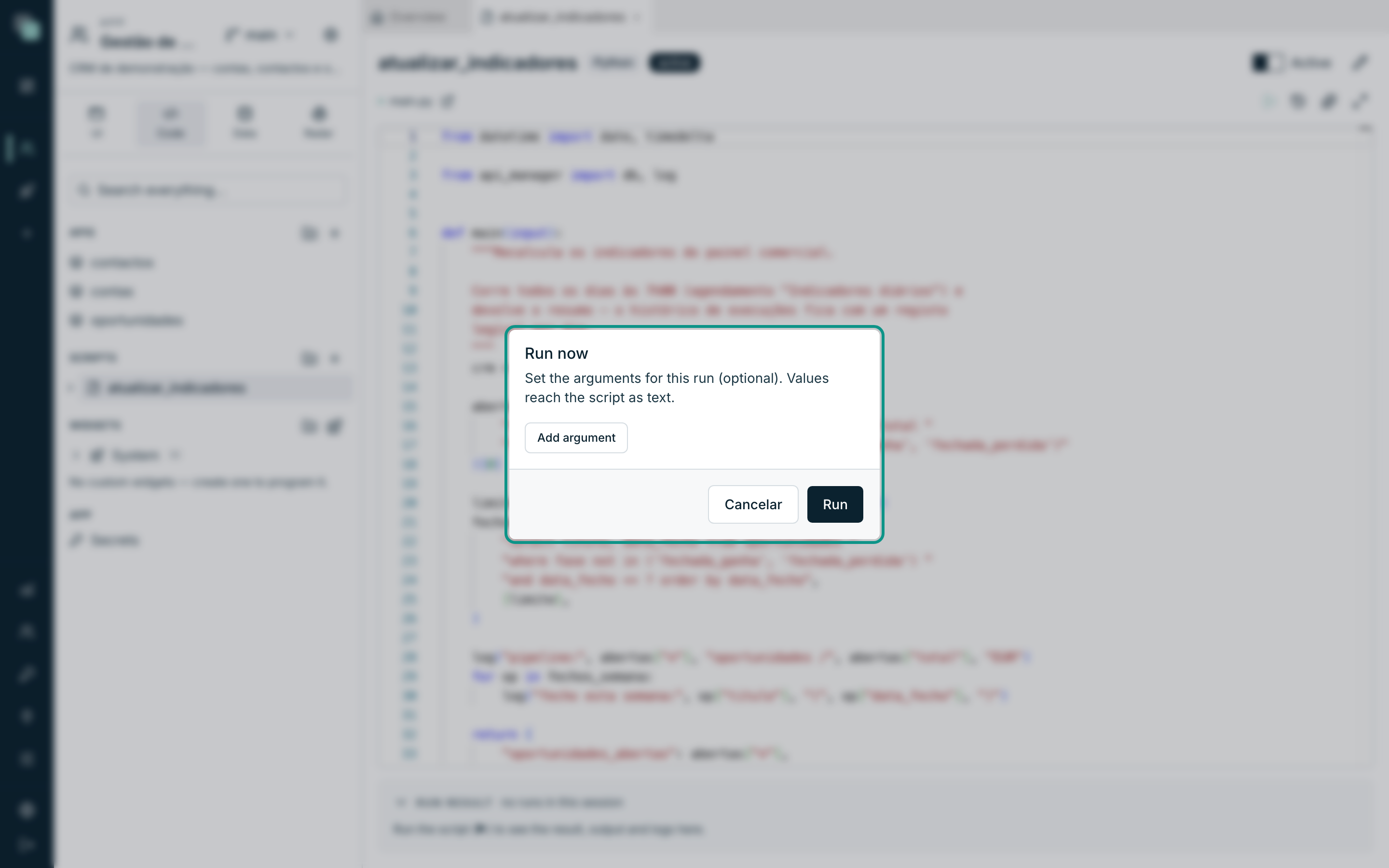
- In the dialog, set the arguments for this run (optional): click
Add argument and fill in name (e.g.
clienteId) and value. Values reach the script as text, ininput["args"]. - Click Run.
The Run result panel, below the editor, shows straight away:
- the status — Success or Error — and the duration in milliseconds;
- the value returned by
main, formatted as JSON; - the Logs, with every line written by
log(...)orprint.
If the run fails, the error message appears in place of the result, and the full traceback stays in the logs.
The panel has two zones, Result and Logs, with a draggable divider between them; each zone collapses with a click on its title, and the split is remembered. The panel's height is also dragged, from its top edge.
To see the code and the result side by side, click Open the console in another tab: the console opens in a tab of its own to the right of the editor, which you can drag wherever you like. While that tab exists, the panel below the editor gives way to a line with a Show button that focuses it; running is still done from the editor and the result appears in the console. Closing the tab brings the panel back into the editor, with the last result.
The run history
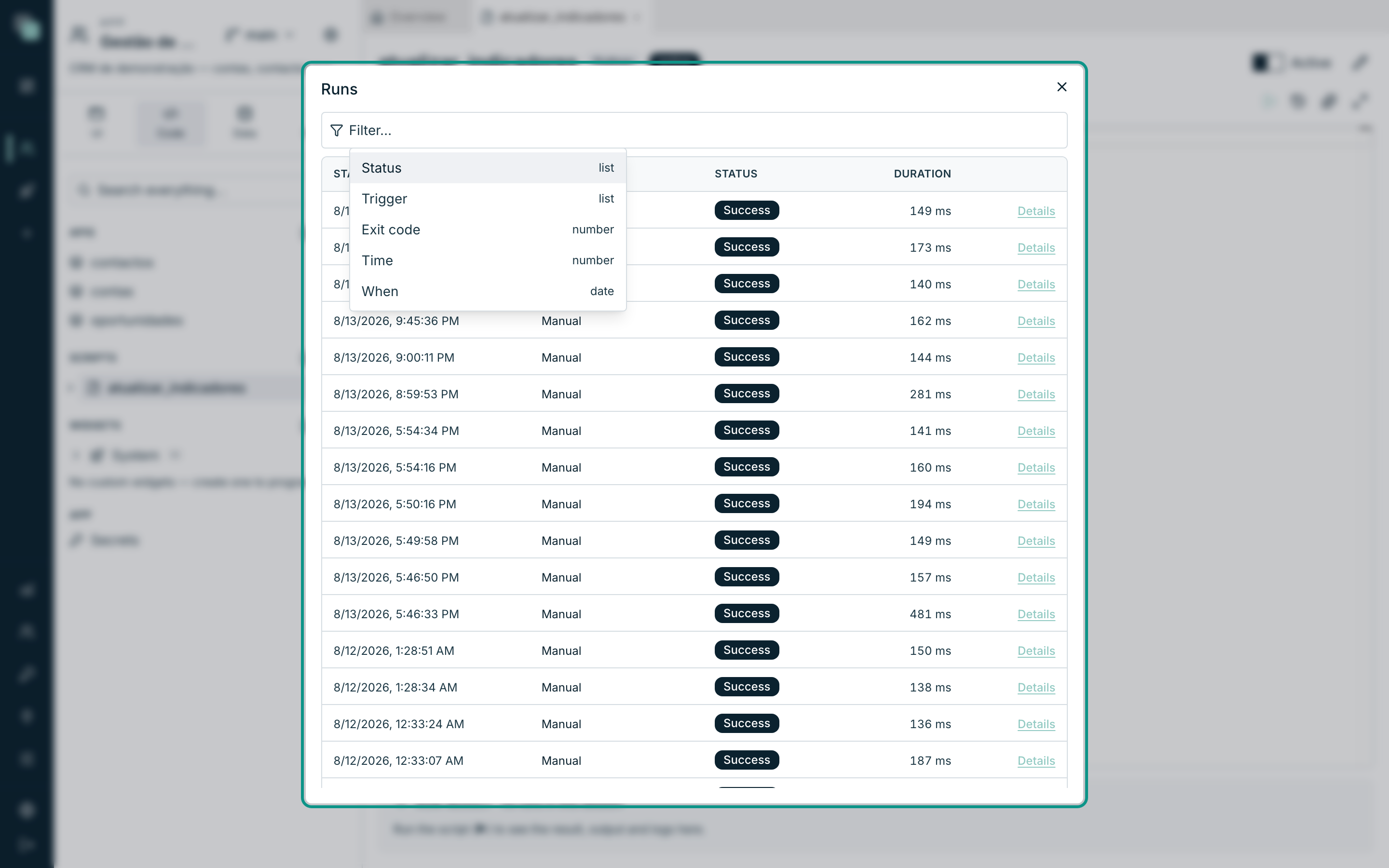
Click Runs in the editor's bar. The modal lists every run of the script, with filters by status, trigger, duration and date:
| Column | Contents |
|---|---|
| Started | The date and time the run began. |
| Trigger | Manual, Cron, API or Catch-up (a run recovered from a schedule that was missed). |
| Status | See the table below. |
| Duration | In milliseconds. |
The possible statuses:
| Status | Means |
|---|---|
| Success | main returned a result without error. |
| Error | An uncaught exception, or a non-serializable result. |
| Running | The run has not finished yet. |
| Timeout | It exceeded the script's Time limit and was killed. |
| Aborted | The process was killed before the end (e.g. the server stopping). |
| Skipped (overlap) | A schedule fired while the previous run was still going — this one never ran. |
Click Details on a row to expand it: you see the Arguments it ran with, the Result it returned, the Error (if there was one) and the complete Logs.
Note
The history keeps the essentials, not everything: very long results and logs are truncated in the record. The Run result panel right after a manual run is the right place to inspect large outputs.
Active or draft
In the header of the script's panel there is an Active switch. A script with the switch off is a Draft:
- it does not run on a schedule — the planned times are recorded as Skipped, with the note "The script is a draft";
- it can still be run by hand in the editor, so you can test it as much as you like.
This is how you develop calmly: write, test with Run now, and only turn Active on once the script is ready to run on its own.
Script settings
Open Script settings (from the script's action menu in the tree, or from the panel's header) to change:
| Field | Notes |
|---|---|
| Name | The name by which schedules and APIs refer to it. |
| Version | Shown wherever this script is used as another one's dependency (app/script@version). |
| Description | Free text. |
| Time limit | The same options as at creation, from 30 seconds to 10 minutes. |
The runtime is not available for editing — it is set at creation.
Frequently asked questions
Why does the run show up as Timeout? The script took longer than the Time limit you set. Raise the limit in Script settings (maximum: 10 minutes) or split the work — for example, process smaller batches per run.
I typed in the editor and ran it straight away — did it run the old version? No. Run now first saves everything that is pending; the run always uses what is on screen.
The result comes back fine but the arguments arrive "wrong"?
Arguments always arrive as text. An argument limite = 10 arrives as
"10" — convert it in the code: int(input["args"].get("limite", 0)).
Can I keep state between runs? Each run is an isolated process — variables do not survive from one to the next. To persist something, write a file in the script's folder (see Dependencies and files) or store the data in a datasource.