How versioning works
What a version of an app is, how it is created, what it carries with it, how you switch versions and how one is deleted.
Every app in Keplin has versions. A version is a living copy of the app — with its design (screens, model, APIs, scripts, reports, workflows, settings) and with its data — where you can work without touching the others. It is what makes it possible to prepare next quarter's feature without touching what is in production.
An app is born with a single version, called main, and most apps live perfectly well like that. Versions appear when work needs separating: a big overhaul, an experiment that may not take, or two people touching different areas at the same time.
Where the versions are
Open an app in the sidebar. At the top of the app bar, to the right of the
name, sits the versions button — it always shows the version you are
working on: main.
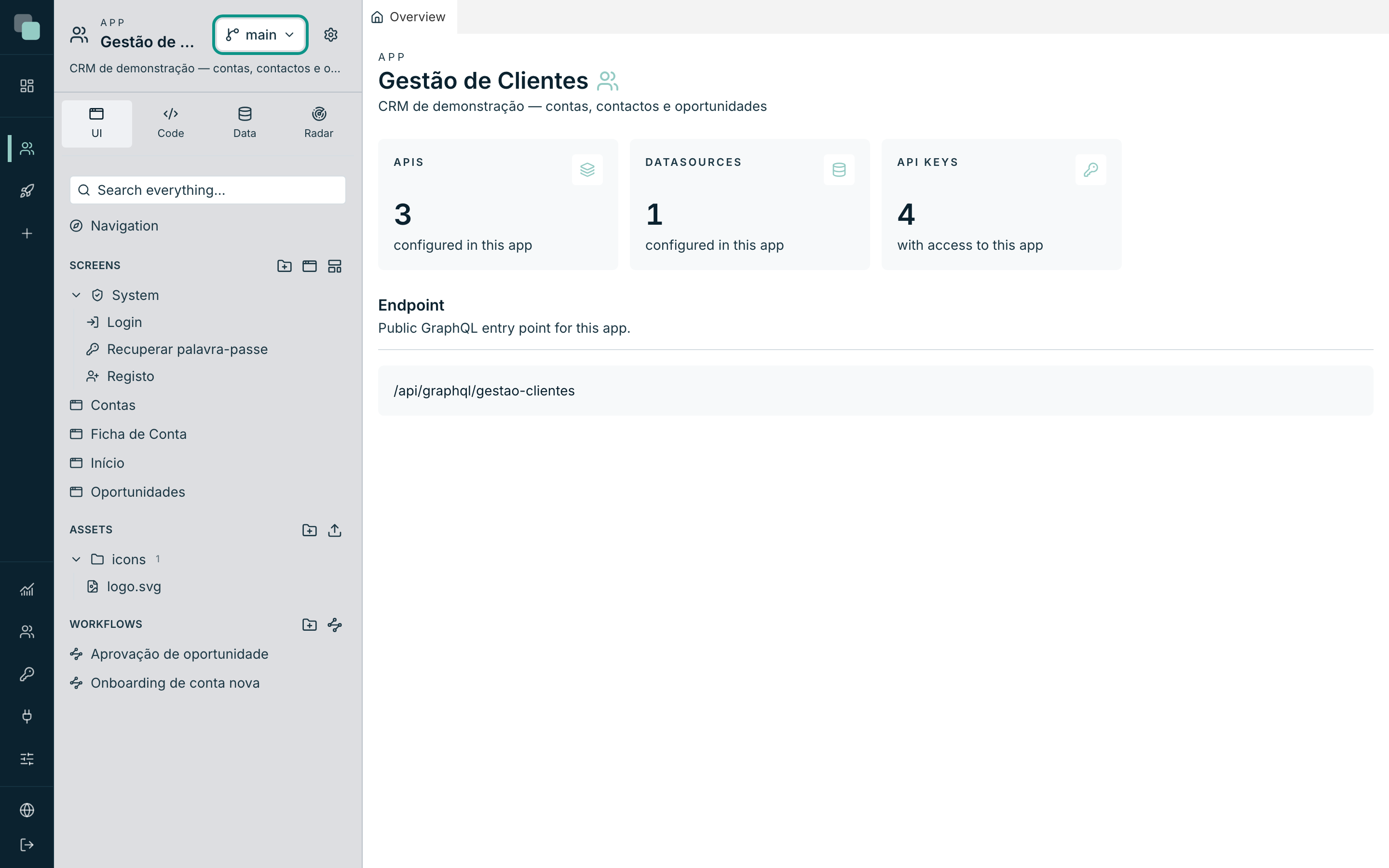
Click it to open the Versions menu:
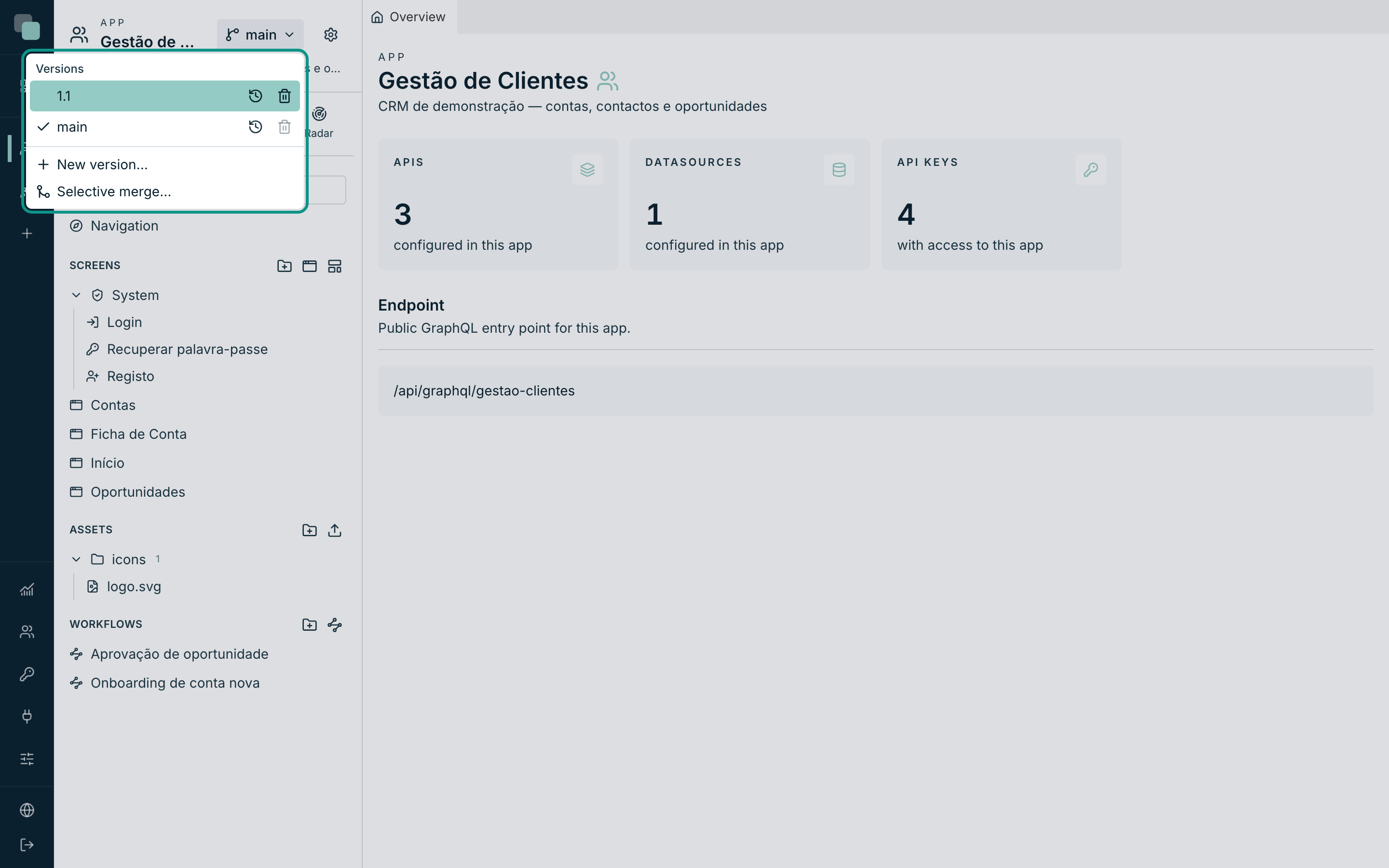
The menu has, in this order:
| Area | What it is |
|---|---|
| Versions | The list of the app's versions. The version you are on has a check on the left. |
| Icons on each row | To the right of each version: the clock opens its history, the bin deletes it. |
| New version… | Creates a version from another. |
| Selective merge… | Brings elements from one version into the one you are on (see the "History and merge" page). |
Note
In an app that was never saved, the menu says "This app has no history yet." — the first version is born with the first save. Save anything (a screen, the theme, a setting) and the main version comes to exist.
Creating a version
- Open the Versions menu in the app header.
- Click New version….
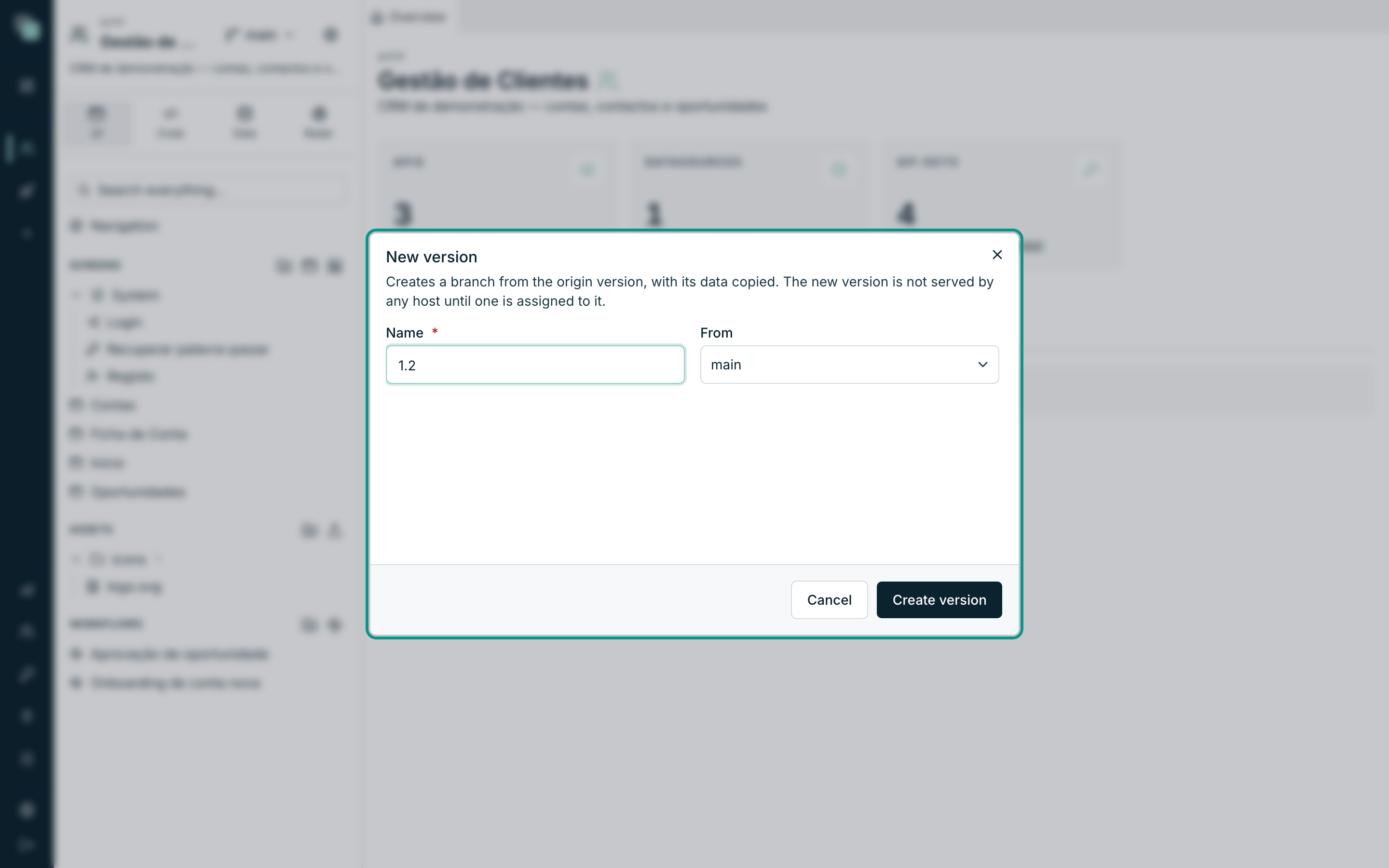
- The New version modal opens, with the explanation: "Creates a branch from the origin version, with its data copied. The new version is not served by any host until one is assigned to it."
- Type the Name. Letters, numbers, dot, hyphen and underscore are
allowed — for example
1.1,2026-q1orexperiencia-checkout. - Choose From — the origin version. By default it is the one you are on, which is what you want almost always.
- Click Create version.
The confirmation says "Version “1.1” created — you are now working on it."
and it is literal: creating a version puts you to work on it. It is not
decorative convenience — whoever creates a version creates it to change it,
and staying on the origin would be the perfect invitation to edit main
thinking you were on the new one.
What the new version carries with it
| Carries | Does not carry |
|---|---|
| The whole design: screens, layouts, widgets, model, APIs, scripts, reports, workflows, translations, theme, permissions | The public address: the version is born served by nobody |
| The origin version's data, copied — including the database connections and the uploaded files | The sessions and the users already connected to the old version |
The copying of the data deserves a warning, because it is the source of the classic mistake:
Warning
Database connections are copied exactly as they are. If the origin version pointed at the production database, the new version points there too — and what you write there really writes. Changing that is the job of whoever creates the version: open the new version's datasources and point them at what they should.
Creating is not publishing
A new version exists and nobody serves it. It only becomes reachable when an address is assigned to it. This has a very welcome practical consequence: the schedules and the scheduled reports of a version nobody serves do not fire. There is no need to remember to switch them off so they don't run in duplicate.
Switching versions
In the Versions menu, click the row of the version you want to go to. The workspace reloads and you start seeing that version's trees, screens and data.
Three things worth knowing:
- The switch is yours and yours alone. Nobody on the team changes version because you did; each person chooses their own.
- The choice lives on the server, not in the browser. Closing the tab, changing computer or coming back tomorrow leaves you exactly on the version where you were.
- The header button always shows the active version. If you're unsure where your work is being saved, that is the place to look.
Deleting a version
- Open the Versions menu.
- On the row of the version to delete, click the bin icon (Delete).
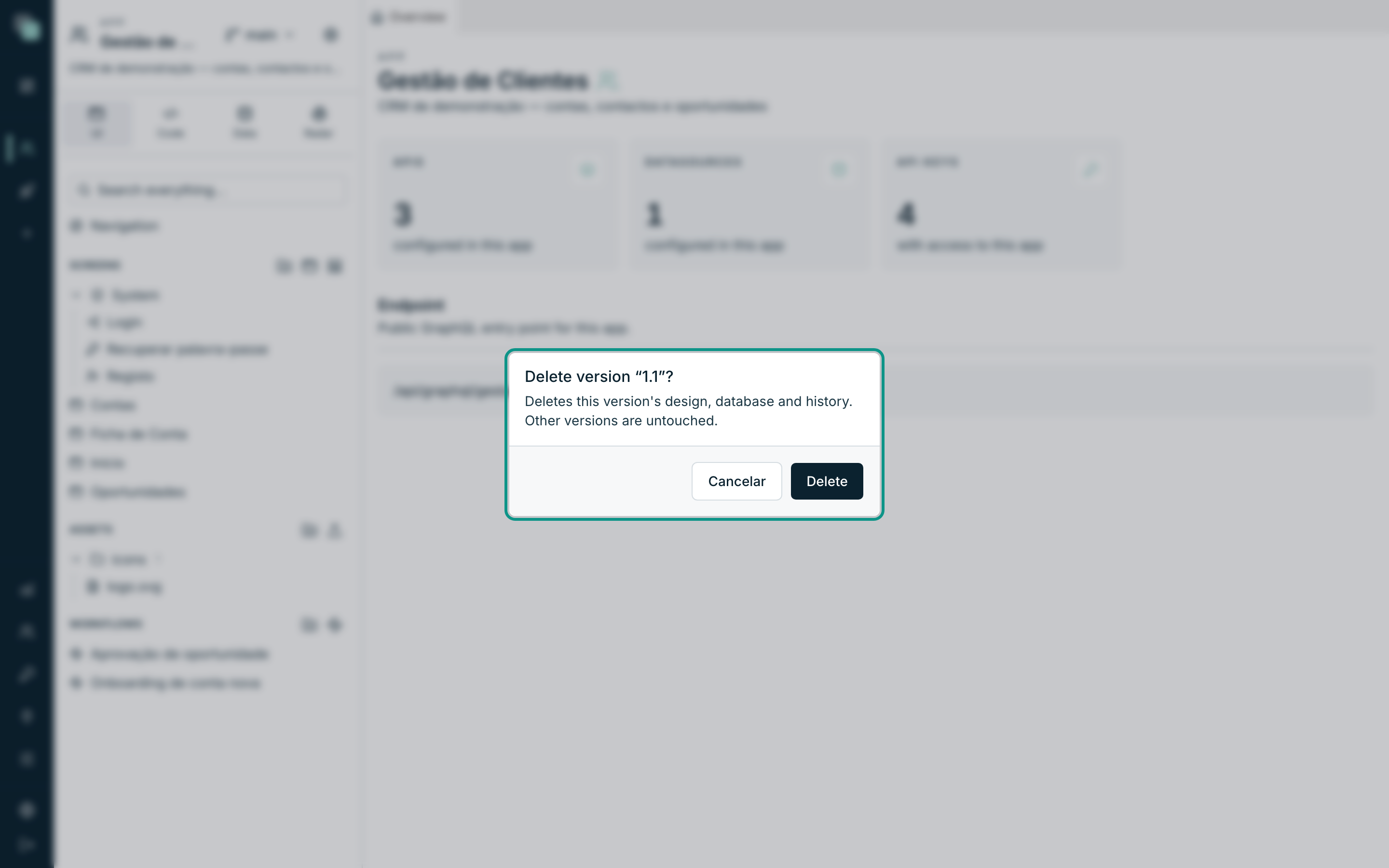
- Confirm in the dialog 'Delete version “1.1”?' — "Deletes this version's design, database and history. Other versions are untouched."
- Click Delete. The confirmation says "Version “1.1” deleted.".
Two versions can never be deleted, and the button explains why on hover:
| Case | What the button says |
|---|---|
| The main version | "The main version cannot be deleted." |
| The version you are on | "This is the working version — switch to another before deleting it." |
Warning
Deleting a version deletes its data. If the version had a database of its own with records that matter, take them out first — or bring what matters into another version with the selective merge. There is no recycle bin.
Frequently asked questions
- Is publishing choosing a version? Yes. Versions share neither data nor design; publishing is deciding which version an address serves. As long as nobody points an address at the new version, it is yours alone.
- How many versions can I have? There is no imposed ceiling, but each version is a full copy of the data — ten versions of an app with heavy data take up ten times the space. Delete the ones that no longer serve.
- Does switching versions lose unsaved work? No: what you saved stayed saved in the version where you were. What you had not saved yet, yes — save before switching.