Platform settings
The installation's administration panel — background work, warning email, thresholds, limits, updates and the mobile app.
The Settings are the control panel of the whole installation. They are not the settings of an app — those live inside each app and travel with it. Here is where you decide what the platform does on its own, where it sends its warnings, from what values it starts worrying, and how long a session lasts.
It opens through the Settings item, at the bottom of the sidebar. Only accounts with an administrator profile get in.
Note
Every setting on this page is saved with the Save button, at the bottom of the screen. Leaving without saving keeps nothing.
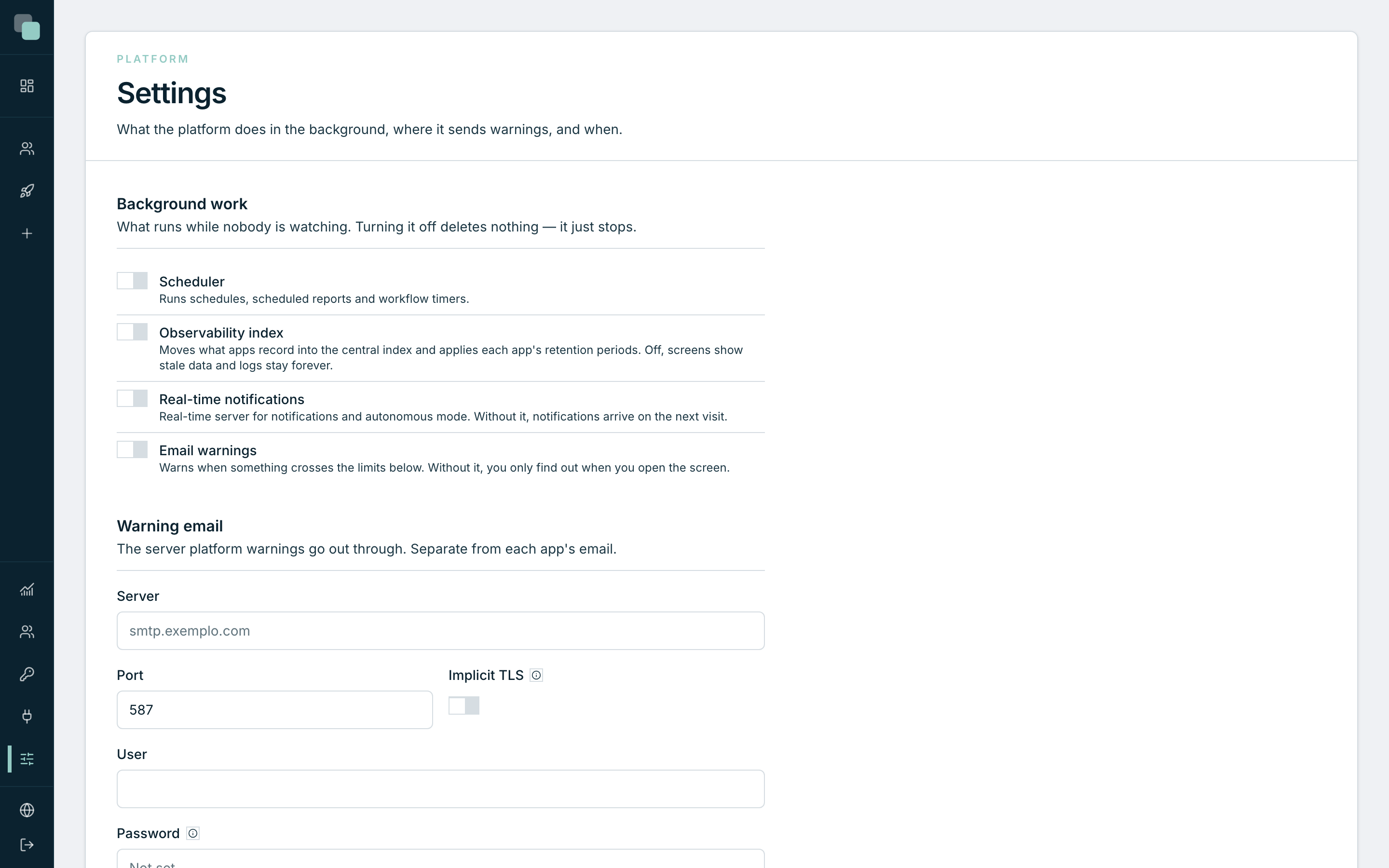
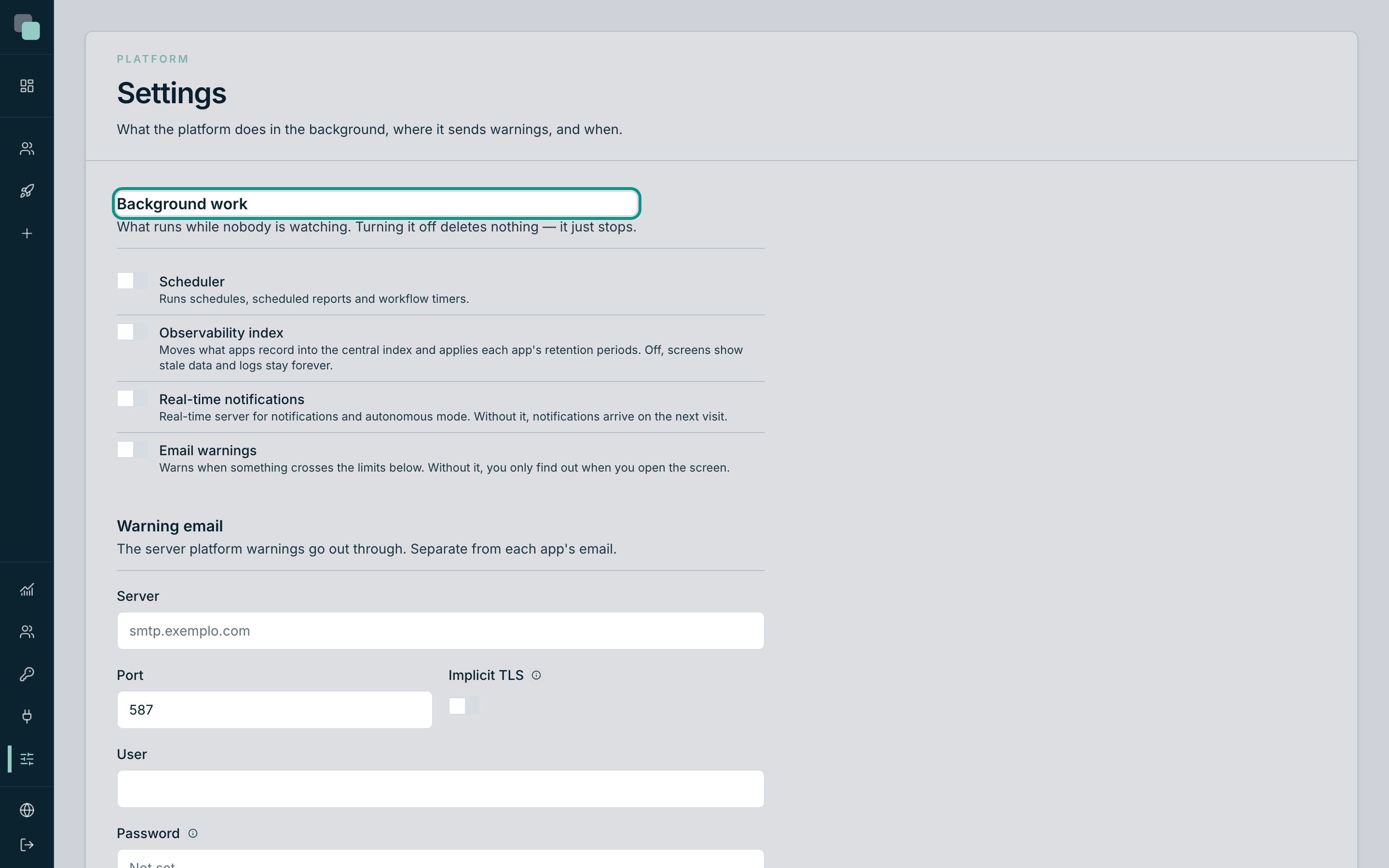
Background work
The first section turns on and off what runs while nobody is watching. There are four independent switches:
| Switch | What happens when it is on | What you lose when you turn it off |
|---|---|---|
| Scheduler | Runs the schedules, the scheduled reports and the workflow timers. | Nothing is deleted: the appointed times simply do not run until it is back on. |
| Observability index | Moves what the apps record into the central index and applies each app's retention periods. | The Radar screens show stale data and the logs are kept forever. |
| Real-time notifications | Notifications reach the screen of whoever is working, on the spot. | Notifications go on being created and delivered — but they only appear on the next visit. |
| Email warnings | Warns when something crosses the limits defined further down. | Nobody is warned; problems are only discovered by opening the Radar. |
Warning
Turning off the Scheduler is the number one cause of "my scripts stopped running". If a schedule looks dead, check this switch before investigating the script. The same goes for scheduled reports and for wait steps in workflows — they all depend on the same engine.
Warning email
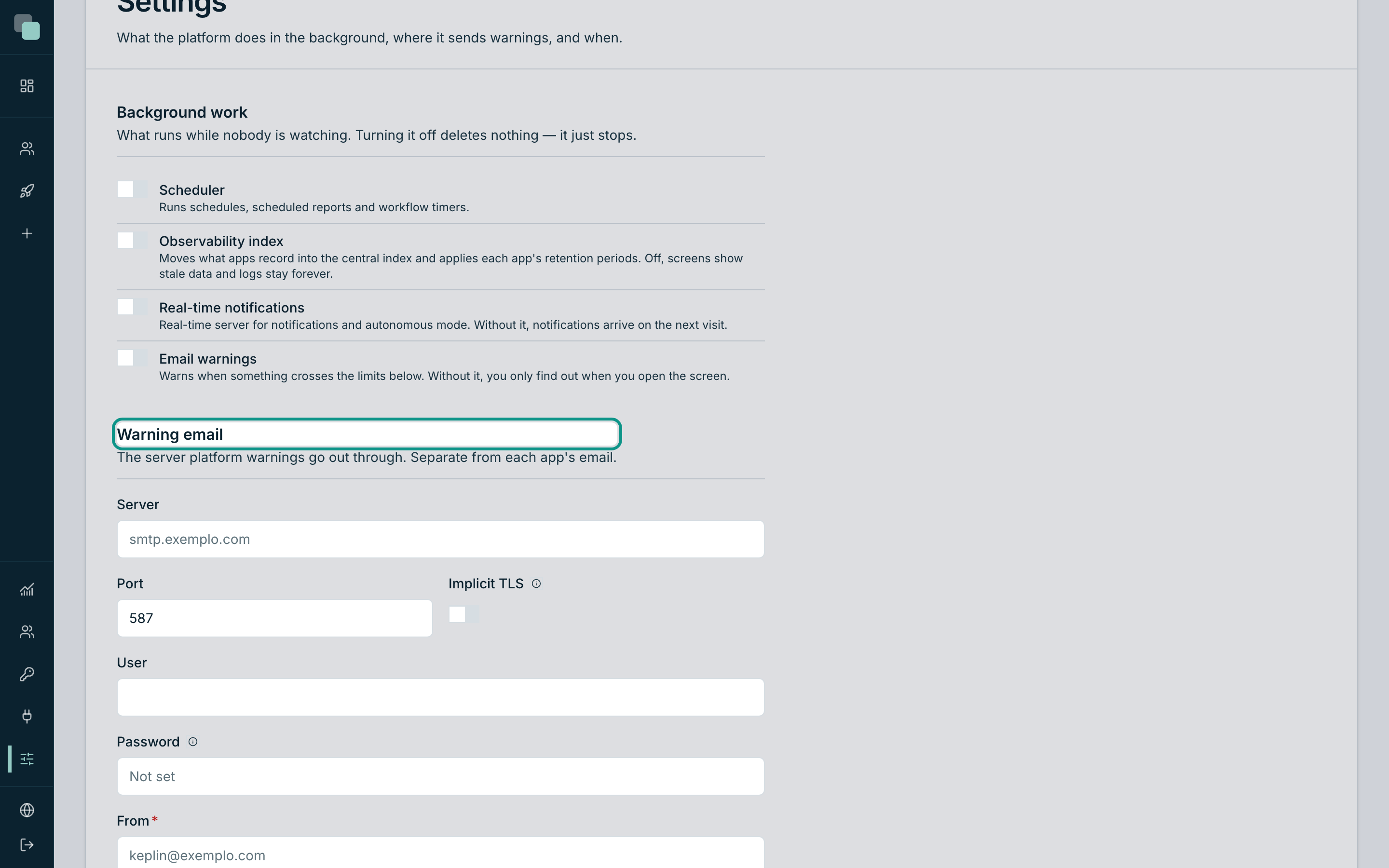
This is how the platform sends its own alarms — not to be confused with the email each app sends to its users, which is configured in the app's notification channels.
Fill in:
- Server and Port of the email service.
- Implicit TLS — on for SMTPS (port 465); off for STARTTLS (port 587).
- User and Password of the sending account. The password is written once and never comes back to the screen: the field starts saying it is set, and leaving it empty means "do not touch", never "delete".
- From — the address that appears to whoever receives.
- Recipients — who receives the alarms, separated by commas.
When to warn
The thresholds tell the platform what is normal and what deserves an email. All of them are evaluated within the window defined at the end of the section.
| Value | What it means |
|---|---|
| API errors (%) | Percentage of failed requests above which an alarm opens. |
| Minimum requests | Below this number of requests, the percentage does not count. One error in three requests is 33% and means nothing. |
| Failed scripts | How many failed runs open an alarm. |
| Queue lag (s) | How long the background work may fall behind before being considered late. |
| Free disk (%) | Below this percentage, warn. |
| Window (min) | The period everything above is counted over. |
Tip
On an installation with little traffic, raise the Minimum requests. It is the field that avoids false alarms in apps that are only used in the morning.
Sessions and limits
Two settings that apply to the whole platform:
- Session length (h) — how long a session lasts without activity. While you work, the session renews itself; only prolonged inactivity forces you to sign in again.
- Max file (MB) — the maximum size of a file uploaded in any app of the installation. It also applies to files uploaded to an app's assets. It goes up to 100 MB. Importing apps does not depend on this value: it accepts packages up to 1 GB (see Importing and exporting apps).
Public address
The Public address is the address people use to open the platform, for
example https://platform.example.com. It is the one used in email links,
such as the password recovery link for app accounts. The section only
appears in an installation with a single tenant; in multitenant, each
tenant's address applies.
It is filled in at the first administrator sign-in, with the address the administrator used. If that is not the address people use (for example, if the administrator signed in through the internal network IP), correct it and click Save.
Without a Public address, password recovery only works for apps published on their own domain. The address that comes with a request is never used for the link, because whoever makes the request chooses it.
The platform's PostgreSQL server
For internal PostgreSQL datasources (see Connecting databases), the installation needs a PostgreSQL server where the platform creates the databases. The configuration belongs to the installation, not to an app: in a single-organisation installation it lives in Settings, under Managed PostgreSQL server; in a multi-client installation it lives in the installation's back office. Fill in the address, the port, the administration account and the limit of databases per client, save, and use Test server to confirm that the platform can create databases on that server. Until it is configured, the PostgreSQL option of the Internal tab is disabled when creating a datasource.
Updating the platform
Where and how you update depends on the installation mode:
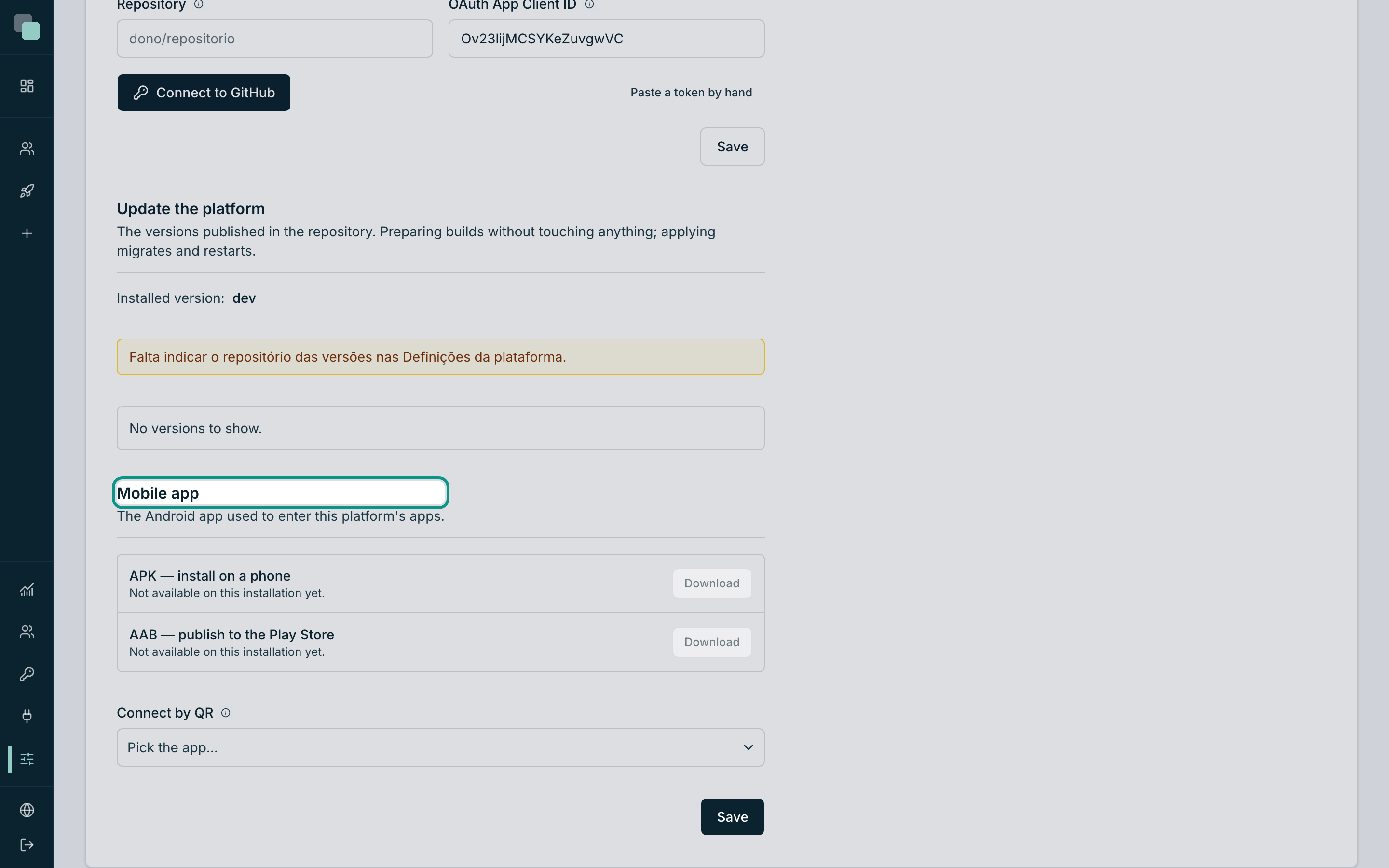
- Single-organisation installation: there is no update through the interface. The Update the platform section of Settings shows the Installed version: and the command to run on the server console with the new version's zip, with a button to copy it. The installer keeps the settings and the data and runs the migrations; to go back to an earlier version, install that version's zip.
- Multi-client installation: the update is done in the installation's back office, under Updates, and that is the screen the rest of this section describes. Each client's Settings have no updates.
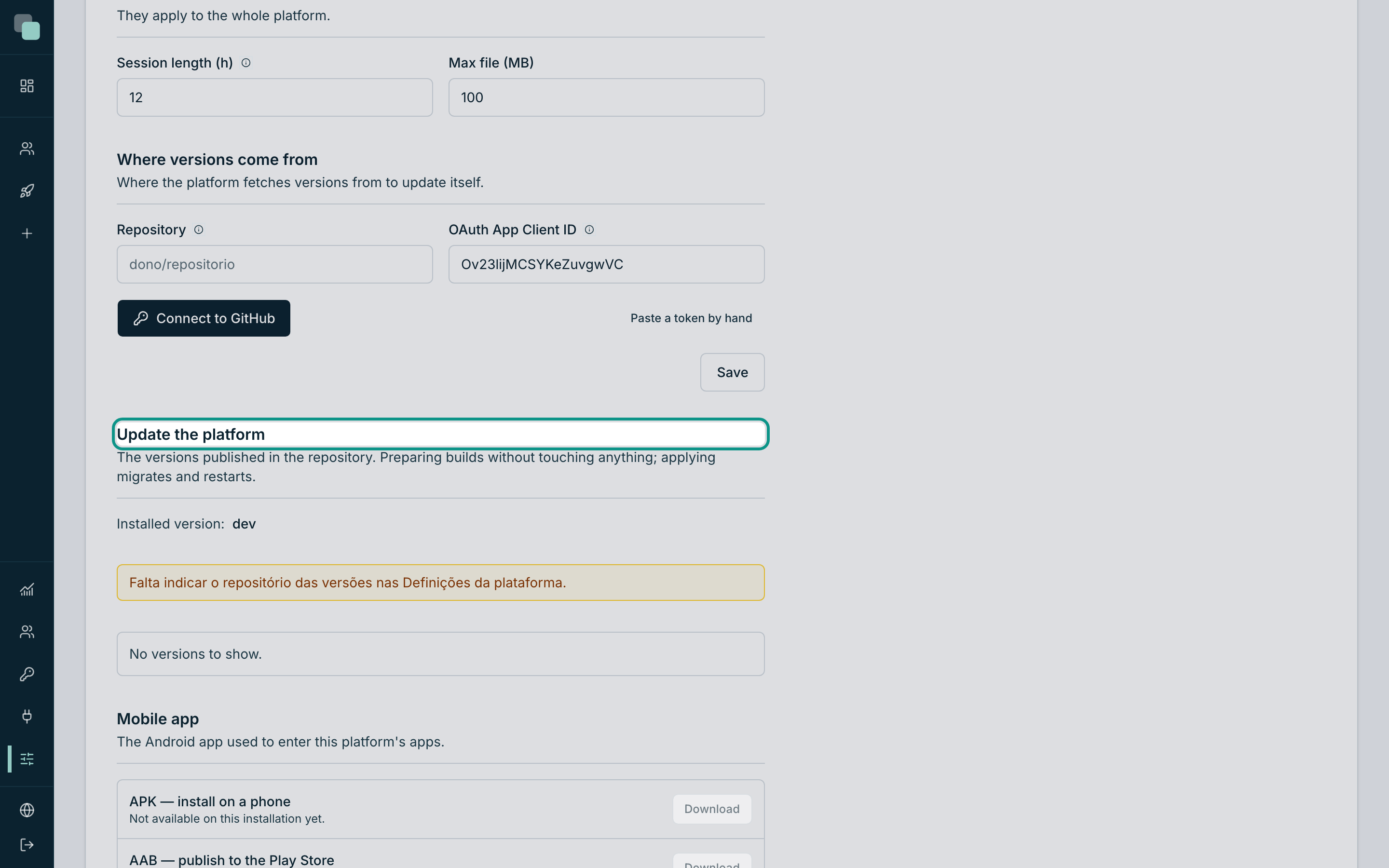
The update section shows the installed version and the list of available versions. The process has two buttons, on purpose:
- Prepare — fetches the chosen version and prepares it without touching anything that is being served. The platform keeps working.
- When the preparation finishes, the plan appears: how many databases will be migrated, which app files are rewritten and in how many versions, plus the notice that the databases are copied before anything is touched.
- Apply this update — only after you have read the plan. The platform becomes unavailable during the restart and comes back on the new version.
Note
If an app has changes on disk that are not in the history yet, the plan says so and the update records them first, in a separate entry, before it rewrites the files. Files that the platform writes on its own, such as the copies of script dependencies that a schedule makes, do not count.
If anything goes wrong along the way, the previous version is restored automatically and the screen says so — including the log of what failed.
The rollback returns the databases, and also the app files that the migrations had rewritten, to the state before the update.
Mobile app
The last section serves the Android app used to enter the apps of this platform. It has two files to download and one QR code per app — it is explained in detail in the Mobile app chapter.
Unused files
Files uploaded in the apps aren't deleted on their own: not when the record that had them is deleted, not when an attachment is replaced, and not when a form is left halfway. View unused files opens the page where you find them and decide what goes.
- Click Find unused files. The search reads every app, and in an app with large databases it can take a while.
- Each app appears with the files that no known reference uses: name, size, date and versions. The icon next to the name downloads the file, so you can confirm what it is.
- Select the files and click Delete selected. The page asks for confirmation; before deleting, the platform searches again, and a file that has meanwhile come into use is kept.
A file counts as used when its token appears in the app's design, in the app's SQLite databases (including processes and notifications) or in a text column of a model table, in any version. A table outside the model or an external system isn't seen: confirm before deleting. Files from the last 24 hours aren't included, and an app with a database that can't be read is left out of the list.
Warning
A deleted file doesn't come back. The bytes leave the app's storage and the file leaves the registry of every version.
Frequently asked questions
I changed a threshold and received nothing. Alarms are only evaluated minute by minute and only within the defined window. Also check that the Email warnings switch is on and that there are recipients filled in.
Can I have different email servers per app? Yes — and it is the normal thing. The email on this page is only the platform's warnings; each app configures its channels in its own settings.
Who can see this page? Only accounts with an administrator profile. A developer does not see it in the sidebar and does not get in by direct address either.