Creating and managing apps
Where apps live, how one is created in the New app modal, how the name and icon are changed, and how an app is deleted without surprises.
In Keplin, the app is the unit of everything: each application you build — with its data model, its screens, its APIs, its scripts, its users and its settings — is an app, self-contained and independent of the others. This page shows where the apps appear, how one is created, how its identification is changed, and what happens (exactly) when one is deleted.
Where apps live
The apps are always at hand, in the platform's left sidebar. The bar splits into three zones: at the top the Dashboard, at the bottom the administration (Observability, Users, API Keys, Settings), and all the space in the middle belongs to the apps — each with its icon and its name. It is the only zone of the bar that grows and gains a scroll when the apps are many.
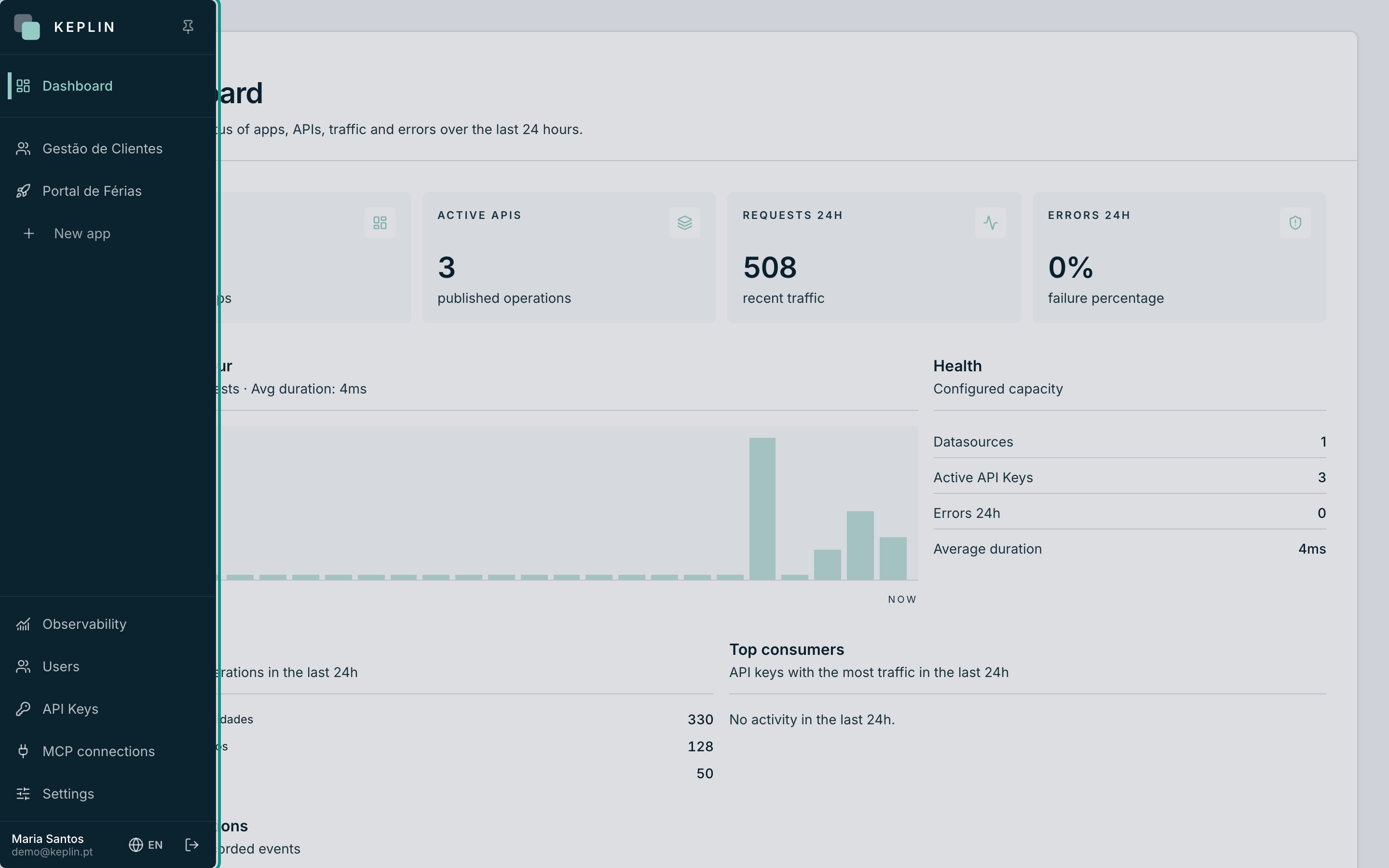
- With the bar collapsed you see only the icons; hover over it to expand it, or use Pin sidebar (the pin at the top) to keep it open.
- Click an app to open it: you enter its workspace, on the Overview tab, with the content trees (UI, Code, Data, Radar) in the app's own bar.
- The Dashboard's Apps card shows how many registered apps exist on the installation.
Note
Not everyone sees the same apps. An administrator sees them all; a developer sees only the apps assigned to them on their record, in Users. If an app "does not appear", it is almost always this.
Creating an app
Creating an app is opening a modal, giving it a name and an icon. Only administrators have the button.
- In the apps zone of the sidebar, click New app (the button with the plus sign, at the end of the list).
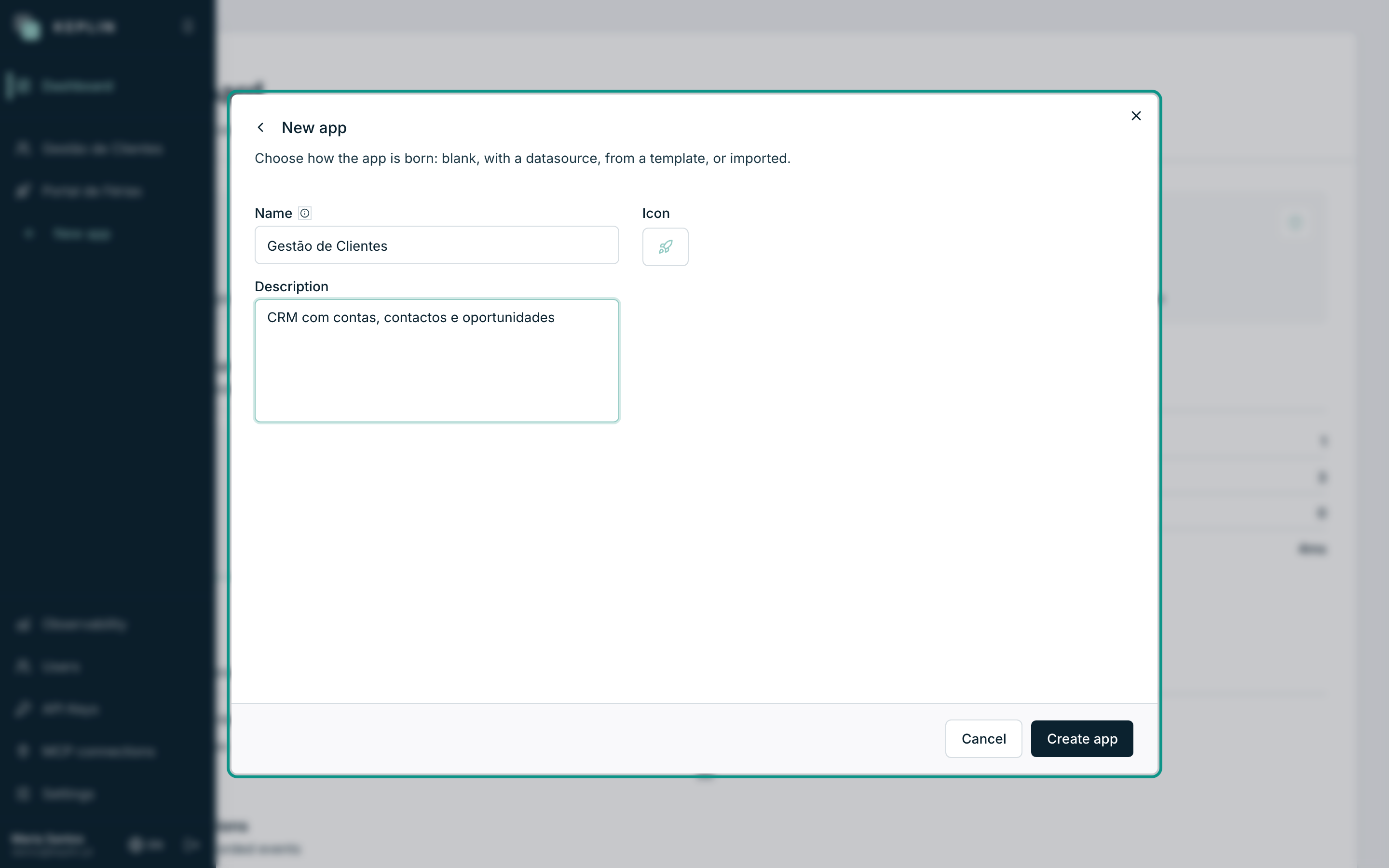
- The New app modal opens — "Choose how the app is born: blank, with a datasource, from a template, or imported." — with four cards: Blank app, App with a datasource, From a template and Import package. For an app from scratch, pick Blank app. (The App with a datasource card does the same and also creates the app's first SQLite datasource, ready to use on screens; templates and importing have pages of their own in this chapter.)
- Fill in the Name. It is the name that appears in the sidebar and in
the headers — for example,
Gestão de Clientes. - If you like, write a Description — one sentence that tells the rest of the team what the app is for.
- Choose the Icon (see the next section).
- Click Create app. The app is born empty, appears in the sidebar and its workspace opens immediately.
| Field | Required | Limits | What it is for |
|---|---|---|---|
| Name | Yes | 2 to 120 characters | The app's visible name, everywhere. |
| Description | No | Up to 500 characters | Context for the team; appears in the app's header. |
| Icon | No | — | The app's face in the sidebar. With no choice, it stays the rocket. |
The slug — the identifier born with the app
Next to the Name field sits the note: "The slug is derived
automatically from the name." The slug is the short, technical version of
the name — lowercase, no spaces or accents: Gestão de Clientes gives
gestao-clientes. It is the slug that identifies the app in the addresses
(the working version answers at /app/gestao-clientes), in the export and
in the delete confirmation.
Warning
The slug has to be unique on the installation and does not change once the app exists. If there already is an app with the same slug, the creation stops with the error "A project with the slug… already exists" — change the name (or delete the old app) and try again.
The app's icon
The Icon field opens the platform's Pick an icon selector: a grid with hundreds of icons and a "Search icons…" box to filter by name. Click an icon to choose it; Default goes back to the original rocket.
The chosen icon follows the app everywhere: in the sidebar, in the workspace header, and it travels with the app when you export it in a package. On an installation with many apps, a distinctive icon is worth gold — it is how you find the app with the bar collapsed.
Changing the name, the description or the icon
The app's identification is changed in its settings, at any time:
- Open the app in the sidebar.
- At the top of the app's bar, click the App settings gear button and choose General.
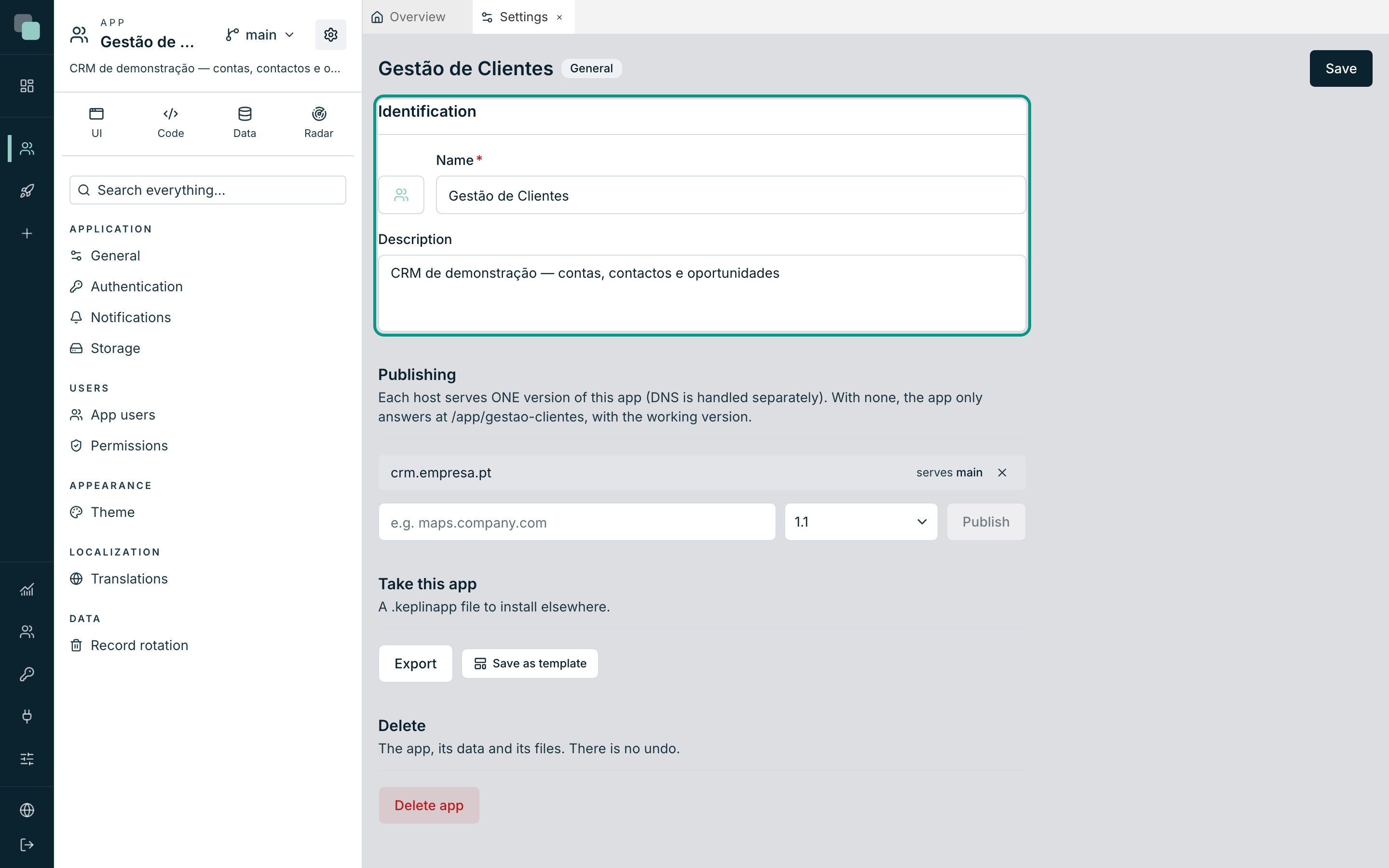
- In the Identification panel, change the Name, the Description or the icon — the icon sits right next to the name, because that is how the two appear in the sidebar.
- Click Save. The confirmation "Settings saved." appears and the sidebar updates right away.
Note
Changing the name does not change the slug or any published address — whoever uses the app notices nothing. The name is cosmetic; the slug is structural.
Deleting an app
Deleting an app is final, and that is why the platform asks for more than one click.
- Open App settings → General and scroll down to the Delete panel — "The app, its data and its files. There is no undo."
- Click Delete app.
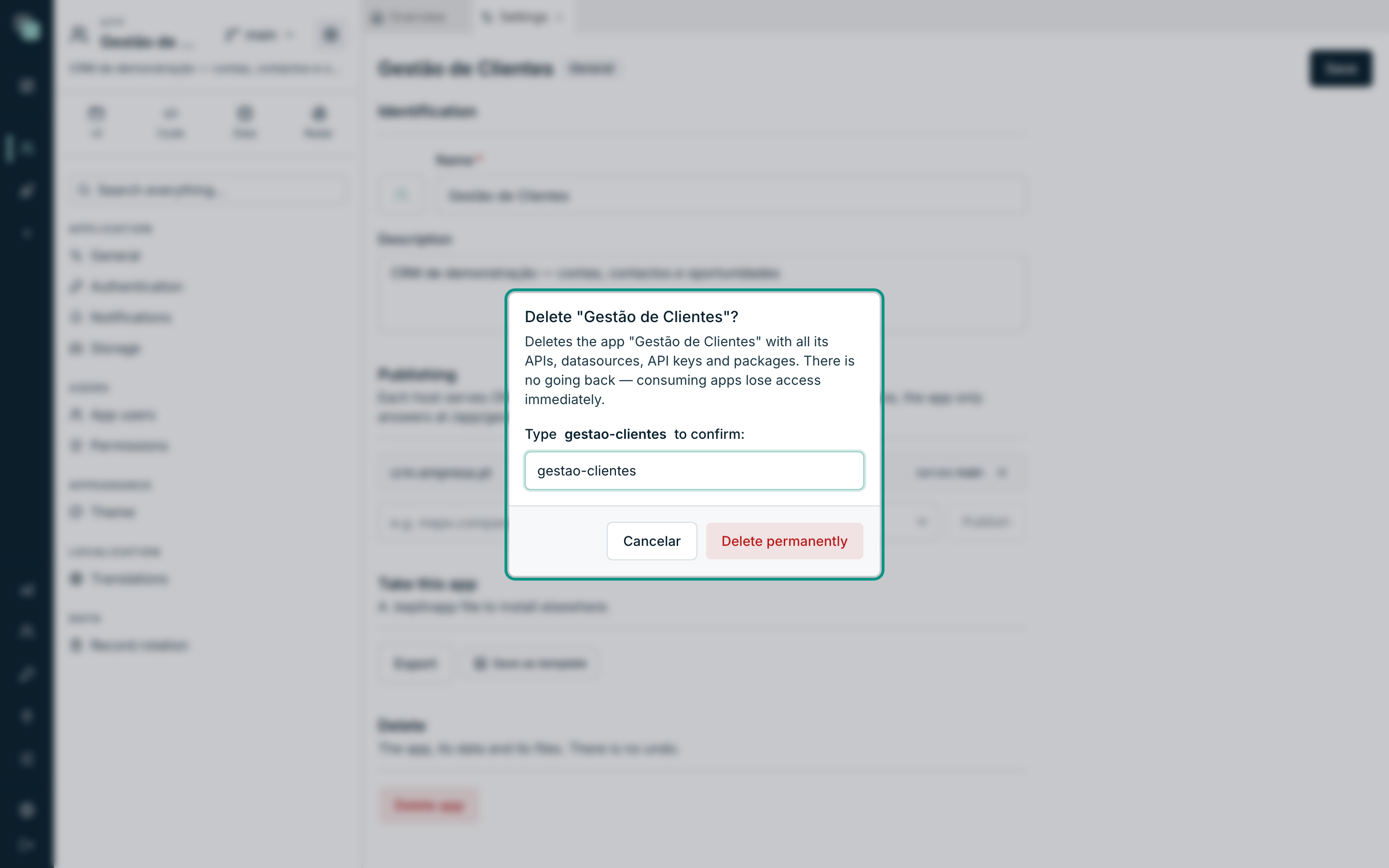
- The confirmation dialog 'Delete "Gestão de Clientes"?' opens, warning: 'Deletes the app "Gestão de Clientes" with all its APIs, datasources, API keys and packages. There is no going back — consuming apps lose access immediately.'
- Type the app's slug (
gestao-clientes) into the confirmation field — the button only unlocks when the text matches exactly. - Click Delete permanently. You return to the Dashboard, the app already gone.
What happens, precisely:
| Gets deleted | The whole app on this installation: model, screens, APIs, scripts, reports, workflows, every version, the app users' accounts, the files stored on the app's disk and its history. |
| Stops working right away | The published addresses and the app's API keys — any system consuming it loses access on the spot. |
| Stays intact | The audit (who did what remains consultable in Observability) and everything that is external infrastructure: other systems' databases the app connected to, files on S3, SFTP or network shares. Deleting the app never deletes data outside of it. |
Warning
There is no recycle bin and no "undo". Before deleting an app with work inside, export it as a package — the page "Importing and exporting apps" explains how, and a saved package is the only way to recover it afterwards.
Why can't I see…?
- …the New app button? Creating and importing apps is exclusive to administrators. With a developer profile, the button does not appear — ask an administrator to create the app and assign it to you.
- …an app that exists? Your account does not have that app assigned. An administrator fixes it on your account's record, in Users.
- …the Delete panel? Only administrators enter the General section of the settings with the power to delete. If the section opens but something fails on save, confirm your profile with an administrator.