Steps, decisions and waits
The catalogue of a workflow's nodes — conditions, writes to the record, notifications, emails, scripts, waits, loops, parallelism and joins.
This page walks through every type of step you drag from the Nodes palette onto the canvas. For each one: what it does, what you fill in and what happens during a run.
Before that, a piece that repeats in almost all of them: where a value comes from.
Where a value comes from
Whenever a step asks for a value — the right-hand side of a condition, what gets written into a field — the interface offers the same four sources:
| Source | What it brings |
|---|---|
| Fixed value | Text typed by hand ("Ganha", "25000"). |
| Record field | A field of the record the run is about. |
| Variable | One of the process variables. |
| Who started it | Whoever started the process — Username or User id. |
This is why a process needs no code for most of what it does: decisions and writes are composed out of these four pieces.
Condition
Opens two paths from a question. It always has two fixed outcomes: True and False.
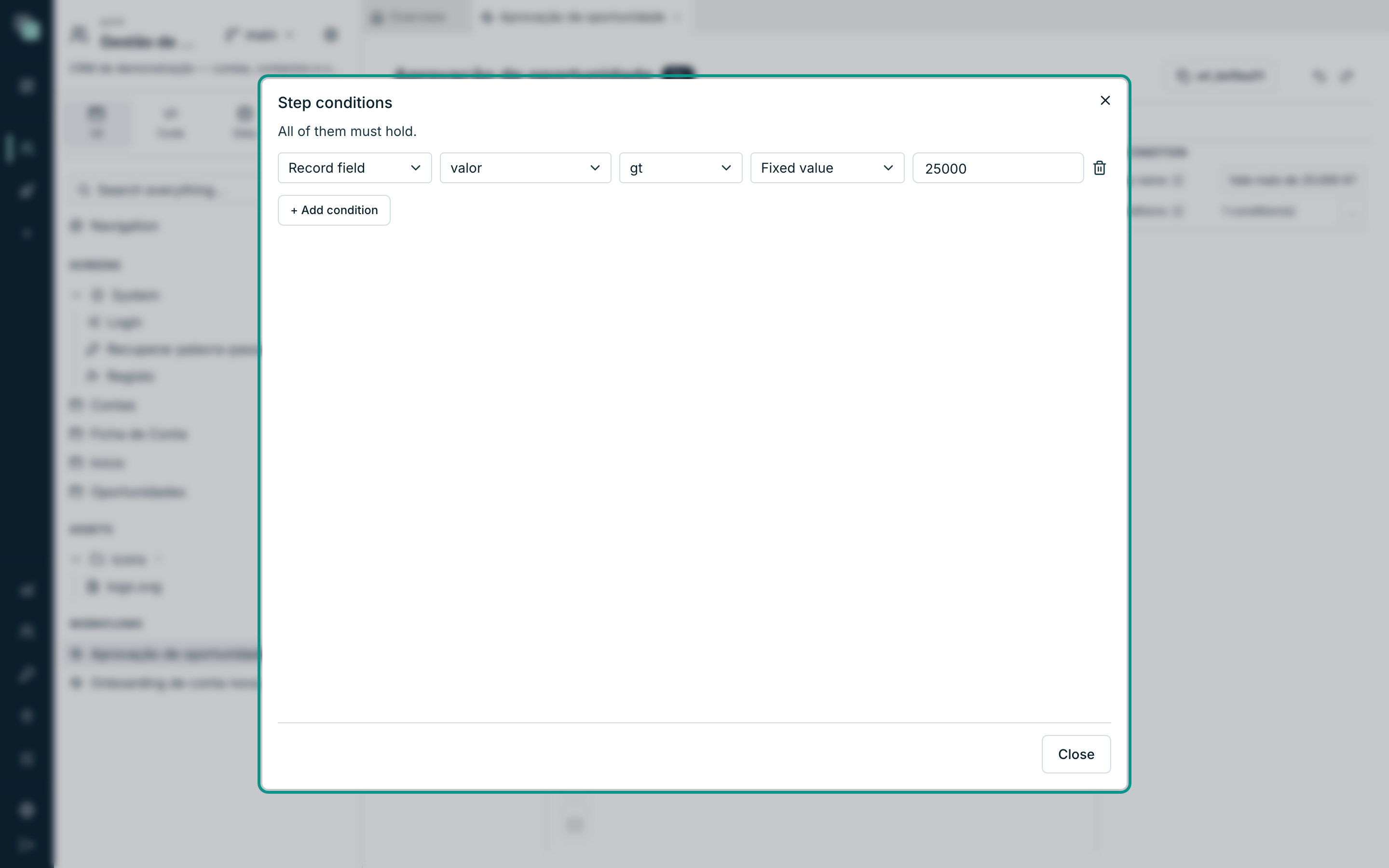
- Select the step and open Conditions with the … button.
- Click Add condition.
- Choose the source on the left (normally Record field), the field, the operator and the right-hand side.
The operators are the same ones used by filters and formatting rules across the platform:
| Operator | Means |
|---|---|
eq / neq |
Equal to / different from |
gt / gte |
Greater than / greater than or equal to |
lt / lte |
Less than / less than or equal to |
contains |
Contains the text |
startsWith / endsWith |
Starts with / ends with |
isEmpty / isNotEmpty |
Is empty / is not empty |
"All of them must hold" — several conditions in the same step combine with AND, never with OR. For an OR, use two condition steps in a chain.
With no conditions at all, "it always takes “True”" — handy while you design, dangerous if it stays that way.
Write to record
Saves fields onto the record the run is about. It is the step that closes the circuit: the process has decided, now the CRM record has to reflect it.
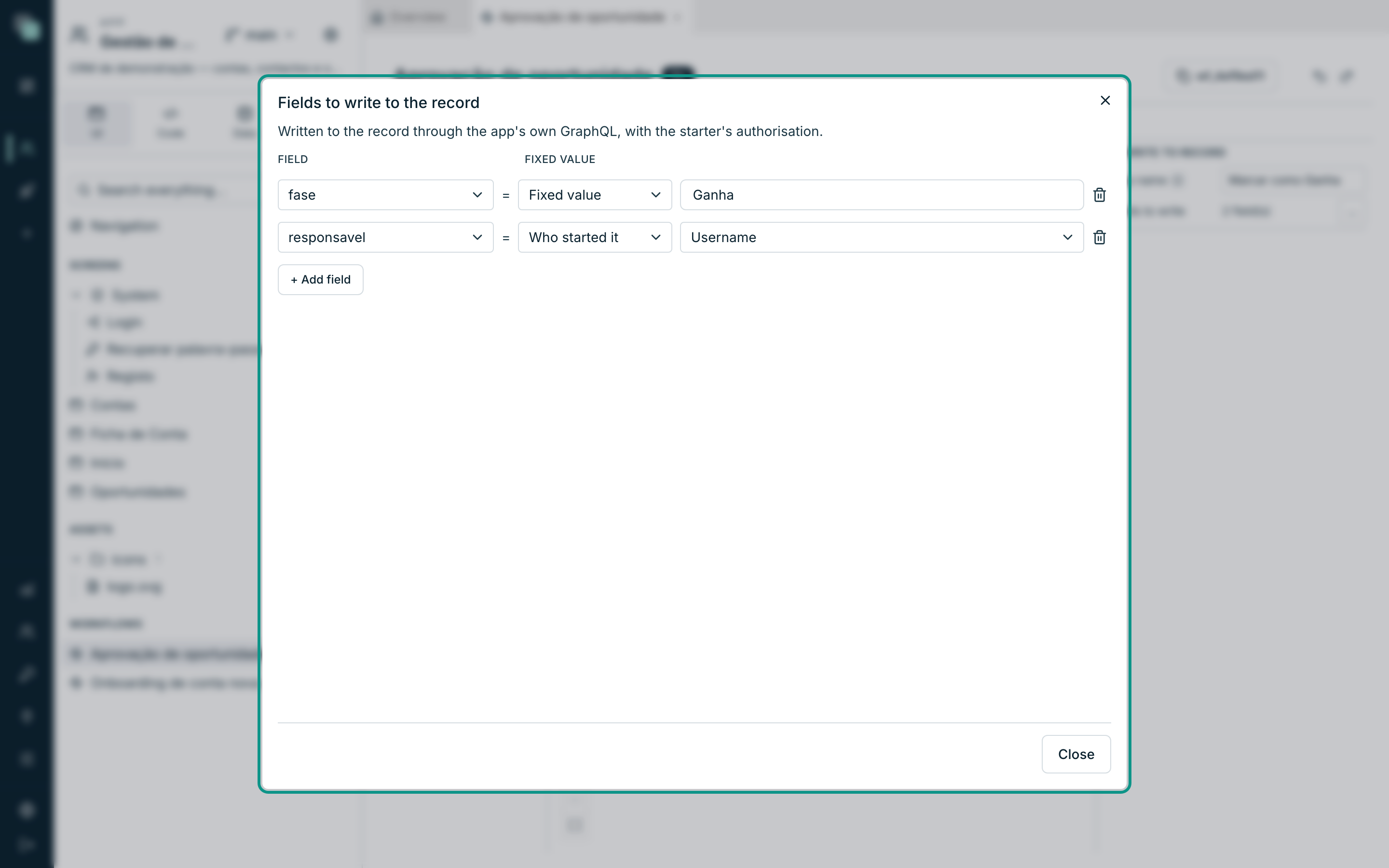
- Open Fields to write with the … button.
- Click Add field.
- Choose the Field and the source of the value.
In the example, the Mark as Won step writes fase = "Ganha" (a fixed
value) and responsavel = Who started it (the username of whoever started the
process).
Note
The write goes "through the app's own GraphQL, with the starter's authorisation". Which means: permissions count. If whoever started the process cannot change that entity, the step fails — and rightly so, because a process is not a back door around permissions.
A step with no fields at all "does nothing" — the interface says so instead of hiding it.
Notify
Sends a notification inside the app — the bell in the navigation, in real time for whoever has a session open, and in the inbox for whoever hasn't.
| Field | Notes |
|---|---|
| Users | App accounts, picked by hand. |
| Roles | Every user with that role. It survives people joining and leaving. |
| Title | The line that shows up in the notification. |
| Body | The message body. |
In the title and the body you can drop values from the record or from variables
between braces: A oportunidade {titulo} foi rejeitada.
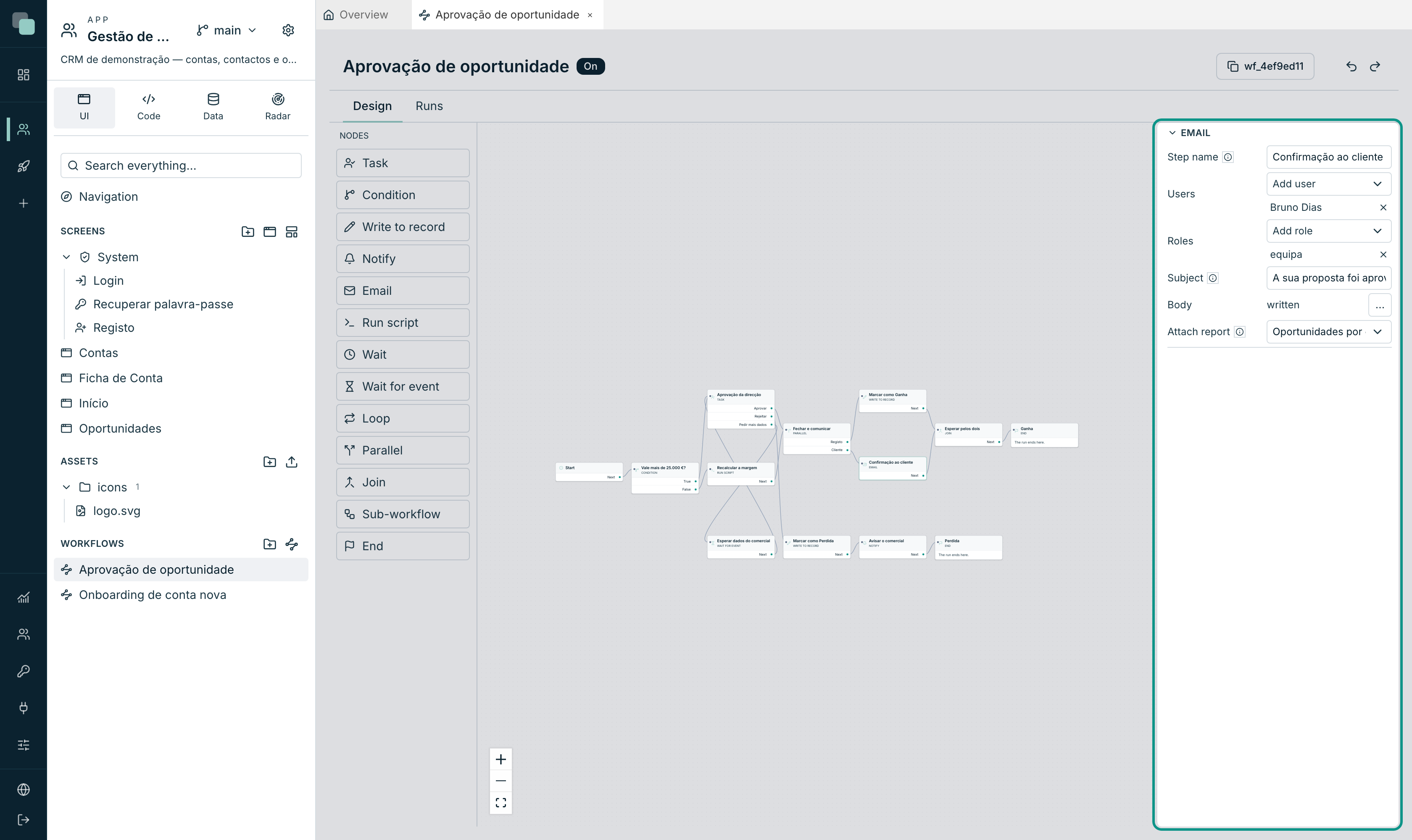
The same as Notify, but the destination is email, through the channel configured in the app's settings. It has two extra fields: the body is HTML, written in an editor of its own, and it can carry a report as an attachment.
| Field | Notes |
|---|---|
| Users / Roles | The recipients. Anyone without an email is left out. |
| Subject | Takes {campo} like the rest of the messages. |
| Body | Opens an HTML editor with the … button (Email body). |
| Attach report | One of the app's reports, or No attachment. |
About the attachment: "the PDF is generated when the email is sent, for this run's record" — it is not a stored file, it is that case's document, made at that instant. See the Reports chapter.
Warning
Without an active email channel and complete SMTP settings in the app, the step cannot send. Configure it in App settings → Notifications before putting the process to work.
Run script
Calls one of the app's Python scripts, in the middle of the process. It is the escape valve for everything the design does not do: calling an external service, computing a margin, validating against another system.
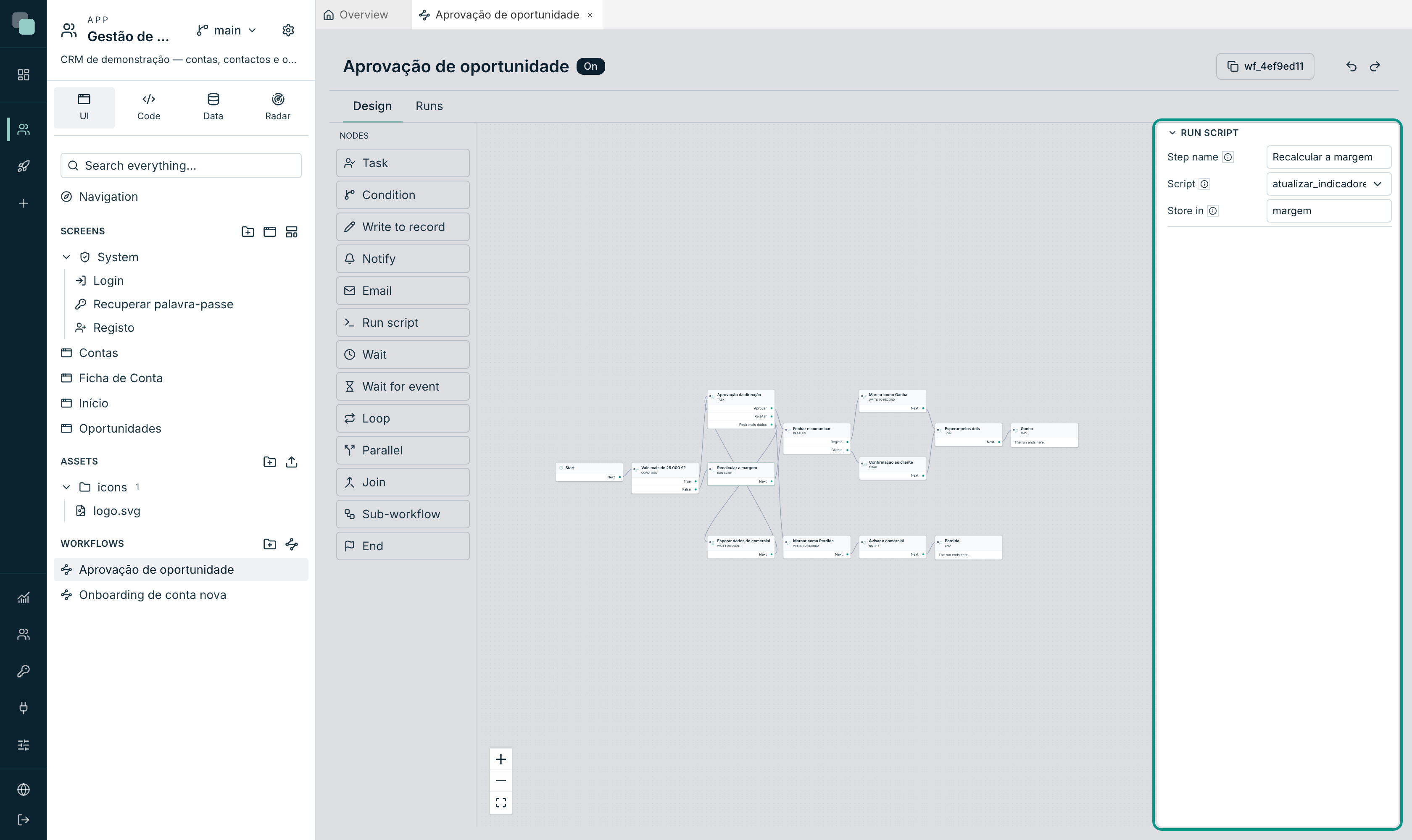
| Field | Notes |
|---|---|
| Script | One of the app's scripts. |
| Store in | The variable where whatever the script returns is kept. Empty = "discarded". |
The script "receives the record, the key and the variables as arguments" — you don't have to pass them by hand. Whatever it returns lands in the given variable and becomes available to the following steps.
If the script fails, the run ends up Failed at that step, with the error kept in the history.
Wait
Postpones the process for a fixed time: Days and Hours. "Zero in both = no wait at all."
It is the "remind me in three days if there is still no answer" piece. The run sleeps and is resumed automatically at the right time, even if the server was restarted in between.
Wait for event
Postpones the process until someone sends a signal with an agreed name.
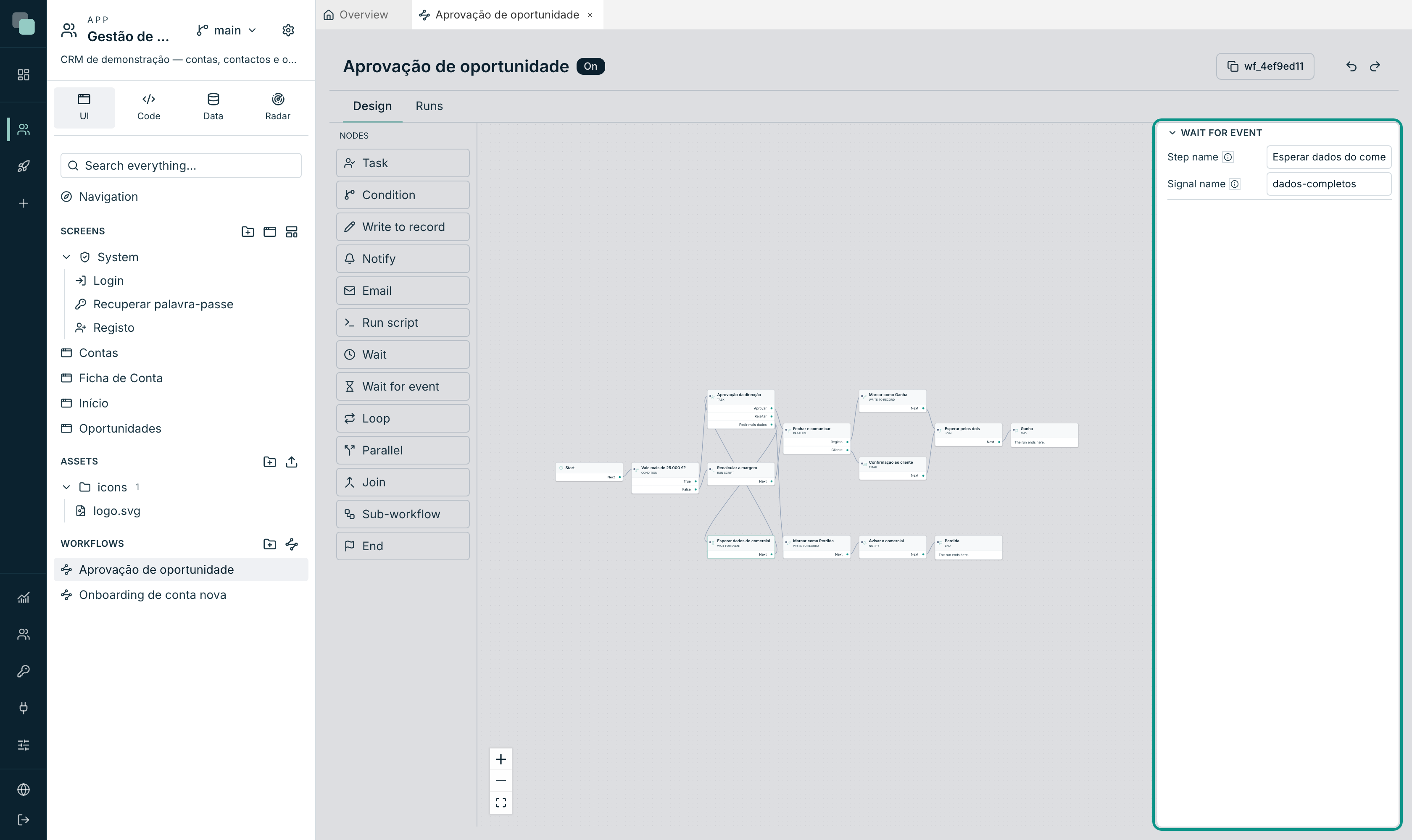
The only field is the Signal name (in the example, dados-completos).
"Whoever sends the signal writes this name. No deadline: if nobody sends it,
the process waits."
The signal is sent in two ways:
- in a screen event (TypeScript):
keplin.workflow.signal("dados-completos", id) - in a script (Python):
workflow.signal("dados-completos", key=id)
Without naming the record, the signal wakes every process parked on that name; with the record, only that record's. Zero woken is not an error — it means nobody was waiting.
Tip
It is common to combine Wait for event with an arrow back to a task: the person returns the case asking for more data, the process waits for the signal, and when the sales rep completes the record the signal brings the case back to the same task. It is exactly what this documentation's example does.
Loop
Walks a list, one value at a time. It has two outcomes: Each (the loop body, which runs once per value) and When done (when the list runs out).
| Field | Notes |
|---|---|
| List | The variable holding the values to walk. "A script step is usually what produces it." |
| Store each in | The variable that holds this round's value. |
With no list chosen, the design warns you: "This loop does not say which list to walk: it exits straight through “When done”."
Parallel
Starts several paths at the same time. Each branch is an outcome of the node.
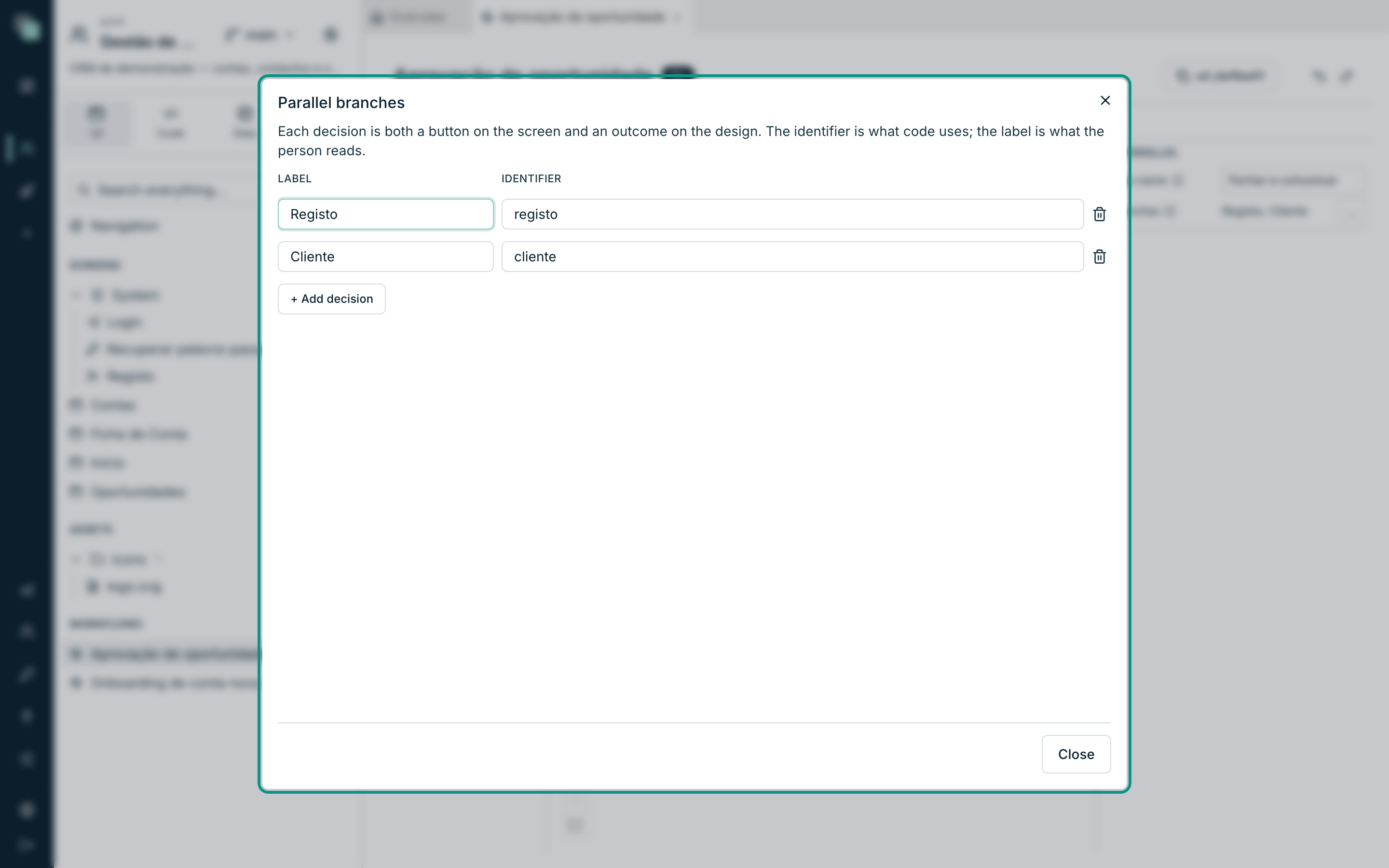
- Open Parallel branches with the … button.
- Each row is a branch, with a Label (what you read on the design) and an Identifier.
- Connect each outcome to the first step of its branch.
In the example, the Close and notify step opens two branches: Record (which saves the stage) and Client (which sends the email). Neither waits for the other.
Join
Brings the branches of a Parallel back together. It is the step that answers "how many do we wait for?".
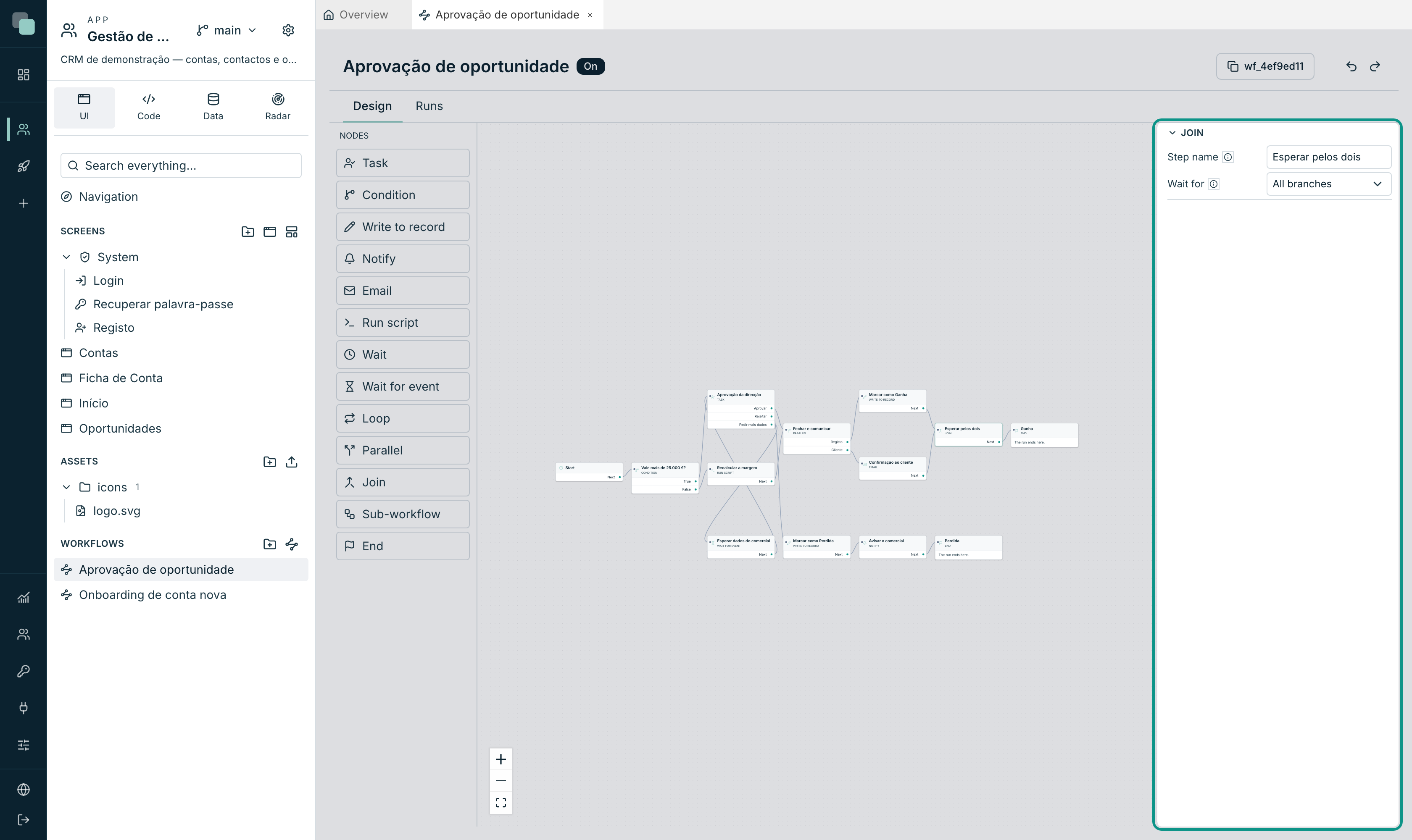
| Wait for | What it does |
|---|---|
| All branches | The process only moves on when the last branch arrives. |
| First one decides | It moves on with the first to arrive — "the other branches are cancelled once one arrives". |
| A number of them | It moves on after as many branches as you set in How many. |
Sub-workflow
Calls another process, on the same record.
| Field | Notes |
|---|---|
| Process to run | One of the app's workflows. |
| Wait for it to finish | When on, this process stops until the other one ends. "Off, this process moves on and the other runs on its own." |
"It runs on the SAME record, so it must be about the same entity" — a process about opportunities cannot call a process about accounts. And a process cannot call itself: "that would be endless recursion", and the design flags it.
With Wait for it to finish on, this process moves on when the other one ends — through its End node, by running out of paths, or by failing. This process's history says how the other one ended; a called process that fails does not fail the one that called it.
End
Ends the run. It has a single field, Result, a short text such as
aprovado, ganha or perdida. "It stays in the history and is what the
status widget shows."
A process can have several End nodes — one per outcome — and that is what you should do: instead of one generic End, one per result, so the history says something to whoever reads it months later.
How to read a step on the canvas
Every box on the canvas shows three things: the step name (what you typed in Step name, and what appears in the history), the type in small letters underneath, and the outcomes on the right, each with its name. An amber triangle in the corner marks a step with problems.
Tip
Give the steps business names — "Management approval", "Mark as Won" — not technical ones. That text is what you will be reading in each run's history when someone asks "where is this case stuck?".