Logic and automation
Writing the Python script that summarizes the sales pipeline, running it by hand and scheduling it for every morning.
The app already shows data and lets it be edited. What is missing is the part that works on its own: a script that, every morning, looks at the pipeline, counts what is open and records the closes expected for the week.
In this stage you write that script in Python, run it by hand to see the result, and set it a time — every day at 07:00.
What the script is going to do
The atualizar_indicadores answers three questions, and returns them in a
result that stays in the history:
| Question | What it returns |
|---|---|
| How many opportunities are open? | oportunidades_abertas |
| How much is the pipeline worth? | valor_pipeline |
| How many closes are expected for the next 7 days? | fechos_proximos_7_dias |
Besides the result, it writes logs — one line per close of the week — so whoever opens the history understands, without doing sums, what was on the calendar that day.
Creating the script
- Choose the Code panel in the sidebar.
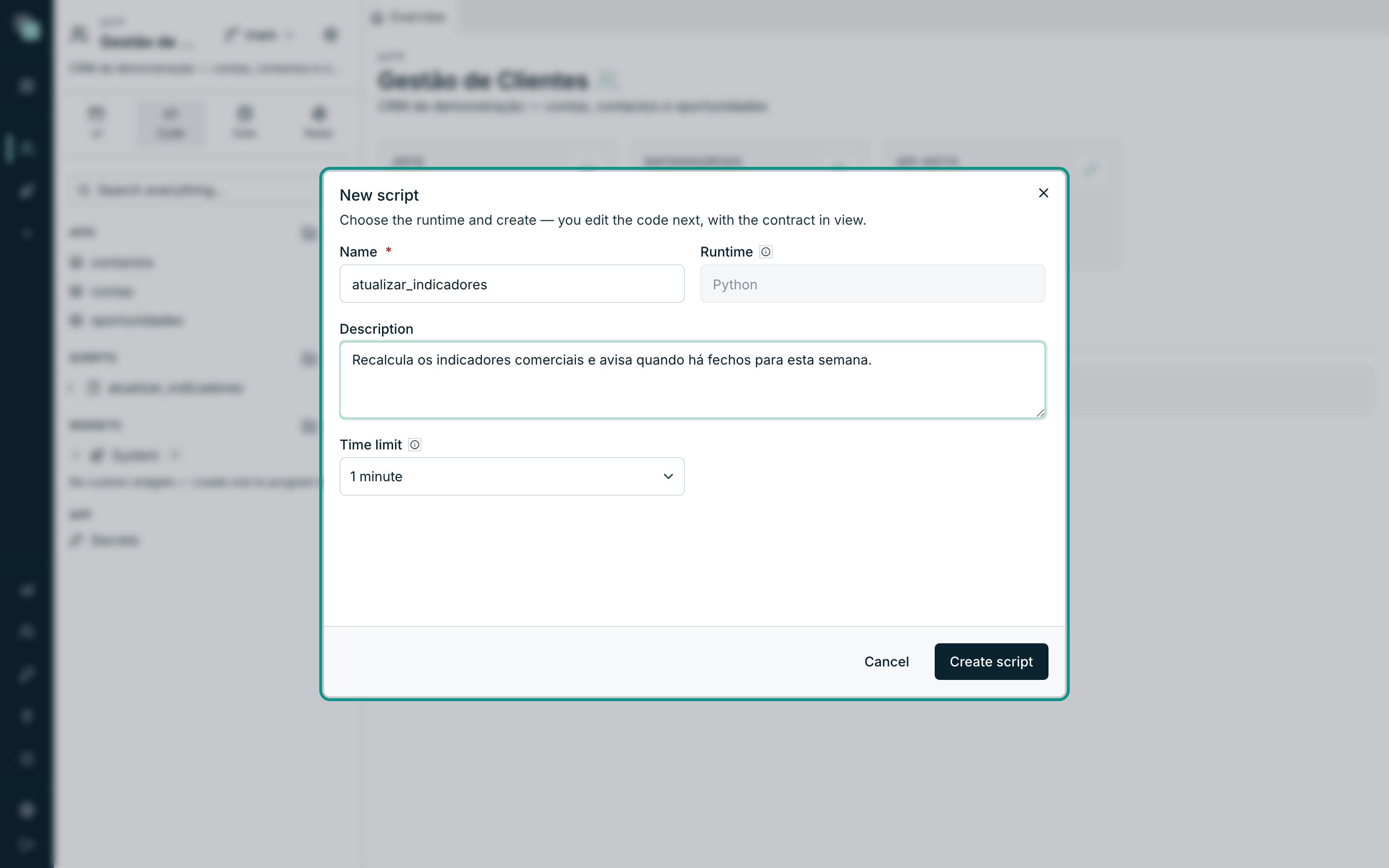
- On the Scripts row, click the + (New script). The New script dialog opens — "Choose the runtime and create — you edit the code next, with the contract in view."
- In Name, type
atualizar_indicadores. The name identifies the script everywhere — in the schedules, in the API steps, in the dependencies of other scripts. - Runtime is fixed on Python.
- In Description, write
Recalcula os indicadores comerciais e avisa quando há fechos para esta semana. - In Time limit, leave 1 minute. It is the ceiling of the run: past that time, the platform cuts it off.
- Click Create script. The editor opens with the
main.pyready.
Tip
A generous time limit is not kindness: if this script gets used as a step of an API, the clients wait that long in the worst case. One minute is enough and to spare for what we are about to do.
Writing the main.py
A script's contract is short: a main(input) function that returns
something. What you return stays in the run history and, if the script is
called by an API, it is its response.
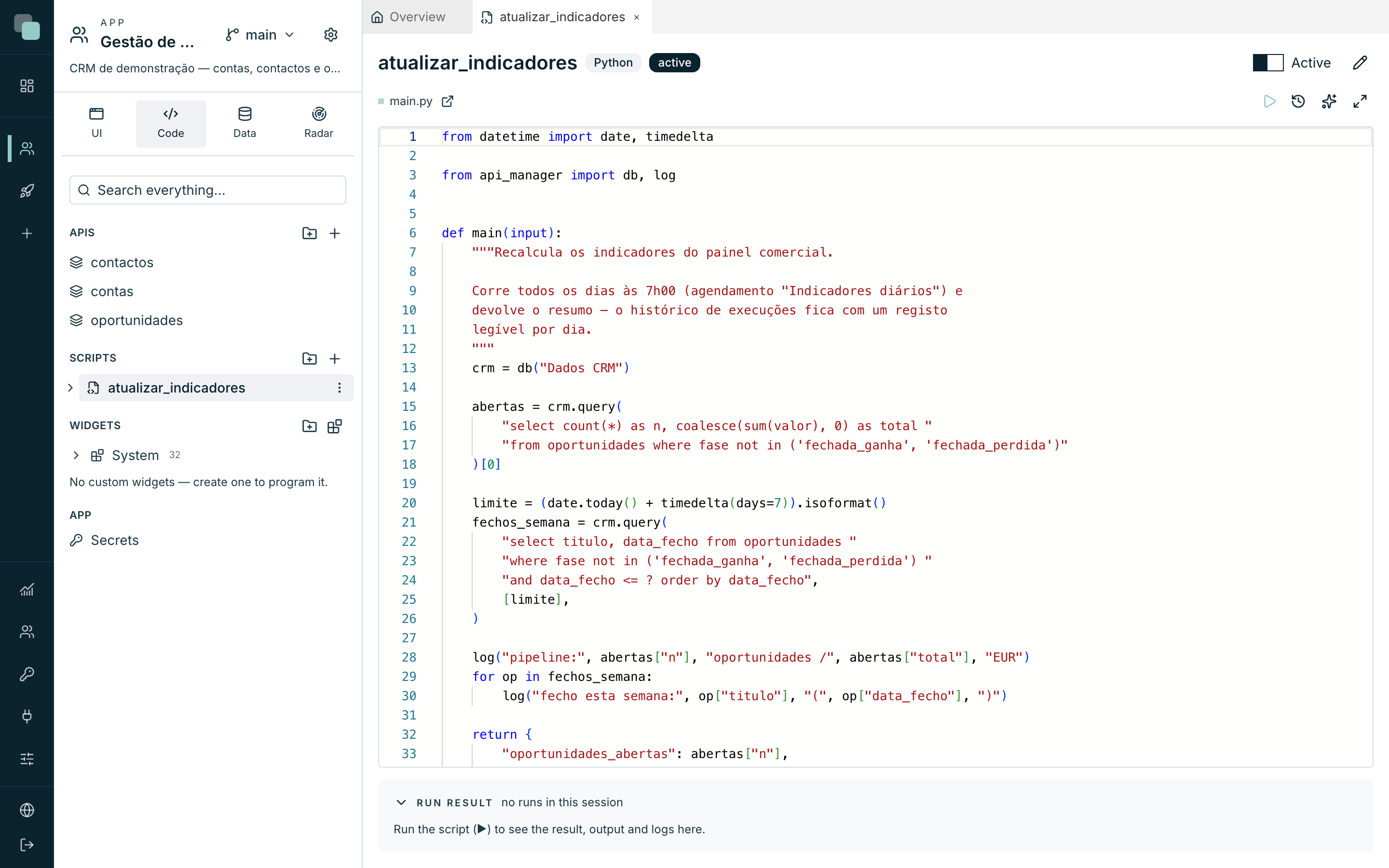
Write this in the editor:
from datetime import date, timedelta

from api_manager import db, log


def main(input):
    """Recalculates the sales dashboard's indicators.

    Runs every day at 7:00 (the "Indicadores diários" schedule) and
    returns the summary — the run history keeps one readable record
    per day.
    """
    crm = db("Dados CRM")

    abertas = crm.query(
        "select count(*) as n, coalesce(sum(valor), 0) as total "
        "from oportunidades where fase not in ('fechada_ganha', 'fechada_perdida')"
    )[0]

    limite = (date.today() + timedelta(days=7)).isoformat()
    fechos_semana = crm.query(
        "select titulo, data_fecho from oportunidades "
        "where fase not in ('fechada_ganha', 'fechada_perdida') "
        "and data_fecho <= ? order by data_fecho",
        [limite],
    )

    log("pipeline:", abertas["n"], "opportunities /", abertas["total"], "EUR")
    for op in fechos_semana:
        log("closing this week:", op["titulo"], "(", op["data_fecho"], ")")

    return {
        "oportunidades_abertas": abertas["n"],
        "valor_pipeline": abertas["total"],
        "fechos_proximos_7_dias": len(fechos_semana),
    }
Four things to keep from this code:
| Line | What it does |
|---|---|
from api_manager import db, log |
The platform's access: db opens databases, log writes to the history. |
db("Dados CRM") |
The database by the internal name of the datasource — the same one you registered in the model stage. Change the name there and this line stops working. |
crm.query(sql, [valores]) |
Parameterized query. The values always travel apart from the query — never glued to the text. |
return { … } |
The run's result. It stays in the history and is what an API would return. |
The input the function receives carries the run's arguments — an API's,
a schedule's or the ones you type by hand next. Here we use none.
Note
There is no save button: the editor saves itself. The Active switch in the top right corner is another thing — an inactive script goes on existing but does not run, neither by hand nor by schedule.
Running the script by hand
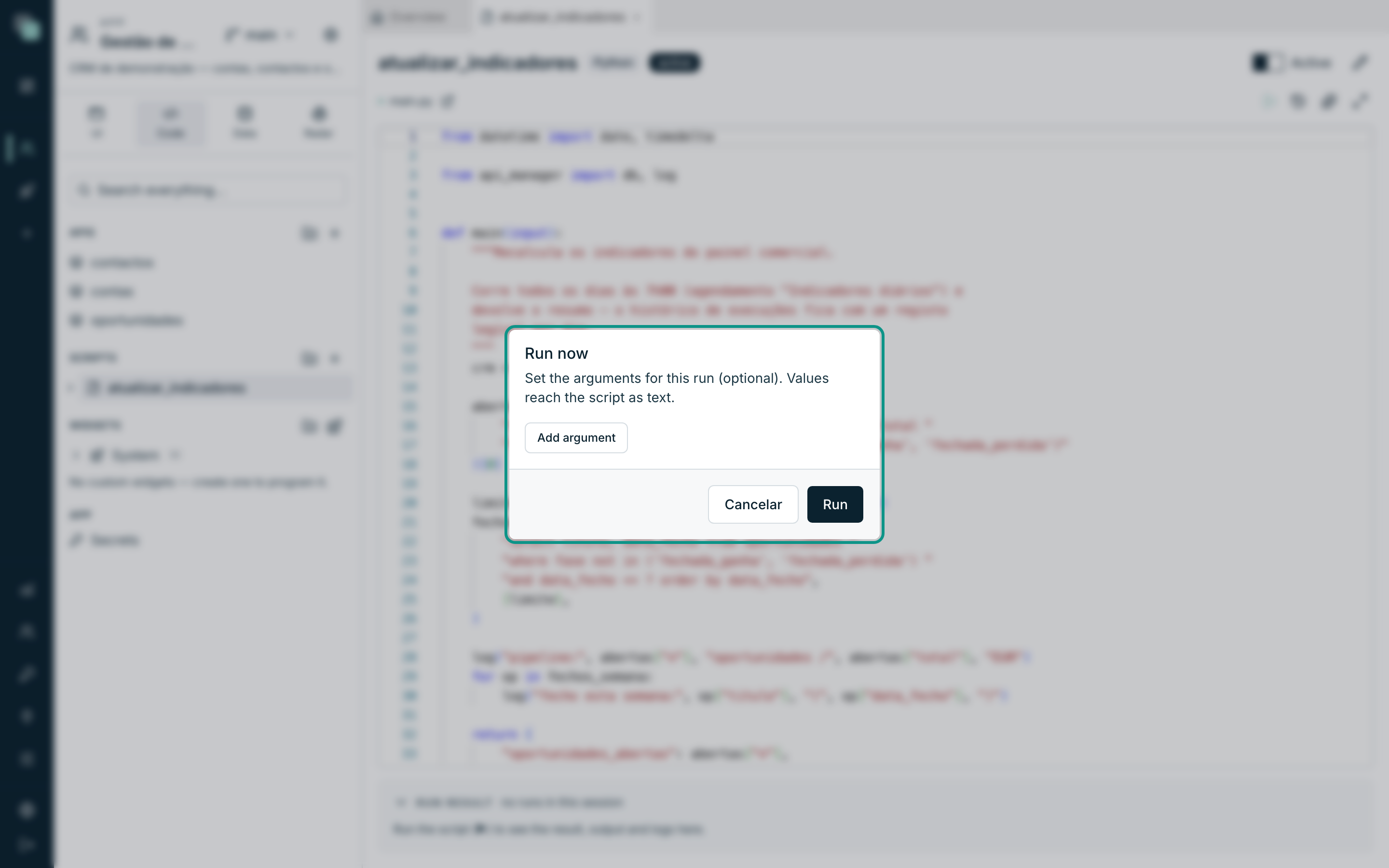
- At the top of the editor, click Run now.
- The dialog opens — "Set the arguments for this run (optional). Values reach the script as text." We need none.
- Click Run.
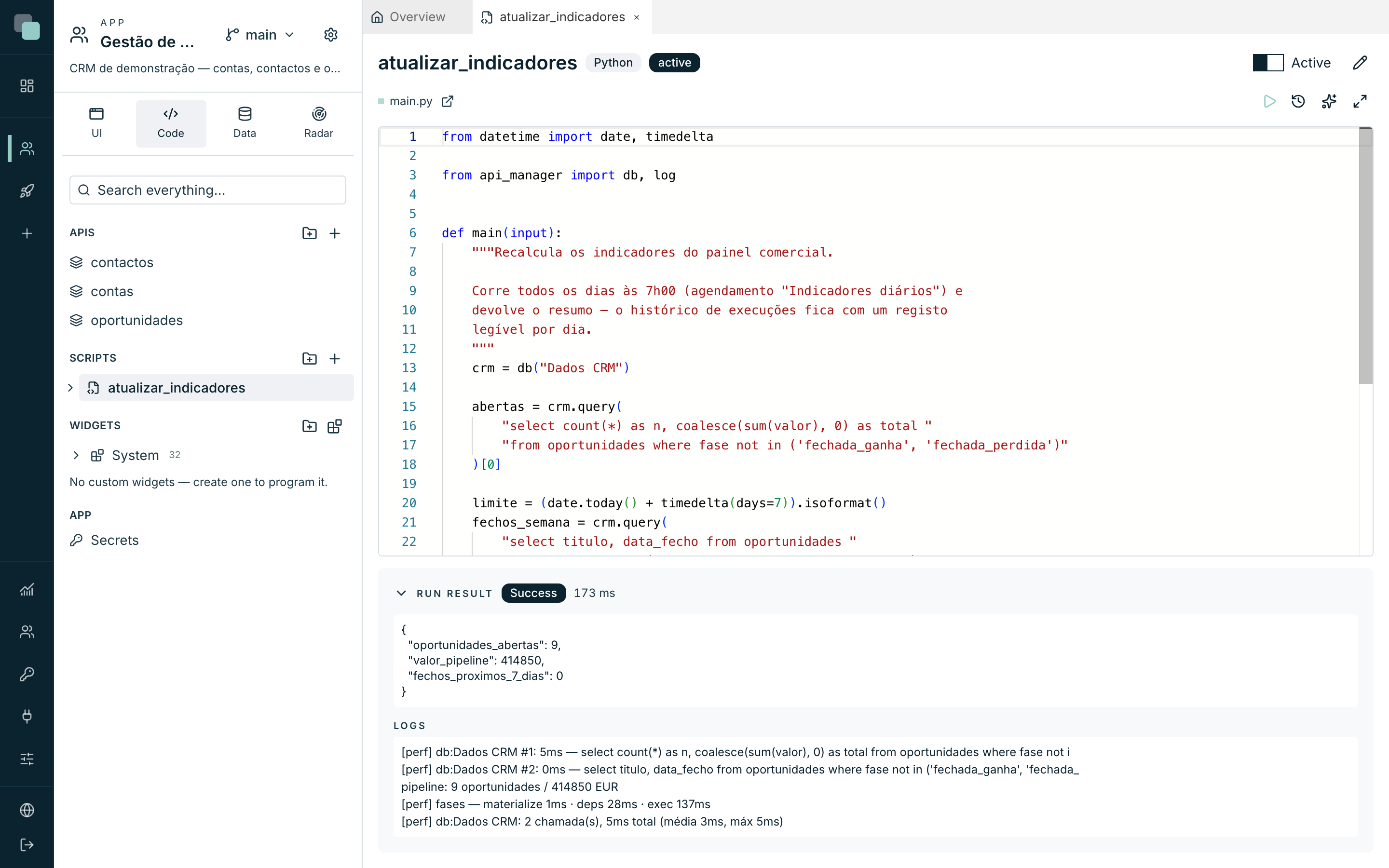
The Run result panel, below, fills up: the Success badge with the
duration, the returned value in JSON and the Logs block with the lines
that log() wrote.
Tip
The first run of a Python script is always the slowest — the environment is prepared at that moment. The next ones run in milliseconds.
The run history
The result in the editor is only the current session's. The complete history is behind the Runs button, next to Run now:
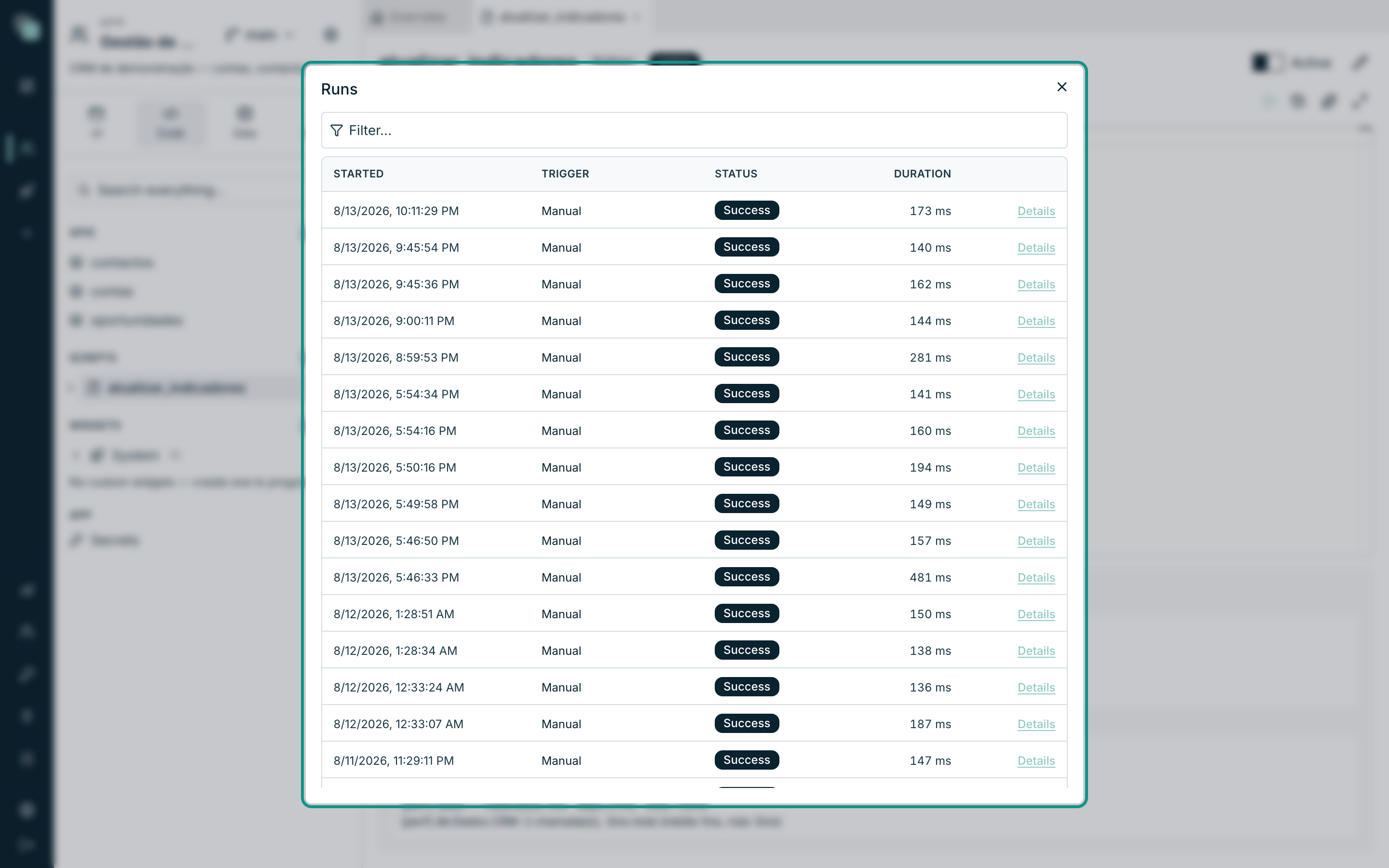
Each row says Started, Trigger (Manual, when it was you; Schedule, when it was the appointed time), Status and Duration, and the Details link opens the run: the arguments, the returned result and the logs of that particular run. This is how you work out, three weeks later, what the script saw on the morning nobody was watching.
Scheduling it for every morning
A script that only runs when someone presses the button is not automation. It is time to set it an hour.
- In the Code panel's tree, expand the node of the
atualizar_indicadoresscript. Three sections appear: Files, Dependencies and Schedules. - Hover over Schedules and click the + (New schedule).
- Give it the name
Indicadores diáriosand create it. The schedule's editor opens in a tab. - In Frequency, choose At set times — "At a time of day, on the days you choose."
- In Repeats, choose Every day (on the chosen days).
- In At time, type
07:00. - In Days, leave all seven selected (or click Weekdays if the weekend does not matter).
- In Time zone, choose
Europe/Lisbon. It is the zone that decides what "seven in the morning" means — without it, the right time moves with the clock change. - In If a run is missed, choose Ignore.
- Confirm that the Active switch is on and click Save.
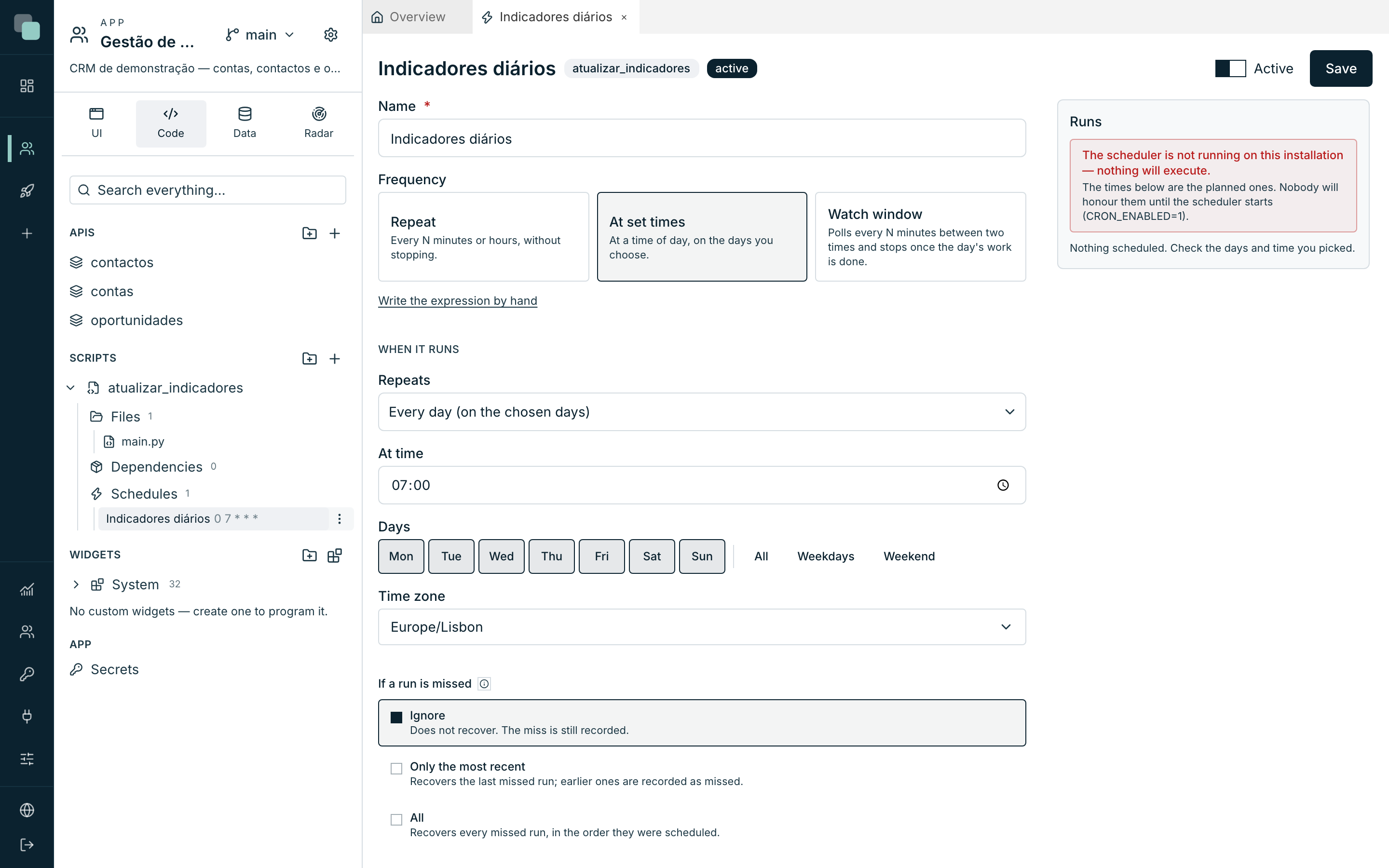
The three frequencies
| Frequency | When to use it |
|---|---|
| Repeat | Every N minutes or hours, non-stop. Synchronizations, polling. |
| At set times | At a time of day, on the chosen days. It is our case — and the most common. |
| Watch window | Polls every N minutes between two times and stops when the day's work is done. For waiting on a file that arrives "in the morning, at varying times". |
Anyone who prefers writing the schedule expression by hand has the Write the expression by hand link below the three options.
What to do with what went unrun
The server was down at seven in the morning. When it comes back, what happens to the missed occurrence? That is what If a run is missed decides:
| Option | What it does |
|---|---|
| Ignore | Does not recover. It stays on record that it was missed. |
| Only the most recent | Recovers the last one left undone; the earlier ones stay on record as missed. |
| All | Recovers every one left undone, in the order they were scheduled. |
For a daily summary, Ignore is the right one: running Tuesday's summary on Thursday serves nobody. For a monthly billing run, All makes every bit of sense.
The schedule's runs panel
To the right of the editor sits the Runs panel, with the planned times and what happened to each one: Done, Pending, Missed or Skipped.
Warning
If this panel warns that "the scheduler is not running on this installation — nothing will execute", the appointed times sit waiting and nothing runs. The scheduler is turned on at the installation, not in the app — talk to whoever administers the platform.
What next?
The script is ready for more than the appointed hour: it can be a step of
an API (so the summary is computed on demand), it can call other scripts as
dependencies, and it can install the Python packages it needs. The
Scripts chapter walks through all of
that, and The scripts SDK documents the api_manager
— database, files, secrets, notifications and HTTP calls.
Why doesn't…?
- Why does the script fail with "datasource not found"? The name in
db("…")has to be exactly the datasource's Internal name, capitals included. - Why can't I see the Run now button? The script is inactive — turn on the switch at the top.
- Why was the run cut off midway? It hit the Time limit. Either the script genuinely takes that long, and you raise the limit, or it is doing too much work for the place it is called from.
- Why has the schedule never run? Check, in order: is the schedule Active? Is the script Active? Is the scheduler running on this installation? And is the Time zone the one you think it is?
The CRM is complete. What is left is putting it live: publish and use.