AI agents and MCP
What the MCP connection is, what an agent can do in an app, and why it never sees more than the account that authorized it.
Keplin has a door through which an AI agent comes in and works on the apps: it creates screens, edits the model, writes scripts, runs APIs, publishes. It is not an assistant that suggests — it is a connection through which a program does the same you would do in the browser.
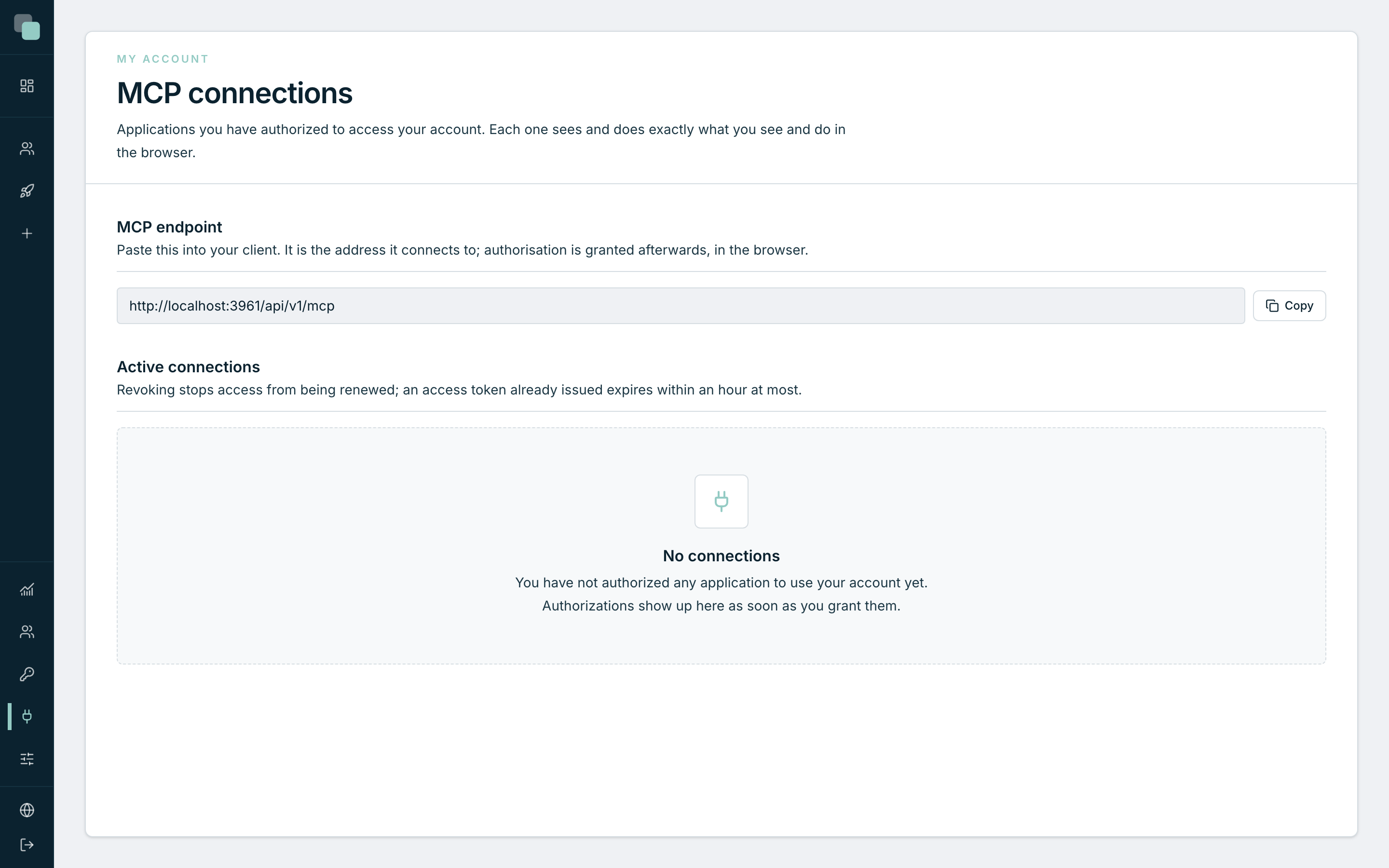
The door is called MCP and lives in the MCP connections menu, in the sidebar.
The rule that explains everything else
It is written in the header of the page itself:
Applications you have authorized to access your account. Each one sees and does exactly what you see and do in the browser.
There are no agent-specific permissions, nor a list of things only they can do. An agent connected to your account:
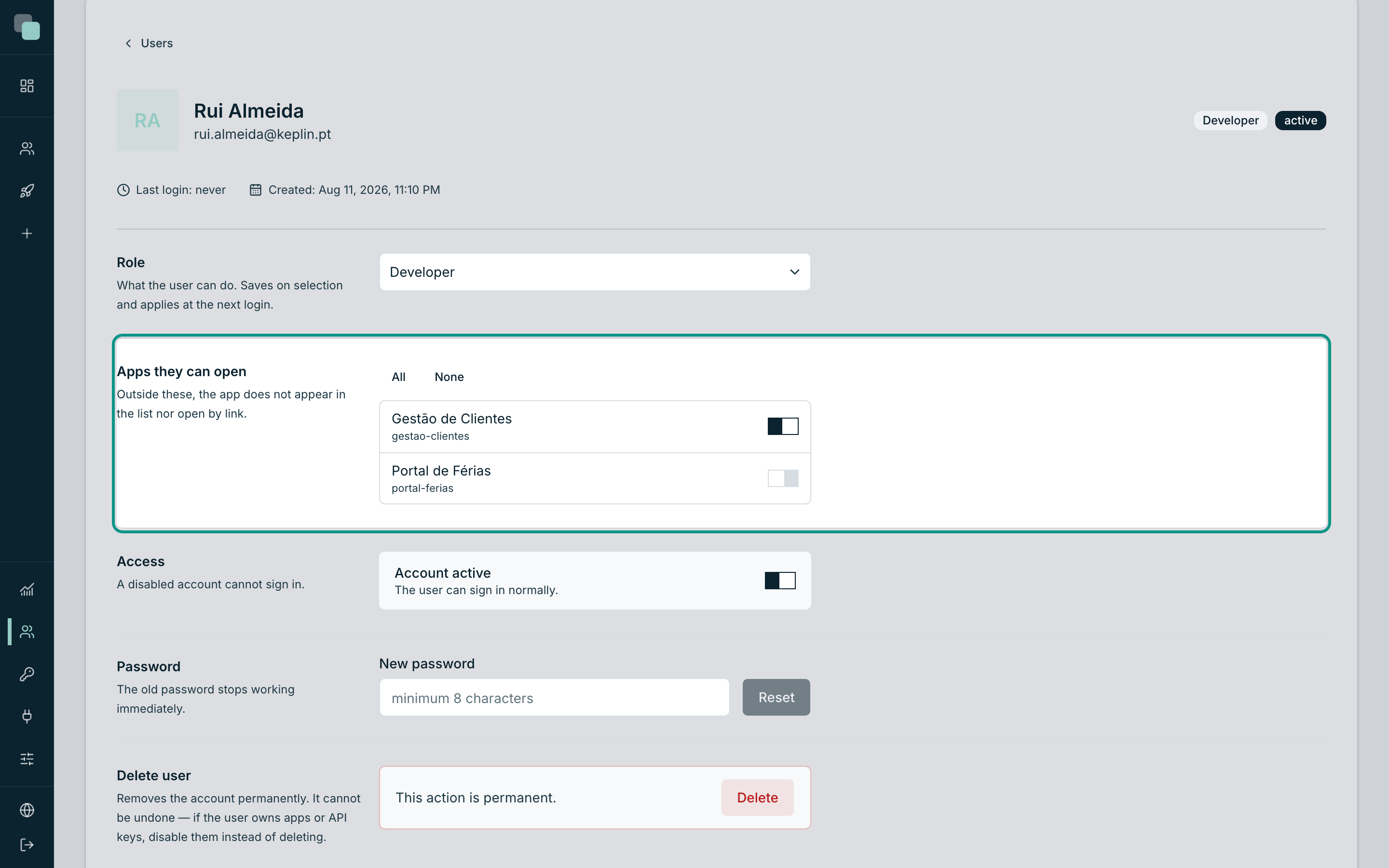
- sees the apps you see — if you are a developer with one app assigned, it is that one and no other;
- does what you can do — if you are not an administrator, it does not create apps or touch users either;
- saves on your working version — the same one your header shows, unless it is asked for another;
- is refused by the same blocks as you: an element checked out by someone else does not save, and the refusal carries the name of whoever holds it.
Note
MCP connections is an account page, not an administration one. It shows what you authorized, and only you revoke it. No administrator sees or revokes another person's connections — cutting someone's access is done by deactivating their account, which cuts everything, not just the MCP.
The connection address
The first panel of the page is MCP endpoint — "Paste this into your client. It is the address it connects to; authorisation is granted afterwards, in the browser."
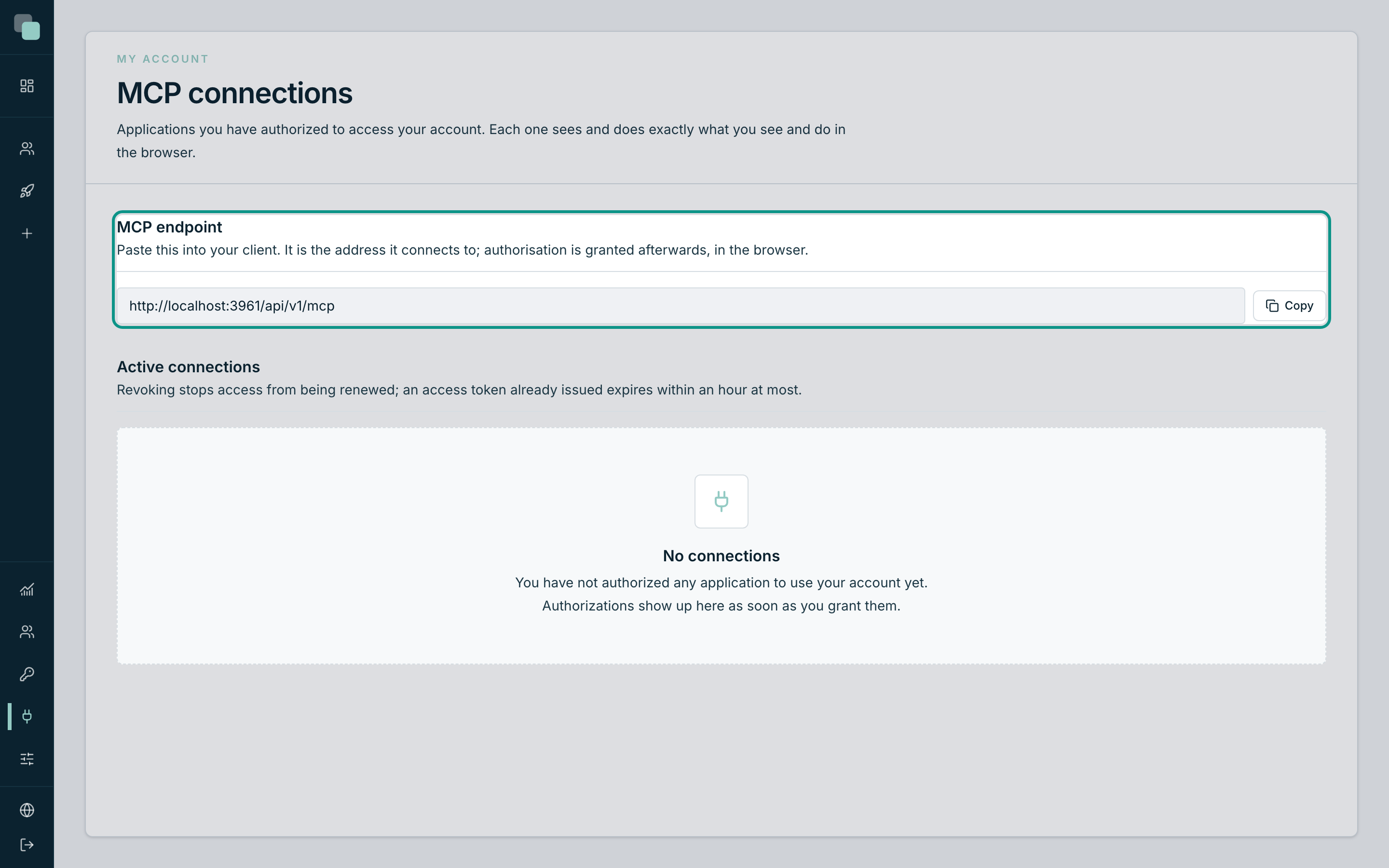
Click Copy and paste the address into the configuration of your AI client. It is all it needs to know: the rest — who you are, what you can do — is settled in the authorization, which is the subject of the next page.
The address follows the place you came in through. Whoever opens the platform through the company domain reads the company domain; whoever comes in locally reads the local address. Copy it from the installation the agent is going to connect to, and not from an old note.
What an agent can do
A connected agent works the whole app, and in the same order a person would:
| Area | What it can do |
|---|---|
| Data | Create database connections, import tables, design the model, create enums and triggers. |
| APIs | Create and edit the GraphQL APIs over the model. |
| Screens | Create layouts and screens, add and configure widgets, wire data to screens, write the code of the events. |
| Navigation | Assemble the app's menu and point it at the screens. |
| Permissions | Define the app's actions and roles. |
| Scripts | Write Python scripts, install their dependencies and run them. |
| Reports and processes | Create reports, workflows, triggers and schedules. |
| Image | Generate and upload icons and logos, and tune the app's theme. |
| Operation | Read the Radar, see runs, consult the history and the versions. |
| Administration | Only with an administrator account: manage the platform's accounts, settings and API keys, see the updates, clear the audit, and find and delete Unused files. |
All of this happens on the platform, with the same validations as the editor. A screen written by an agent is a screen like any other: it goes into the history, it goes into the versions, and it opens in the visual editor to be fixed by hand.
Who did what
An agent does not vanish inside your identity. The audit tells the two things apart: what you saved and what an agent saved on your behalf.
That means the answer to "who changed this screen?" stays exact, even with agents at work. You find it in two places:
- the app's history, save by save;
- Observability → Audit, with the before and the after of each change.
What this is not
| It is not | Why |
|---|---|
| A service account | There is no "robot" user. The agent uses your account, with your reach. |
| An API key | API Keys give an external system access to one app's GraphQL. The MCP gives access to the building of the platform, on behalf of a person. |
| An assistant inside the editor | The agent lives in your AI client. The platform is what it operates, not where it lives. |
| Something that needs the browser open | It does not. The agent works just the same with nobody having the platform open. |
Before connecting an agent
Three decisions worth making before, and not after:
- With which account. An agent with an administrator account can delete apps. If the work is on a single app, authorize it with a developer account that has that app — and no other.
- On which version. Create a version for the agent's work and switch
to it before setting it to work. If anything goes wrong, the version is
deleted and
mainnever knew a thing. - With which data. A new version copies the database connections of its origin. Point them at the right environment before handing the key to someone who works fast.
Warning
The MCP connection is as powerful as the account that authorizes it. Authorizing with an administrator account is giving access to every app on the platform, including the ones yet to be created — and the authorization page spells it out before you press Authorize.
Why don't I see…?
- …the MCP connections menu? It is an account page and appears to everyone who signs in to the platform. If you do not see it, check that your session is started.
- …anything in Active connections? You have not authorized any client yet — the page says "No connections". Authorization is started from the client, and it is the subject of the next page.
- …all the apps, with the agent connected? The agent sees what your account sees. If apps are missing, they are missing on your record in Users.