Creating your first app
Create an app from scratch with the New app button, understand what is born with it, and import a package when the app comes from somewhere else.
Time to create something. On this page you create the app that will follow us through the whole documentation — Customer Management — and you get to know exactly what a new app brings out of the box. At the end, we also cover the alternative path: importing an app that came from another installation.
Note
Creating and importing apps is exclusive to administrators. If your account is a developer, the New app button does not appear — ask an administrator to create the app and assign it to you.
Creating an app from scratch
In the global navigation bar, press New app (the + below the list of apps).
The New app window opens — the first step is a choice of cards: blank, with a datasource, from a template, or import a package. For the guide, pick Blank app.
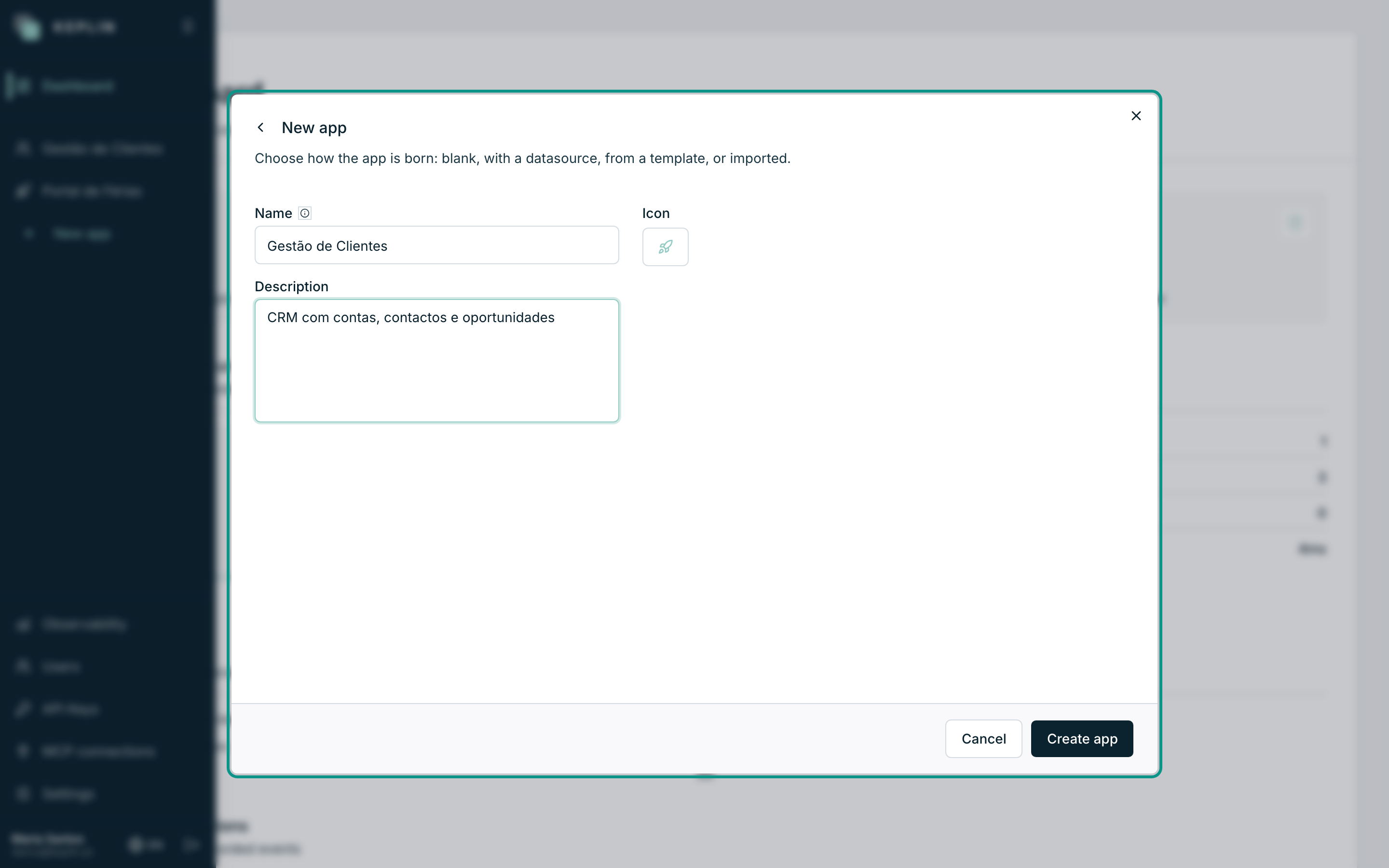
Fill in the fields:
Field What it is Name The name of the app (2 to 120 characters). For our example: Gestão de Clientes. The slug is derived automatically from the name —gestao-clientes— and goes into the app's addresses.Description Optional, up to 500 characters. It appears in the header of the tree and in the Overview tab. E.g.: CRM com contas, contactos e oportunidades.Icon The app's symbol in the sidebar. Pick one from the gallery on the right. Press Create app (it shows Creating… while it works).
The window closes, the confirmation App created. appears and you go straight into the workspace of the new app, with the Overview tab open.
If the name you chose produces a slug that already exists in the installation, the creation fails with a warning in the window itself — change the name (or create it with another name and rename it later in the settings; the slug stays).
What is born with a new app
An app you have just created is not a blank page — it is a complete application, just still empty. This already exists before you touch anything:
| Born with the app | Where to see it |
|---|---|
| The main version — your working version | Versions menu, in the header of the tree |
The internal address /app/gestao-clientes, answering with the working version |
Open it in the browser — it is the app alive |
The GraphQL endpoint /api/graphql/gestao-clientes |
Overview tab, Endpoint section |
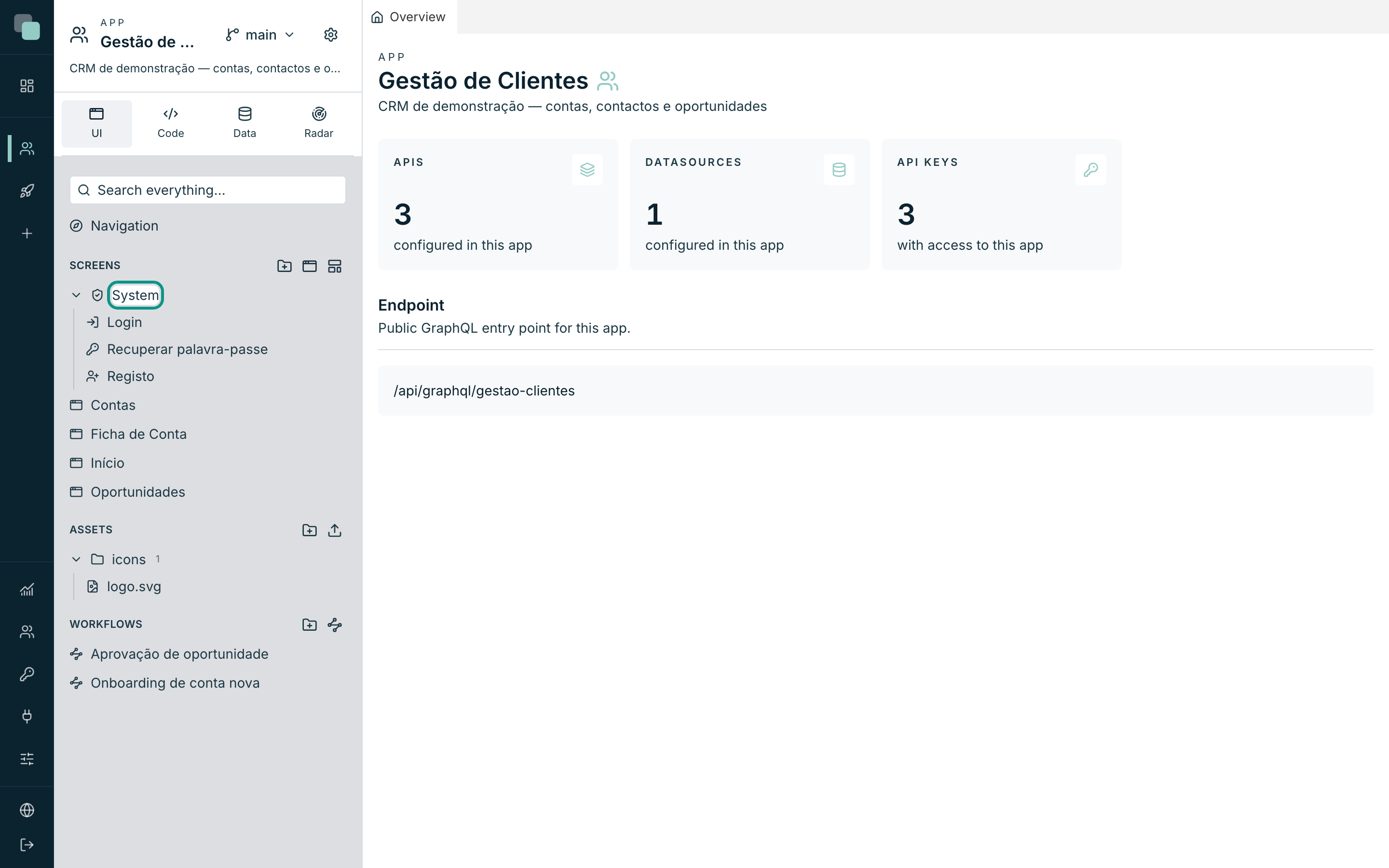
| The system screens Login, Recover password and Register, working and editable | UI minitab ▸ Screens ▸ System group |
| Its own settings: Authentication, Theme, Translations, App users, Permissions, … | App settings gear |
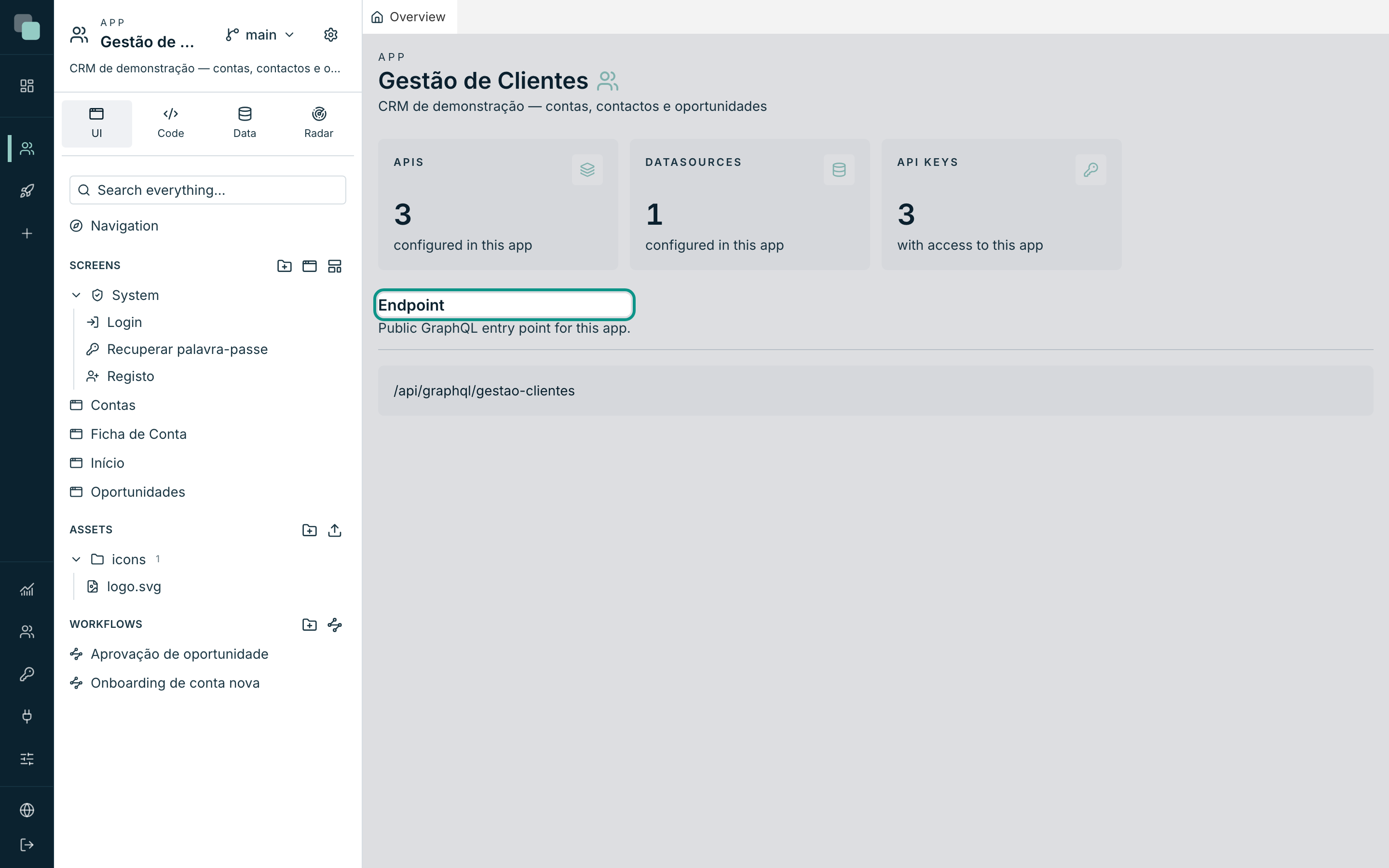
The rest is yet to open, and the trees say so plainly: No screens yet — create the first one with the button above., No APIs., No scripts., No datasources. It is this emptiness that the A CRM from scratch guide is going to fill, piece by piece.
Tip
Open /app/gestao-clientes in a browser tab right now and leave it there: it
is the fastest way of seeing each of your changes come to life — it always
shows your working version, without publishing anything.
Importing a package
When the app already exists in another installation — bought, shared, or coming
from a development environment — you do not create it from scratch: you import
the .keplinapp file exported from there.
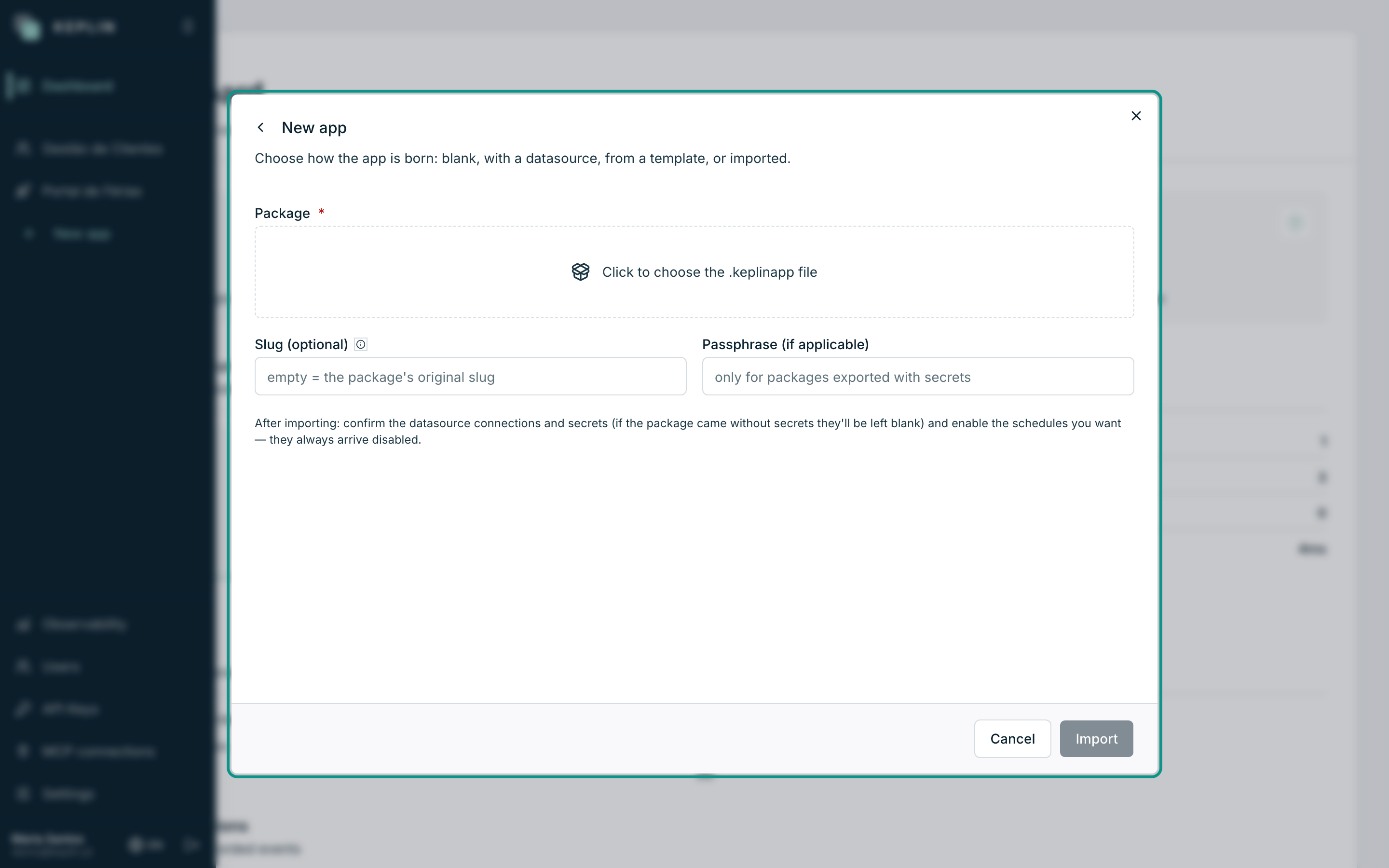
Press New app and switch to the Import package tab.
Fill in:
Field What it is Package Required. Press the dashed area (Click to choose the .keplinapp file) and pick the file. Slug (optional) Only needed if the installation already has an app with the package's original slug — empty keeps the original. Passphrase (if applicable) Only for packages exported with the secrets included — it is the phrase set at export time. Press Import (it shows Importing…).
At the end the confirmation appears with the name of the imported app and you enter its workspace.
After importing, there are three checks that are part of the job — the app arrives whole, but the world around it has changed:
- Datasources — check the connections: the addresses and credentials of the old installation may not be valid here.
- Secrets — if the package came without secrets (or without the right passphrase), they are left blank; put them back by hand.
- Schedules — they always come in disabled, on purpose. Enable them one by one, when you have confirmed that the app is ready to run on its own.
Warning
Without the passphrase, the secrets of a package exported with them are unrecoverable — not even Keplin can open them. If you do not have it, import anyway and fill in the Secrets again.
Why don't I see…?
Why don't I see the New app button? Your account is a developer. The button only exists for administrators — and a button that always gave you an error would be of no use.
I created the app but a colleague does not see it. Developer accounts only see the apps assigned to them. Assign it to them in Users ▸ the colleague's account ▸ Apps they can open.
Can I change the name later? Yes — in App settings ▸ General, the identification (name, icon, description) can be edited whenever you like. The slug, that one stays: it is the app's identity in the addresses.