Working as a team
Each person on their own version, and the checkout that stops two people saving over each other on the same screen.
Two people building the same app is the normal case, not the exception. Keplin solves it in two layers, and it is worth understanding each one before using the other:
- The version separates work that should not mix. Each person chooses their own and nothing they do appears in the others' version until there is a merge.
- The checkout protects an element within the same version. While it is locked by somebody, nobody else saves it.
Each person on their own version
The working version is per person. If Maria switches to 1.1, Rui
stays on main without noticing a thing — and the other way round. The
header button always says which version you are on.
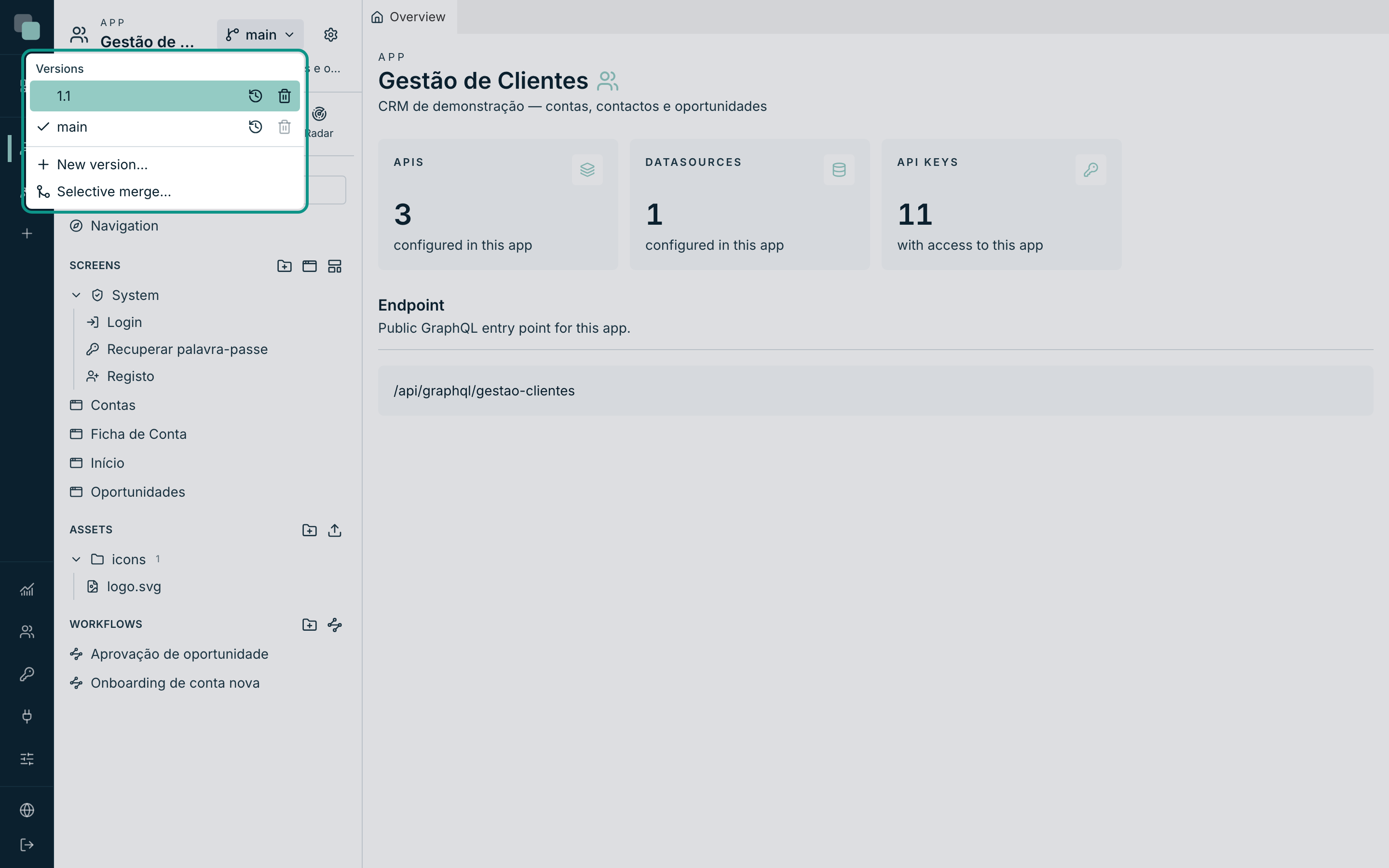
The choice is kept on the server, tied to your account. That solves the most expensive mistake in versioning — "I switched to 1.1 and it saved to main" — because the version you are saving to does not depend on the browser, the tab or the computer you signed in from.
As a practical consequence:
| Situation | What happens |
|---|---|
| You switch versions | Only your view changes. Nobody is interrupted. |
| A colleague creates a version | It appears in your menu, but you stay where you were. |
| Somebody deletes the version you are on | They cannot: somebody's working version is not deleted from under their feet. |
| You sign in from another computer | You are still on the same version. |
Tip
When two people are going to touch different things in the same app — one on the screens, the other on the reports — working on the same version is simpler and avoids the merge. It is when the work overlaps, or when it is risky, that separating into versions pays off.
Checkout: locking an element for me
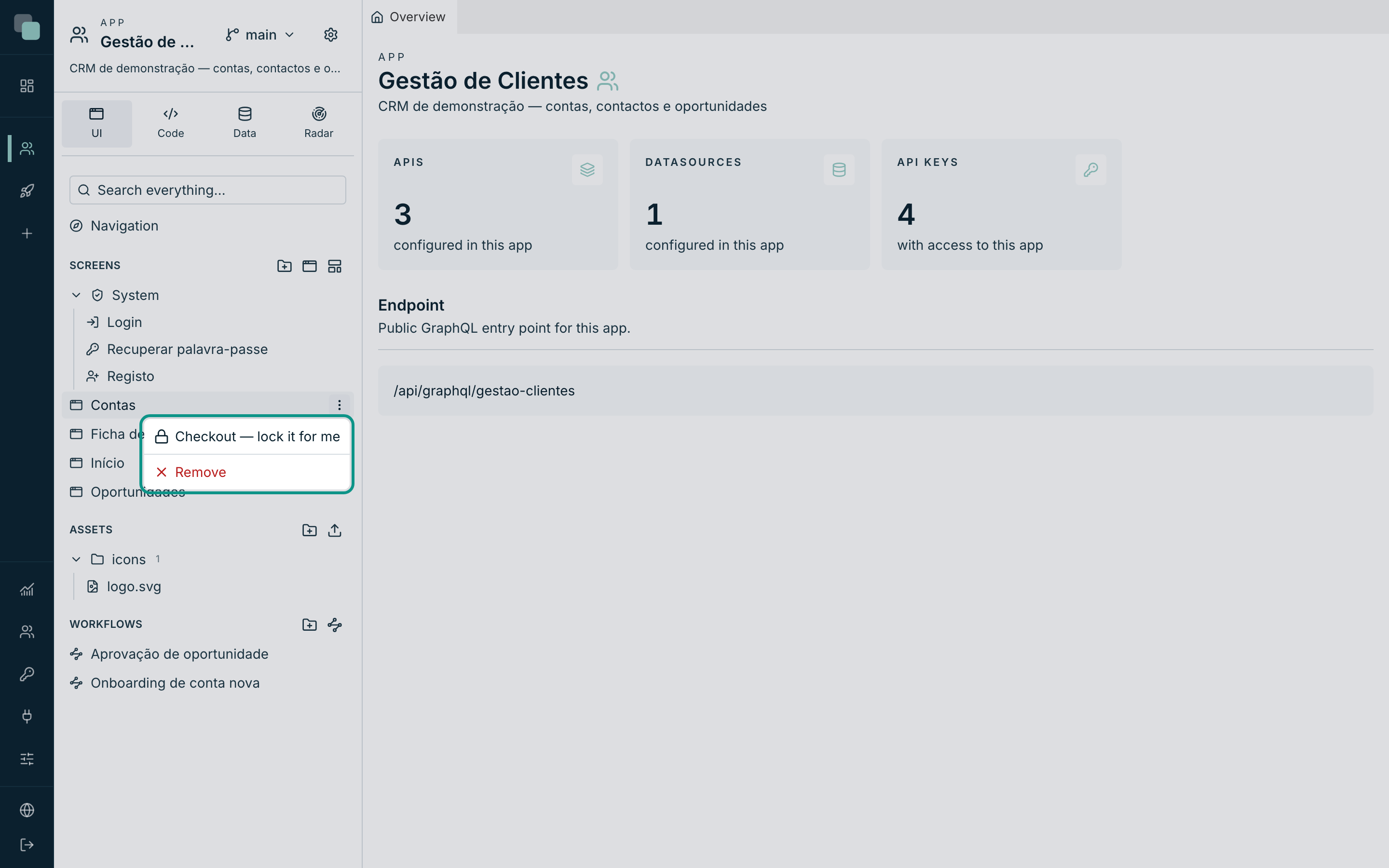
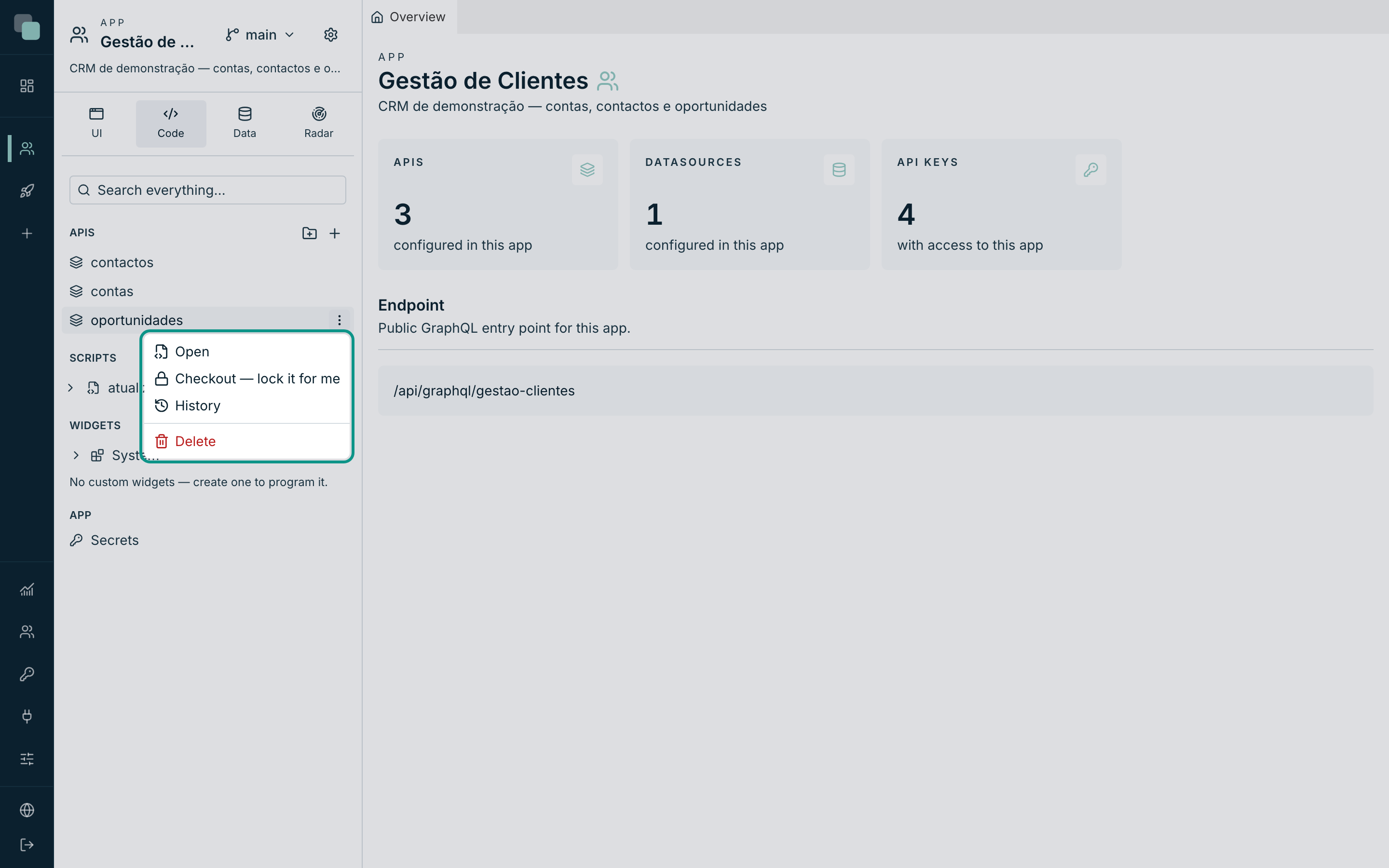
Within the same version, the checkout is the latch that stops two saves landing on top of each other. It is per element — a screen, a layout, a widget, a script, an API, a report, a workflow — and it lives in the actions menu (the three-dots icon) of each row of the app's trees.
- Open the tree where the element is (UI, Code, Data).
- Hover over the element's row and click the three-dots icon — Actions for ….
- Choose Checkout — lock it for me.
- The confirmation says "Checked out — the element is locked for everyone else."
From then on, and until you release it:
- You save the element normally.
- The others see it, open it and read it — but when they try to save they are refused, with your name in the message.
The same menu exists in every tree of the app, and works the same in all of them — a script is locked exactly the way a screen is locked.
Releasing what you locked
When you finish, give the element back:
- Open the row's actions menu again.
- Choose Checkin — release.
- The confirmation says "Element released."
The element is free again for everyone. Nothing is lost along the way — the checkout controls who saves, not what is saved.
Warning
A forgotten checkout is the easiest way to block the team. Get into the habit of doing Checkin — release at the end of the work, not at the end of the day.
When the element is locked by somebody else
Open the actions menu and the first line, grey and unclickable, says whose it is: Checked out by Maria Santos. It is information, not an error — the element still opens and reads.
If you try to save anyway, the refusal is not generic: it carries the name and since when — "Locked by Maria Santos since 11/08/2026, 23:07." You know who to ask.
Forcing the release
An administrator — and only one — sees a second option in the same menu, Force release. It is for the case where the person who locked is on holiday, has left the team, or simply forgot.
Use it with the same prudence with which a master key is used: if the person is working on the element at that moment, their work is no longer protected and the next save may go over it.
How to know who is touching what
Two sources, and they complement each other:
| Where | What it answers |
|---|---|
| Each element's actions menu | "Who has this element locked right now?" |
| The version's history | "Who saved what, and when?" — each save carries the author's name. |
The history is on the next page of this chapter, and it is the place where the question "who changed this?" gets answered without asking anyone.
Frequently asked questions
- Does the checkout cross versions? No. It is per version: locking a
screen on
1.1does not lock the same screen onmain, because they are elements of different versions. - Do I need to check out to save? No. Without a checkout, whoever saves first saves. The checkout is for when that is not enough.
- Do I lose the checkout if I close the browser? No. It is server state and it survives sessions, computers and days. It only goes away with Checkin — release or with a forced release.
- Do two people on the same version conflict? Only if they save the same element. Different areas of the same version get along fine.