The workspace
A guided tour of the platform — the global navigation bar, the app tree with its minitabs, the settings and the workspace tabs.
Keplin is organized on two levels: a global navigation bar on the left, always present, and — when you open an app — its workspace: the app tree next to an area of tabs where everything is edited. This page walks through both levels, piece by piece, so that nothing turns up for the first time in the middle of a task.
The global navigation bar
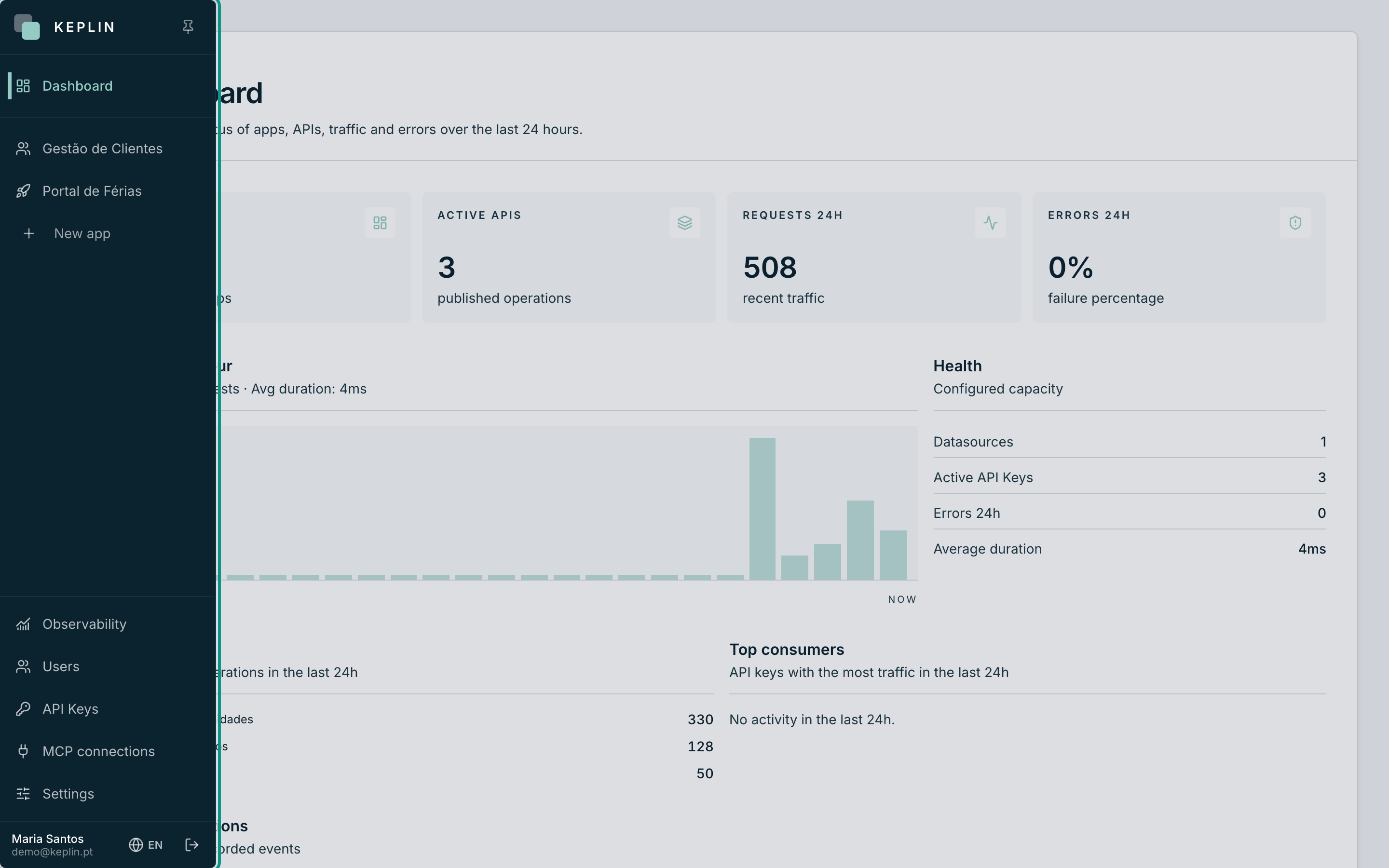
The narrow bar at the left edge of the screen is always there, on every page. By default it shows only icons and expands on hover; to keep it always open, expand it and press the pin at the top (Pin sidebar — the same button unpins it).
From top to bottom, it has four zones:
| Zone | What it contains | Who sees it |
|---|---|---|
| Top | Dashboard — the home panel: state of the apps, traffic and errors of the last 24 hours. | Everyone |
| Middle | Your apps, one per row, and the New app button. It is the only zone that scrolls — it grows with the installation. | The assigned apps; New app administrators only |
| Administration | Observability (everyone), Users, API Keys, MCP connections (everyone) and the platform Settings. | See the column |
| Bottom | Your name and email, the Language button and the Log out button. | Everyone |
Note
The list of apps in the middle is not a menu of favourites — it is the whole of what your account can touch. An app that is not assigned to you does not appear here, nor open by link.
Opening an app
Press an app in the global bar to enter its workspace. The screen splits in two: the app tree on the left and the area of tabs on the right.
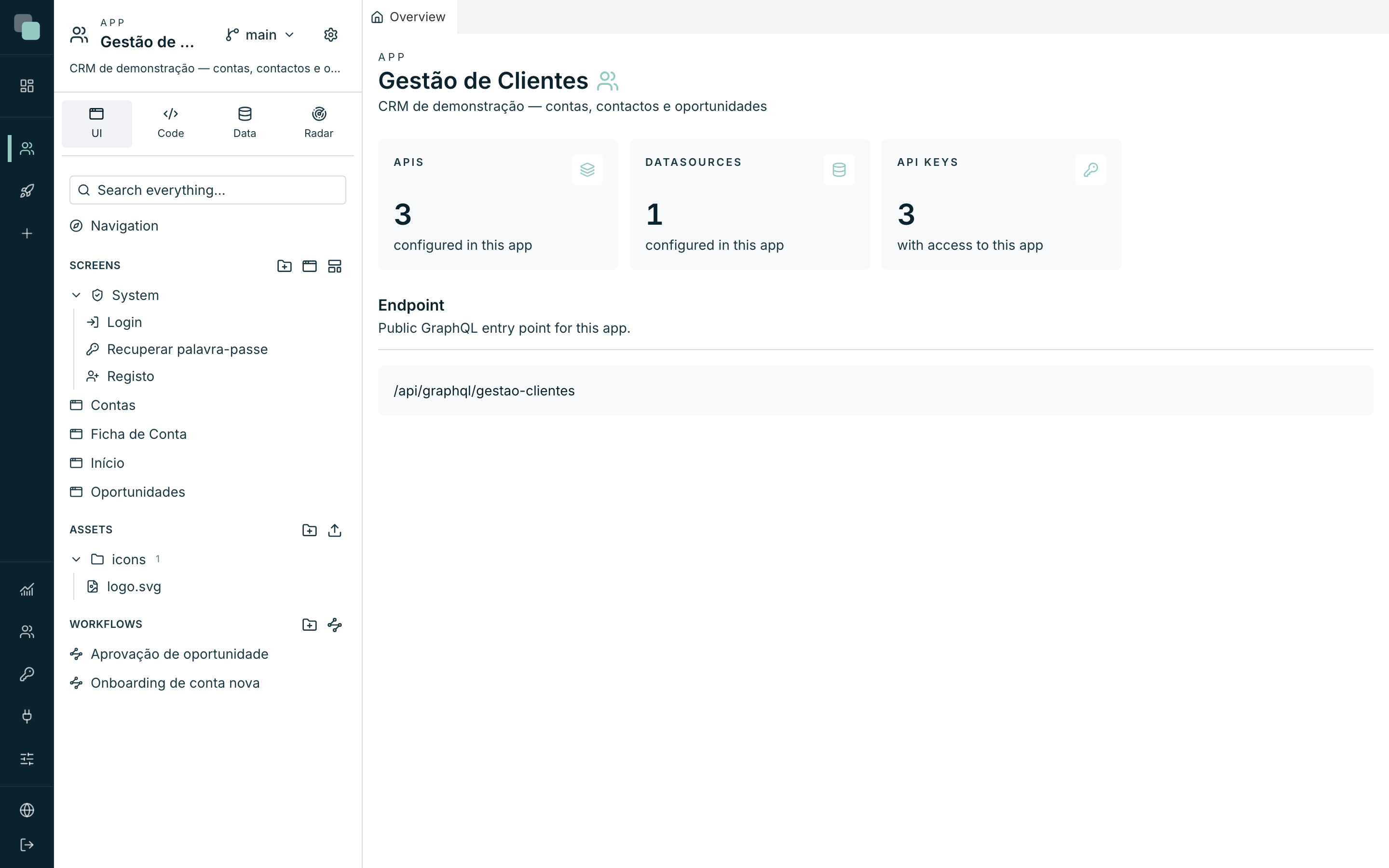
At the top of the tree sits the app header:
- The word App, the icon and the name of the app.
- The Versions menu — it shows your working version (in a new app, main) and lets you switch version, create a new one or open the history. It is in the header because switching version changes what ALL the open tabs show.
- The App settings gear — it opens the settings panel (see below).
- The description of the app, on one line; press it to expand and collapse it.
The app tree and the minitabs
Right under the header lives the bar of minitabs: four buttons that swap the content of the tree. It is where everything an app has is filed:
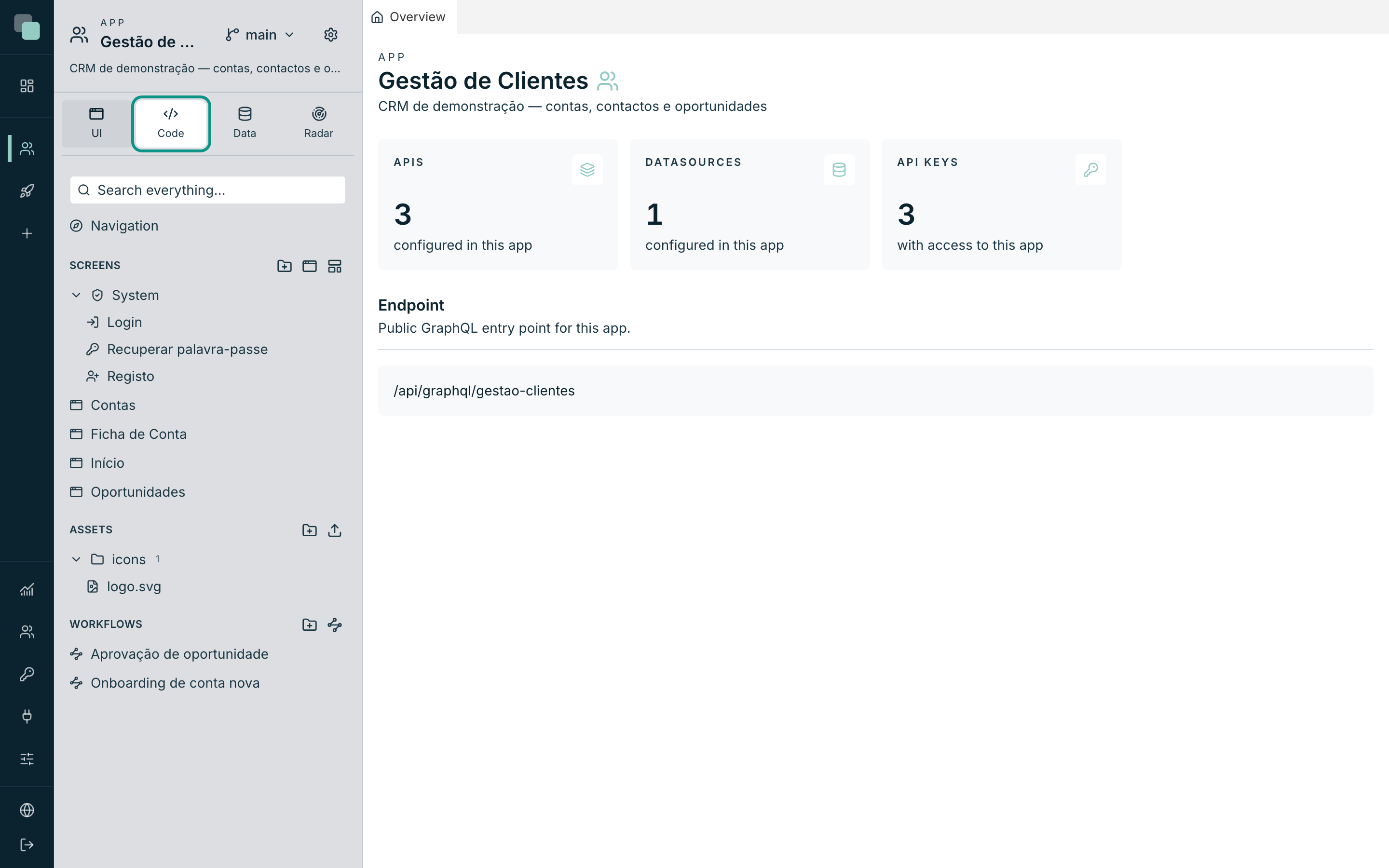
| Minitab | What it contains |
|---|---|
| UI | The Navigation (the app's menu), the Screens — including the System group with Login, Recover password and Register —, the Assets and the Workflows. |
| Code | The APIs and the Scripts, both organizable into folders; the Widgets (the System ones and yours); and the App group with the Secrets. |
| Data | The Datasources — each one expands into its tables, views and objects, plus the Model — and the Reports. |
| Radar | The app's health seen from the inside: API calls, script runs, user sessions and problems. |
Habits worth having from day one:
- Search first. Each minitab has its own Search everything… box at the top — it filters the whole tree while keeping the folder structure.
- Every section creates in place. The creation buttons live in the header of each section (for example New screen and New layout in the Screens, New API in the APIs, New script in the Scripts, New datasource in the Datasources) — they appear on hover.
- Organize with folders. New folder exists in the sections that grow; drag items and folders to move them. Deleting a folder does not delete its content — it moves up one level.
- The width is yours. Drag the right edge of the tree to resize it; the platform remembers.
- Double click renames. On most items of the tree, a double click on the name opens inline editing — Enter saves, Escape cancels.
Tip
An item with a padlock is Checked out by someone: that person reserved it to edit. The ⋮ menu of each item has the Checkout — lock it for me and the Checkin — release.
The app settings
The gear in the header swaps the tree for a tree of settings, organized in groups — each click opens the panel of the right section in a tab:
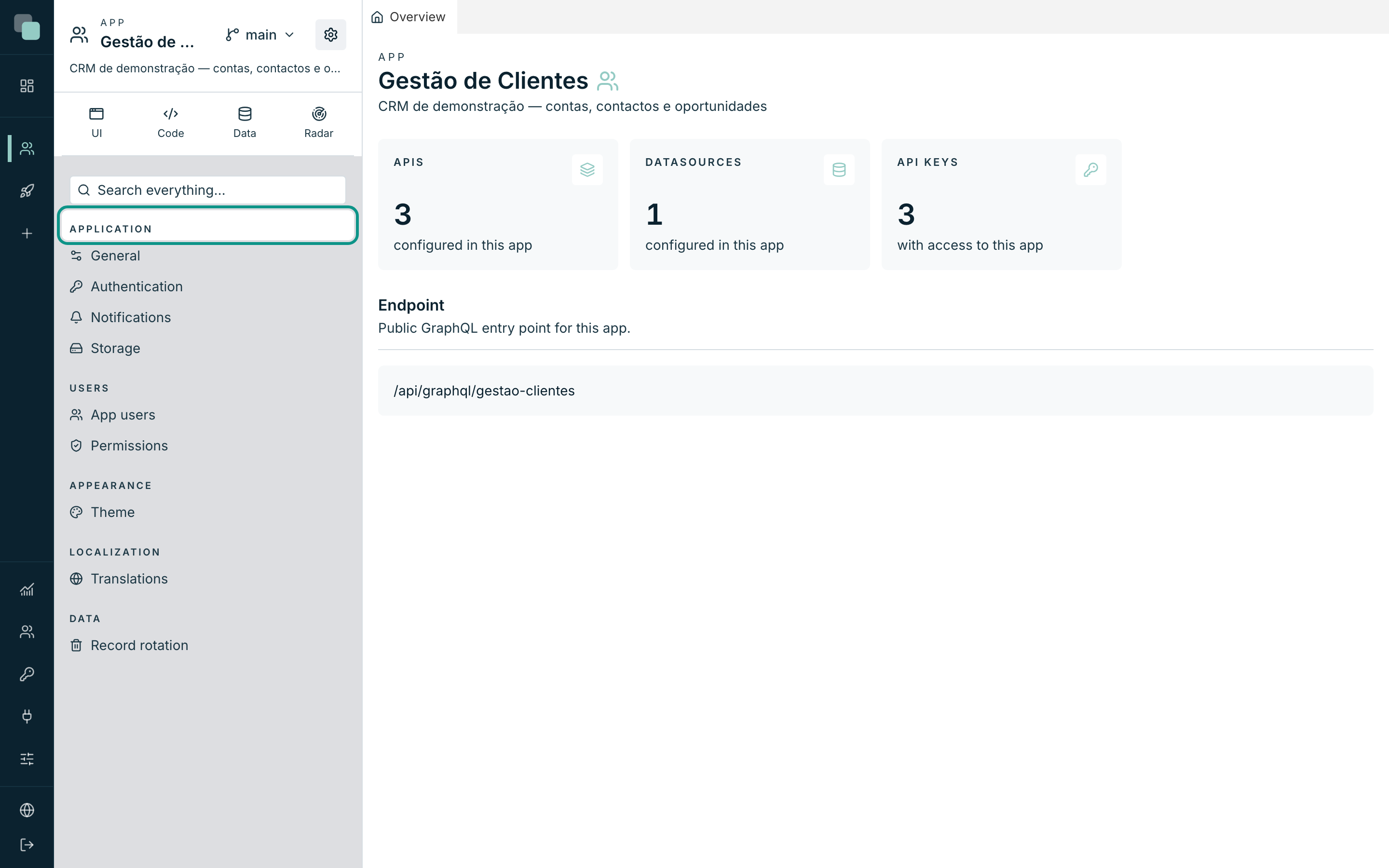
| Group | Sections |
|---|---|
| Application | General (identification, publishing, export, delete), Authentication, Notifications, Storage |
| Users | App users, Permissions |
| Appearance | Theme |
| Localization | Translations |
| Data | Record rotation |
To go back to the normal tree, press any minitab (UI, Code, Data or Radar).
The workspace tabs
The area on the right works like a professional editor: everything you open in the tree — a screen, an API, a script, a table — becomes a tab, and the tabs pile up instead of replacing one another.
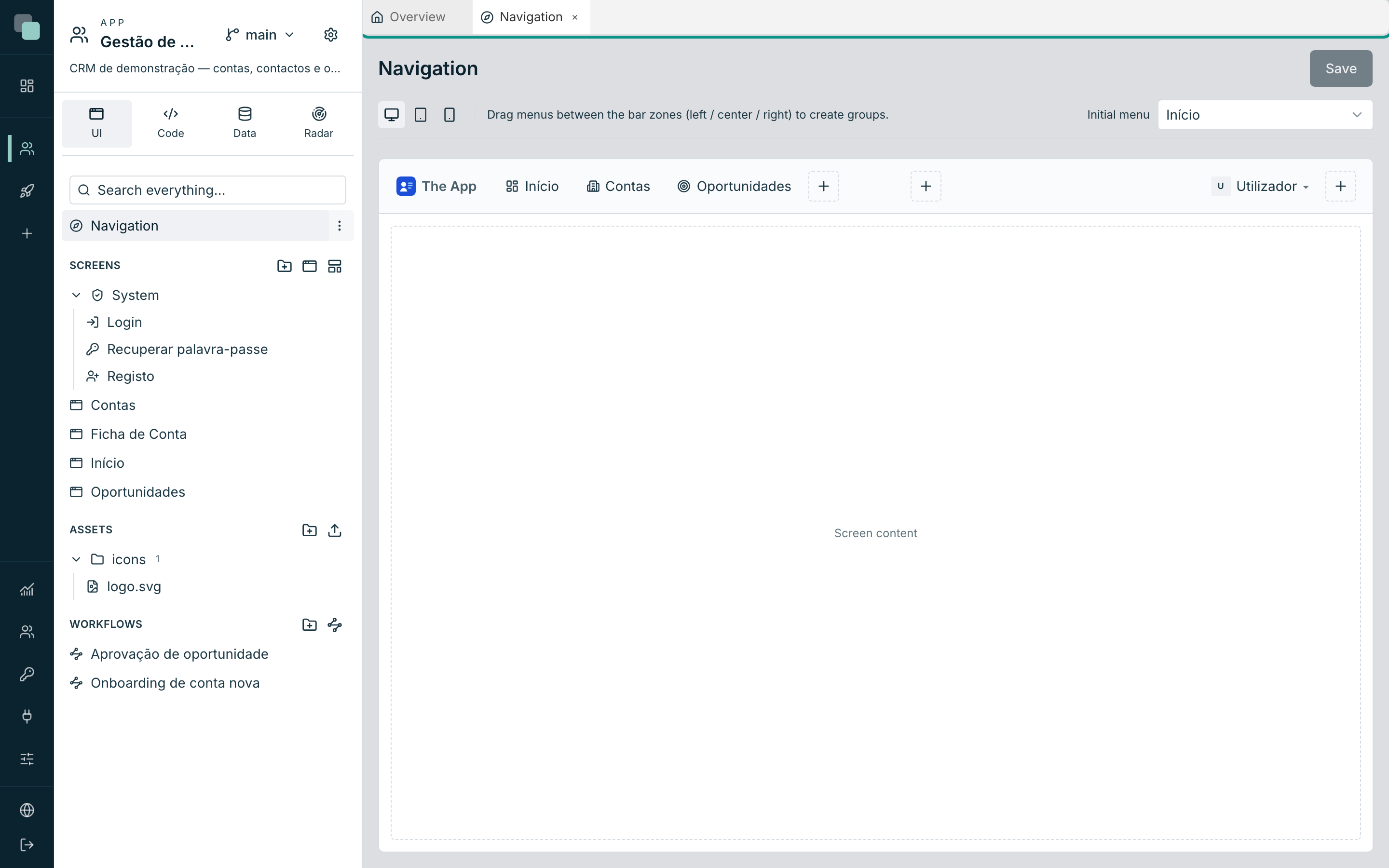
The essentials:
- Overview is the home tab: name and description of the app, counts (APIs, Datasources, API Keys) and the GraphQL Endpoint. While it is the only tab, it cannot be closed; with more tabs open, it closes like any other.
- Click an item in the tree to open it; if it is already open, its tab comes to the front.
- Drag tabs to rearrange them — dropping them at the edge of the work area splits the space and puts two editors side by side (for example, a screen and the API that feeds it).
- The arrangement of the tabs persists per app: you close the browser, you come back, and it is as you left it.
- Closing a tab with unsaved changes opens the Unsaved changes warning — choose Close anyway to discard or Cancel to go back and save.
Right-clicking a tab opens its menu: Close, Close others, Close to the right, Close to the left, Close saved (the ones with no unsaved changes) and Close all, counted in that tab's bar; and Close all tabs, for the whole workspace, split or not. If the batch has tabs with unsaved changes, you are asked once, with the list of them.
Warning
Close anyway really does discard: the unsaved changes of that tab are lost. When in doubt, Cancel and save first.
When a tab fails
If a tab fails to render (a screen with a document the editor did not expect, for example), the error appears inside that tab, with the message and the Technical details. The rest of the workspace keeps working.
Try again renders the tab again, after you fix what the error points to; Close tab closes it; Copy details puts the full message on the clipboard. A tab that failed does not reopen by itself the next time you enter the app: open it again from the tree whenever you want.
If the whole workspace fails, the page shows the error with Reset the layout, which closes all the saved tabs of this app and opens it again with the Overview only. Nothing that is saved is lost.
Why don't I see…?
I switched version and all the tabs reloaded. That is the correct behavior: the working version changes what all the tabs show, so all of them go and fetch the content of the new version.
The tree does not show an API a colleague has just created. Switch minitab (or come back to the same one) — the tree fetches the data again on every switch. Other people's work appears without reloading the browser.
On the phone I don't see the tree. On small screens the tree gives way to a simplified navigation with the main sections. The full workspace was designed for working screens.