Tasks for people
Steps assigned to app users — decisions, deadlines and the screen to open — the ways of starting a process and how to follow the runs.
A workflow that only writes fields and sends emails could have been a script. What makes it a business process is the Task: a step that waits for a person, with buttons of its own, a deadline and a screen for them to decide on.
This page is about tasks, about who starts the process and about how you follow what is running.
The Task step
Drag Task from the palette onto the canvas and select it. The right-hand panel shows everything a task needs:
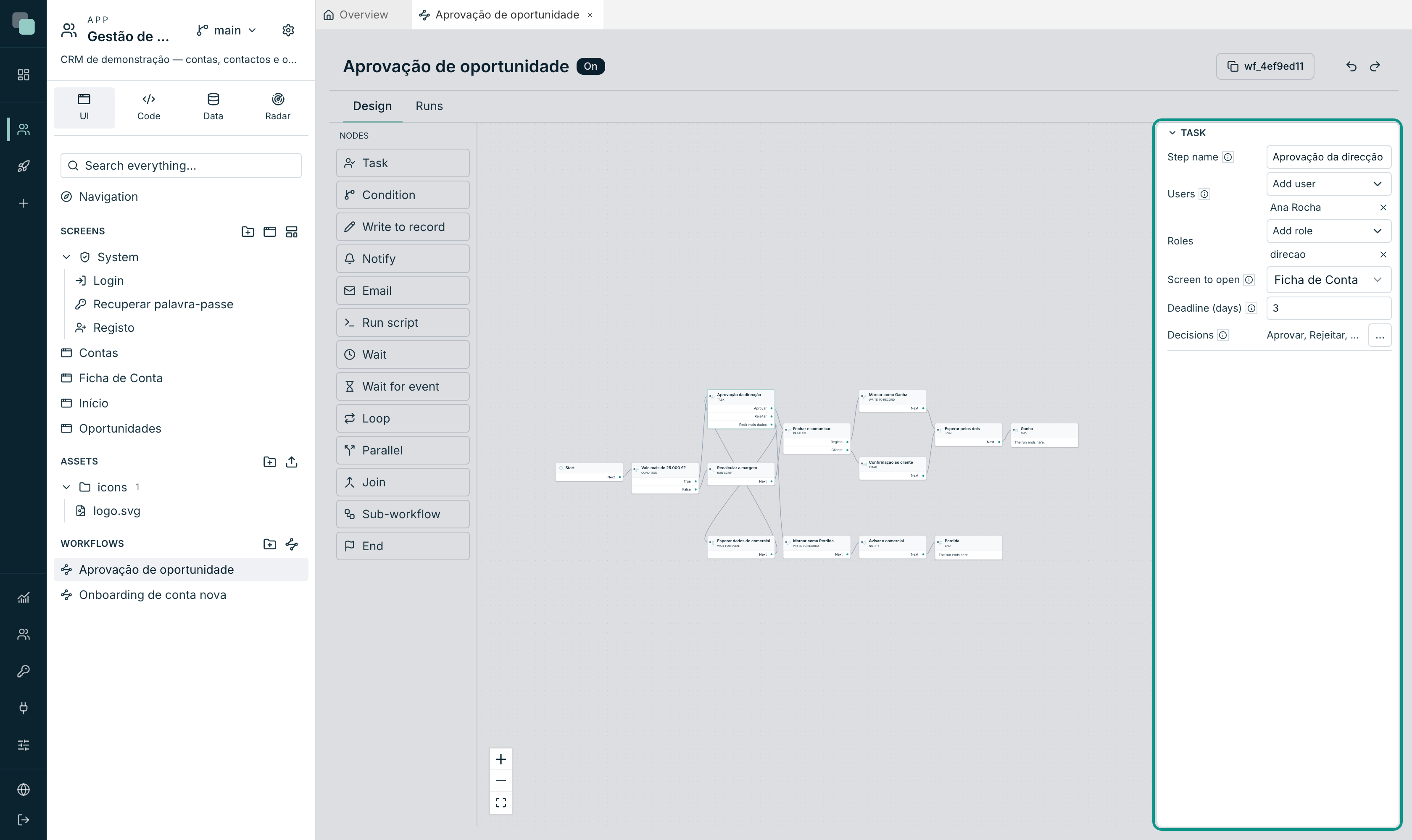
| Field | What it does |
|---|---|
| Step name | What the person reads in the task list and what stays in the history. |
| Users | App accounts picked by hand. |
| Roles | Every user with that role. |
| Screen to open | The screen the person opens to decide. It receives the record key as a parameter. None = the decision is made with the buttons alone. |
| Deadline (days) | Days counted from the moment the task is created. 0 = no deadline. |
| Decisions | The buttons the person sees. See below. |
About the recipients: "who gets the task is resolved when it is created —
changing roles later does not take the task from whoever already had it". A task
assigned on Monday to whoever held the direcao role stays with those people
even if the role changes on Wednesday.
Warning
A task with no users and no roles is a design error: "this task does not say who it is assigned to — the run will fail here". And it fails far from where the mistake was made, which is worse — hence the design warning you early.
Decisions — the buttons and the paths
A decision is, at the same time, a button on the screen and an outcome on the design. You declare it once.
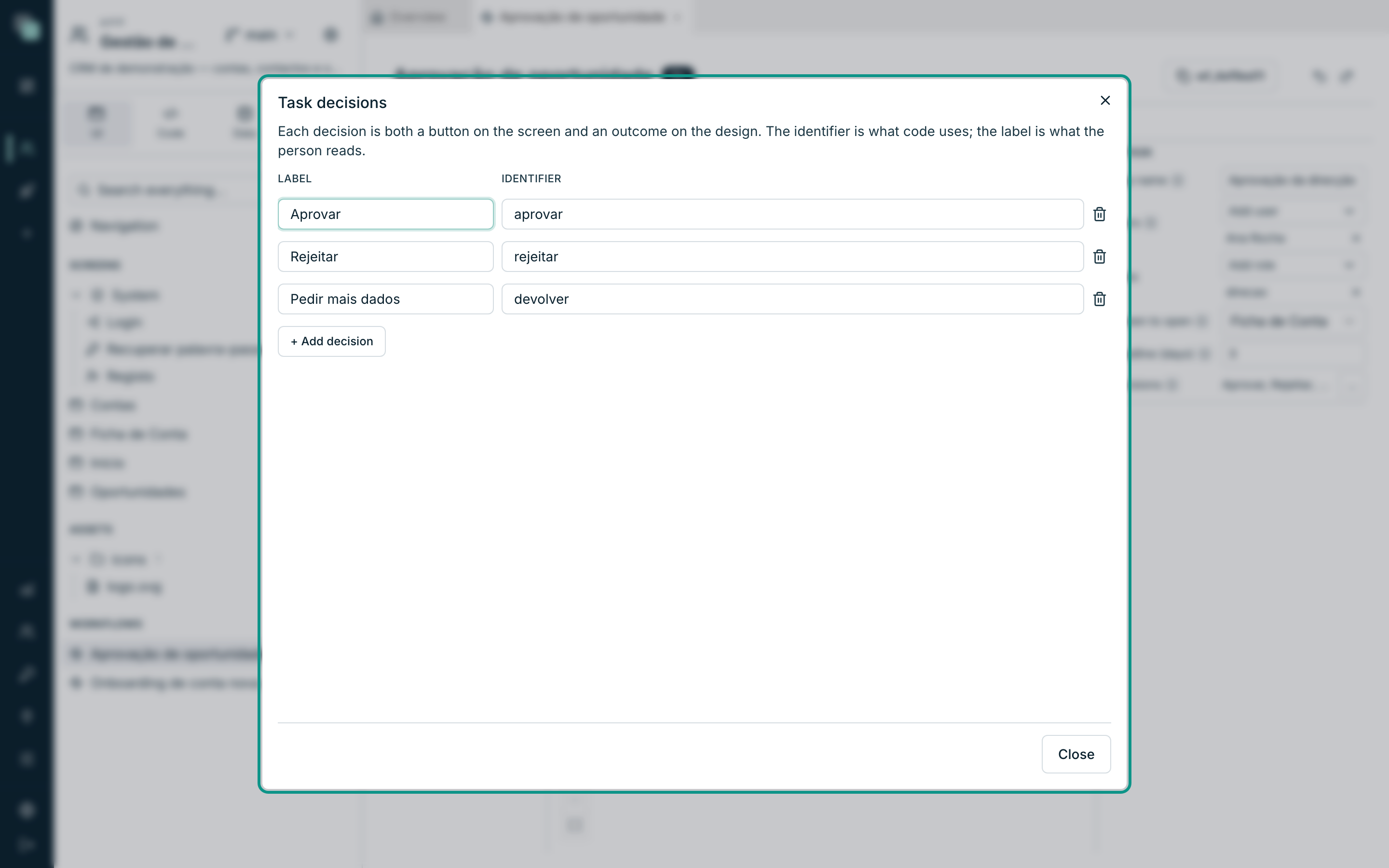
- Open Decisions with the … button.
- Each row has a Label (what the person reads: "Approve") and an
Identifier (what code uses:
aprovar). - Click Add decision for the ones still missing.
- Close it and, on the canvas, connect each outcome to its matching step.
In the example, the Management approval task has three: Approve, Reject and Request more data. Each takes the process down a different path — the first closes the deal, the second marks it as lost, the third returns the case to the sales rep and waits for their signal.
Tip
Change the Label as much as you like — it is text for people. The Identifier is what the design's connections and the code use: changing it breaks the arrow leaving that decision, and the warning bar starts saying "Connection from an outcome that no longer exists".
What the person sees in the app
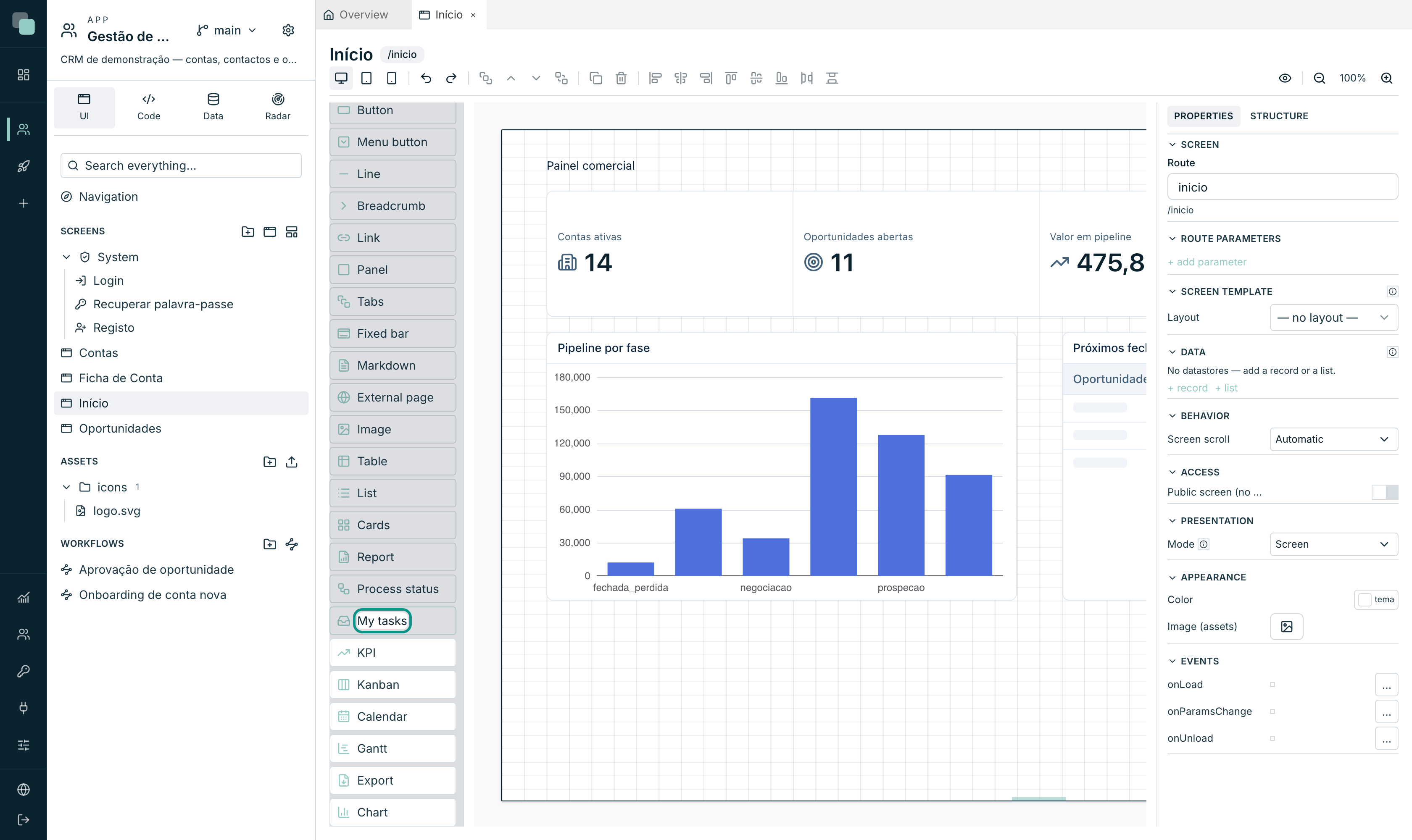
On the side of whoever uses the application, a task shows up through two screen builder widgets:
| Widget | What it shows |
|---|---|
| My tasks | The inbox of whoever has the session: their open tasks, with each one's decision buttons. |
| Process status | Where a record's process is — "Now at", the latest steps, and (optionally) the decision buttons. |
Properties worth knowing:
- Show decision buttons — "they only show when the open task is assigned to whoever is looking". Nobody decides for someone else.
- Open the task's screen — clicking a task opens the screen it points to, with the record key already in place.
- Steps to show (on Process status) — how many history steps are visible.
- Entity and Record key — which record the widget is following.
When the person clicks a button, the task closes and the process moves on through the matching outcome — immediately, with nobody having to go and "run" anything.
In code, the same is done with the screens SDK (TypeScript):
const minhas = await keplin.workflow.tasks();
await keplin.workflow.complete(minhas[0].id, "aprovar", { nota: "ok" });
Ways of starting
A workflow does not know who starts it — and that is on purpose. Whoever decides is the screen, the code or the parent process. There are four ways:
| Way | How it's done |
|---|---|
| A screen button or event | In a TypeScript event: await keplin.workflow.start("wf_4ef9ed11", id). |
| A Python script | workflow.start("Aprovação de oportunidade", 42) — it takes the name or the identifier. |
| A Sub-workflow | A Sub-workflow step in another process, on the same record. |
| A signal | A process already running, parked on a Wait for event, is resumed with signal(...). |
In all of them, the record key is required: every run is about one record. The start returns "as soon as the engine reaches the first wait — it never waits for the process to finish", and gives back the identifier of the run it created.
The process identifier (wf_…) is copied from the design's header with a single
click — it is what you paste into the code.
Note
A process that is Off starts through none of these routes. It is the switch to use when you want to stop things coming in without deleting anything.
Following the runs
The process's Runs tab shows everything that has run:
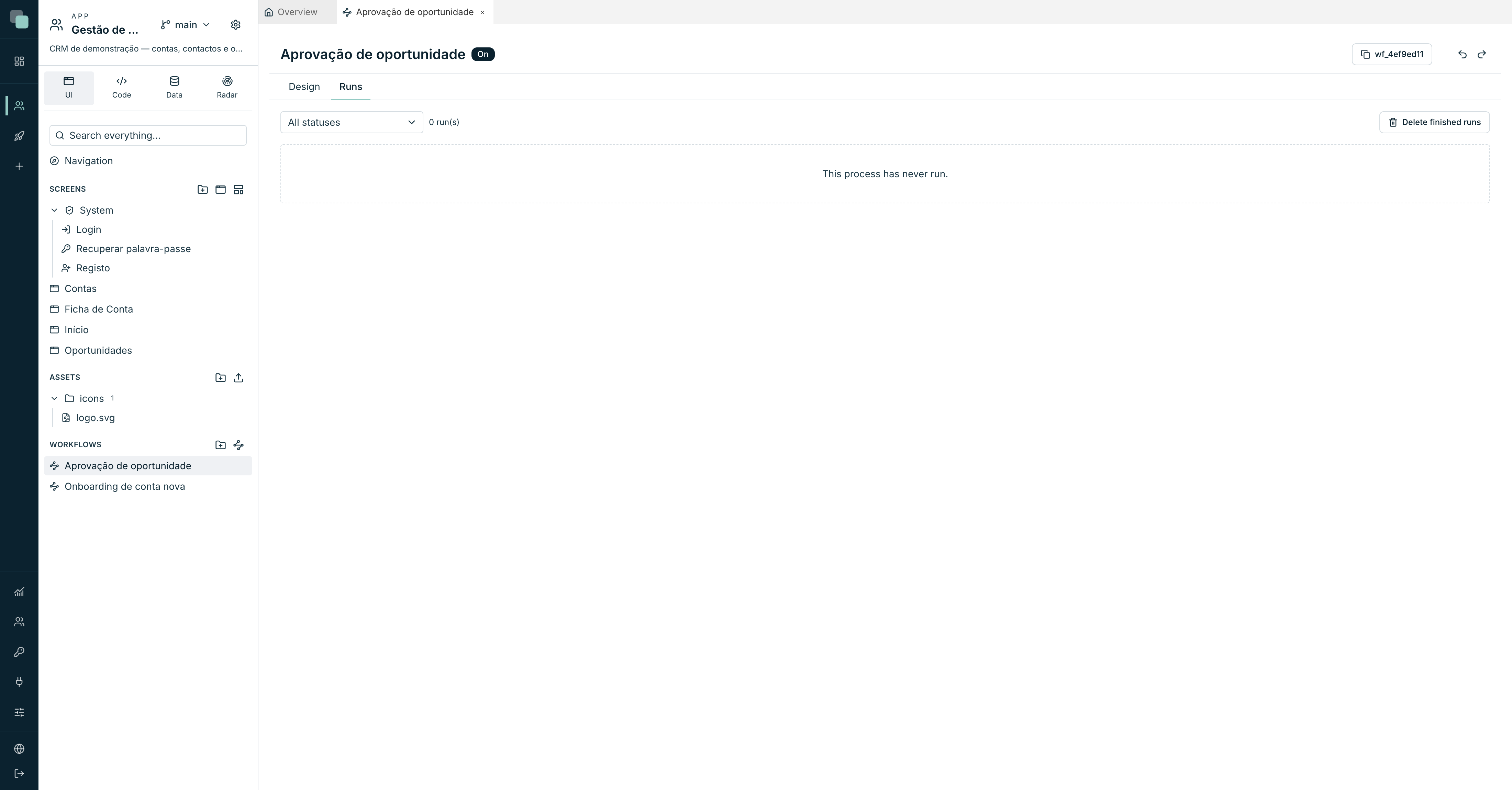
At the top, a status filter (All statuses), the run count and the Delete finished runs button. A process that has never run shows "This process has never run.".
The statuses of a run:
| Status | Means |
|---|---|
| Running | It is executing steps right now. |
| Waiting | Parked — on a task, on a Wait or on a Wait for event. |
| Done | It reached an End. |
| Failed | A step errored (a script that blew up, a rejected write). |
| Cancelled | It was terminated before the end. |
Each row shows the record, the status, when it started and how many steps it took. Opening the row reveals the history — one entry per event, with the step's name exactly as it is on the design:
| Event | When it appears |
|---|---|
| started | At the beginning of the run. |
| step | Each executed step. |
| branch | A condition that chose a path, or a decided task. |
| waited / resumed | It entered a wait / it was woken. |
| ended / failed / cancelled | The outcome. |
The Show the path on the design button is the most useful of all: on the canvas, it lights up the steps that run went through, numbered in the order they happened. You go back to normal with clear the path, next to the tabs.
Clearing the history
Delete finished runs "deletes this process's done, failed and cancelled runs, along with their history. Runs still going or waiting are kept. This cannot be undone."
For an automatic policy, use Record rotation in the app's settings: finished workflow records are deleted after the period you set, "instances still running or waiting on someone are never deleted", and "failed ones are kept twice as long".
Frequently asked questions
The person doesn't see their task. In order of likelihood: the screen holding the My tasks widget is not accessible to them; the task was assigned to a role they don't have; or the app account is not the person you think it is — app accounts are independent of platform accounts (see App users).
Can I reassign a task to someone else? The assignment is fixed at the moment the task is created. For stand-in cases, design the process with Roles instead of users: you just grant the role to whoever is standing in.
Does the deadline do anything on its own? The deadline marks the task and is shown to whoever holds it. To act on a delay — warn the boss, escalate — design that path: a Parallel with one branch that goes to a Wait of N days and from there to a Notify.
A run failed. Can I resume it? A failed run is recorded with the step and the error. The normal path is to fix the cause (the script, the permission) and start the process again on the same record — if concurrency is set to Only one at a time, first make sure the failed run no longer counts as live.