Platform accounts
How the accounts of those who build apps are created, edited, disabled and deleted — and what changes between an administrator and a developer.
There are two populations in Keplin, and this page is about the first: those who build. They are the accounts that sign in to the platform, see the list of apps, design screens, edit the model and manage versions. They live in the Users menu and have nothing to do with the accounts of those who use the built application — those belong to each app and are managed in its settings.
The Users menu only appears to whoever has the administrator profile. It is from there that an account is created, its profile changed, its password reset and its access cut off.
The list of users
Open Users in the left sidebar, in the administration area (below the
apps). The page opens with the header "KEPLIN access accounts. Role and
status changes apply at the user's next login." and, right below, the
account count — 2 users.
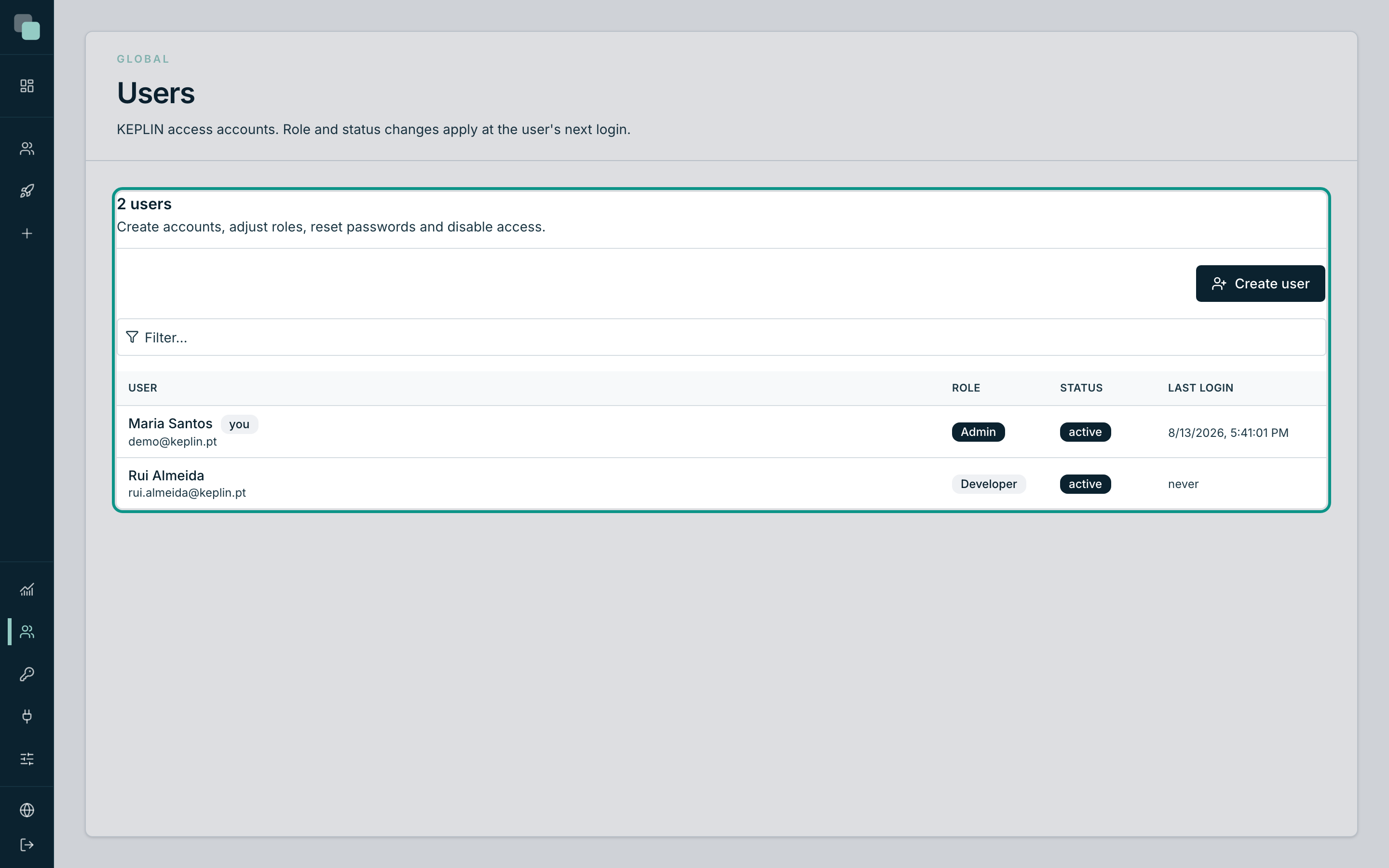
The table has four columns:
| Column | What it shows |
|---|---|
| User | The name and, below it, the email — which is also what you type to sign in. Your own account carries the you tag. |
| Role | The profile: Admin or Developer. |
| State | active or disabled. A disabled account stays in the list, but cannot sign in. |
| Last login | The date and time of the last sign-in, or never if the account has not been used yet. |
Click a row to open that account's record — it is there that everything else is done. There is also a search box above the table, to filter by name or email when the accounts become many.
Note
The header sentence is not decorative: changing somebody's profile or state applies at that person's next login. Whoever is already inside keeps what they had until they sign out and back in (and, at most, 12 hours later, when the session expires).
The two profiles
There are only two, and the difference between them is simple to state:
| Profile | What they can do | Where |
|---|---|---|
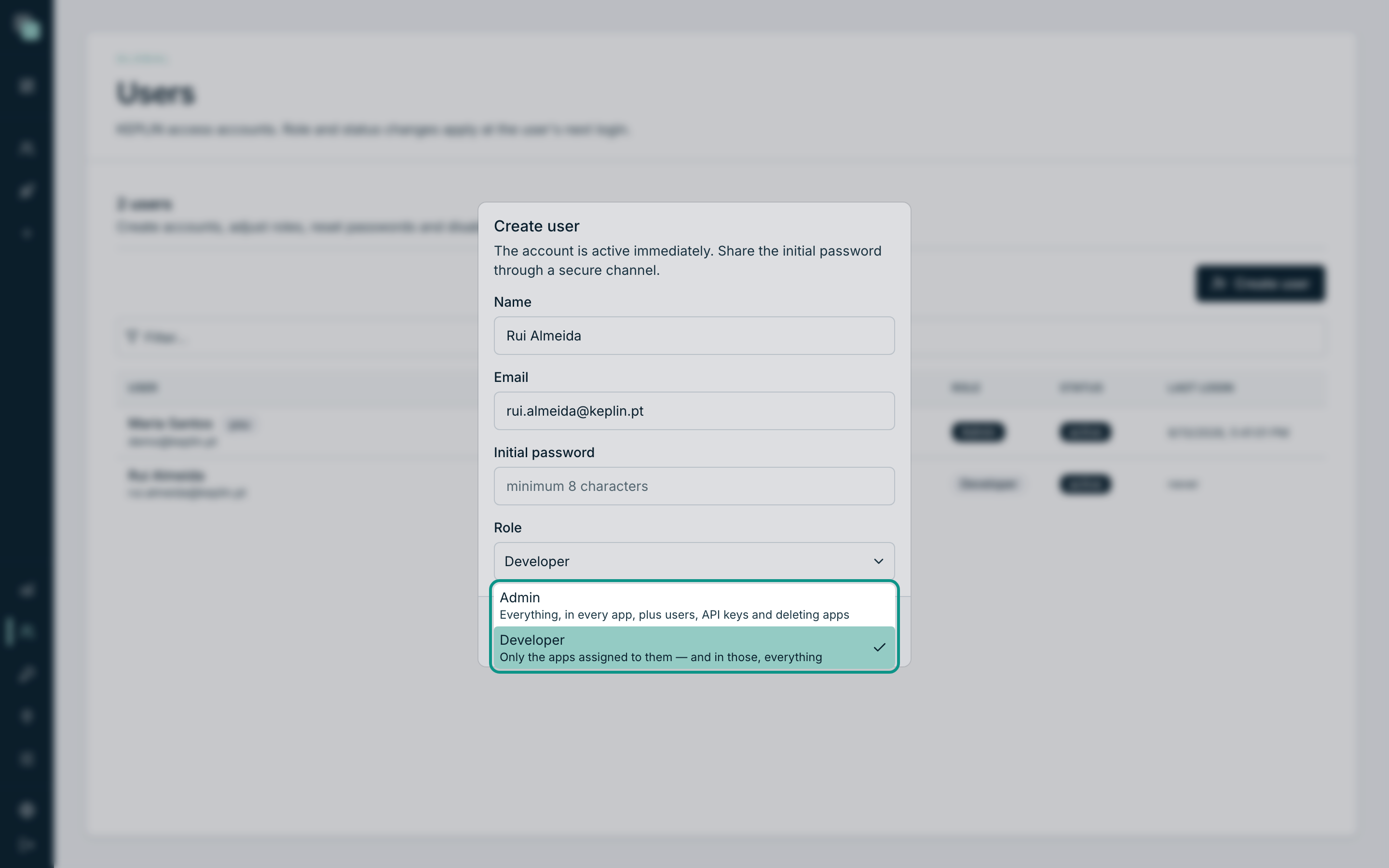
| Admin | "Everything, in every app, plus users, API keys and deleting apps" | The whole platform, including the apps yet to be created. |
| Developer | "Only the apps assigned to them — and in those, everything" | Only the apps checked on their record. |
A developer is not a limited profile inside an app: inside an assigned app they do exactly the same as an administrator — create screens, change the model, write scripts, publish. What sets them apart is reach: they do not see the apps they were not given, do not create new apps, do not touch users or the platform settings.
The next page of this chapter — "Access per app" — deals with just that.
Creating an account
- In Users, click Create user (in the top right corner of the list panel).
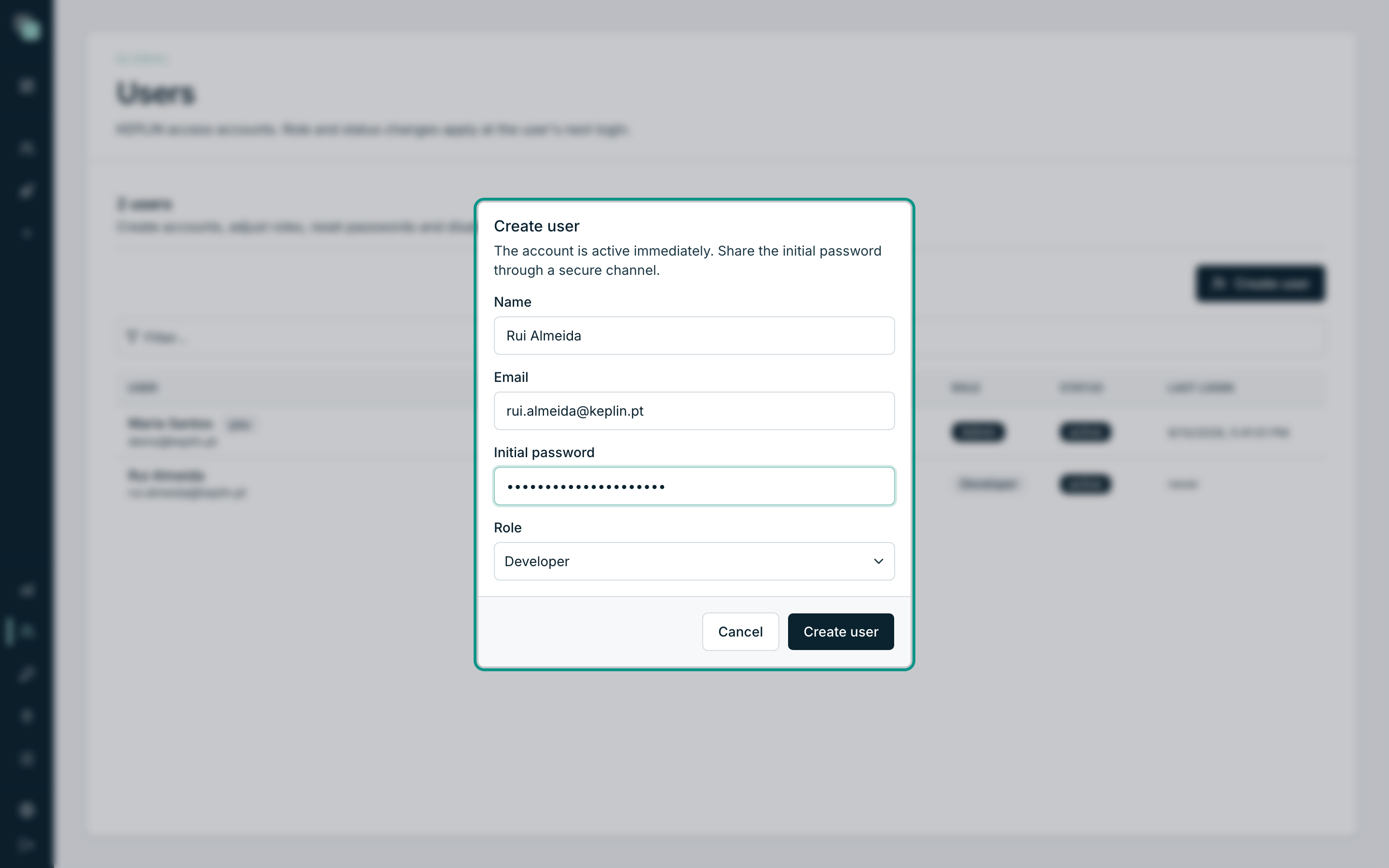
- The Create user modal opens, with the notice "The account is active immediately. Share the initial password through a secure channel."
- Fill in the Name — it is what appears in the list, in the apps' history and in the audit records.
- Fill in the Email. It is the sign-in identifier and has to be unique in the installation.
- Type the Initial password. The box recalls the limit:
minimum 8 characters. - Choose the Role — Developer is the original value, and it is almost always the right one.
- Click Create user. The confirmation "User created." appears and the account joins the list already active.
The Role selector shows, next to each profile, the sentence that sums it up — it is there that the account's reach is decided before it exists.
Warning
The initial password is written by you and is sent to nobody. Pass it to the person through a secure channel; they can change it afterwards. The platform has no "invite by email" for builder accounts.
An account's record
Click a row in the list and you enter the record. At the top sit the
identification (initials, name, email), the Role and State tags,
and two dates: Last login: and Created:.
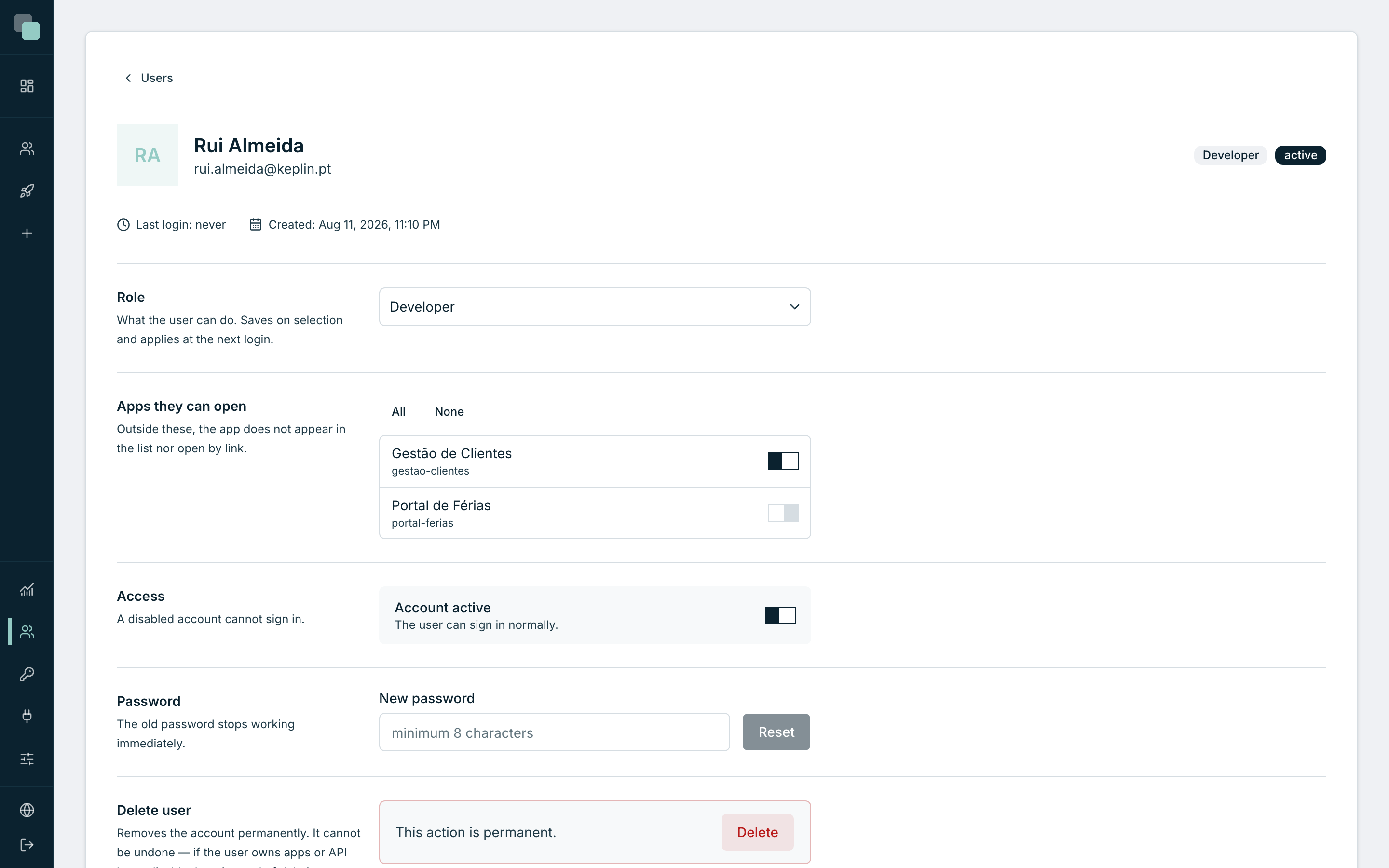
Below, five panels — each with one responsibility:
| Panel | What it is for |
|---|---|
| Role | Switching between Admin and Developer. |
| Apps they can open | Choosing which apps the account sees (see the next page). |
| Access | Turning the account on and off. |
| Password | Resetting the password. |
| Delete user | Removing the account for good. |
None of these panels has a general Save button: each one saves its change the moment you make it, and says it saved.
Changing the profile
- Open the account's record.
- In the Role panel — "What the user can do. Saves on selection and applies at the next login." — open the selector.
- Choose Admin or Developer.
- The confirmation "Role is now Admin." (or Developer) appears immediately.
Note
On your own record the selector appears locked, with the explanation "You can't change your own role — it's Admin." It is on purpose: if the last administrator demoted themselves, the installation would be left with nobody able to promote anyone at all.
Resetting the password
When somebody loses their password, it is an administrator who sets another one — there is no email recovery for builder accounts.
- Open the account's record.
- Go down to the Password panel — "The old password stops working immediately."
- Type the New password (minimum 8 characters).
- Click Reset. While the operation runs, the button shows "Resetting…" and at the end "Password reset." appears.
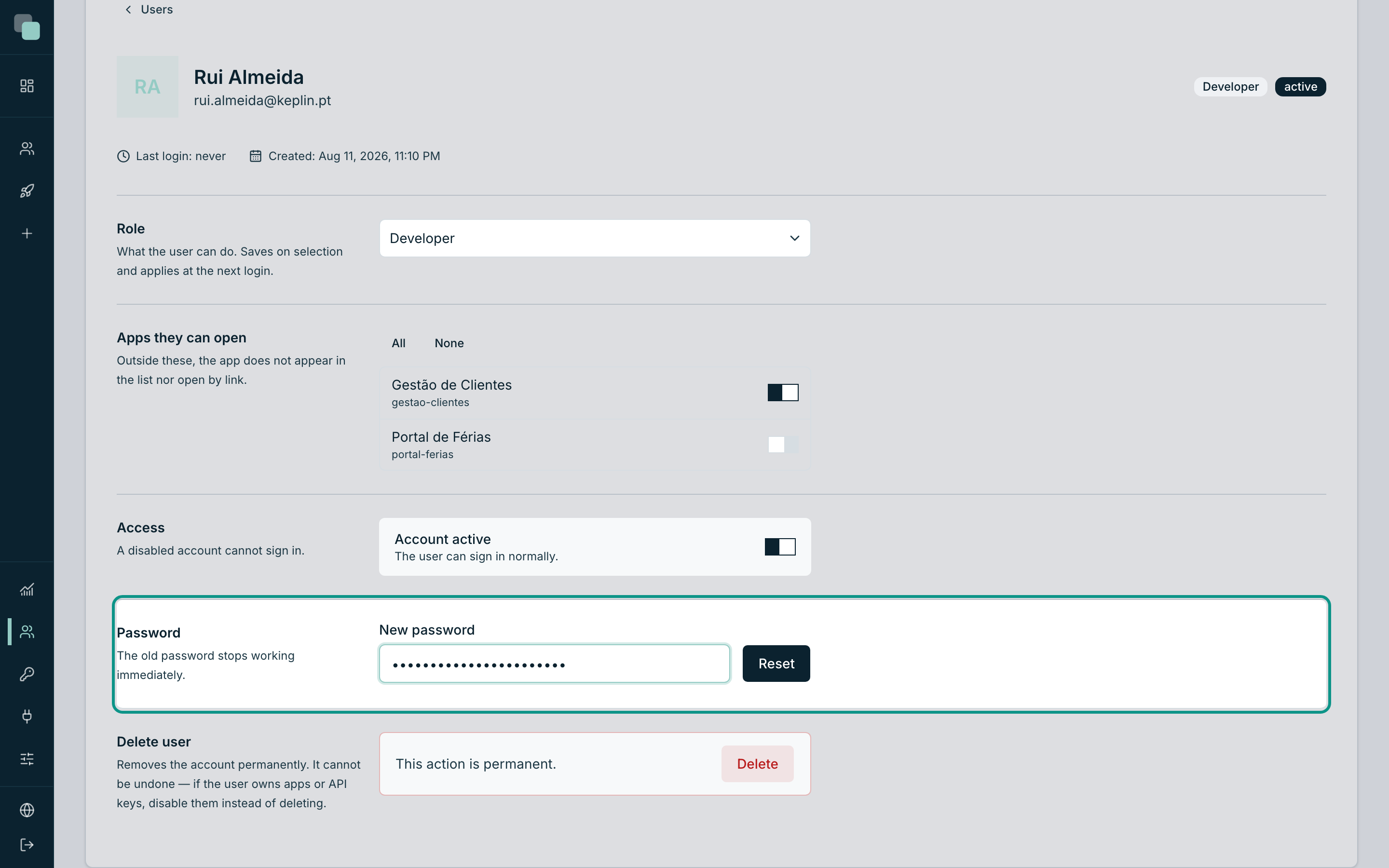
The old password stops working at once, and the sessions the person had open are closed: on the next request, they're asked to sign in again, with the new password.
Disabling and reactivating
Disabling is the correct way to remove access from somebody who left the team. The account stays, the history of what that person did goes on making sense, and the access ends.
- Open the account's record.
- In the Access panel — "A disabled account cannot sign in." — click the Account active switch.
- The confirmation 'Disable Rui Almeida's account?' opens, warning: "The user will no longer be able to sign in. Already-open sessions expire within 12 hours at most."
- Click Disable account. The record now shows Account disabled and the sentence "The user cannot sign in.", and the confirmation "Account disabled." appears.
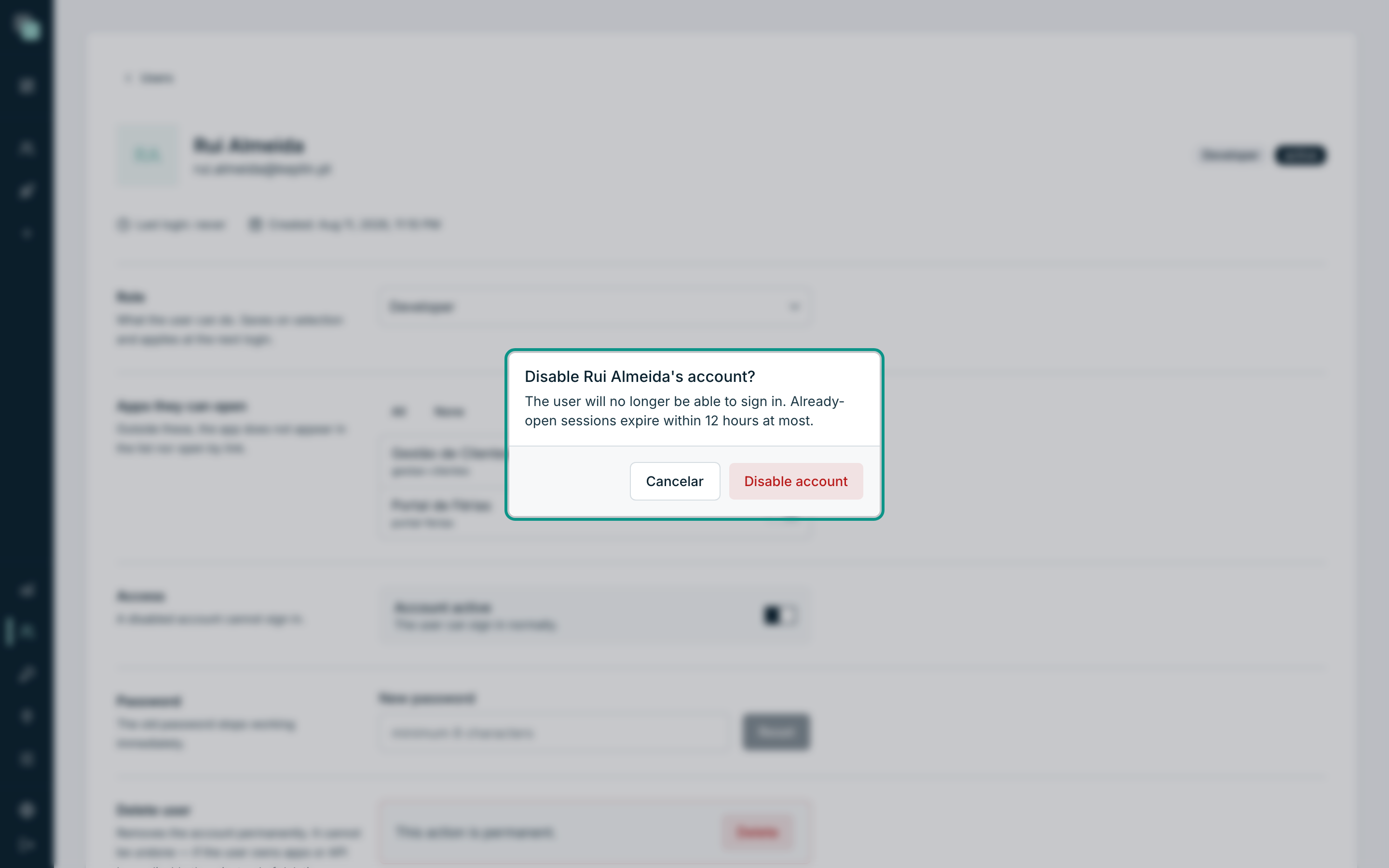
To reactivate, go back to the same switch and turn it on — this time with no confirmation, with the message "Account reactivated."
Note
You cannot disable yourself: the panel says "You can't disable your own account." and the switch does not respond.
Deleting an account
- Open the account's record.
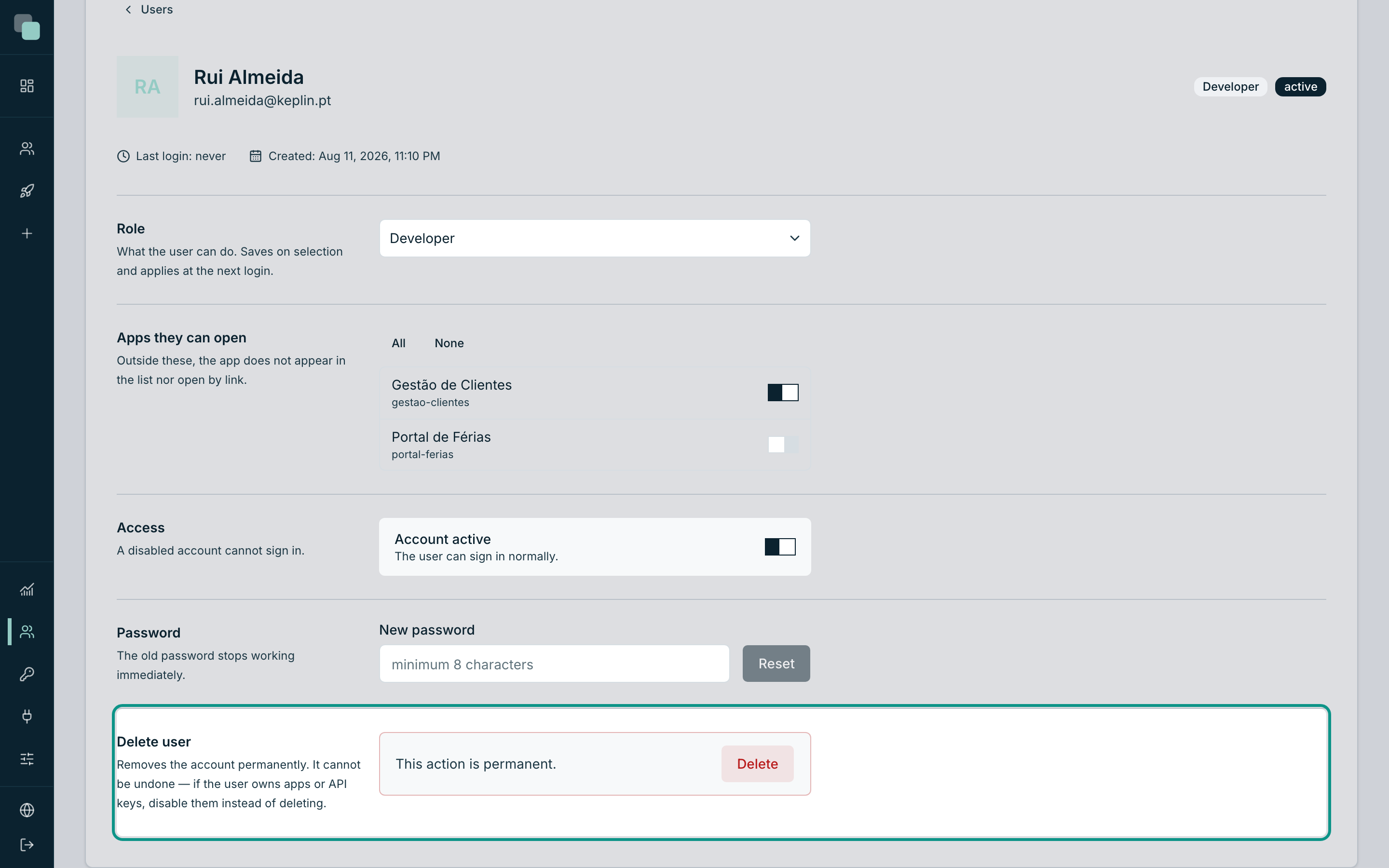
- Go down to the Delete user panel — "Removes the account permanently. It cannot be undone — if the user owns apps or API keys, disable them instead of deleting."
- Click Delete.
- Confirm in 'Delete Rui Almeida's account?' — "The account is removed permanently. This action cannot be undone." — with Delete user.
- You are back at the list, without the account, with the confirmation "Rui Almeida deleted."
Warning
Prefer disabling to deleting. Deleting is permanent and gives nothing back; the record itself says so. What the person built stays in the apps, but their name is no longer tied to an account — and the day you need to work out who did what, you will rather have them there, disabled.
Why can't I see…?
- …the Users menu? Only administrators have it. With a developer profile, the administration area of the sidebar shows only what concerns them.
- …the Create user button? Same reason: creating accounts is exclusive to administrators.
- …the role change taking effect? It has not yet: it applies at the person's next login. Ask them to sign out and back in.
- …the account I disabled gone from the list? It does not leave the list — it becomes disabled in the State column. Leaving the list only happens to whoever is deleted.