Public screens and registration
The app's system screens — sign-in, password recovery and registration — how they are designed, when they are served, and how to open a screen to the public.
Before anyone signs in to an app, they have already seen screens of it: the sign-in one, the recover password one and, when it exists, the registration one. They are the system screens — and in Keplin they are not a fixed page of the platform: they are screens of your app, designed in the same builder, with the app's theme and the app's wording.
This page is about them and about what decides when they are served.
The three system screens
In the app tree, in the UI minitab, the Screens group starts with a System folder holding three entries:
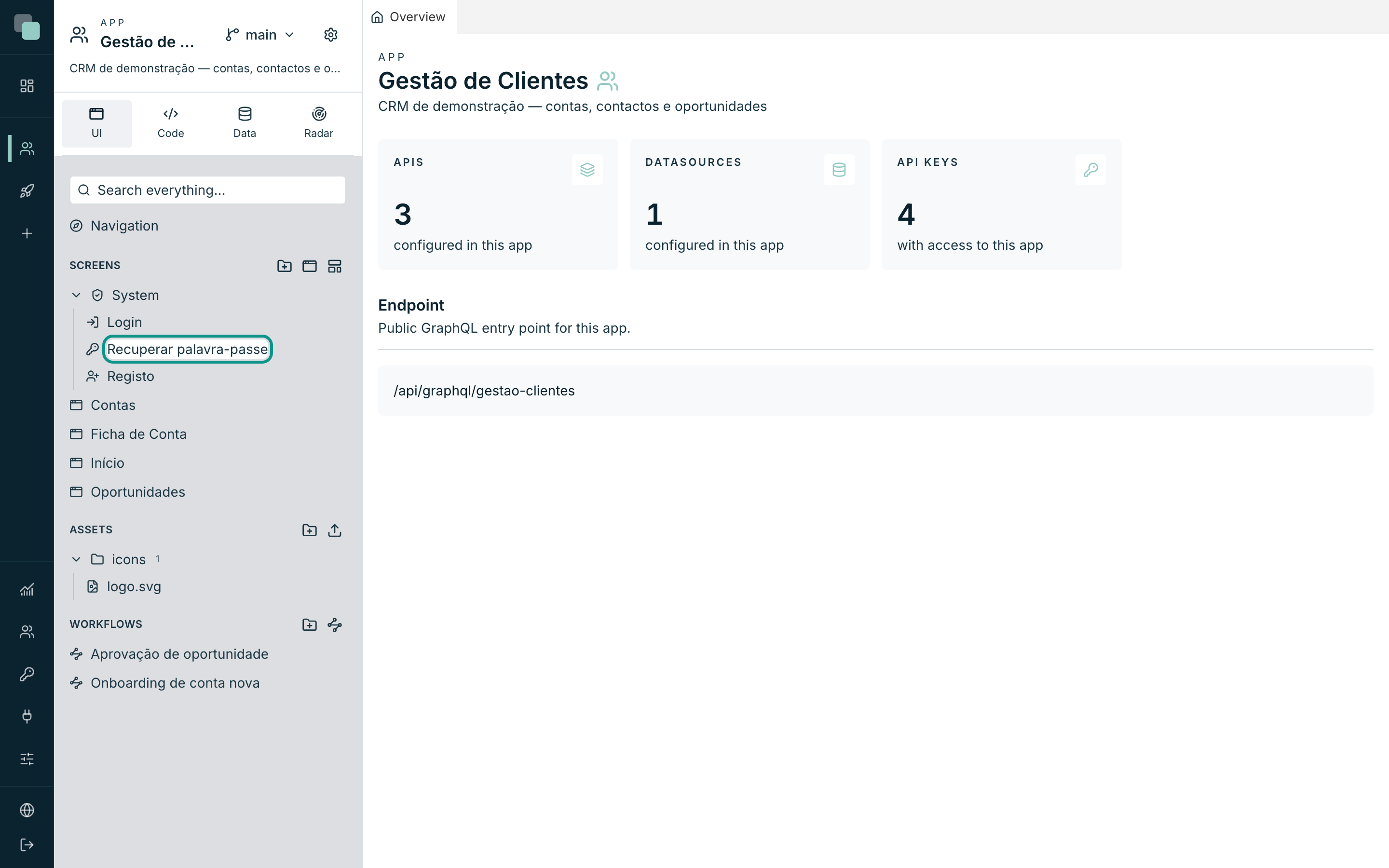
| Screen | Route | What it is for |
|---|---|---|
| Login | / |
The app's front door. It is what answers when somebody arrives without a session. |
| Recover password | /recover |
Asks for the email and sends the reset link. |
| Register | /register |
Creates a new account. Only served with public registration on. |
They always exist — they are neither created nor deleted. What you do is design them.
Designing a system screen
Click the name and the screen opens in the builder, exactly like any other:
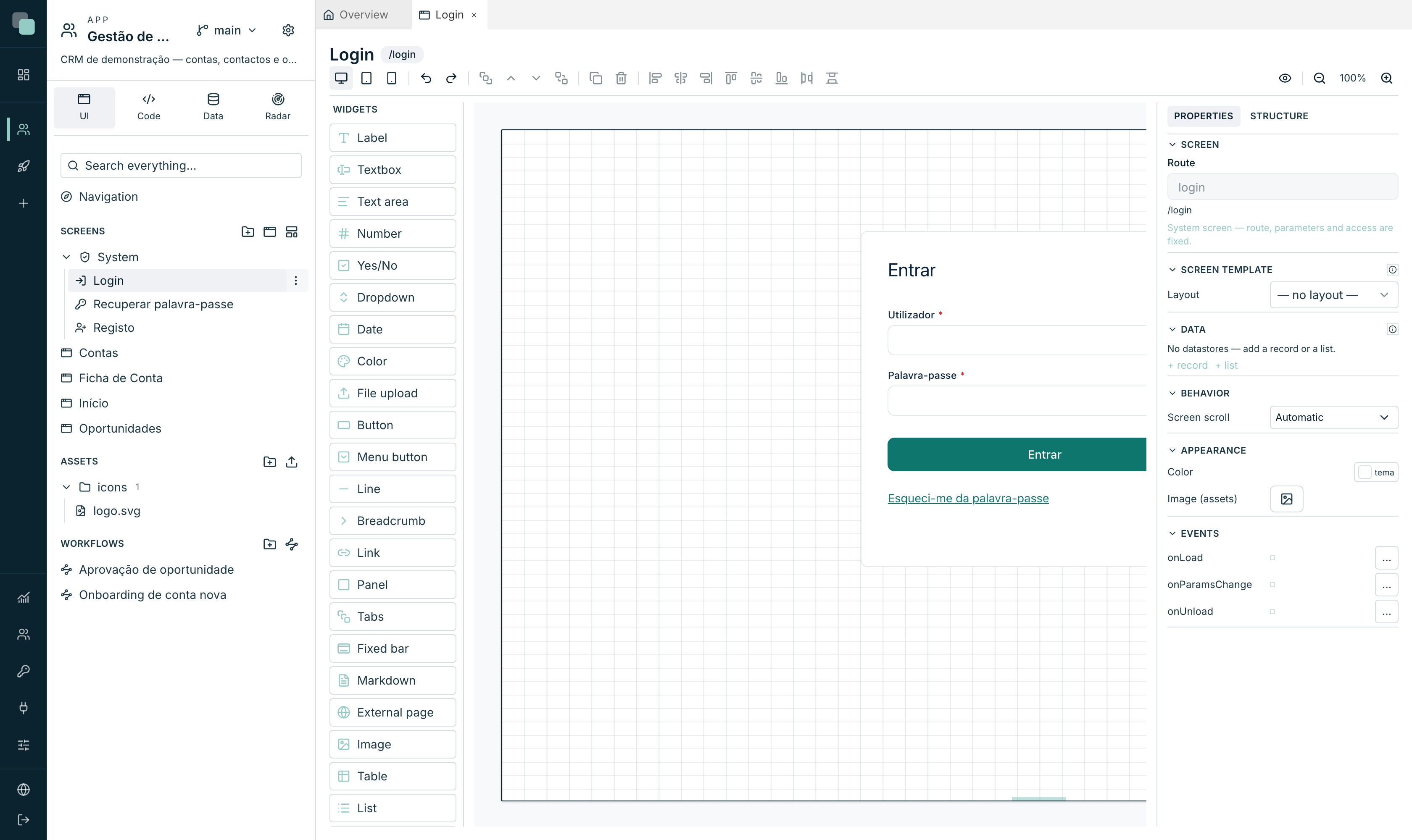
You have the Widgets palette on the left, the canvas in the centre with the three sizes (Web, Tablet, Mobile) and the properties on the right. You can change whatever you like — put the logo in, change texts, add a panel with an image beside it, adjust the colors, write events in TypeScript.
What does not change is stated on the panel itself: "System screen — route, parameters and access are fixed."
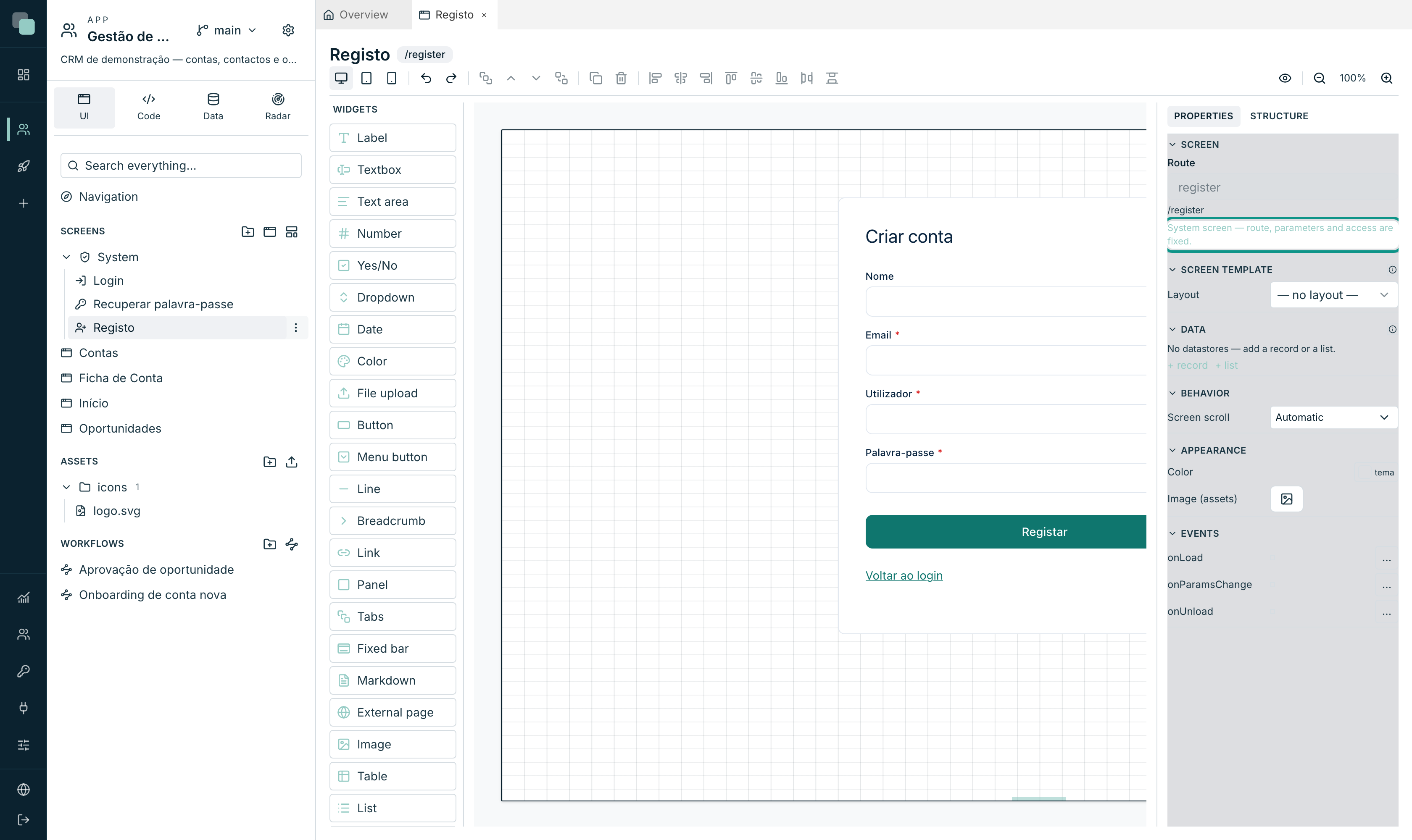
| What is fixed | Why |
|---|---|
The route (/register, /recover) |
It is how the app serves the screen; changing it would break the front door. |
| The parameters | A system screen receives no route parameters. |
| The access | They are public by nature — it would make no sense to demand a session from the screen that grants the session. |
Everything else is there: Screen template (the layout), Data,
Behavior, Appearance (the background color, an image from the app's
files) and the Events — onLoad, onParamsChange, onUnload.
Tip
A sign-in screen does not have to be a box in the middle of a white background. Half the sign-in screens of internal applications gain enormously from the company logo and an image on the left — and that is half a dozen widgets dragged onto the canvas.
Going back to the initial design
Changed the Login and want what was there before? In the UI panel, in the System group, open the screen's ⋯ menu and choose Restore the initial screen. After you confirm, the screen goes back to the design the app was created with, in the app's language; the identifier, the route and the access do not change, and the other system screens keep pointing to it. If the screen is open in the builder, it reloads on its own. It is recorded in the app's history, like any save.
How the screens behave at runtime
Sign-in
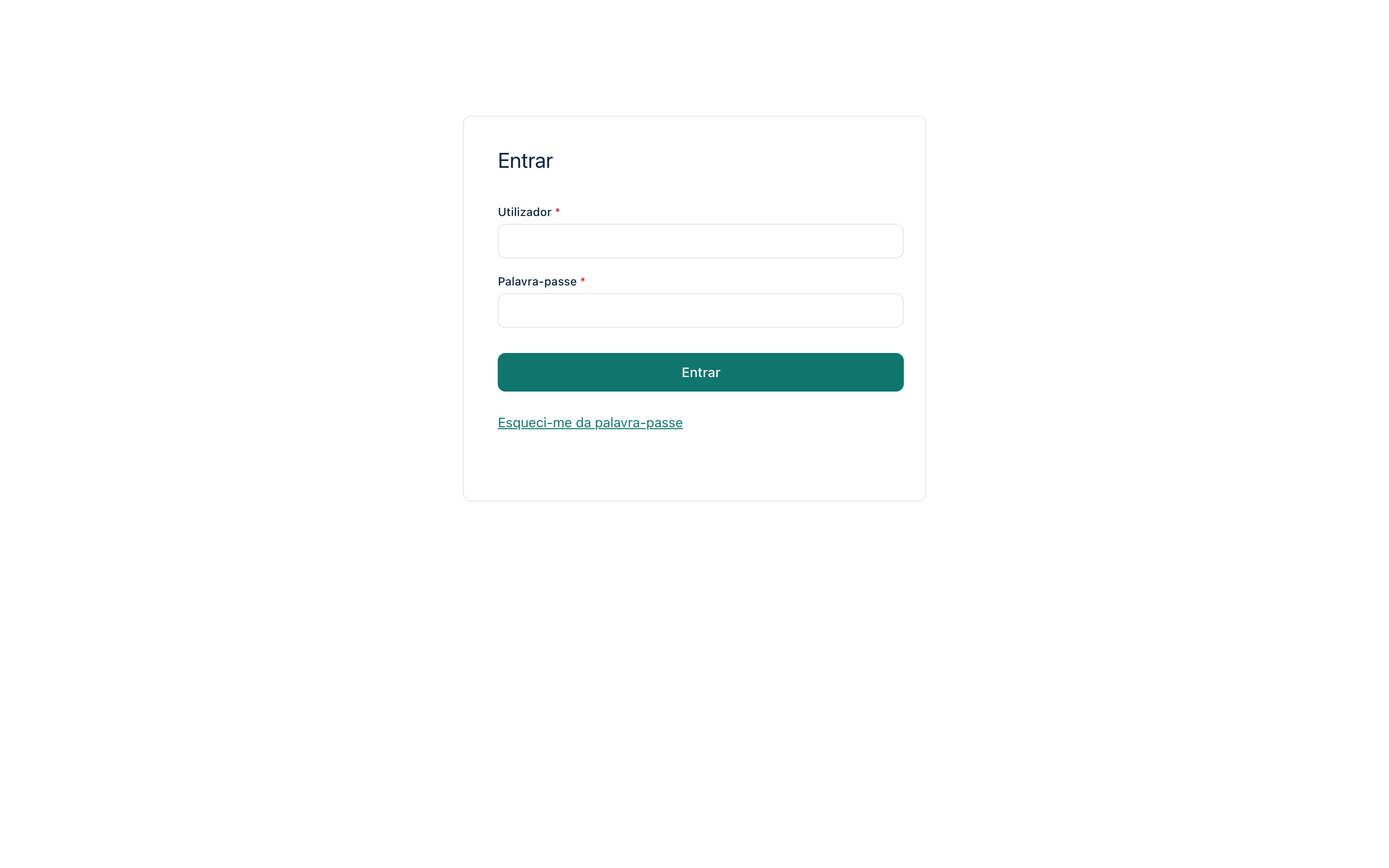
The person types Username and Password and presses Sign in. The accounts are the app's accounts — see App users.
The OAuth / OpenID Connect mode is not available yet: sign-in is always with username and password.
Recovering the password
The Forgot my password link leads to /recover:
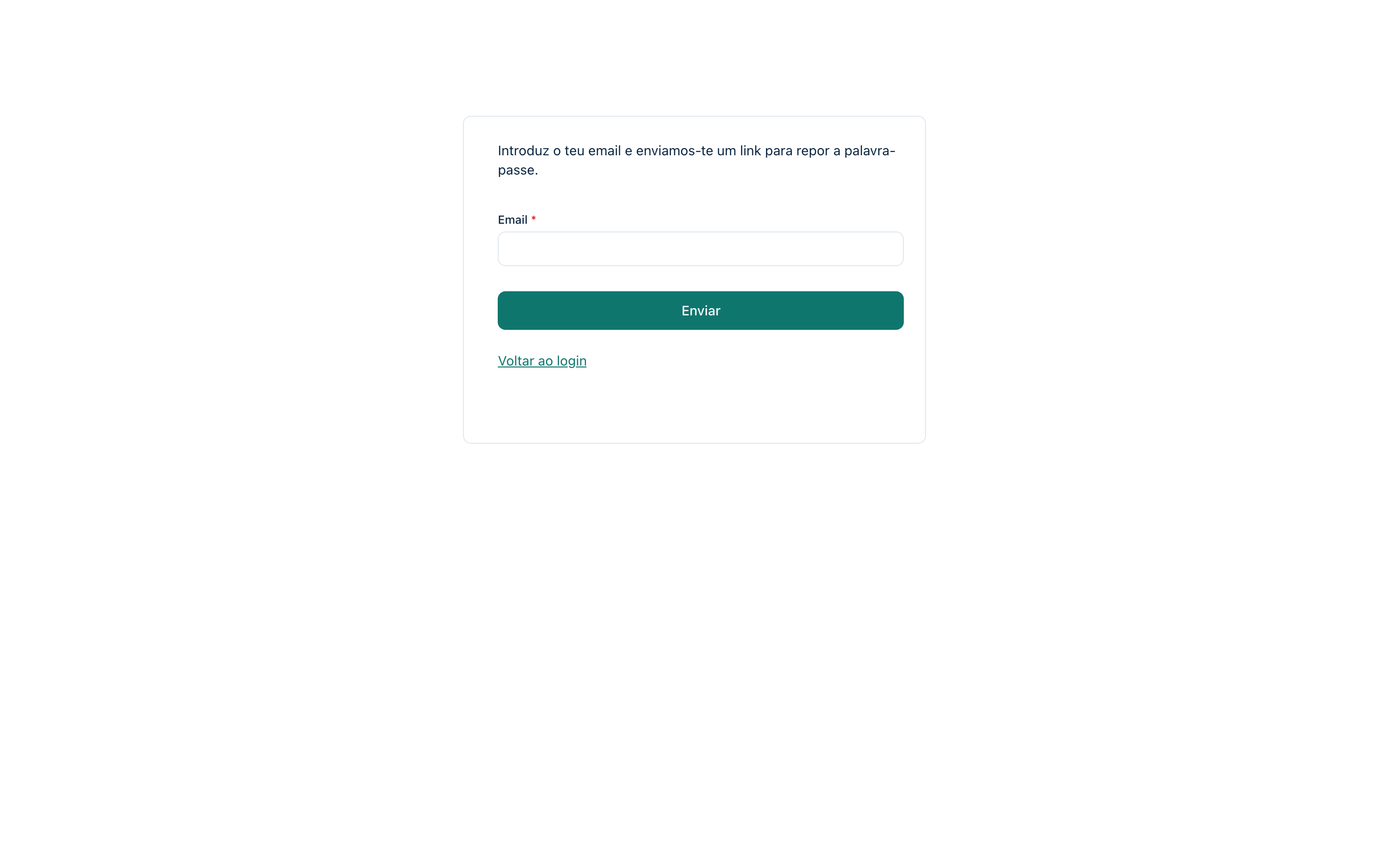
The person types the email, presses Send, and receives a link to reset the password.
The field accepts the email or the username. An identifier with «@» is looked up by email first, so that an account whose username is somebody else's email never gets ahead of the right account.
Warning
"Password recovery sends the link through the email channel in the Notifications settings (it must be enabled with complete SMTP)." Without that channel configured, the screen exists and serves no purpose — nobody receives the email. And the account needs email filled in on its record.
The email link always points to an address the installation knows: the app's own domain, when the request came through it, or the Public address in the Platform settings (in multitenant, the tenant's address). Without either, recovery does not send the email and the screen shows an error.
Public registration
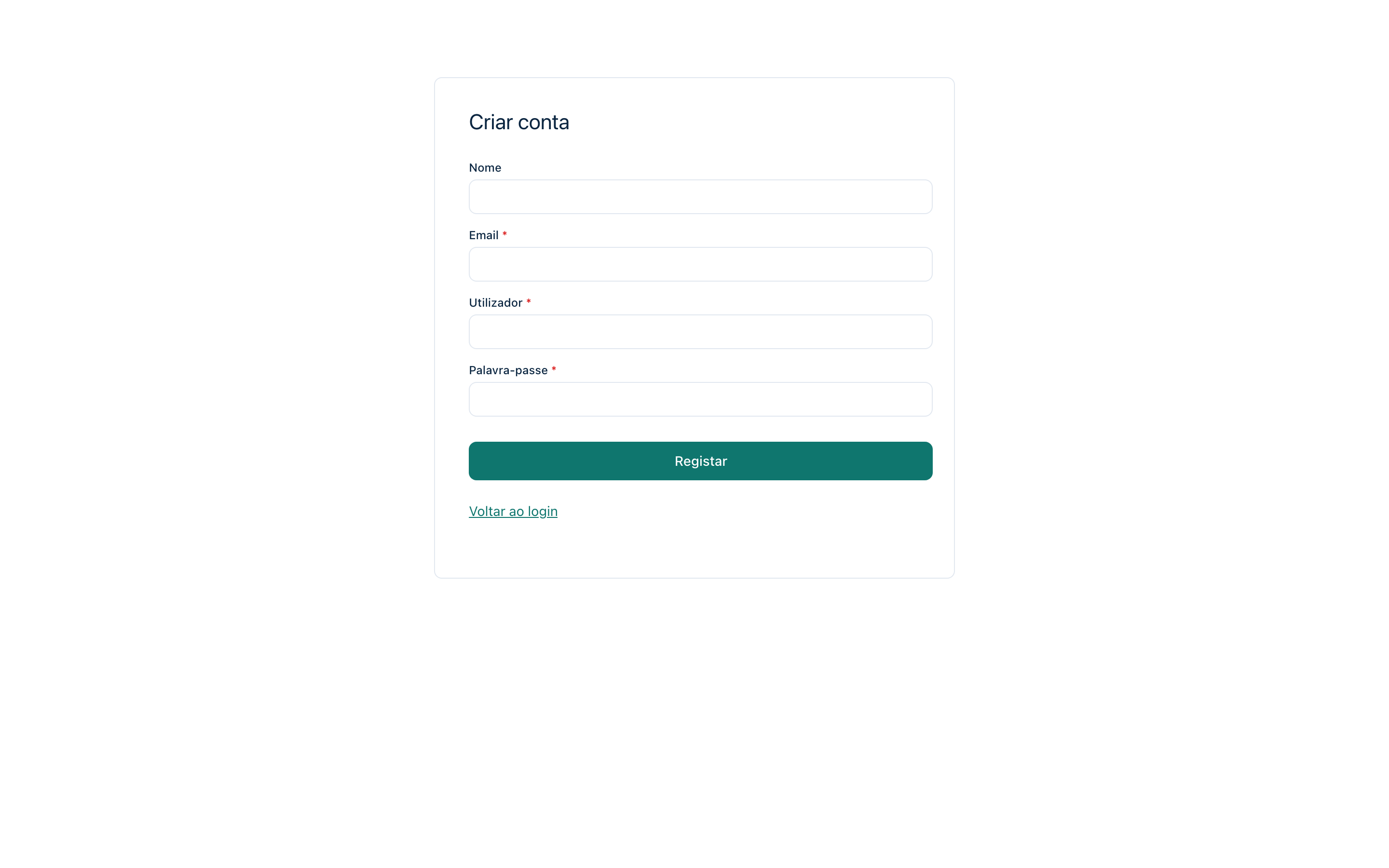
The screen asks for Name, Email, Username and Password and creates the account on Register. Back to login brings the person back to the front door.
Registration refuses a username that is another account's email, and an email that is another account's username: they are the two identifiers password recovery looks the account up by, and they cannot point to different people.
Turning public registration on (or off)
The switch is in App settings → Authentication, in the Registration and recovery section — "public system screens of the runtime: user registration and password recovery".
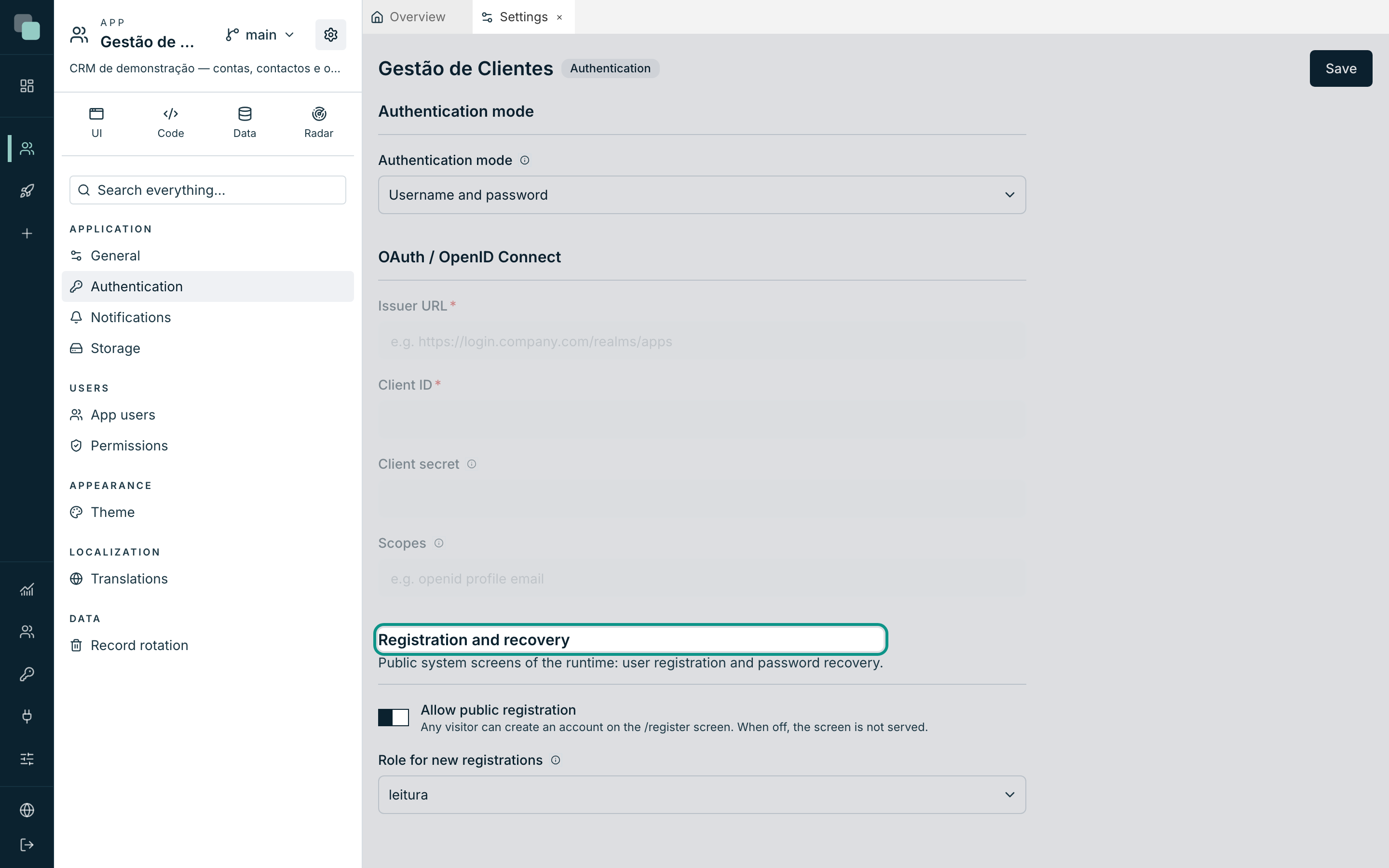
| Field | What it does |
|---|---|
| Allow public registration | On, "any visitor can create an account on the /register screen. When off, the screen is not served". |
| Role for new registrations | "Role automatically assigned to whoever registers." Or No role. |
Save with Save ("Authentication saved.").
Warning
Never leave the Role for new registrations on “No role” in an app with
open registration. Whoever registers signs in and sees nothing — and
will report that as a bug in the application. Create an entry role (for
example leitura, with minimal permissions) and point it here.
And the reverse is also true: an open registration is an open door. In an internal application, the normal thing is to keep public registration off and create the accounts by hand in the settings. Turn it on only when the public really is the public — a customer portal, an enrollment form.
Opening a normal screen to the public
Besides the three system screens, any screen of the app can be served without a session. Open the screen in the builder, click an empty area of the canvas to select the screen, and in the Access section of the properties turn on Public screen (no session).
The notice that appears next is the whole rule: "Served without login. Data comes only from public APIs."
What this implies, in practice:
- The screen is served to whoever arrives at the address, with no authentication.
- The data it shows has to come from APIs marked as public. An API that is not public returns nothing: "this API has no public read — on a session-less screen it won't load data."
- On the table APIs, the Public access (no session) section is turned on operation by operation — "operations that public screens (no login) can call. Enable only what you need."
Typical cases: a status page, a contact form, a catalog. See Public APIs.
Warning
A public screen plus a public API is exactly that: data open to the Internet. Turn public reading on only for the operations and the fields you accept seeing published, and never writing without a very good reason.
Frequently asked questions
Where is the "set a new password" screen? It is the second half of the recovery and it is served by the link that goes in the email. The screen you design is the one that asks for the email.
I changed the Login screen and the old one keeps appearing. The screen being served comes from the version that address serves. If you edited in another version, the published address goes on serving the one assigned to it — see Versions and publishing.
Can I hide the recovery link?
Yes — the Login screen is yours. Delete the link on the canvas. The
/recover screen goes on existing, but no longer has a door from the front
entrance.
Registration creates the account but the person cannot sign in. Check that the account is Active and that the Role for new registrations points at a role that exists. An active account with no role signs in and sees nothing, which tends to be read as "I couldn't get in".