Email alerts
Turning the warnings on, choosing the recipients, and tuning the thresholds past which the platform warns that something went wrong.
The Radar tells what is going on to whoever opens the screen. Alerts do the opposite: they warn without anyone having to look. It is the difference between knowing an app was down and knowing it is.
They are all configured in the same place — Settings, in the sidebar, in the administration area — and they apply to the whole platform, not per app.
Note
These settings belong to whoever administers the installation. With a developer profile, the Settings menu does not appear.
Turning the warnings on
- Open Settings in the sidebar.
- In the Background work panel — "What runs while nobody is watching. Turning it off deletes nothing — it just stops." — find the Email warnings row.
- Turn the switch on. The help beside it says what is at stake: "Warns when something crosses the limits below. Without it, you only find out when you open the screen."
- Scroll to the end of the page and click Save. The confirmation says "Settings saved."
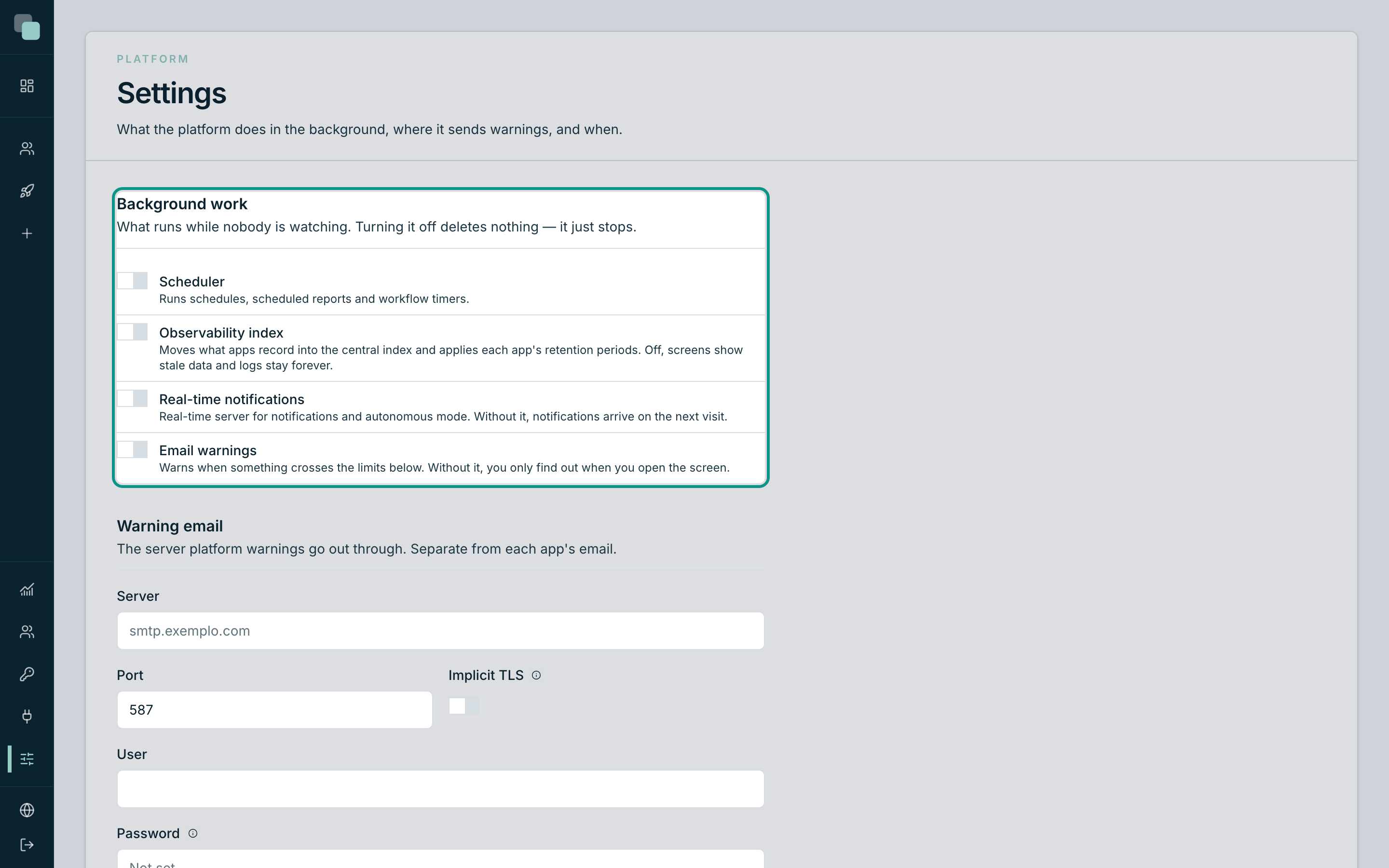
In the same panel sit three other switches worth knowing, because half of the "alerts that never arrive" come from one of them being off:
| Switch | What it does |
|---|---|
| Scheduler | Runs the schedules, the scheduled reports and the workflow timers. |
| Observability index | Moves what the apps record into the central index and applies each app's retention periods. Off, the screens show stale data. |
| Real-time notifications | Real-time server for the notifications. Without it, notifications arrive on the next visit. |
Where the warnings go
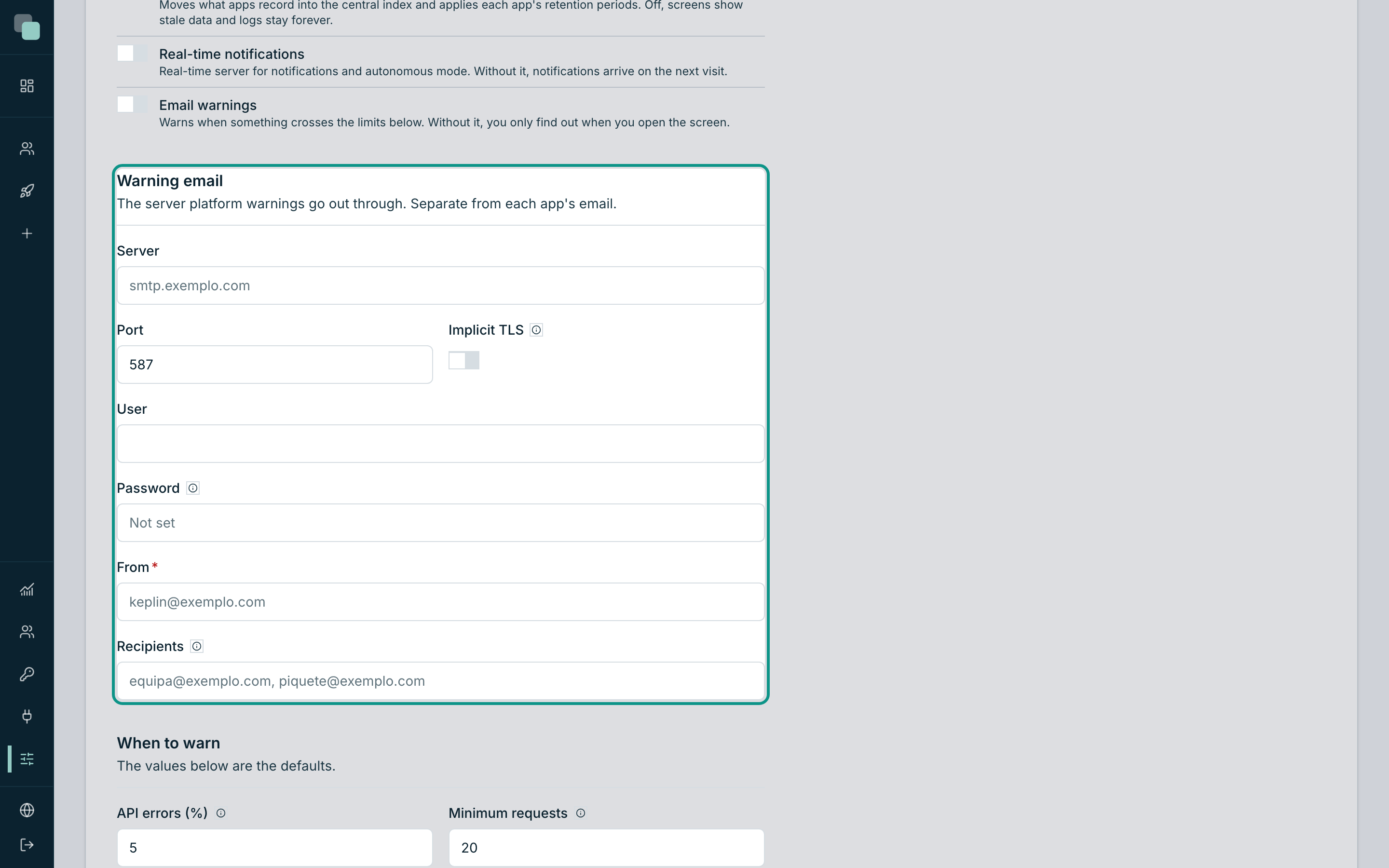
The Warning email panel — "The server platform warnings go out through. Separate from each app's email." — holds the outgoing server and the recipients.
| Field | What it is |
|---|---|
| Server | The address of the outgoing email server. |
| Port | Its port. |
| Implicit TLS | "Usually on for port 465. On others the connection is upgraded after opening." |
| User | The authentication account on the server. |
| Password | "Stored encrypted and never shown again. Leave blank to keep the current one." |
| From | The sender's address. It is required. |
| Recipients | Who receives. |
The Recipients field has a note that solves a maintenance problem: "Comma separated. Blank warns active administrators — a list that keeps itself up to date."
Tip
Leave the Recipients blank. The list of active administrators updates itself when someone joins or leaves the team; a hand-written list goes stale the day someone changes jobs — and nobody remembers it.
The password's state appears below the field: Set — type to replace or Not set.
When to warn
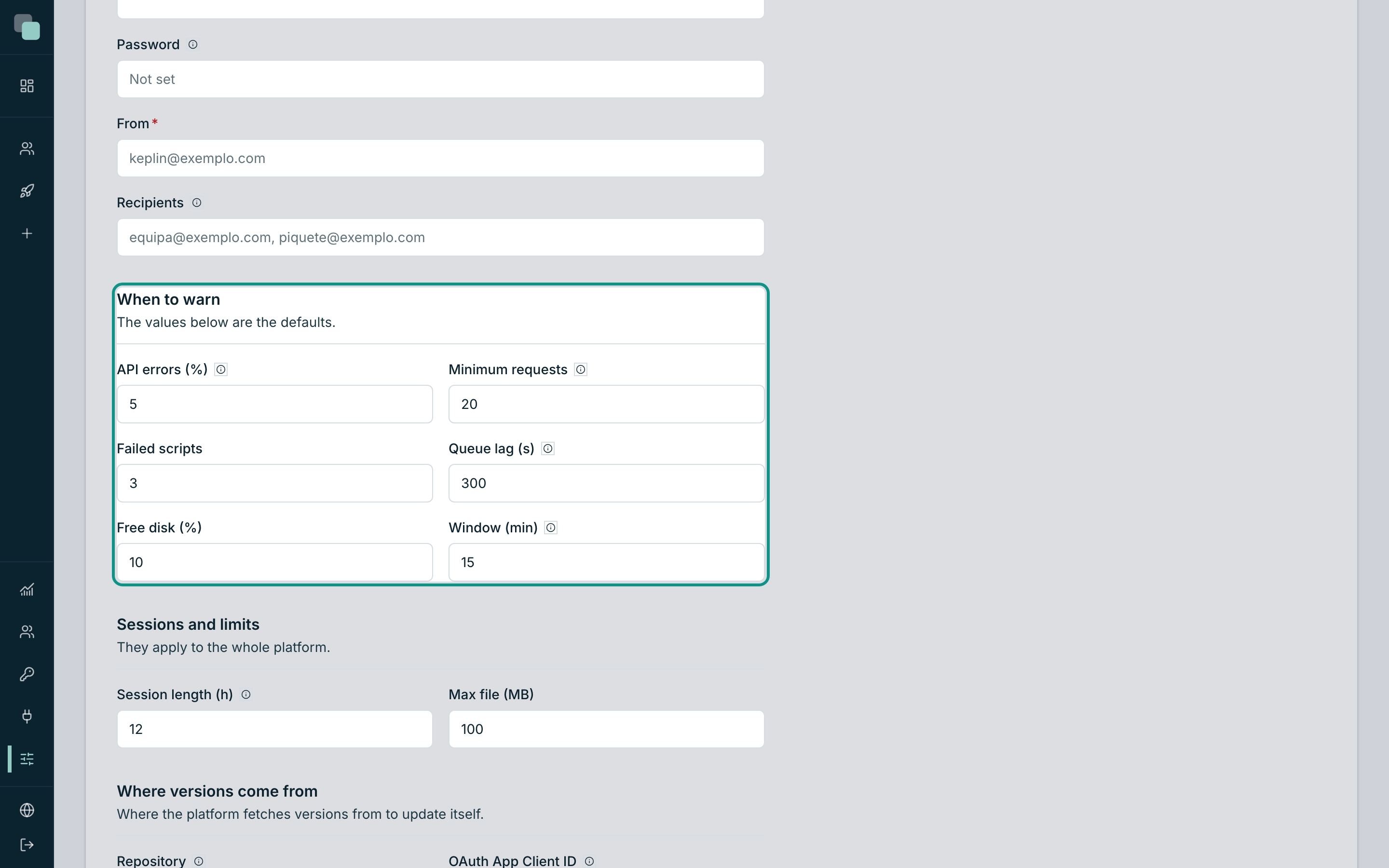
The When to warn panel — "The values below are the defaults." — holds the thresholds. An alert fires when one of these values is crossed within the time window.
| Threshold | What it measures | Note |
|---|---|---|
| API errors (%) | "Percentage of failed calls, per app." | Counted app by app, not over the sum of all of them. |
| Minimum requests | How many calls are needed for the percentage to count | "Below this the percentage says nothing: 1 error in 3 is 33%." |
| Failed scripts | How many script runs may fail before warning | |
| Queue lag (s) | How far behind the index queue may fall | "While the queue is behind, screens show stale data." |
| Free disk (%) | Below what percentage of free disk to warn | |
| Window (min) | The period all of this is counted over | "The period the numbers above are counted over." |
The Minimum requests are the most important field and the most forgotten. Without it, an app with little traffic fires alerts all day long: three calls, one failed, 33% errors. With it, the percentage only counts when there are enough calls for it to mean something.
How to choose the values
There are no universal numbers, but there is a method that works:
- Let the platform run for a week with the default values.
- Open Observability → Overview with the period on 7d and look at the real Error rate and Response (p95).
- Set the API errors (%) threshold a little above what is normal on that installation — the goal is to catch the abnormal, not to confirm the normal.
- Adjust the Minimum requests to the traffic of the quietest app.
Warning
A threshold that is too tight is worse than none. Alerts that fire every day stop being read within a week — and the day the important one arrives, it will arrive in the middle of the others.
Confirming that the alerts really work
The State section of the Observability has, at the top, a sentence that tells the truth about the alerts on this installation. It is the place to check after touching the settings.
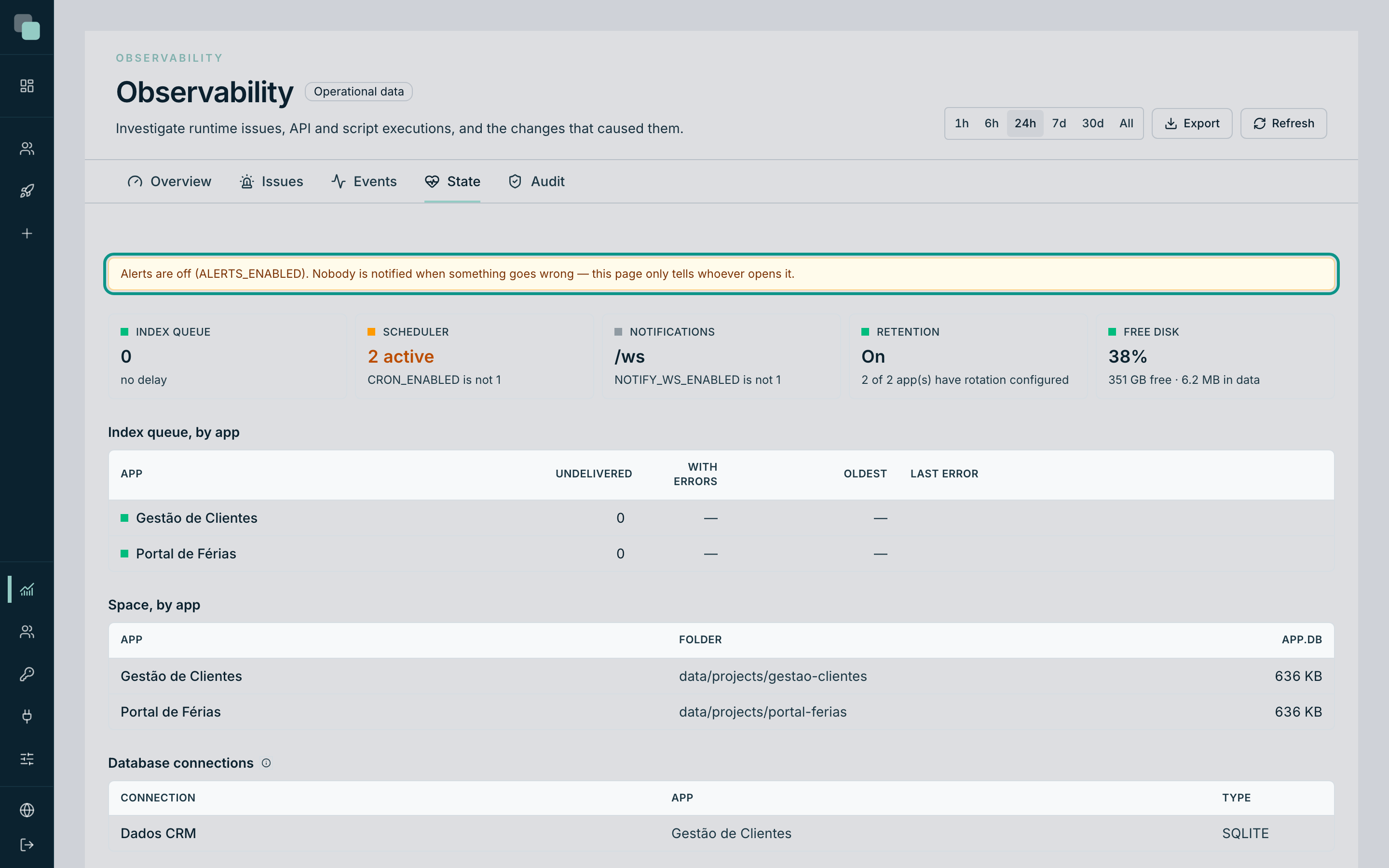
There are three possible sentences:
| What it says | What it means |
|---|---|
| "Alerts on: notifies administrators above 5% errors, from 20 requests upwards." | Everything working — with your thresholds in plain sight. |
| "Alerts are off. Nobody is notified when something goes wrong — this page only tells whoever opens it." | Email warnings still needs turning on. |
| "Alerts are on, but email cannot be sent: … Alarms are recorded and nobody is notified." | The warning fires, but does not go out — the email server still needs configuring. |
The third is the most treacherous, because everything looks configured. If you see it, go back to the Warning email panel and complete what is missing.
Sessions and limits
Still in the Settings, the Sessions and limits panel — "They apply to the whole platform." — holds two values that are not alerts but tend to be looked for at the same time:
- Session length (h) — "An active session renews itself; this is the idle time that expires it."
- Max file (MB) — the maximum size of an uploaded file.
Why don't I see…?
- …alerts arriving, with everything on? Check the State panel: if it says "email cannot be sent", the outgoing server is missing. If it says "off", you still need to save.
- …the Background work panel? You are in the settings of an app, not of the platform. The platform's open through the Settings menu in the sidebar.
- …my thresholds taking effect? Without Save at the end of the page, nothing is kept. The confirmation is "Settings saved."
- …per-app alerts? They do not exist: the thresholds belong to the platform. What is per app is the record rotation, in each app's settings.