Access per app
How it is decided which apps each account sees, what a developer can do inside them, and why an app "does not appear" to somebody who should see it.
A profile says what; access per app says where. A developer does everything inside an app — designs screens, changes the model, writes scripts, publishes — but only in the apps assigned to them. That assignment is made in a panel of its own, on the account's record.
It is the piece that solves the most common internal support case: "the app doesn't show up in my sidebar". Almost always it is not a fault — it is an app that has not yet been given to that account.
The Apps they can open panel
- Open Users in the sidebar.
- Click the person's row to open their record.
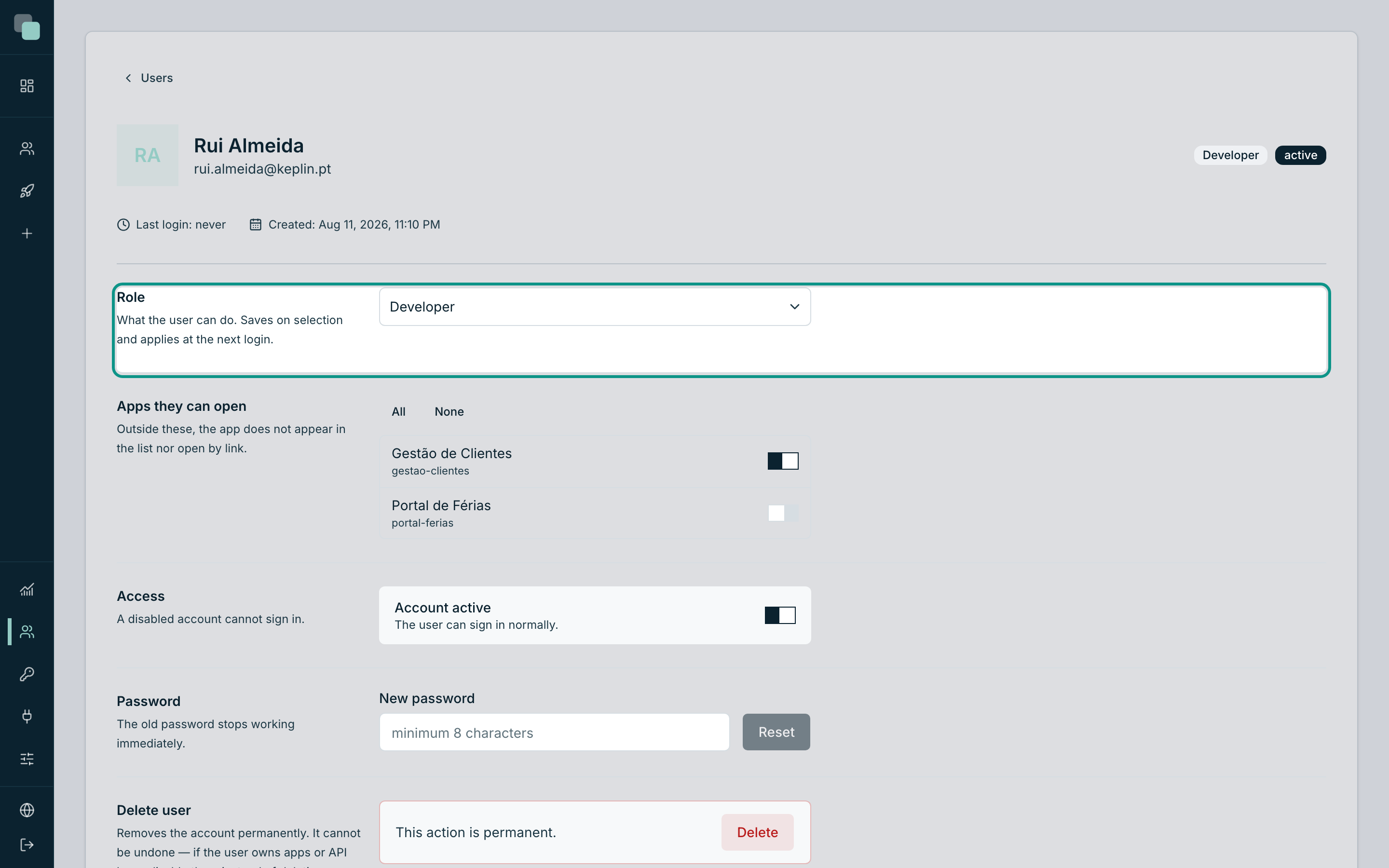
- The second panel is Apps they can open, with the note "Outside these, the app does not appear in the list nor open by link."
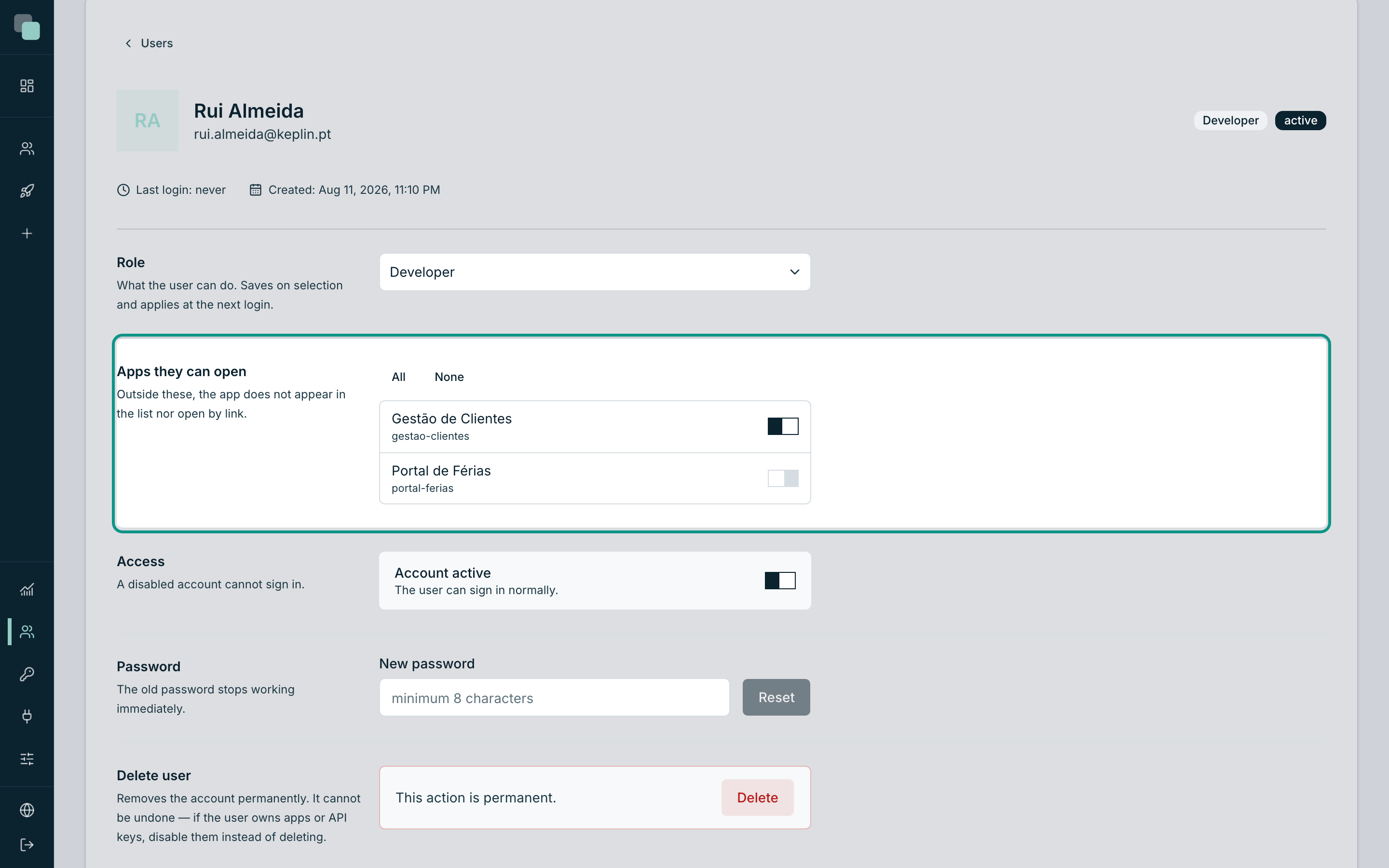
The panel lists all the apps in the installation, one per row, with the
name and, below it, the short identifier (gestao-clientes) — because two
apps can have similar names and the identifier never deceives. Each row has
a switch: on, the account sees the app; off, it does not.
Above the list there are two shortcuts:
| Button | What it does |
|---|---|
| All | Turns every app on at once. |
| None | Turns them all off. The record starts warning "No apps assigned — they will see nothing when they log in." |
Giving access to an app
- On the account's record, in the Apps they can open panel, turn on the switch of the app you want to give — for example, Customer Management.
- That is all. There is no Save button: the change is stored on the spot and the confirmation "Access saved." appears below.
- Repeat for the other apps, or use All.
Removing access is the same movement in reverse: turn the switch off. The app disappears from that person's sidebar at their next sign-in.
Note
"Outside these, the app does not appear in the list nor open by link." Both halves count. Keeping an app's address in the bookmarks does not get around the assignment: without the app switched on in the record, the address does not open.
Administrators do not choose apps
On an administrator's record, the panel has no switches at all — it has a sentence:
This user is an administrator: every app, including ones created later.
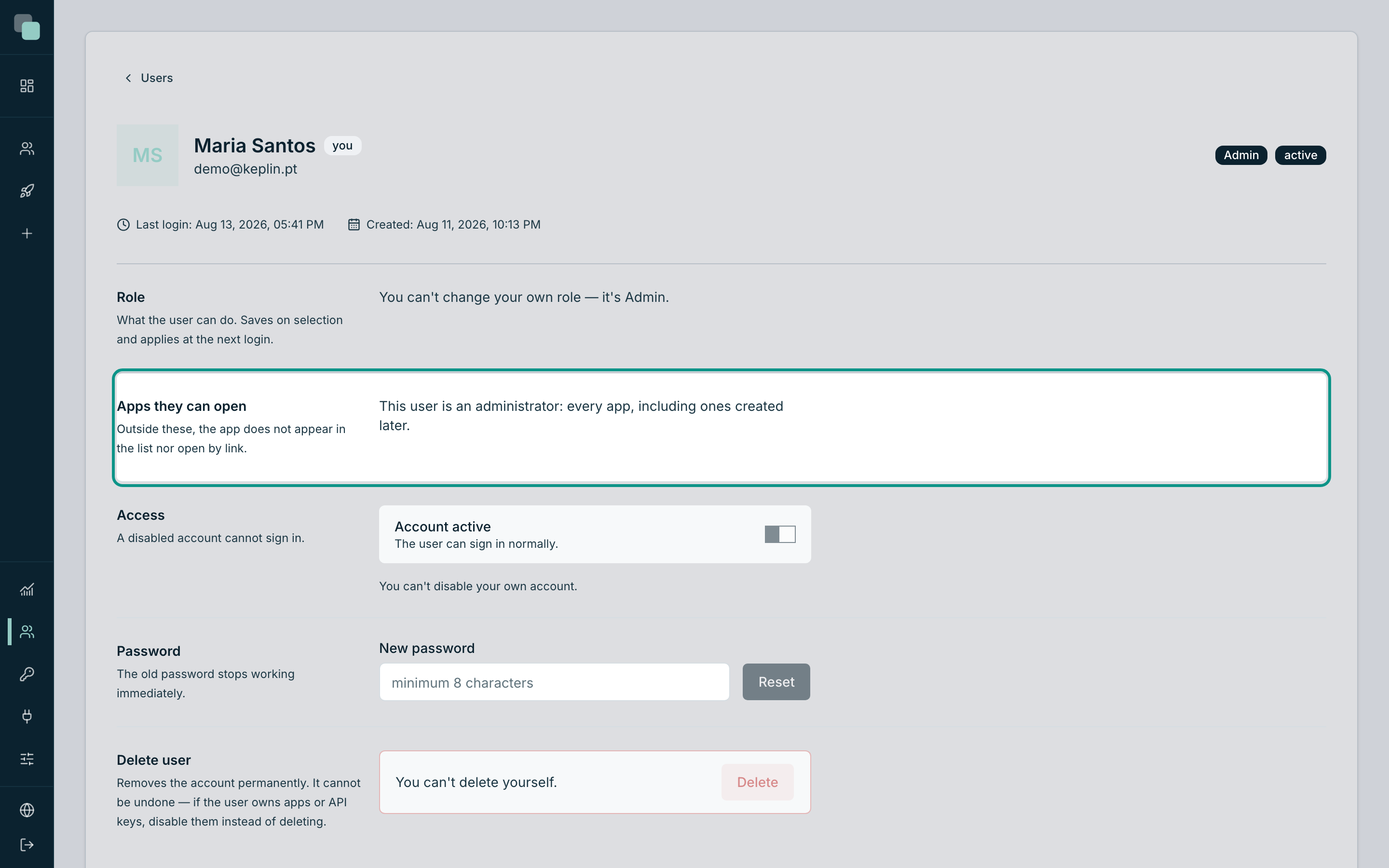
The detail that matters is the end of the sentence: including ones created later. An administrator does not need to be added to each new app. A developer does — an app created today appears to nobody except the administrators and whoever receives it on their record.
If you promote somebody to Admin, the switches disappear and the assignments they had stop counting (they count again if you demote them).
What access gives — and what it does not
Inside an assigned app, a developer is not a guest: they do the same an administrator would do in there.
| Inside an assigned app | Outside it |
|---|---|
| Create and edit screens, layouts and widgets | Create new apps or import packages |
| Edit the data model, APIs, scripts, reports and workflows | Delete an app |
| Create versions, merge, see the history | Manage platform accounts in Users |
| See the app's Radar and investigate problems | Create or revoke API Keys |
| Manage the app's settings — theme, translations, the app's accounts and permissions | Touch the platform's Settings |
This is the same as saying: the profile and the access multiply. A developer with no assigned apps signs in and sees nothing. A developer with one app owns it in practice. There is no middle ground inside an app — whoever enters, enters to build.
Tip
If you need to give somebody limited access to an application — seeing the customers but not deleting them, for example — this is not the place. That is the app's own accounts and roles, managed in its settings, and they apply to whoever uses the application, not to whoever builds it.
The two worlds, side by side
The distinction is worth keeping, because the words are similar:
| Users (platform menu) | App users (each app's settings) | |
|---|---|---|
| Who they are | Those who build | Those who use the published application |
| Where they sign in | On the platform | At the app's address |
| Profiles | Admin, Developer | The roles the app defines |
| Who manages them | Platform administrators | Whoever has access to the app |
| What this panel controls | Which apps they see | Nothing — they are separate worlds |
A person can exist on both sides, with different credentials, and that is normal: they build the app in the morning and use it in the afternoon.
When somebody leaves the team
The right question is not "do I take their apps away?" but "do I cut their way in?".
- Go to the person's record.
- In the Access panel, turn off Account active and confirm with Disable account.
That cuts everything at once — apps, API, everything — and keeps the history readable. Turning the switches off one by one leaves the account able to sign in to the platform, with no apps: it works, but it solves less and gets forgotten more.
Why can't I see…?
- …an app in the sidebar? Your account does not have it assigned. An administrator fixes it in Users → your record → Apps they can open.
- …the switches on somebody's record? That account is an administrator — and administrators have every app by definition.
- …a Save button on this panel? There is none: each switch saves on its own and says "Access saved.".
- …the app appearing right after granting access? Profile and state changes apply at the next login. Ask the person to sign out and back in.