Datastores and data
How a screen loads, filters and saves data — record and list datastores, keys, filters, paging and the data bindings.
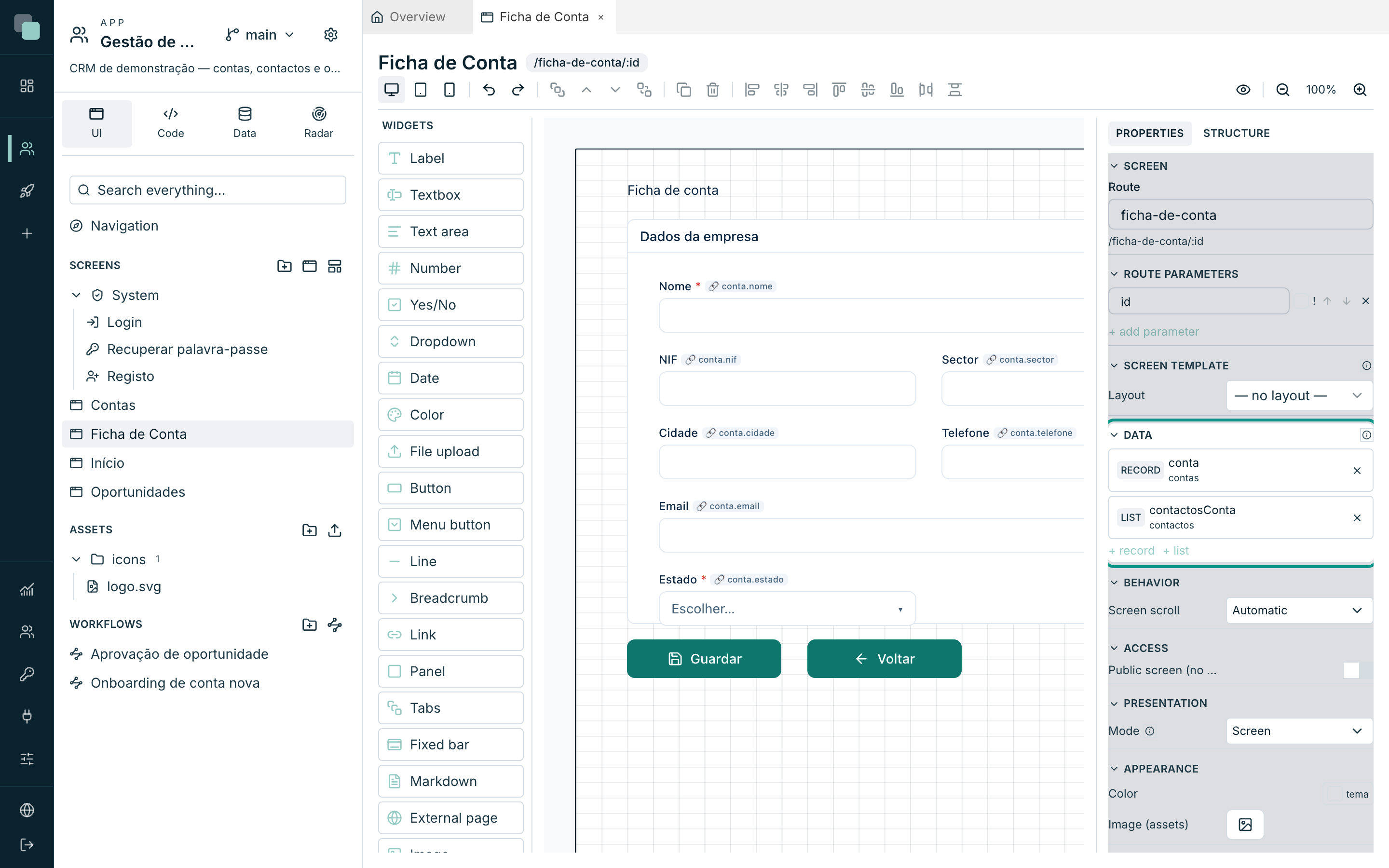
A screen does not talk to the database directly: it talks to datastores — the screen's data containers, which load records through the app's table APIs. The widgets bind to the datastores: a Table shows the rows of a list datastore, a form's fields read from and write to a record datastore.
This is the link between two chapters: the table APIs are created over the data model (the APIs & GraphQL chapter); here the screen is bound to them.
The two kinds of datastore
| Kind | What it loads | What for |
|---|---|---|
| Record | ONE record (or a new, empty record) | Forms: the fields bind to the record's fields, and at the end it is saved. |
| List | A collection of records | Tables, lists, cards, charts, kanbans, calendars. |
Datastores can live in two places:
- On the screen — created in the inspector with nothing selected, in the Data category. They are shared: several widgets can read from the same one, and it is what you use for forms and for master–detail relationships.
- Inside a widget — the data widgets (Table, Chart, KPI…) have their own datastore in their Data category. It is the most common case for independent grids and charts.
The engine is the same in both places; the only difference is in the value origins available in the filters (see the bindings).
Creating a datastore on the screen
- Click an empty area of the canvas so the inspector shows the screen.
- In the Data category, click + record or + list.
- Click the created datastore to open the Configure datastore modal.
- Give it a Datastore name — it is by this name that the widgets and
the code find it (e.g.
conta,contas). - Under API, choose the API that serves the data. The API's fields become available for columns, bindings and filters. In a list datastore the pipeline APIs appear as well, with the pipeline badge: they return the whole list, with no filters or paging.
Note
With no published table APIs, the selector warns: No published table APIs in this app. Create the API over the model's entity first — it is a step of the APIs & GraphQL chapter.
Record datastore — which record to load
A record datastore answers one question: which record? The answer is given in Which record to load (key):
- Click + key field.
- Choose the field (by default, the primary key), the operator and the
value — typically a Param of the route: the Ficha de Conta screen
receives
idin the address and loads the account with that id. - Several conditions form a composite key — all have to match.
With no conditions, the datastore loads a new (empty) record — that is
how the same form screen serves for creating: opened without an id, it
starts blank; saved, it does the insert.
With conditions that match no record (an id that no longer exists, or that
is out of reach of the role of whoever opens the screen), the app warns that
the requested record does not exist and the form does not save. Only a key
typed in a field of the screen (a natural key, such as an item code) is still
the key of a new record.
List datastore — filters and loading
Filters (where)
The Filters (where) are conditions applied whenever the data is read — this is where you limit what comes from the database. Each condition is field / operator / value; + add filter adds conditions and + group creates nested sub-groups, with All (AND) or Any (OR) deciding how they combine.
An example from Customer Management: the Contas screen filters
estado eq "activa"; the "my accounts" panel adds gestor eq →
Session ▸ username.
The operators:
| Operator | What it compares |
|---|---|
eq / neq |
Equal / not equal to the value. neq also matches records where the field is empty. |
contains, startsWith, endsWith |
Text containing, starting or ending with the value. |
gt, gte, lt, lte |
Greater, greater or equal, less, less or equal — numbers and dates. |
in / nin |
Any of / none of a list of values. The value is a list: several values separated by commas, or the value of a List with Multi-select bound through Widget — this is how a table is filtered by several centres or several states at once. nin also matches records where the field is empty. |
A condition whose value is empty (a blank search box, a list with nothing chosen) filters nothing — the screen shows everything until the person chooses.
Each filter value is converted by the column type: in a text column, a tax number or a postcode («0012») stay text, and in a decimal column «12,5» is a number.
Loading and page
| Option | What it does |
|---|---|
| Load everything | Brings every record of the filter at once — changing page, sorting and filtering on the screen become instant. |
| One page at a time | Goes to the server on every page change — for large tables, where bringing everything makes no sense. |
| Per page | How many rows are shown at a time on the screen — not to be confused with how many records are read. |
| Load automatically | Read the data as soon as the screen opens. Turn it off if you prefer to load only after an action (a "Search" button, for example). |
Without Load automatically, the list reads when someone asks it to: a
reload() (on a «Search» button, for example), a change of page or sorting, or
an applied filter. Changing a field on the screen does not make it read on its
own.
When the effective filter changes (a field on the screen, a parameter, the app state), the list goes back to the first page. If the page you were on no longer exists (you deleted the last record of the last page, for example), the list moves to the last page that exists.
Tip
In either mode, use the Filters (where) to limit what is read. "Load everything" with a decent filter is fast; with no filter at all, it is asking for the whole table.
The bindings — where a value comes from
Whenever a filter, a key or a property needs a value, you use the same piece: the binding. The first selector says the origin; the rest changes with it:
| Origin | What it is |
|---|---|
| Literal | A value typed right there, the same for everyone. |
| Param | A parameter of the screen's route (Route parameters section). |
| Session | A field of the signed-in user (userId, username, name). |
| State | A value kept in the app's memory with keplin.state.set() — available on every screen. |
| Datastore | A field of another datastore of the screen — the basis of master–detail. |
| Widget | The current value of another input widget — the basis of interactive filters. |
A field also writes to the state: in the field's Data binding, choose State and type the Key. A filter with the State source and the same key reads the data again when the value changes. This is how a widget area in the bar filters the pages; see App navigation.
The Datastore and Widget origins only exist on the datastores inside widgets — they depend on the rest of the screen. On the screen's datastores you get the first four.
With these pieces the everyday patterns are assembled without code:
- Master–detail — the account's opportunities table: on the table's
datastore, filter
contaId eq→ Datastore ▸conta▸id. Selecting another account reloads the detail. - Filter by text — a "search" Textbox and, on the table's datastore,
nome contains→ Widget ▸ the box. (To filter only when a button is clicked, it is done by event — see Events and the SDK.)
Binding form fields to a record
Each form field has, in the Data category, the Data binding section: choose the record datastore and the field. From then on the input shows the loaded value and the changes stay in the datastore — unsaved — until someone saves.
The final step is a button whose event saves:
const ok = await keplin.data.store("conta").save();
if (ok) {
  keplin.ui.toast("Gravado.", "success");
}
This code is exactly what the pre-defined Save datastore action of the
event editor inserts for you. save() validates first (required fields,
rules, validation scripts) and only saves if everything passes; it returns
true if it saved.
When you save a record that already existed, only the fields that changed since it was read are sent. A cleared field is saved empty (null in the database), and in a decimal field «12,5» reads as a number.
With unsaved changes, leaving the page asks for confirmation: through the
menus, the browser's Back button, or when closing the tab. A modal already
asked when closing. Navigation done in code (keplin.nav.go) doesn't ask:
whoever calls it has already decided, and has often just saved.
When saving a new record, a field that the screen doesn't show isn't sent: in
a column with a default value in the database, or generated by it, that value
applies; a required column with no default value has to be on the screen, and
the form says which one is missing. A key typed into a field on the screen (a
natural key, such as an item code) belongs to a new record; set in code with
set(), it's still the key of a record to change. Saving a record that has
meanwhile stopped existing gives an error, not "Saved".
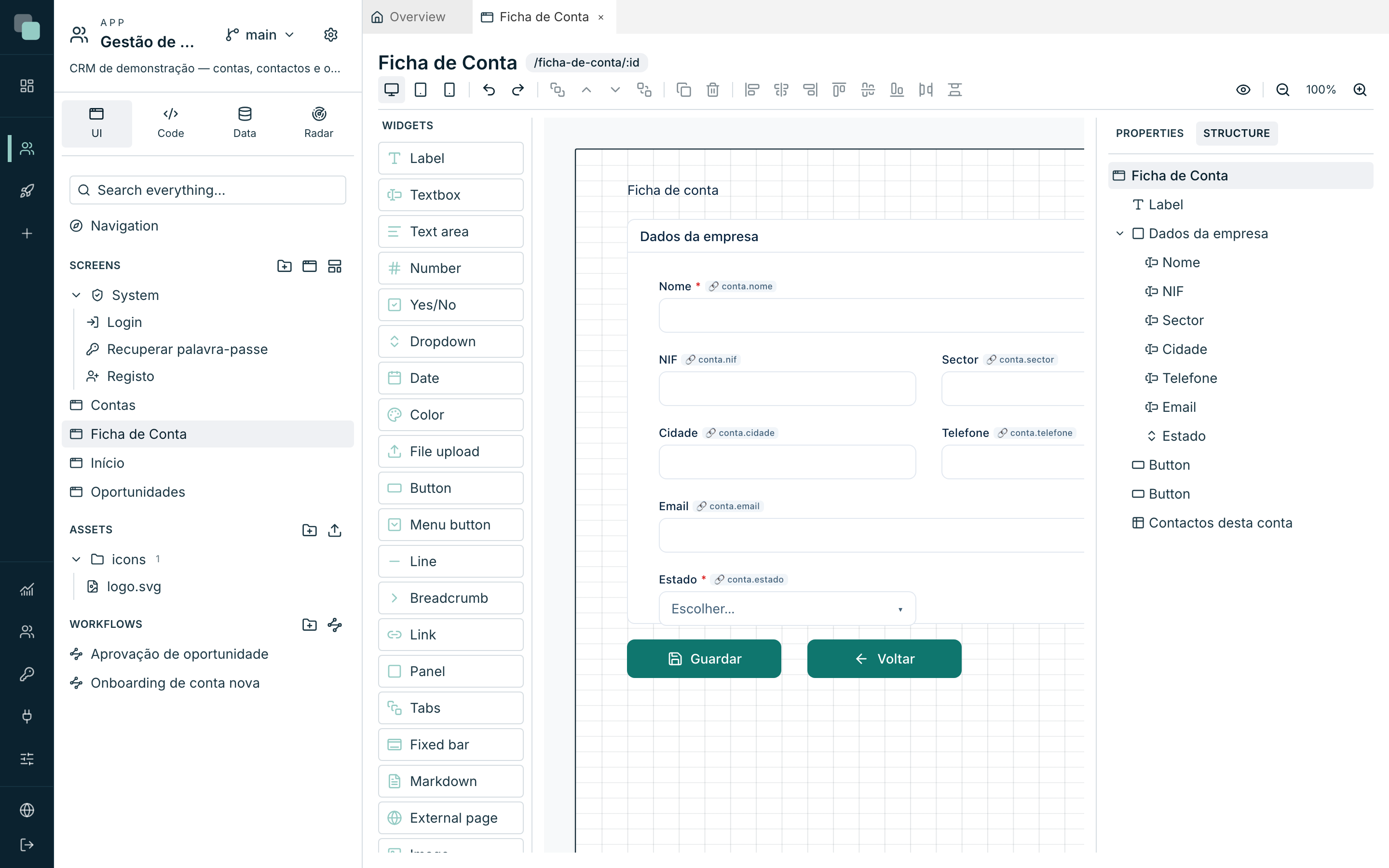
The Configure datastore modal, field by field
| Field | Record | List |
|---|---|---|
| Datastore name | ✓ | ✓ |
| API | ✓ | ✓ |
| Which record to load (key) | ✓ | — |
| Filters (where) | — | ✓ |
| Loading / Per page | — | ✓ |
| Load automatically | ✓ | ✓ |
Datastores on public screens
On a screen marked Public screen (no session), the data comes only from APIs with public read: the selector only shows those, and an already chosen API that is not public gets flagged — This API has no public read — on a session-less screen it won't load data. The read is marked as public in the API editor.
The data in code
Everything the datastores do is also in the events' SDK —
keplin.data.store("nome") returns the datastore by name, with
reload(), setWhere(), get()/set()/save() and company. The
chapter Events and the SDK walks through it.
Why doesn't…?
- Why doesn't it load data? Check, in order: is Load automatically on? Does the chosen API exist and is it published? On a public screen, is the API's read public? Is the filter not excluding everything?
- Why does it always open an empty record? The record datastore has no conditions in Which record to load (key) — or the parameter used in the condition is not arriving in the route.
- Why did I change the model and the new column does not show up? The datastore keeps a snapshot of the API's fields from when you chose it. Reopen Configure datastore and choose the API again to refresh the snapshot. What each column already chosen is (type, required or not, default value, date) refreshes on its own when the screen opens; only new columns need to be chosen.
- Why is the paging slow? You are on One page at a time with many trips to the server — or on Load everything with no filters on an enormous table. Adjust the mode to the real size of the data.