App settings
Theme, translations, authentication and registration, user accounts, permissions and record rotation — everything that is tuned in an app, section by section.
Each app has settings of its own — the theme is this app's, the accounts are this app's, the permissions are this app's. That is why the settings travel with it when you export it in a package (with the exceptions the page "Importing and exporting apps" details). This page walks through all the sections, with special attention to the six most used: theme, translations, authentication, accounts, permissions and record rotation.
Opening the settings
- Open the app in the sidebar.
- At the top of the app's bar, click the App settings gear button. The navigation tree gives way to the settings tree, organized by groups.
- Click a section: it opens as a workspace tab — like a screen or a script — with the app's name in the header, the active section in a badge next to it, and the section's buttons (for example Save) always in the top right corner.
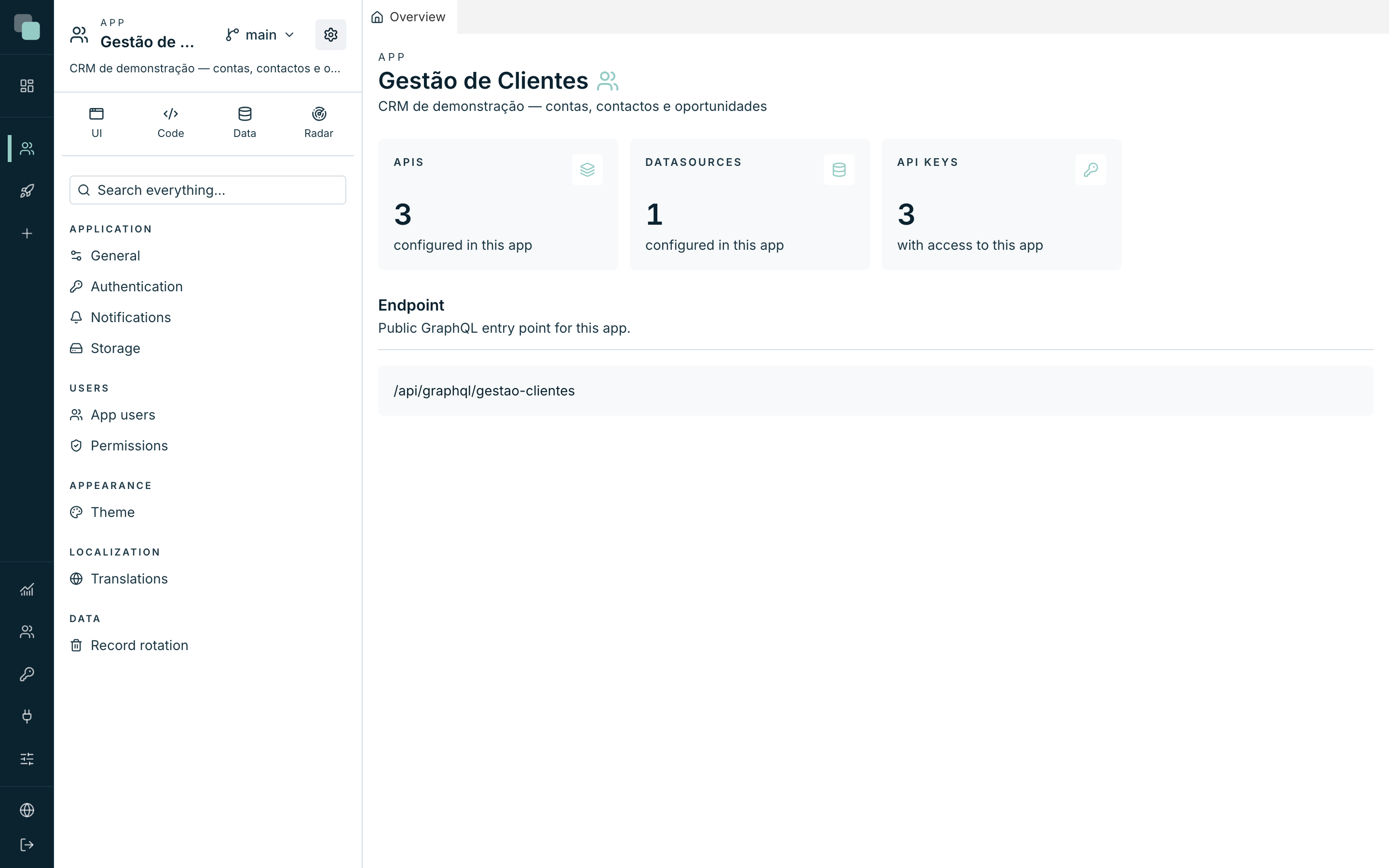
The complete map:
| Group | Section | What gets defined |
|---|---|---|
| Application | General | Identification, publishing, export and delete — see the first two pages of this chapter. |
| Application | Authentication | How users enter the app, public registration and recovery. |
| Application | Notifications | The app's notification channels: in-app and email (its own SMTP). |
| Application | Storage | Where the files that app users upload go (the app's disk, S3, SFTP, network share). |
| Users | App users | The accounts of whoever uses the built app. |
| Users | Permissions | Roles and rules: data, screens, menus and actions. |
| Appearance | Theme | Colors, shape and typography of the built app, with a preview. |
| Localization | Translations | The app's languages and the translated phrases, in a matrix. |
| Data | Record rotation | How many days each kind of record is kept before being deleted. |
Note
These are the app's settings — not to be confused with the platform's Settings (in the sidebar's administration zone), which govern the whole installation: background processes, notices, sessions and global limits.
Theme
The Theme section paints the built app — the one your users see — without touching any screen. On the left sit the color groups; on the right, the Preview panel shows "Example with the current tokens — updates live": every color you change appears there in the instant.
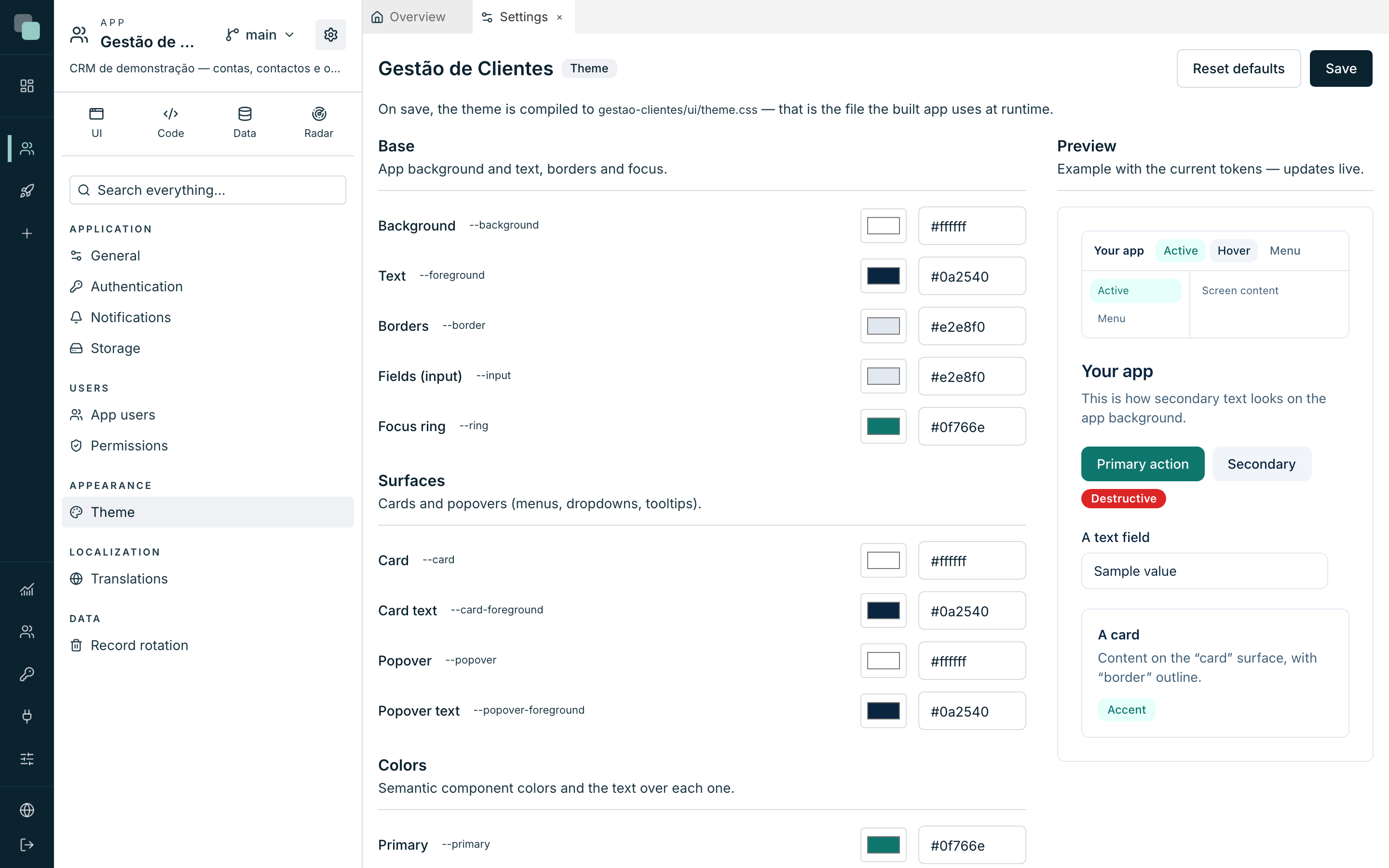
| Group | What it paints |
|---|---|
| Base | "App background and text, borders and focus." |
| Surfaces | "Cards and popovers (menus, dropdowns, tooltips)." |
| Colors | "Semantic component colors and the text over each one" — primary, secondary, destructive, accent, muted. |
| Navigation | "The app's navigation bars (top, side, menus)." They follow the surfaces by default; change them to apply your branding. The logo area of the top bar has its own background (Logo area background); by default it is the bar's colour. |
Each color has a visual picker and a hexadecimal field (#rrggbb) — type
or pick, it is the same thing. At the end of the list, Shape and
typography defines the rest:
- Corner radius — from No rounding (0) to Maximum (1rem), in five steps.
- Notice position — which corner the app's notices (toasts) appear in.
- Font (sans) — the app's font stack.
To save, Save; to go back to the original colors, Reset defaults (it resets in the editor — it only becomes final when you save). The saved theme applies to the built app immediately, and travels with it in any package.
Translations — the app's languages
The Translations section is a matrix: one row per phrase, one column per language. It is here that the app gains languages and that the screens' phrases get translated without leaving a single board.
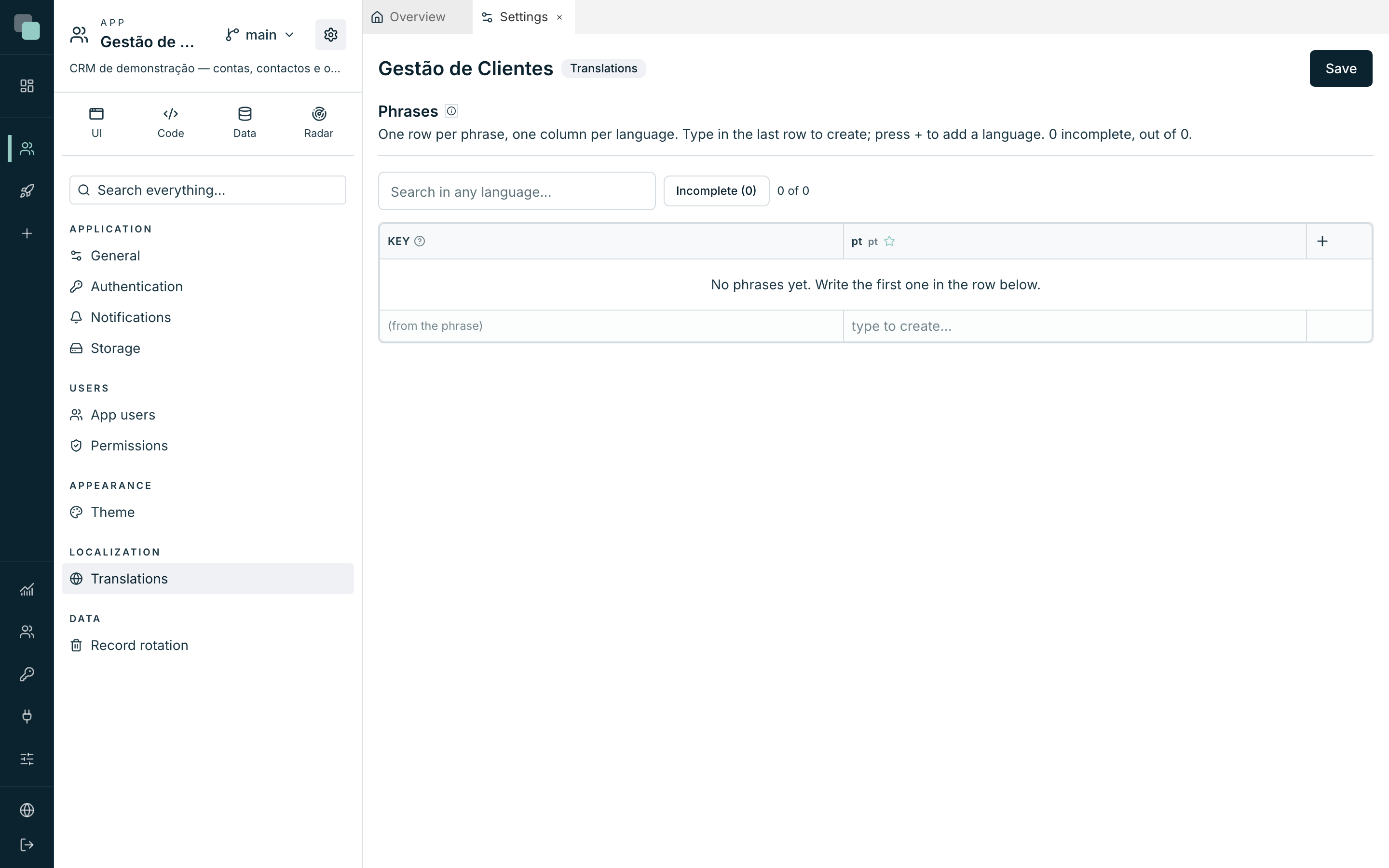
- Creating a phrase: type on the last row, which is always empty and waiting ("type to create…"). The phrase's Key "(comes from the phrase)" — it is the text itself in the base language that identifies it in the screens.
- Adding a language: click the + in the header, choose in "pick a language…" and confirm with Add language. A new language is a new column, born empty.
- Switching the base language or deleting a language: in the column's menu — Make it the base language and Delete this language ("This language's translations go with it.").
- Deleting a phrase: in the row's menu, Delete phrase — it leaves every language when you save.
- Finding what is missing: the "Search in any language…" box and the Incomplete filter show only the phrases with empty cells.
In the screens, phrases are used by their text: t("Lista de clientes")
in a TypeScript event returns the translation in the language of whoever
is using the app. For values in the middle of the phrase, write them
between braces — "{n} registos" gives "3 registos" — and the platform
warns you (yellow cell) when a translation loses a brace the original has:
in that language the value would not appear.
Tip
Changing the text of a phrase that is already saved means changing its key — and the platform swaps it in the screens that use it too, saying how many it touched. Nothing is left pointing at a phrase that no longer exists.
At the end, Save: "Translations saved and compiled."
People using the app choose the language in the navigation's language selector
(the Language item) or in a screen button that calls
keplin.i18n.setLocale. Without a choice, the app opens in the browser's or
phone's language if the app has it, and otherwise in the base language.
Authentication and registration
The Authentication section defines how one enters the built app — not the platform. It is three blocks:
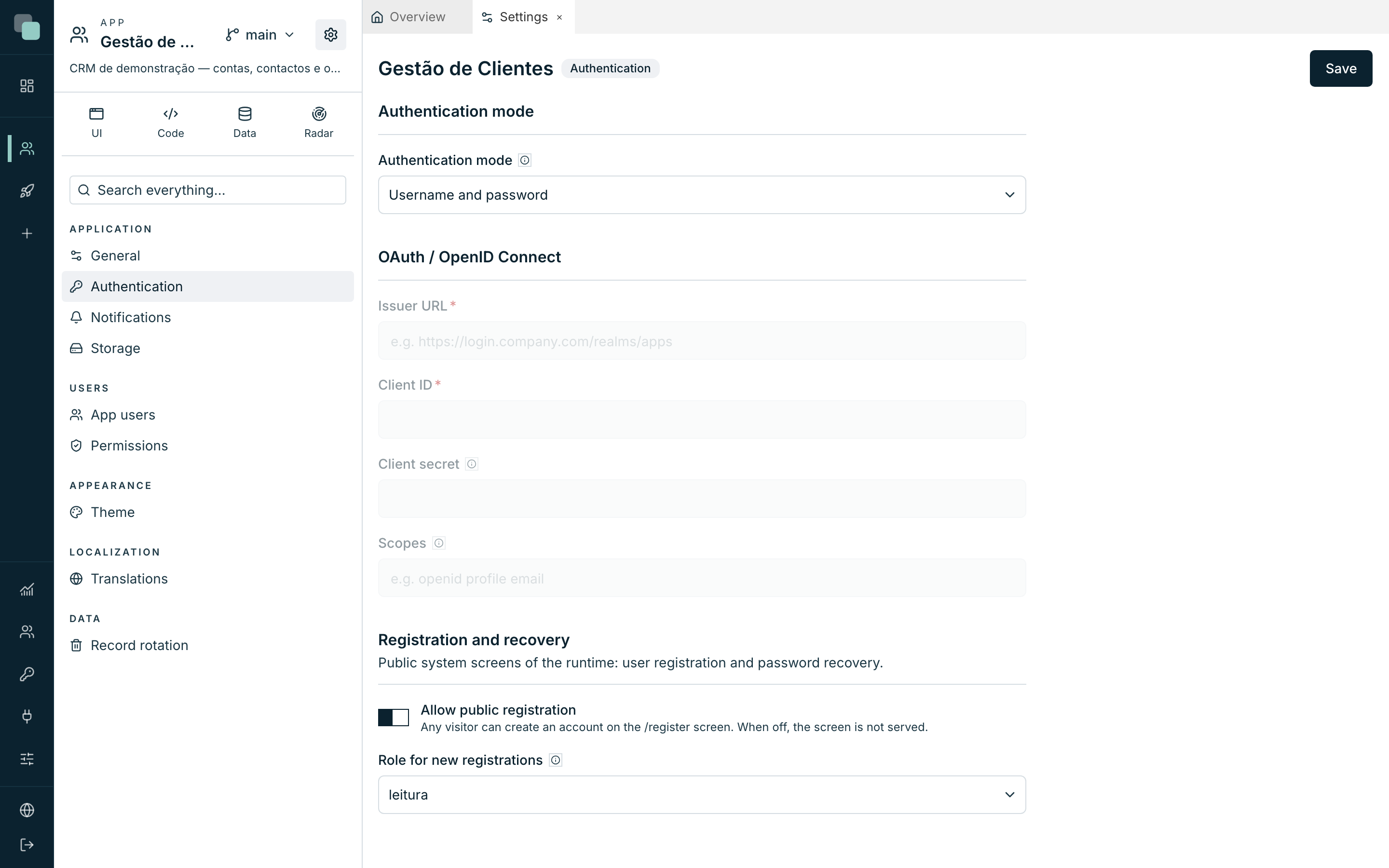
Authentication mode — the fundamental choice:
| Mode | How it works |
|---|---|
| Username and password | "App users sign in with the credentials managed in the Users tab." Everything lives in the app; it is the default mode. |
The OAuth / OpenID Connect mode is not available yet: the only choice is signing in with username and password. When it exists, the provider's fields (issuer, client, secret and scopes) will appear in this section.
Registration and recovery — the app's public system screens:
- Allow public registration: on, "any visitor can create an account on the /register screen. When off, the screen is not served."
- Role for new registrations: "Role automatically assigned to whoever registers." Choose a role from the Permissions list, or No role — but with no role the account signs in and sees no data and no screens.
- Password recovery sends the link through the email channel defined in Notifications — the channel has to be active and with the SMTP complete, otherwise there are no recovery emails.
Save with Save ("Authentication saved.").
App users — the accounts
The App users section manages the accounts of whoever uses the app. The notice at the top is the golden rule: "These users belong to the built app — they log in to the app at runtime and have no access whatsoever to the KEPLIN platform."
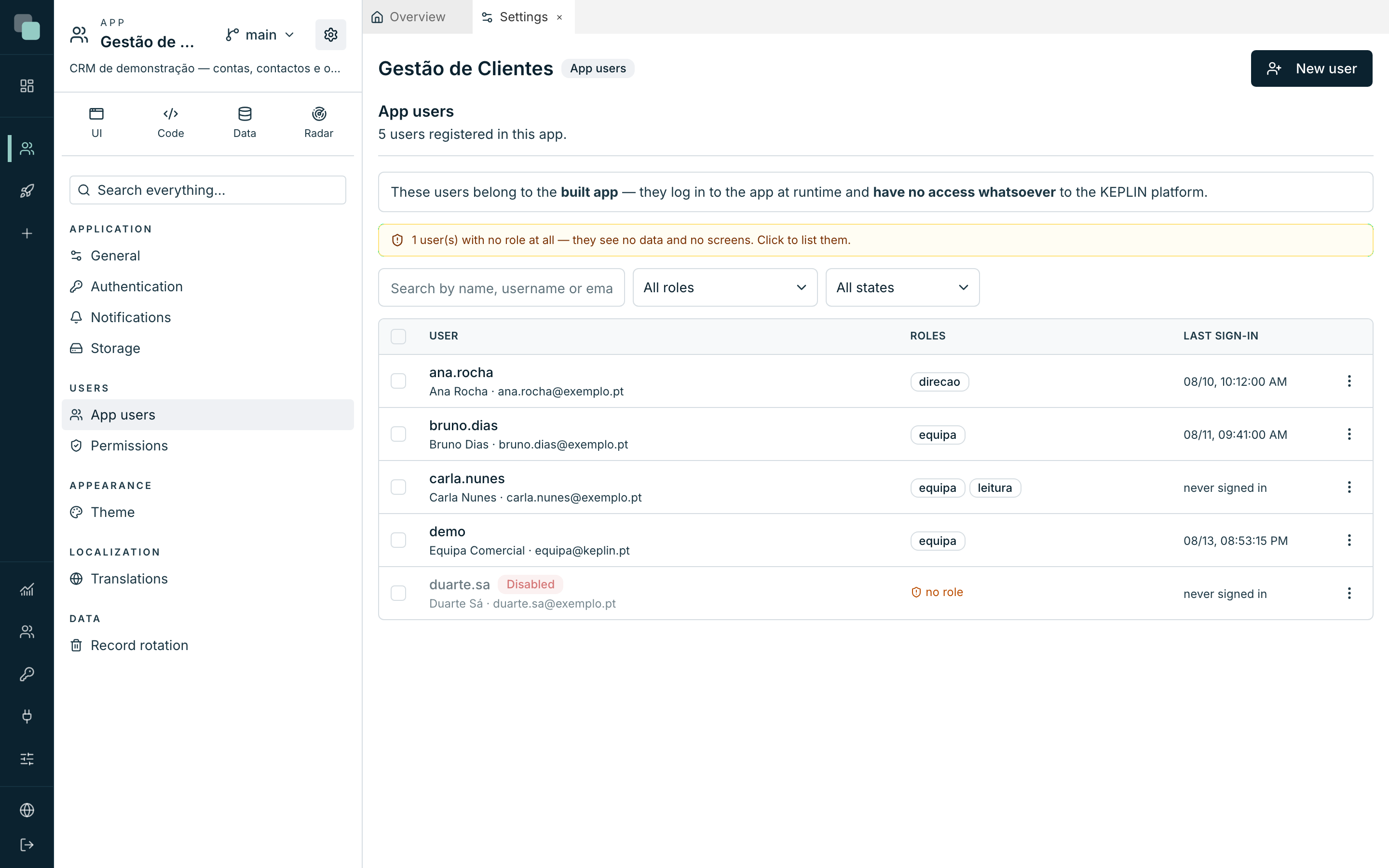
The list shows each account with the User, the Roles and the Last sign-in ("never signed in" when there has never been a login), and it was made to answer questions:
- The "Search by name, username or email…" box and the filters by role and status find any account.
- The amber warning "… user(s) with no role at all — they see no data and no screens" is clickable and filters those accounts right away — it is the number one cause of "the app is empty".
- Select several accounts to act in bulk: Grant role, Revoke role, Enable, Disable — giving the same role to twelve people is one operation, not twelve modals.
Creating or editing an account (New user button, or Edit in the row's menu — it opens as a page, never in a modal):
| Field | Notes |
|---|---|
| Username | Required. "Letters, numbers, dot, hyphen, _ and @." |
| Name / Email | Optional; the email is needed for password recovery. |
| Password | On creation it is the initial password — "the user can change it in the app." On edit, "only fill in to set a new password." |
| Active | Off, the account exists but "cannot sign in to the app." |
| Roles | Checked per role. A new account comes with the "default" roles defined in Permissions pre-checked. |
Deleting an account (row's menu → Delete) is irreversible — the user stops being able to enter the app.
Note
Permissions are not edited on the account. They are always edited on the roles, in the Permissions section — an exception placed on one person is an exception nobody ever finds again.
Permissions
The Permissions section defines what each role can do in the app, along four axes: data, screens, menus and actions. "Permissions add up: two roles give you the best of both."
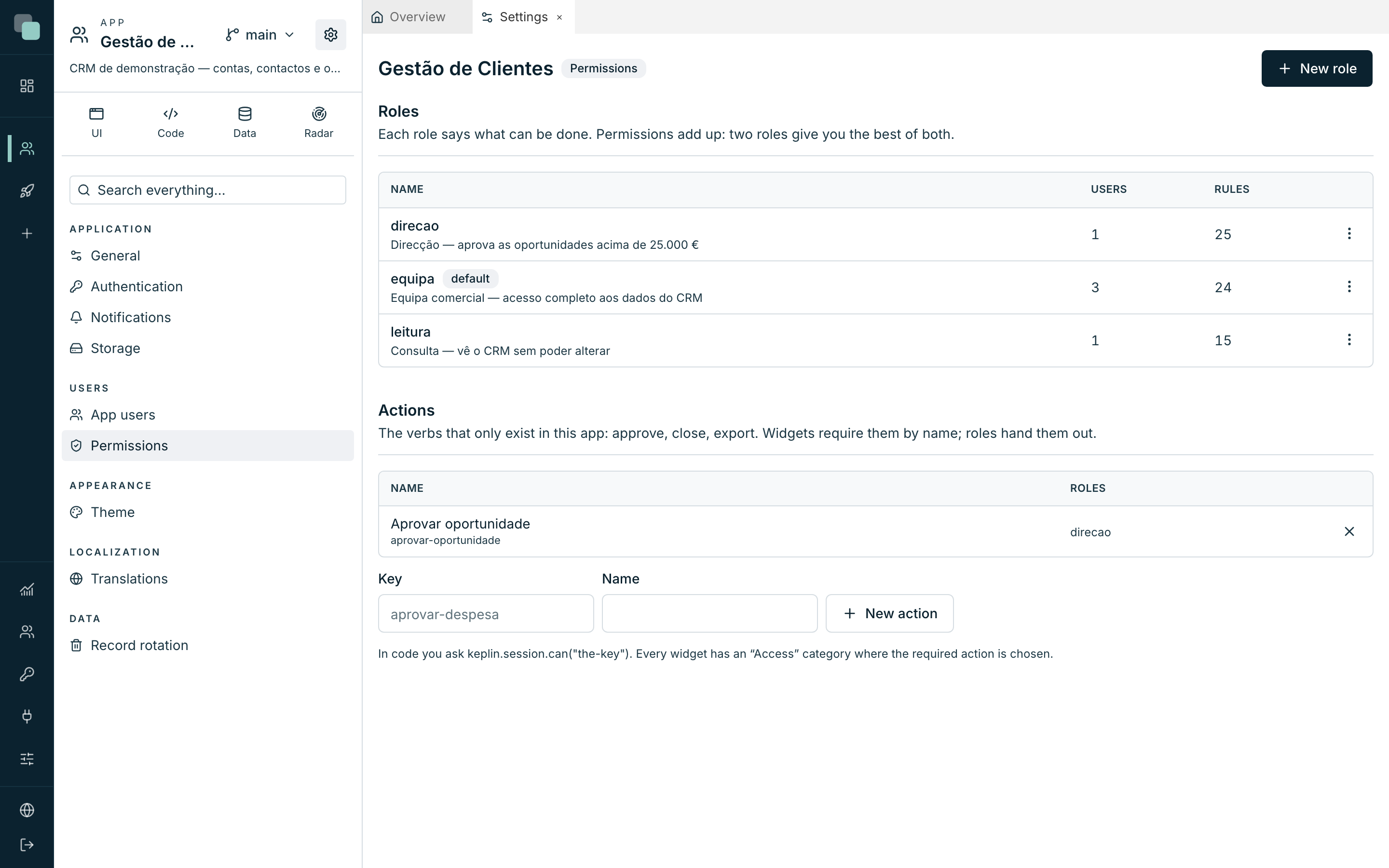
The Roles list shows each one with its number of users and of rules, and the "full access" and "default" badges. New role creates one and opens its page right away, with five tabs:
General — the Name, the Description and two switches:
- Full access: "Everything, no exceptions — and it stays correct as the app grows." It is the app's administrator role; with it on, the other tabs do not even apply.
- Given by default: "Assigned to anyone who registers or is newly created."
Data — one row per table API, with four checks — View, Create, Change, Delete — and a Scope that says which records can be reached:
| Scope | Meaning |
|---|---|
| All records | No row restriction. |
| Only mine | Only the records whose "Field that says whose it is" is the signed-in user. |
| With condition… | Only the records that meet a filter you compose — with fixed values or ones from the session. A "not equal to" or "none of" condition includes records where the field is empty. A condition on a field that no longer exists in the model refuses the data instead of showing all of it. |
"The scope is applied on the server, on every read and write — in screens, in code, in reports and in workflows. With no rule at all, this role sees nothing from this API."
Screens — for each screen and each device (Web, Tablet, Phone), one level: Hidden ("does not appear in menus, and a hand-typed route is refused"), View (read-only) ("opens read-only — fields and buttons that write are disabled") or Edit. The "view all" / "hide all" shortcuts fill a whole column. The "view" is a visual aid; what really stops writes are the Data permissions, on the server.
Menus — unlike screens, a menu is visible by default: the door is the screen, and that one is already shut. Here you hide the rest — a whole group, the notifications bell — per device. Unchecking a group takes its children with it.
Actions — the verbs that only exist in this app: approve, close,
export. They are declared in the Actions panel of the roles list (a
Key like aprovar-despesa and a Name, New action button) and
each role checks the ones it hands out. On the screens, every widget has
the "Access" property to demand an action; in TypeScript code you ask
keplin.session.can("aprovar-despesa").
Everything is saved at once with Save ("Permissions saved."). Deleting a role warns how many users are left without it — "anyone left with no role stops seeing data."
Storage
The Storage section says where the files that app users upload go. There are four kinds:
| Kind | Where the files live |
|---|---|
| App disk | On the app's disk, in a subfolder of its store (uploads by default). |
| S3 (or compatible) | In an S3 or compatible bucket (MinIO, Wasabi, R2): endpoint, region, bucket, keys and a prefix. |
| SFTP | On a server over SSH, in a base folder. |
| Network share (Samba) | On a Samba share already mounted in the operating system: the mount point (for example /mnt/docs) and a subfolder. |
An app with no storage configured gets App disk by itself on the first upload. With several, mark one with Use by default: uploads that don't pick a storage go there. Test writes, reads and deletes a real file before you save.
The subfolder is always a simple relative path — folders separated by
/, no .. — and a share's mount point is always an absolute path,
outside the platform's data folder and program folder. A configuration
outside these rules is refused on save.
Record rotation
An app with traffic writes history non-stop — calls, runs, clicks. The Record rotation section decides "how many days each kind of record is kept before being deleted. Zero days means keep forever."
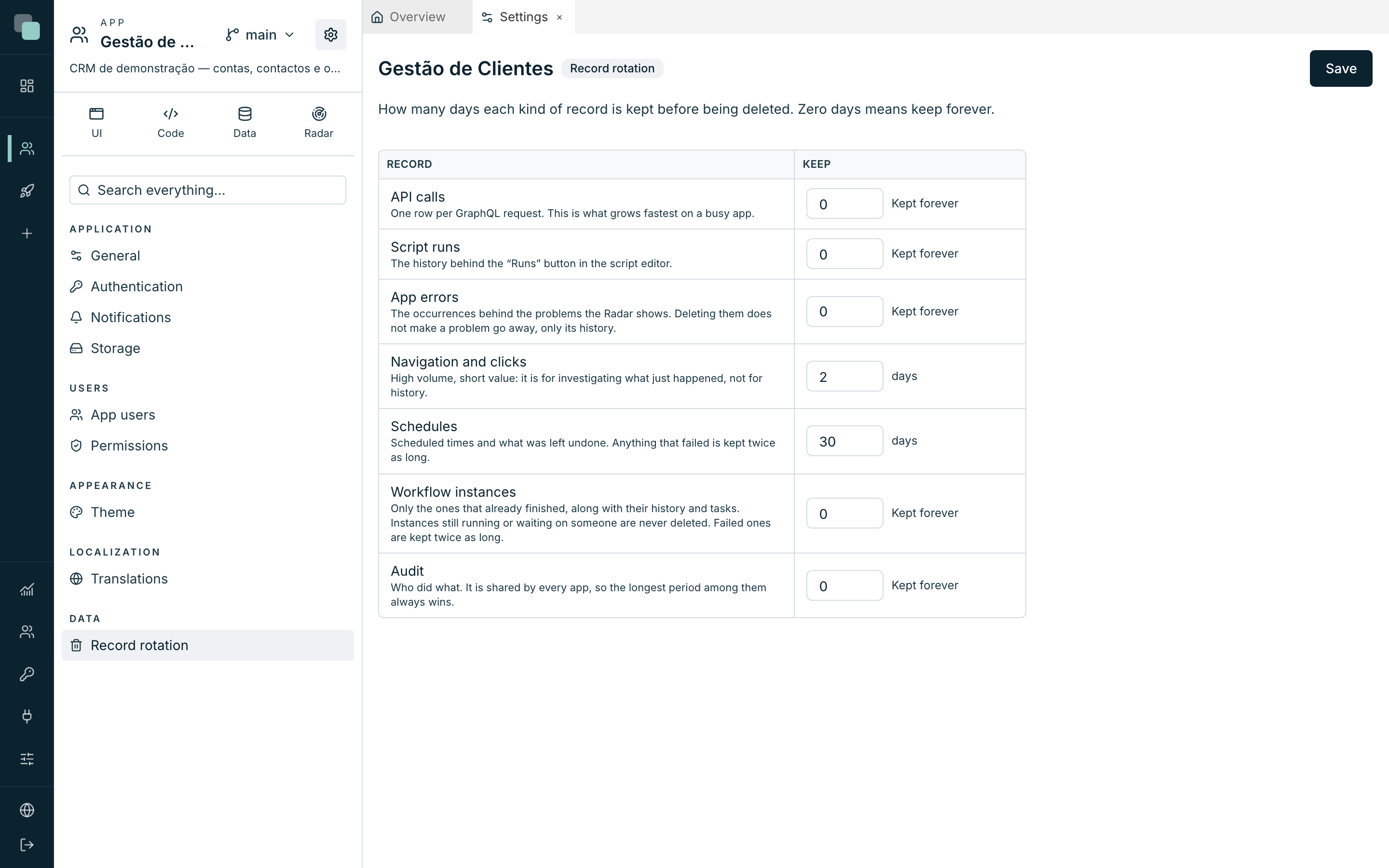
It is a grid with one row per kind of Record and the period in Keep (the field shows "Kept forever" when it is at zero):
| Record | What it is | Default |
|---|---|---|
| API calls | "One row per GraphQL request. This is what grows fastest on a busy app." | Kept forever |
| Script runs | "The history behind the “Runs” button in the script editor." | Kept forever |
| App errors | "The occurrences behind the problems the Radar shows. Deleting them does not make a problem go away, only its history." | Kept forever |
| Navigation and clicks | "High volume, short value: it is for investigating what just happened, not for history." | 2 days |
| Schedules | "Scheduled times and what was left undone. Anything that failed is kept twice as long." | 30 days |
| Workflow instances | "Only the ones that already finished. Instances still running or waiting on someone are never deleted. Failed ones are kept twice as long." | Kept forever |
| Audit | "Who did what. It is shared by every app, so the longest period among them always wins." | Kept forever |
The clean-up runs in every version of the app that has records on disk — the working one and the published ones — each with the policy saved in that version.
Save applies the policy ("Rotation saved.") and the cleanup starts running in the background, every day.
Tip
On a production app, set real periods from day one — 30 to 90 days for the API calls is a healthy starting point. "Kept forever" is great in development and a disk bill in production.
Limits to keep in mind
The limits you will meet in the settings and the gestures of this chapter:
| What | Limit |
|---|---|
| App name | 2 to 120 characters |
| App description | Up to 500 characters |
| An app user's username | 2 to 120 characters (letters, numbers, dot, hyphen, _ and @) |
| Export passphrase | Minimum 8 characters |
| Import package | Maximum 1 GB |
| Record rotation | 0 to 3650 days per kind (0 = keep forever) |
The global limits — session duration and the maximum size of uploaded files — are not per app: they live in the platform's Settings, in the "Sessions and limits" panel, and hold for the whole installation.