Notifications
How an app warns the people who use it — the on-screen channel, the email channel, and the bell in the navigation bar.
A business application needs to warn people: an opportunity changed stage, a request arrived for approval, a report is ready. In Keplin that is done through two channels, which exist in every app and are neither created nor deleted: one delivers on screen, to whoever is using the app at that moment; the other delivers by email, to whoever is not.
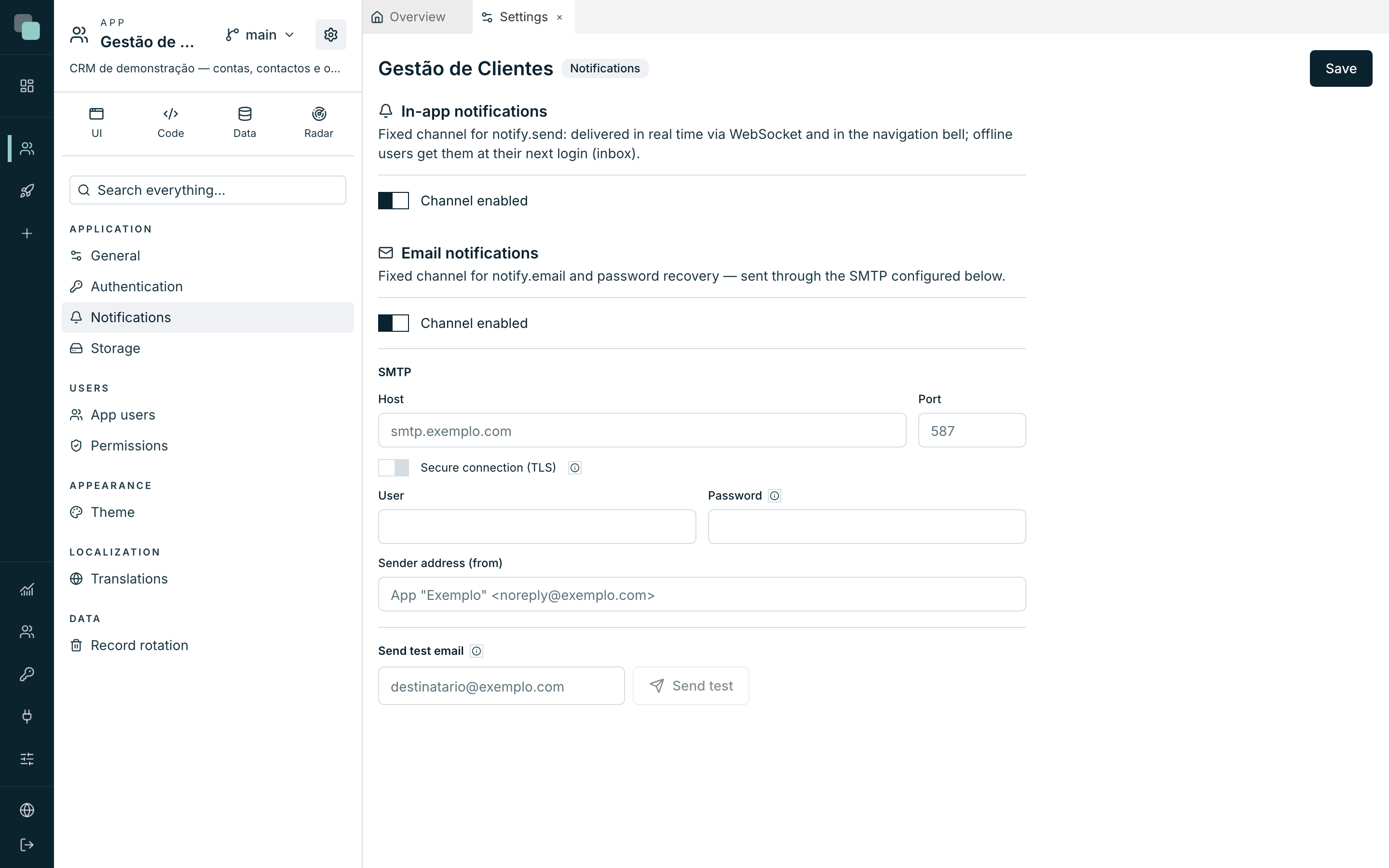
They are turned on or off in the App settings, Notifications section:
- Open the app.
- Click the App settings icon, at the top of the side tree.
- In the settings tree, inside the Application group, choose Notifications.
In-app notifications
The first channel delivers inside the application. It has a single switch, Channel enabled, and the behaviour is this:
- whoever has the app open receives the notice on the spot, without reloading anything;
- whoever does not receives it at the next login — the message is kept and does not get lost;
- unread messages appear in the bell of the app's navigation bar.
Note
Immediate delivery depends on the Real-time notifications switch of the Platform settings. With it off nothing is lost: the notifications go on being kept and appear on the next visit, just without the "right now".
Email notifications
The second channel sends email, and it serves two things: the notifications the app's logic sends by email, and the password recovery of the app's users. Both go out through the sending server configured right below, in the same section.
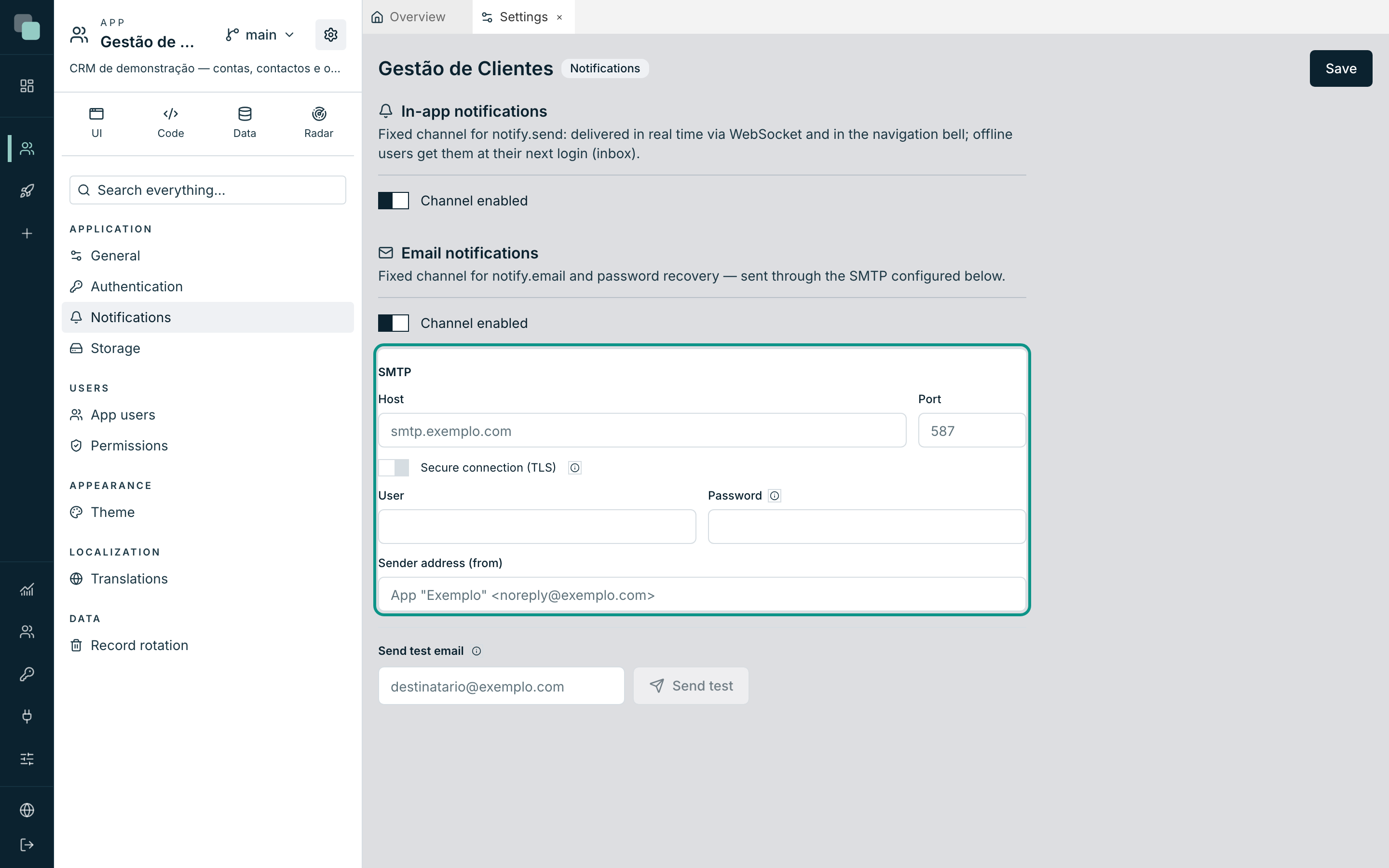
Fill in the SMTP block:
| Field | What it is |
|---|---|
| Host | The address of the email server. |
| Port | 465 with a secure connection, 587 for STARTTLS. |
| Secure connection (TLS) | On for SMTPS (port 465); off for STARTTLS (port 587). |
| User and Password | The sending credentials. The password is stored encrypted and never comes back to the screen — leaving it empty means "keep the current one". |
| Sender address (from) | The sender that appears to whoever receives. |
Warning
Without the email channel enabled and the SMTP filled in, the password recovery of the app's users does not work — the request is accepted but the email never goes out.
Note
This email server belongs to the app, and is separate from the platform's warning email (that one is configured in Settings and serves infrastructure alarms). Each app can send through its customer's server without that changing anything on the installation.
Sending a notification
Notifications set out from the app's logic — from a script or from a workflow step. In scripts there are two tools, one per channel (see the Scripts SDK).
On screen, with notify.send. The recipients are app users:
users takes usernames, and roles expands to every member of a role.
r = notify.send(
    "Opportunity won",
    subtitle="Câmara Municipal de Aveiro — €18,400",
    body="The proposal was accepted. The contract moves on to signature.",
    users=["ana.rocha"],
    roles=["direcao"],
    data={"url": "/oportunidades/42"},
)
# r = {"recipients": 4, "delivered": 2}
The delivered counts who was connected and received it right away; the
rest receive it when they come in. The data travels with the message —
it is what lets clicking the notice take the person to the right place in
the app.
By email, with notify.email. Here to accepts free addresses, and
users/roles resolve to the email of the app's users.
r = notify.email(
    "Pipeline summary",
    to=None,
    users=None,
    roles=["direcao"],
    text="There are 12 open opportunities, 3 close this week.",
    html=None,
)
# r = {"accepted": ["ana.rocha@exemplo.pt"], "skipped": []}
The skipped says who was left out for having no email filled in on
their record — worth looking at that list when someone complains about
not receiving.
The bell in the app's bar
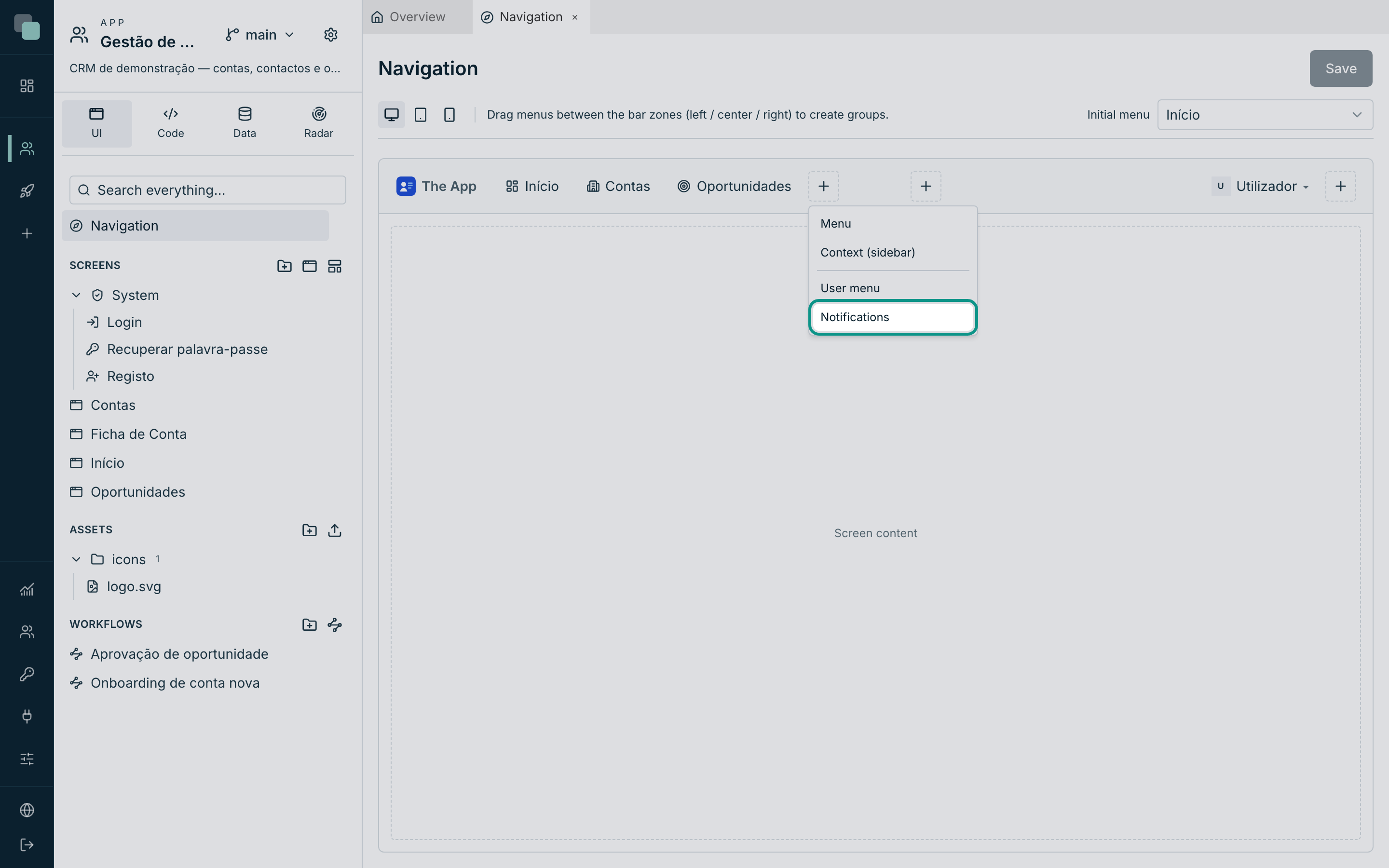
The bell that shows the unread messages does not appear by itself: it is a menu type added in the app's navigation editor, with the automatic count of the unread. It is described in App navigation.
How long they are kept
Messages pile up. Each app decides how long it keeps the history in the Record rotation section of the app settings — the same one where the retention of the activity logs is set. Zero days means "keep forever".
Frequently asked questions
The person received nothing on screen. Check three things, in this order: the In-app notifications channel is enabled in the app settings; the Real-time notifications switch is on in the platform Settings; and the person has a session open in the app. Without real time the message is not lost — it just arrives later.
Can I warn everyone at once? Yes: instead of names, pass roles with
the role you want. Whoever is in that role at the time of sending
receives it.
Do one app's notifications appear in another? No. The messages and the history belong to the app where they were created, and the recipients are users of that app.
Can I create more channels beyond these two? No. The channels are fixed, and it is deliberate: what changes from notice to notice is the recipient and the text, not the plumbing. To separate subjects, use the recipients' roles.