Connecting databases
Registering a database as a datasource of the app, editing the connection, renaming and deleting — and where that connection comes into use.
A datasource is a database registered in an app: a connection with a name, a type and credentials, available to everything in that app that needs real data — the APIs' SQL steps, the scripts, the data model (and, through it, the GraphQL API and the screens). The connection is registered once; from then on the whole app refers to it by name.
In the example app Customer Management, the datasource is called crm —
a PostgreSQL database with the accounts, contacts and opportunities tables.
It is the one you will see in every figure of this chapter.
Note
Datasources are per app: each app has its own list, and a connection registered in one app does not appear in the others. If two apps need the same database, the connection is registered in each one.
Where you find the datasources
There are two doors in, and you will use both:
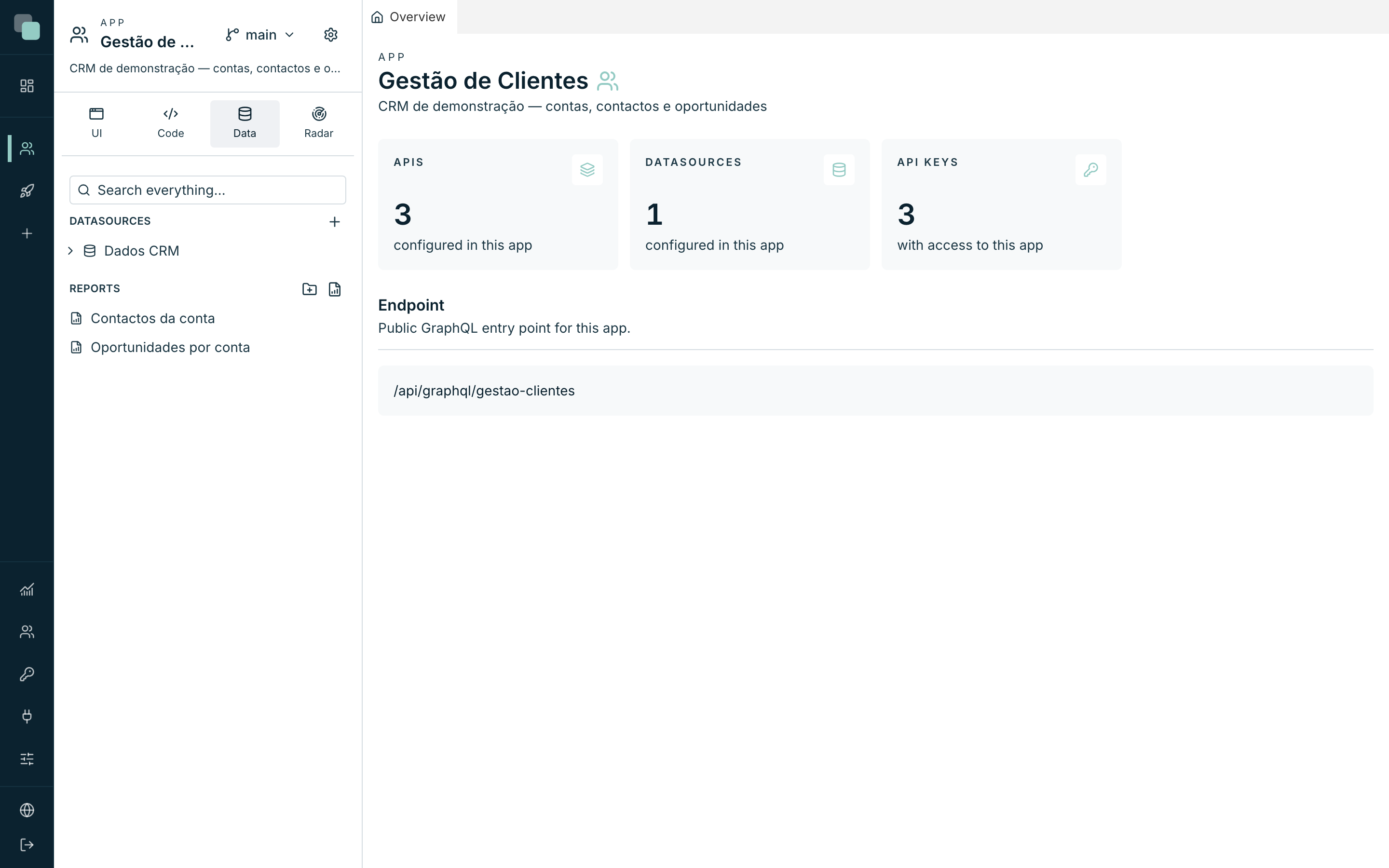
- The Data panel — in the sidebar of the app workspace, Data tab, Datasources section. It is the everyday place: each datasource expands into a tree with the database's tables, views and programming, and each one's menu gives access to every action.
- The Datasources page — the app's complete list, with each connection's type and creation date ("Databases accessible to this app's APIs and scripts."). It is also where the platform's shortcuts point — for example the Add the first one link that appears on a SQL step when the app has no datasources yet. On small screens, the app's navigation shows Datasources directly.
Creating a datasource
You will need the database's connection details: server address, port, database name, user and password — the exact fields vary with the type (the Supported types page details each one).
Internal or external
The creation modal has two tabs, and the choice decides what you are asked for:
| Tab | For what | What you fill in |
|---|---|---|
| Internal | A database created and kept by the platform for this app. | Only the Internal name and the engine: PostgreSQL (a new database on the installation's server, with credentials of its own) or SQLite (a file kept with the app, with optional import of an existing file). |
| External | A database that already exists, yours or another system's. | The type (PostgreSQL, MySQL, MariaDB, SQL Server or Oracle) and the connection details; the Test connection button confirms before saving. |
With an internal database you never see or type connection details: the platform creates it, stores the credentials encrypted and connects for you. If the PostgreSQL option of the Internal tab is disabled, the installation's PostgreSQL server has not been configured yet; ask the installation administrator.
From the Data panel
- Open the sidebar's Data tab.
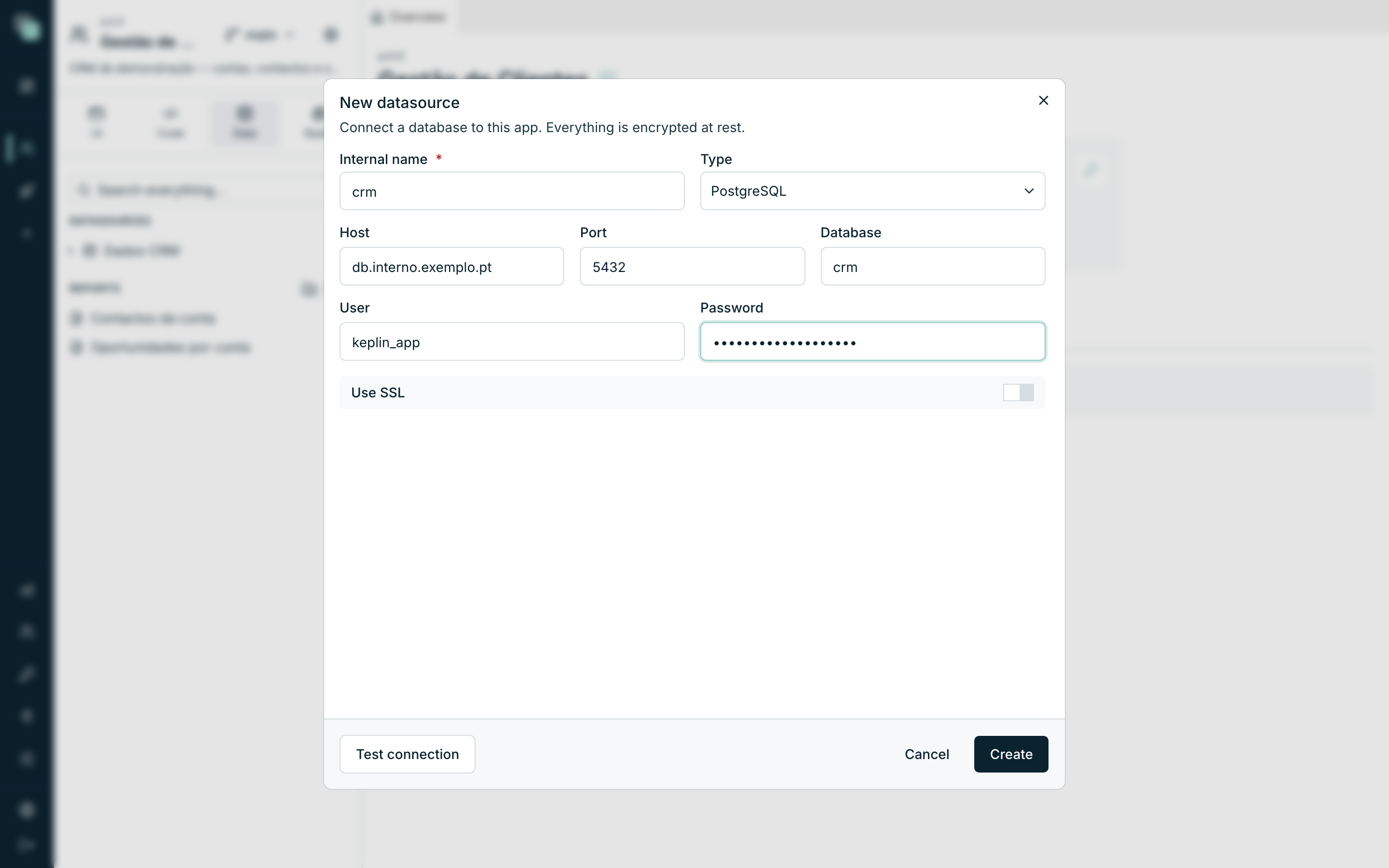
- In the Datasources section, click the + button (New datasource). A modal opens — "Connect a database to this app. Everything is encrypted at rest."
- Fill in the Internal name and choose the Type.
- Fill in the connection fields of the chosen type.
- Click Test connection and wait for the "Connection OK." — the Testing the connection and security page explains what the test does and how to read the errors.
- Click Save. The tree now shows the datasource, and its Model screen opens next — ready for you to import tables.
From the Datasources page
- Open the Datasources page and click Add datasource.
- The New datasource page opens — "Register the credentials and test the connection before saving. Everything is encrypted at rest." The form has two sections: Identification (internal name and database type) and Connection (credentials and connection parameters).
- Fill in, test with Test connection, and click Create.
- You return to the list, with the confirmation "Datasource created.".
Tip
The modal path is the shortest when you are building: on save, the datasource's Model opens right away and you can carry on without leaving the workspace.
The internal name is the identity
The Internal name (e.g. warehouse-prod, or crm in our example) is
not a decorative label — it is the identifier by which the APIs and the
scripts call the connection:
- In a Python script:
db("crm").query("select * from contas"). - In an API's SQL step: the step's Datasource field lists the registered names.
Which is why:
| Rule | What happens if it fails |
|---|---|
| Unique within the app | "A datasource with the name … already exists in this project." |
| No collisions with another datasource | "The name … collides with the datasource …" |
| Stable — change it only on purpose | See "Renaming a datasource" below |
Editing the connection
The database moved server, changed password, or you want to turn SSL on:
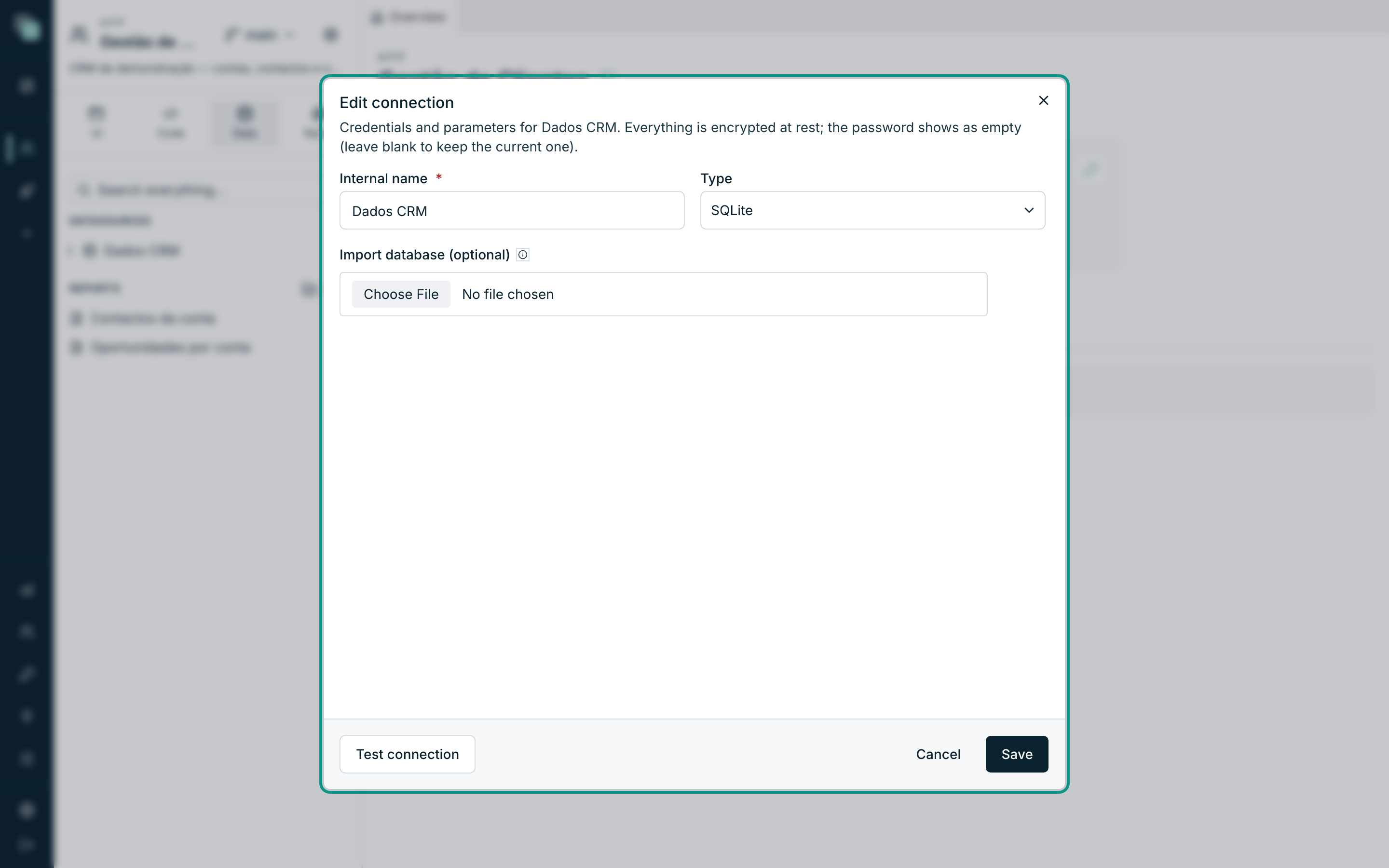
- In the Data panel, open the datasource's ⋯ menu and choose Edit connection.
- The modal opens with everything filled in except the password — the field is now called Password (empty = keep). Leave it blank to keep the current password; type to replace it.
- Change what you need, click Test connection to confirm, and then Save. The confirmation is "Connection saved.".
Note
On the Datasources page, clicking a datasource's name opens its Model — the connection is always edited through the Edit connection modal of the Data panel.
Note
For an internal datasource (SQLite or the platform's PostgreSQL) the edit modal only lets you change the Internal name. The connection details belong to the platform, are neither shown nor editable, and there is no Test connection; only the database name appears, so you can recognise it.
Renaming a datasource
Double-click the datasource's name in the tree of the Data panel and type the new name (or change the Internal name in Edit connection). The tables already imported into the model follow the new name automatically.
Warning
What is not rewritten on rename: the SQL steps of APIs that picked
the datasource by the old name and the db("nome-antigo") calls in the
scripts. After renaming, review those APIs and scripts — until then, they
keep pointing at a name that no longer exists and fail on execution.
Deleting a datasource
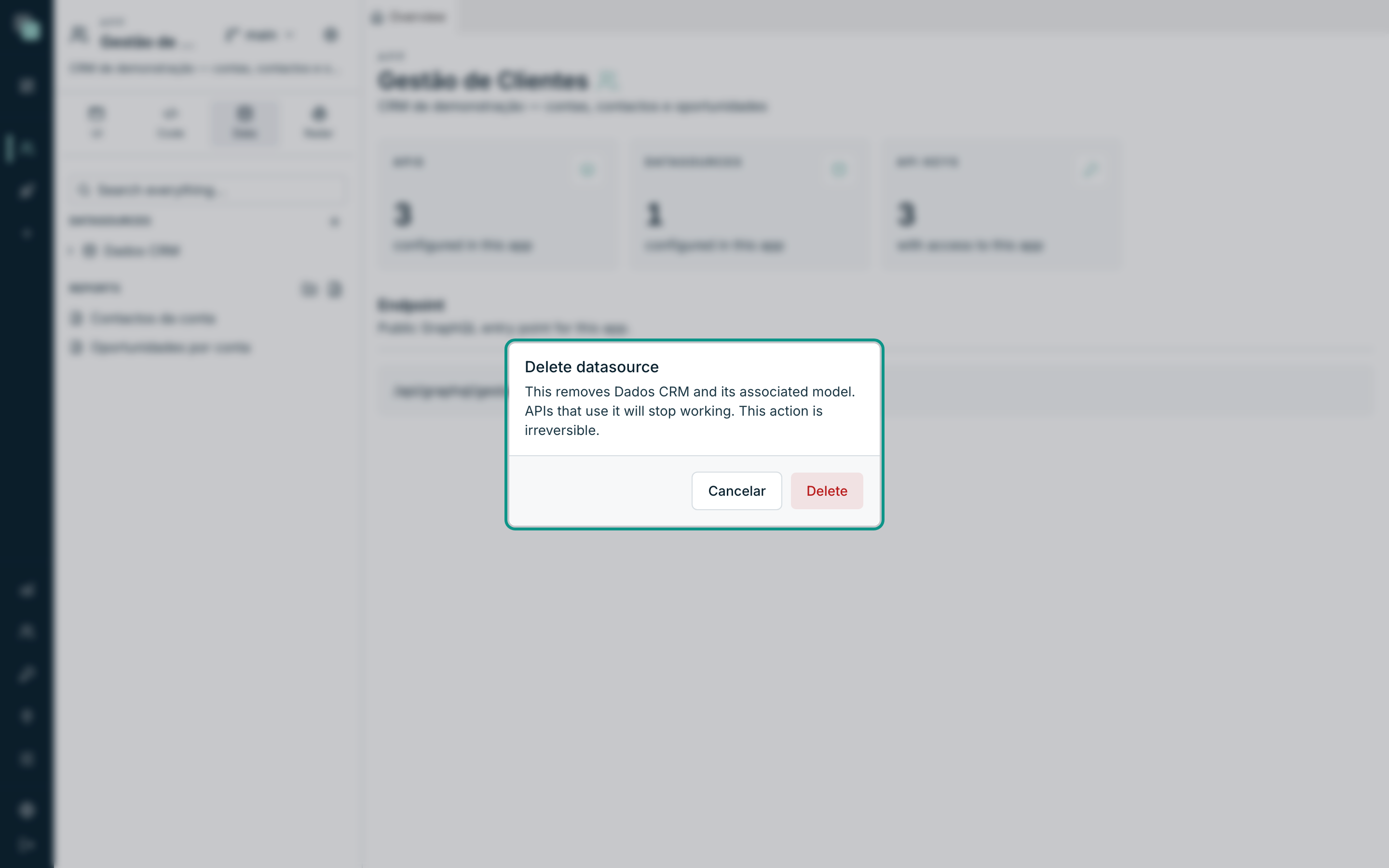
- On the Datasources page, click the bin icon on the datasource's row — or, in the Data panel, open the ⋯ menu and choose Delete datasource.
- Read the confirmation carefully: "APIs and scripts that use this datasource will no longer be able to run. This action is permanent." In the tree, the warning adds that the associated model leaves too.
- Confirm with Delete datasource.
What the deletion removes — and what it does not touch:
| Goes | Stays |
|---|---|
| The registered connection (name, type, credentials) | The database itself — nothing is deleted on the origin server |
| That datasource's tables in the app's model | The APIs and scripts that used it (they keep failing until they point at another datasource) |
Warning
On a datasource of the SQLite type, the database lives with the app — by deleting the datasource you are saying goodbye to that data. On the other types, deleting is just forgetting the connection.
Warning
The same goes for an internal PostgreSQL datasource: the database was created by the platform for this datasource and is deleted with it, on the server, with all its data. That is why the confirmation asks you to type the datasource name. For an external datasource, your database stays exactly where it is.
Where the connection is used
Registering the datasource is the first step; the value is in what it unlocks:
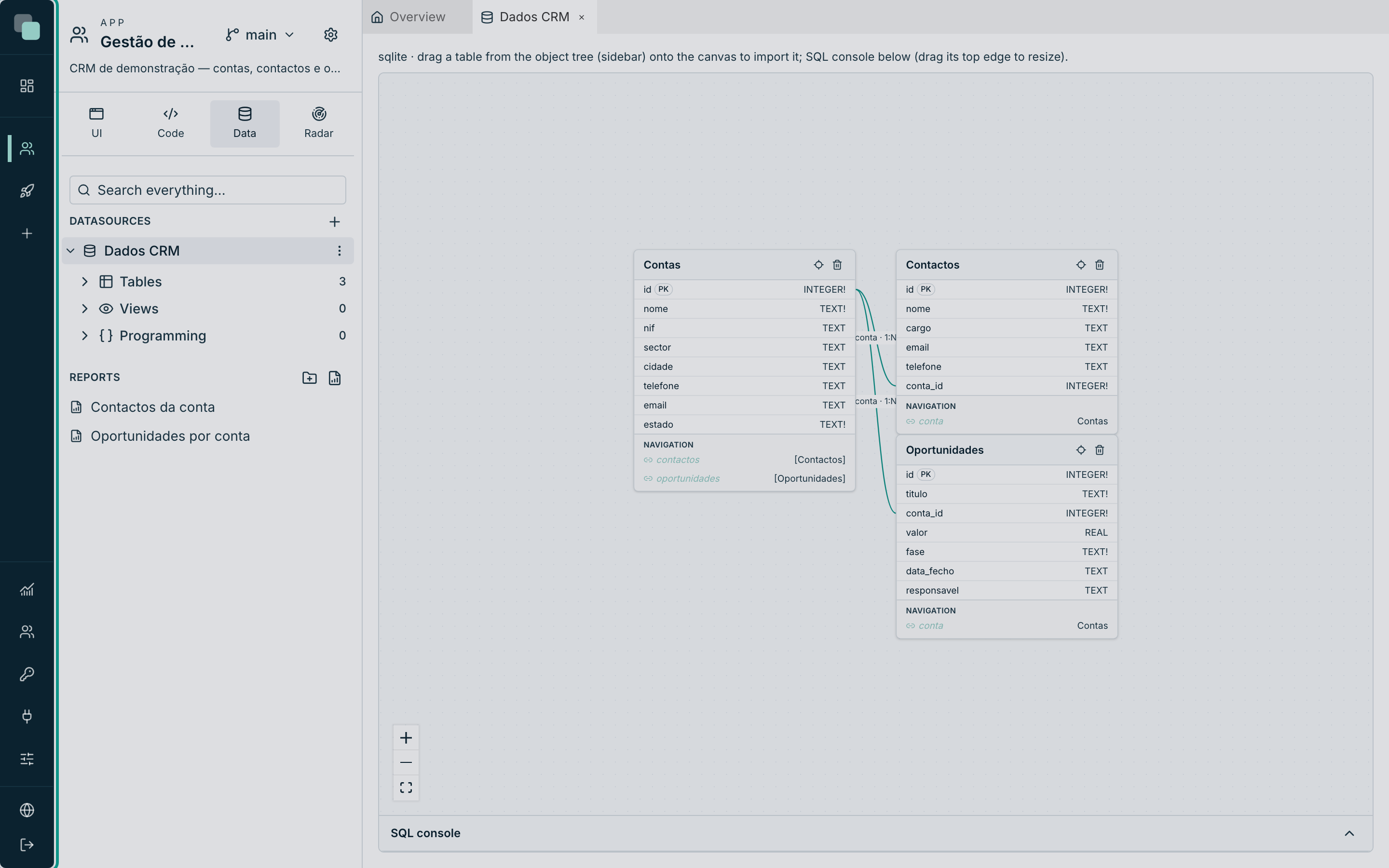
The object tree — expand the datasource in the Data panel to see Tables, Views and Programming (functions, procedures and triggers). Each table has View data (opens the console with a select ready) and Import to model.
The data model — the imported tables become entities of the model, with relations and friendly names. It is the model that feeds the app's GraphQL API and the APIs' Table blocks. The data model chapter covers this in depth.
The APIs — on a SQL step, pick the database in the Datasource field and write the SQL query. The API's arguments come in as
:nomeDoArgand the previous step's result as:prev— "Values are always parameterised — never concatenated." There is a Return only the first row switch for single-record queries.The scripts — in Python, import the access and query by name:
from api_manager import db

def main(input):
    contas = db("crm").query(
        "select id, nome from contas where cidade = $1", ["Lisboa"]
    )
    return {"total": len(contas)}
The parameter markers (
$1,?,:1, …) vary with the engine — the table is on the Supported types page.
Why don't I see…?
- …the Add datasource button? Creating, editing and deleting datasources is reserved for whoever has the administrator profile in the app. With a developer profile you consult the list and use the datasources, but you do not touch the connection.
- …datasources on my API's SQL step? The app has none yet — the step shows "This app has no datasources." with the Add the first one link.
- …tables on the API's Table block? The Table block reads from the model, not from the datasource directly: "Import tables in a datasource's "Model" tab first."