Autonomous mode
What happens to your windows while an agent works on your account, how you see what it is doing, and how you tell it to stop.
While an agent works on your account, your windows enter autonomous mode: they stay in view but untouchable, with a bar at the bottom telling what it is up to and a button to tell it to stop.
It is not a switch you turn on. It is a state: it exists while there is an agent working, and disappears on its own when it stops.
Why the windows lock
The workspace panels save by themselves and hold unsaved state. Two hands on the same screen — yours and the agent's — do not make a pretty conflict: they make lost work. While it works, the window is its.
The veil is transparent on purpose: the page stays in view, because the idea is for you to see what is happening. What you cannot do is click.
The autonomous mode bar
It appears at the bottom, across the whole screen, and has three parts:
| Part | What it shows |
|---|---|
| The title | "Autonomous mode — an agent is working on your account", with the client's name beside it. |
| The bottom line | The agent's latest step — the tool it used and what it did. Before the first step, it says "Starting…". |
| Activity (N) | Opens the list of what it has done in this session. |
| End autonomous mode | Stops it. |
Click Activity and the list opens above the bar: one row per step, with the time, what was done, and a red mark on the ones that failed. A session that has done nothing yet says "No activity recorded in this session yet."
The screen follows the agent
While it works, the platform fetches again what it touched and shows it — without reloading the page and without losing your selection. If the agent saves a screen, that screen is what appears in front of you.
It is what makes autonomous mode something you watch and not just a lock: you get to follow the work happening, screen by screen.
For this to work in real time, the Real-time notifications must be on in the platform Settings.
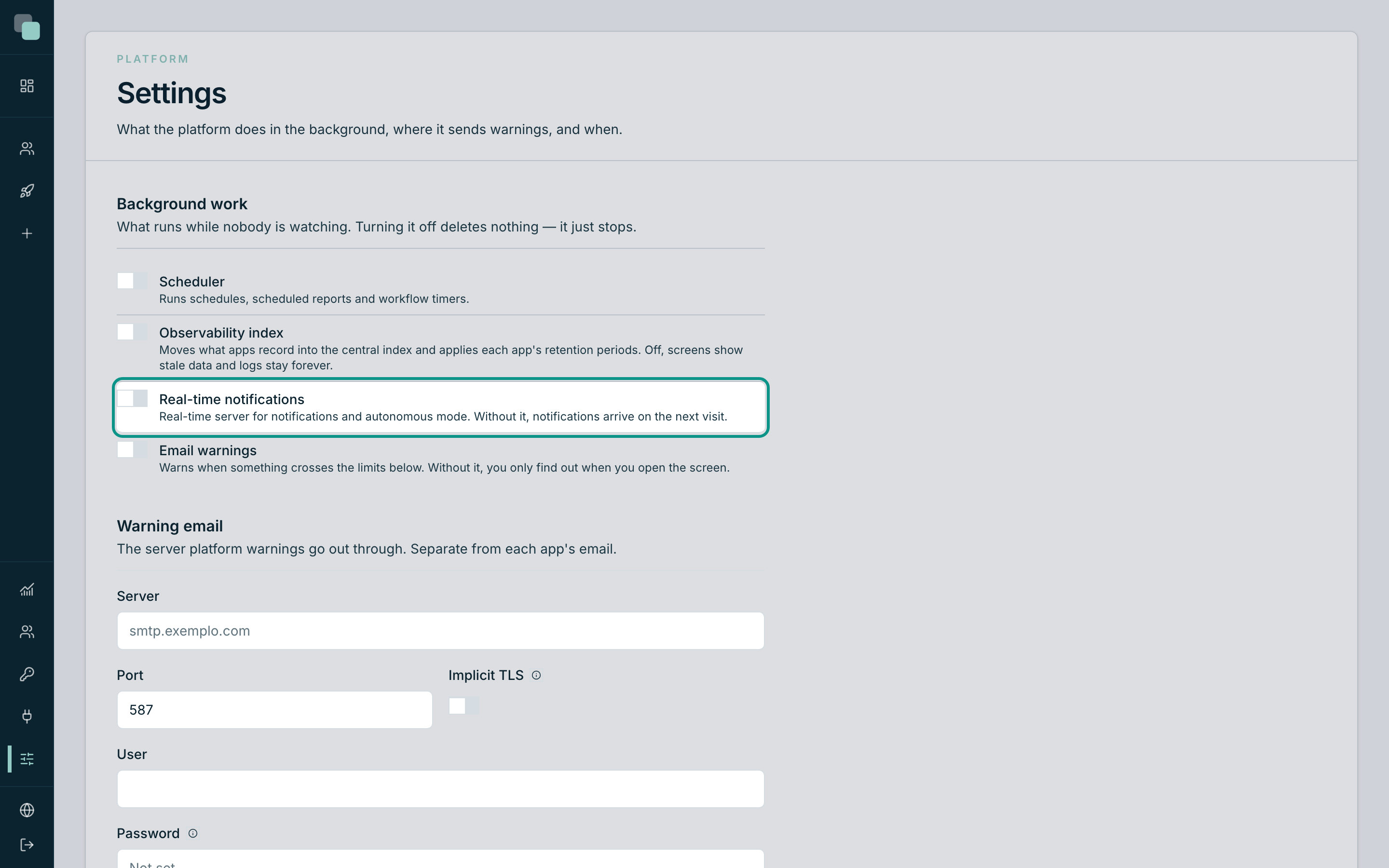
The help beside the switch says it: "Real-time server for notifications and autonomous mode." Without it, the bar keeps working — it just updates every few seconds, instead of instantly.
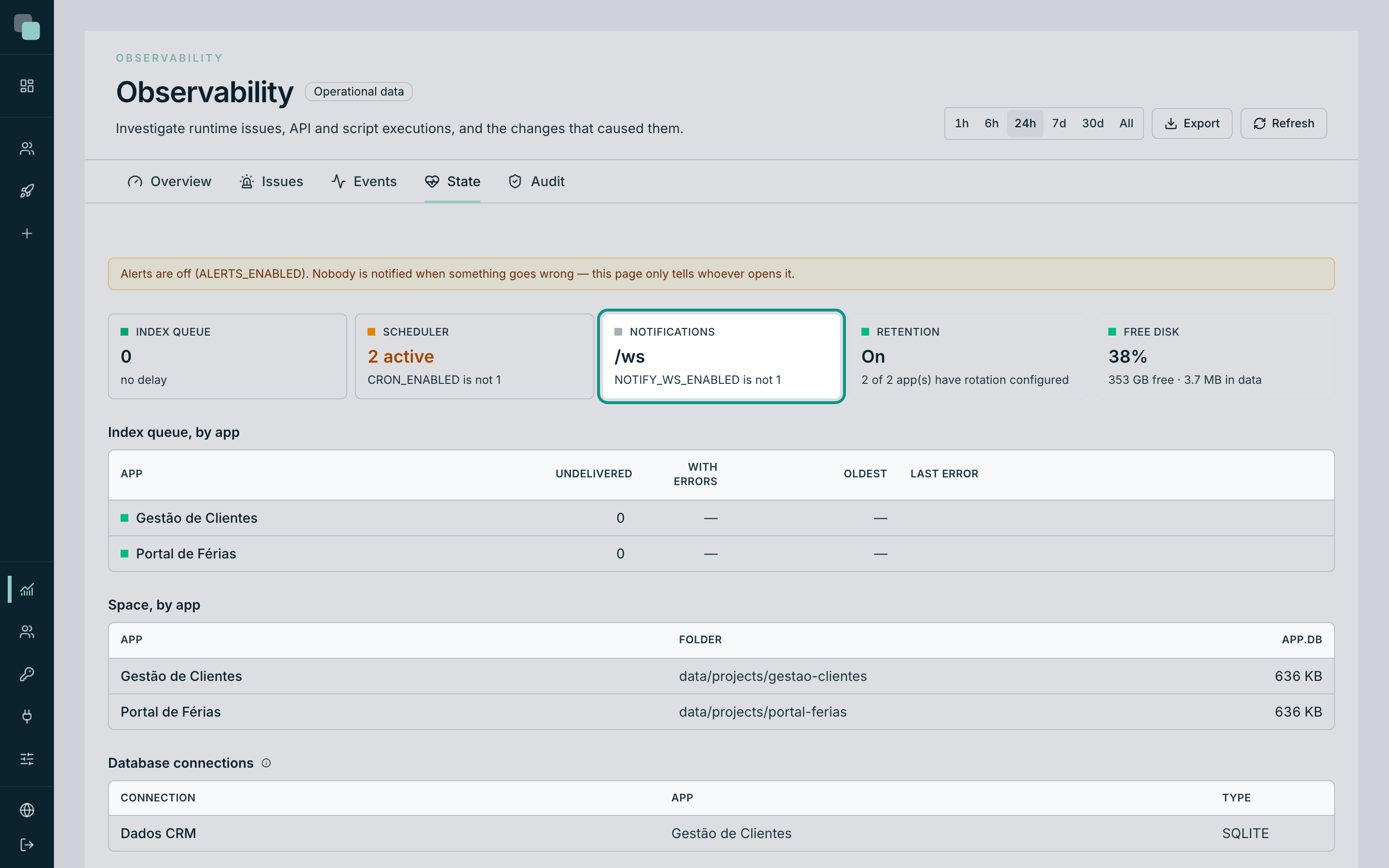
You can check the state of the real-time server in Observability → State, on the Notifications card.
Telling it to stop
Click End autonomous mode. Two things happen:
- The agent's session closes and your windows become yours again.
- The agent is barred from coming back for a cooling-off period.
The second is what makes the button worth anything. Without it, the agent would open a new session the second after and the button would be decorative. When it tries to carry on, it receives a clear order: stop the work and call nothing again until asked to.
Note
An agent that simply stops does not need the button: the session closes by itself after a few minutes of silence. The button is for when you want to interrupt work in progress.
What autonomous mode is not
- It is not an MCP switch. The agent works just the same with no browser open at all. Autonomous mode is what the windows show when they exist — not a condition for it to work.
- It is not a permission. It gives nothing to and takes nothing from the agent; its reach goes on being that of the account that authorized it.
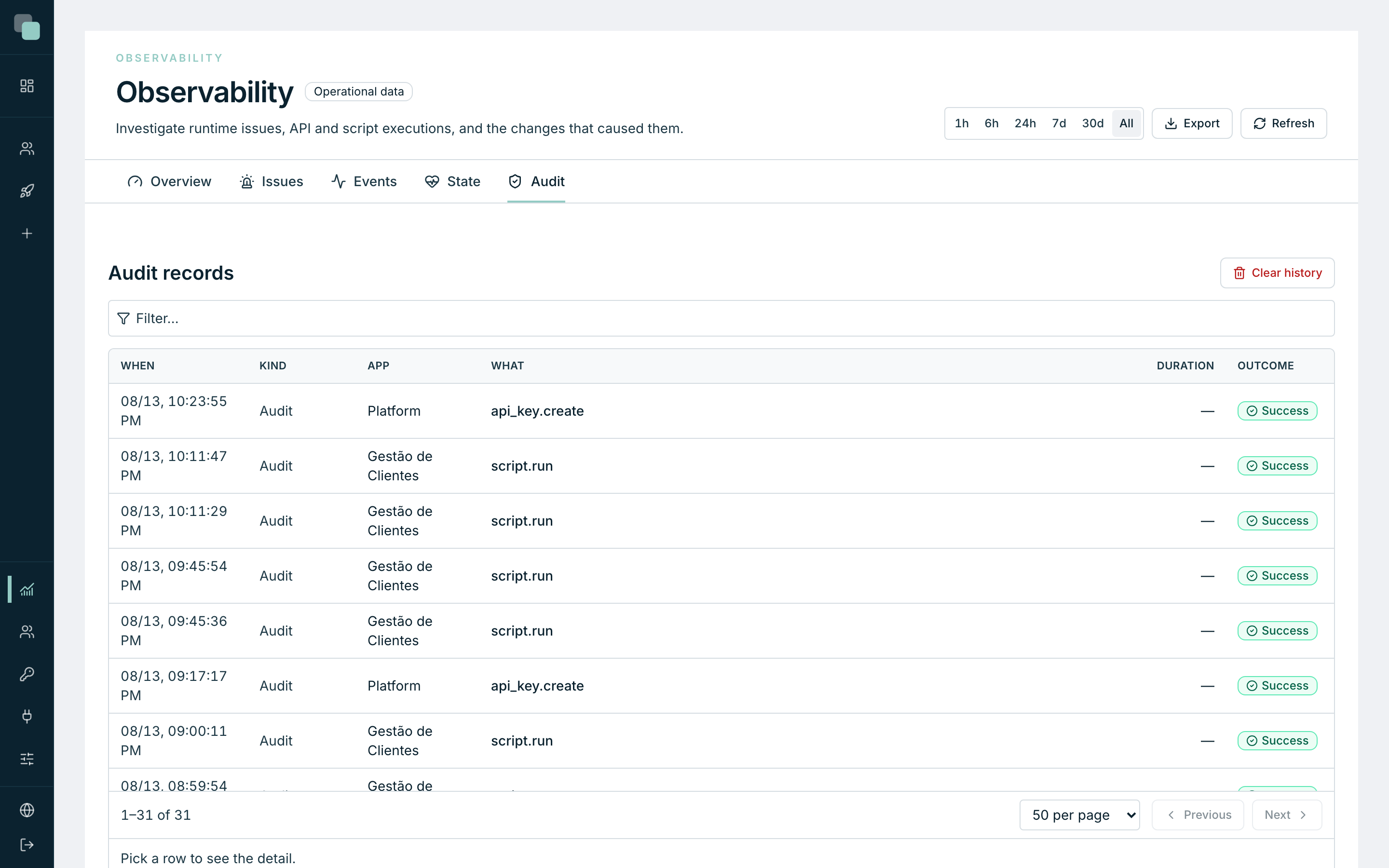
- It is not a log. The activity list belongs to the current session. The permanent record of what was done is in the app's history and in Observability → Audit.
After the agent
Three places to review the work, in order of usefulness:
- The app's history — what was saved, when and by whom. It is from there that a change is reverted or a state restored.
- Observability → Audit — the configuration changes, with the before and the after of each one.
- The app's Radar — if the agent ran scripts or APIs, its runs are there, with result and duration.
Tip
Set the agent to work on a version created for it. At the end, you
review what it did calmly and bring to main only what is worth
keeping, with the Selective merge. It is the difference between
reviewing work and cleaning up damage.
Why don't I see…?
- …the autonomous mode bar, with the agent working? The bar only exists in open tabs of the platform. If you opened one just now, refresh the page.
- …the activity showing up in real time? The Real-time notifications may be off in the Settings. Without them, the bar updates every few seconds.
- …a way to authorize the agent again right after stopping it? The cooling-off lasts a few minutes, and it is intentional. Wait and set the agent to work again.