App users
The accounts of those who USE the built application — creating, enabling and disabling, acting in bulk — and the roles that decide what each one sees and can do.
There are two populations in Keplin, and they never mix:
| Who | Where they sign in | Where they are managed |
|---|---|---|
| Those who build | On the platform — they see the list of apps, design screens, edit the model. | In Users, in the platform's administration area. |
| Those who use | In the built application, through its address. They don't even know Keplin exists. | In App settings → App users. |
This page is about the second. The notice at the top of the section could not be clearer: "These users belong to the built app — they log in to the app at runtime and have no access whatsoever to the KEPLIN platform."
The list of accounts
Open App settings (the gear at the top of the tree) and, in the Users group, the App users section.
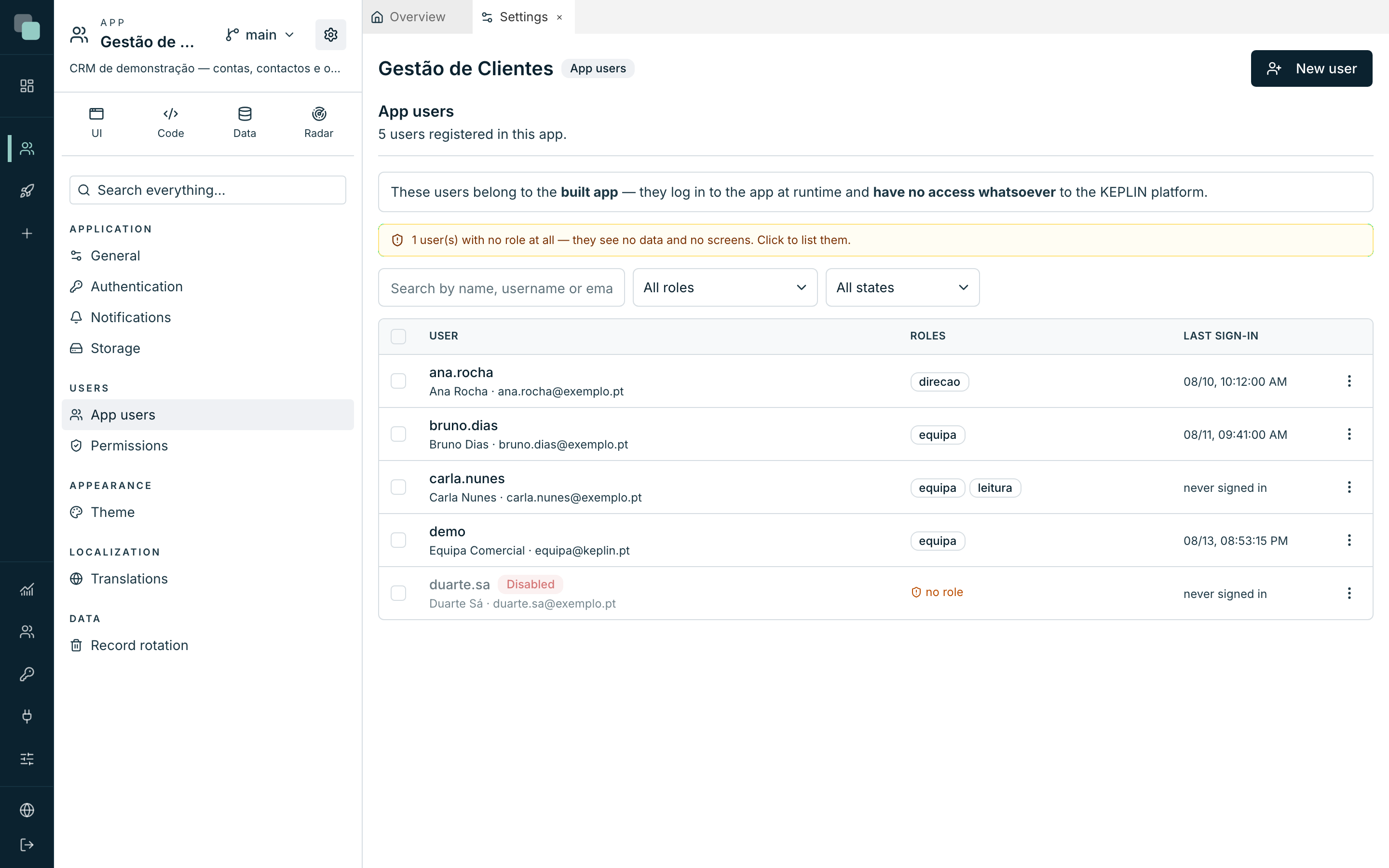
Each row carries the User (username, name and email), the Roles and the Last sign-in — "never signed in" when there was never a login. A disabled account appears marked Disabled.
Above the list there are three search tools:
- the search "Search by name, username or email…";
- the filter by role (All roles, or No role at all);
- the filter by state (All states).
The warning that solves half the problems
When there are accounts with no role at all, an amber warning appears: "{n} user(s) with no role at all — they see no data and no screens. Click to list them."
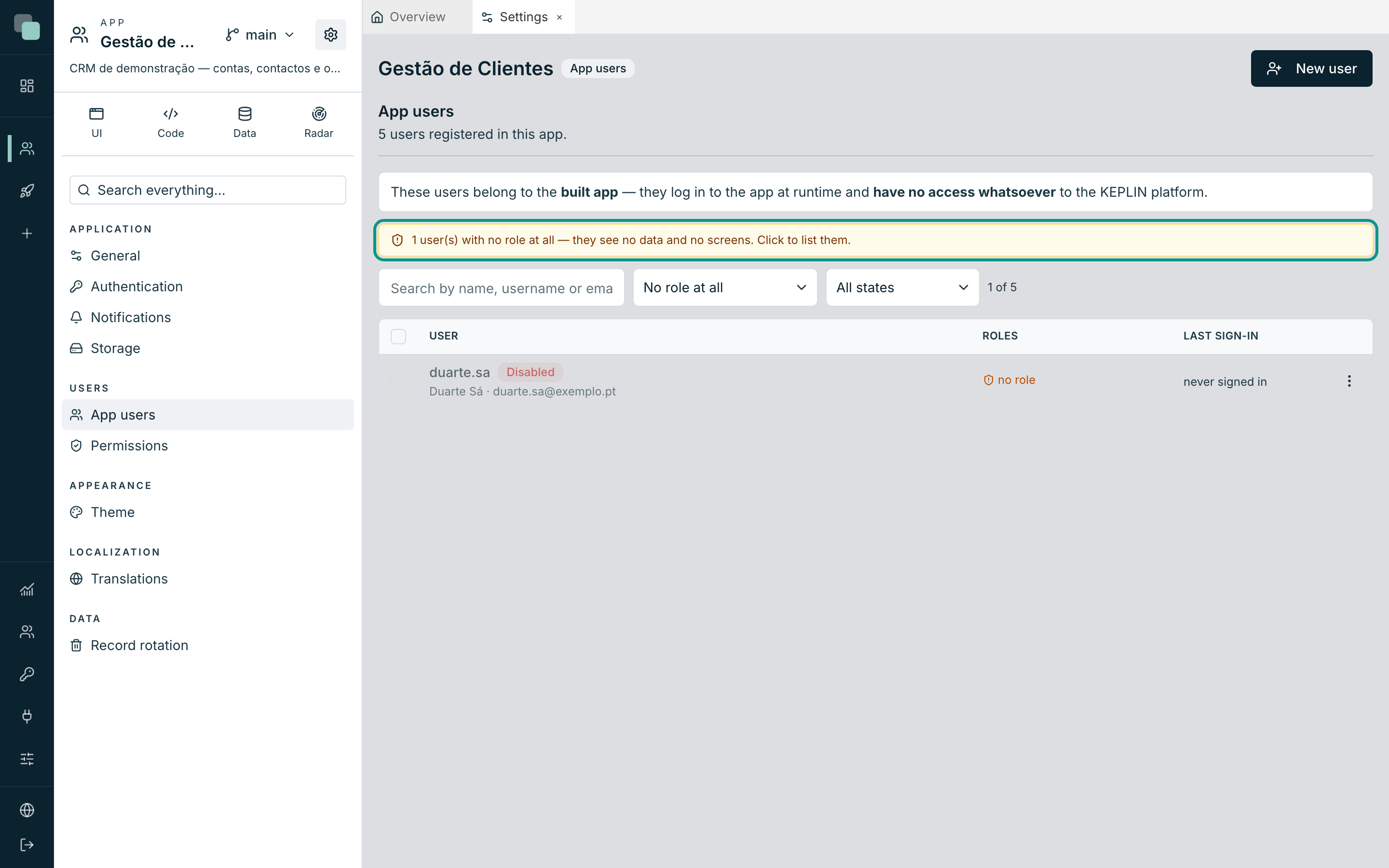
It is clickable, and filters straight to those accounts. This one is worth knowing by heart: the number one cause of "I signed in to the app and everything is empty" is an account with no role. Without a role there are no permissions, and without permissions there is no data and no screens.
Creating and editing accounts
New user opens the record — as a page, never in a modal.
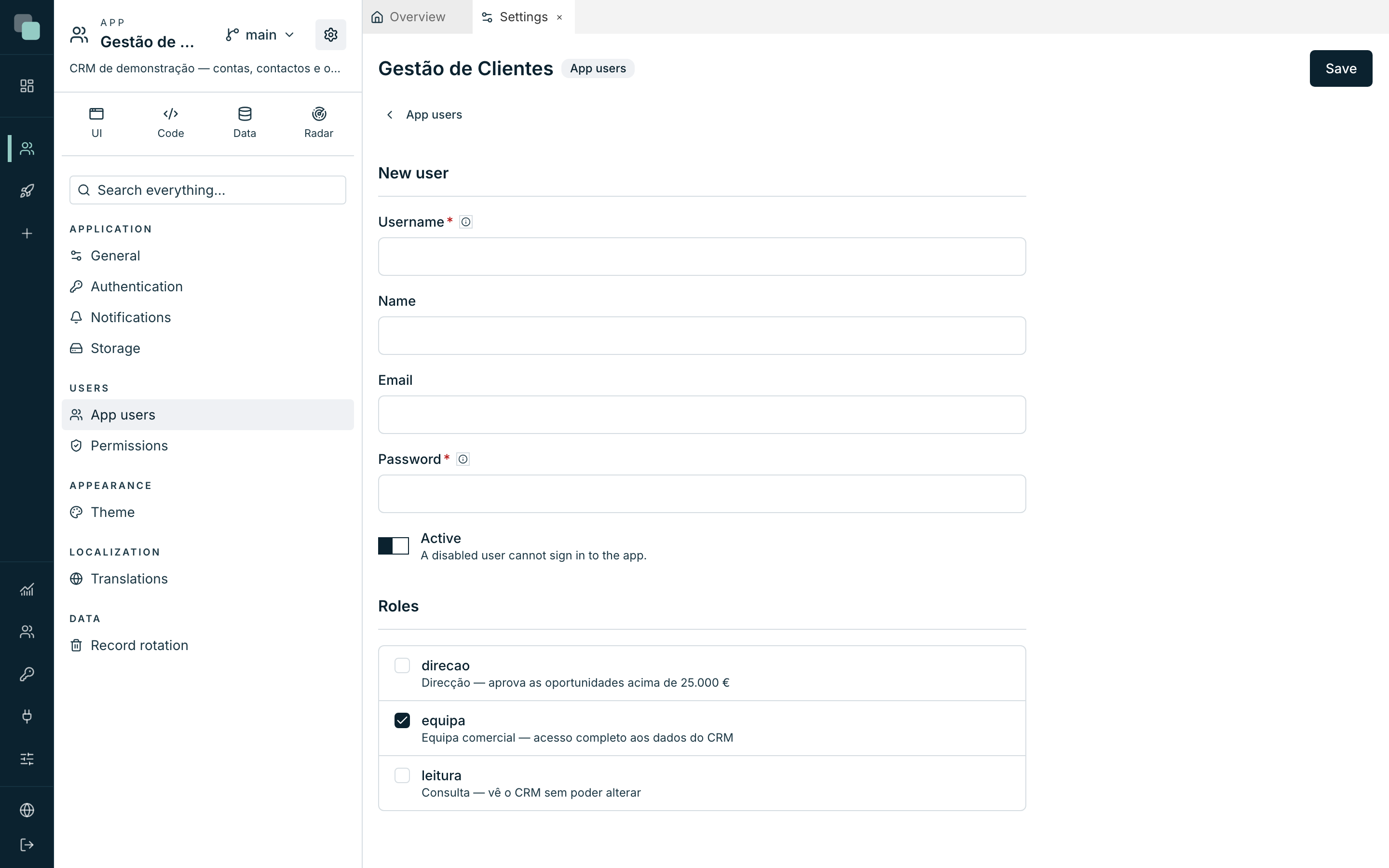
| Field | Notes |
|---|---|
| Username | Required. "Letters, numbers, dot, hyphen, _ and @." It is what the person types on the sign-in screen. |
| Name | Optional. What appears in lists and in task assignments. |
| Optional, but necessary to recover the password and to receive scheduled reports. | |
| Password | On creation it is the initial password — "the user can change it in the app". When editing, "only fill in to set a new password". |
| Active | Off, the account exists but "cannot sign in to the app". |
| Roles | This account's roles. A new account comes with the ones defined as Given by default pre-checked. |
Save with Save. To edit an existing account, the row's ⋮ menu → Edit; to delete it, Delete — irreversible, and the user can no longer sign in.
Tip
Disabling is almost always better than deleting. The disabled account cannot sign in, but the history goes on making sense: the tasks it decided, the records it created, the notifications it received.
Changing an account's password (here, or through email recovery) closes the sessions it had open, on the web and in KeplinGo: whoever was using it has to sign in again.
In bulk
Select several rows with the boxes on the left and the action bar appears: Grant role, Revoke role, Enable, Disable. Giving the same role to twelve people is one operation, not twelve records.
Note
Permissions are not edited on the account — they are always edited on the roles. An exception placed on a person is an exception nobody ever finds again.
The roles
The Permissions section defines what each role can do. "Each role says what can be done. Permissions add up: two roles give you the best of both."
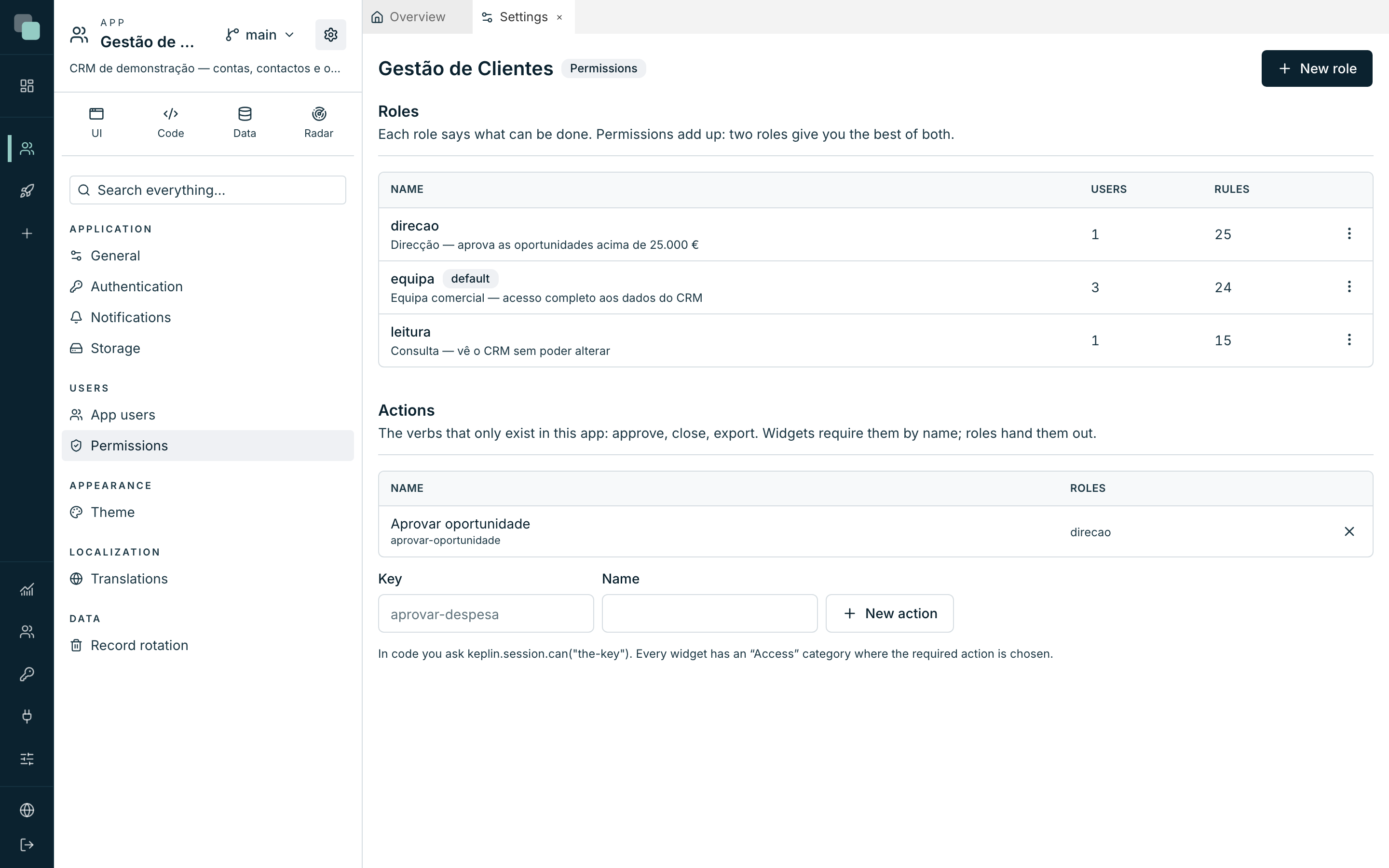
The list shows each role with its description, how many Users have it and how many Rules it has. The badges say the rest: default (given to whoever registers or is newly created) and full access.
New role creates one; a row's ⋮ menu has Edit and Delete. Deleting warns how many people are left without it — "and anyone left with no role stops seeing data".
A role opens with five tabs.
General
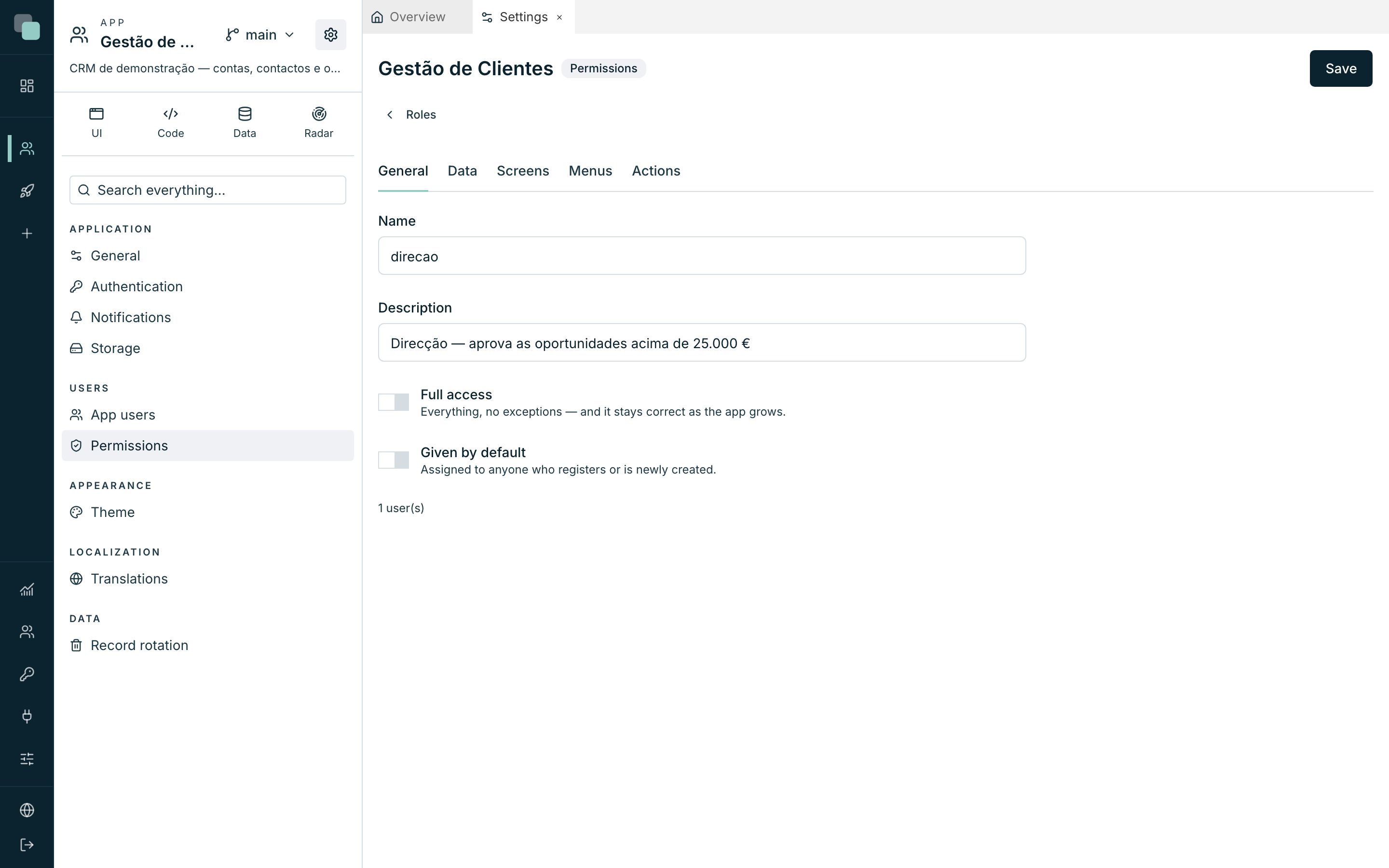
| Field | What it does |
|---|---|
| Name / Description | Identification. The description appears in the list and on the users' records. |
| Full access | "Everything, no exceptions — and it stays correct as the app grows." |
| Given by default | "Assigned to anyone who registers or is newly created." |
About Full access: "there are no rules to list: an API or screen created tomorrow already belongs to it. That is what you want in an administrator — and the opposite of what you want everywhere else."
Data — what each one gets to see
The tab that counts the most. One row per table API, with four checks — View, Create, Change, Delete — and the Scope of the records.
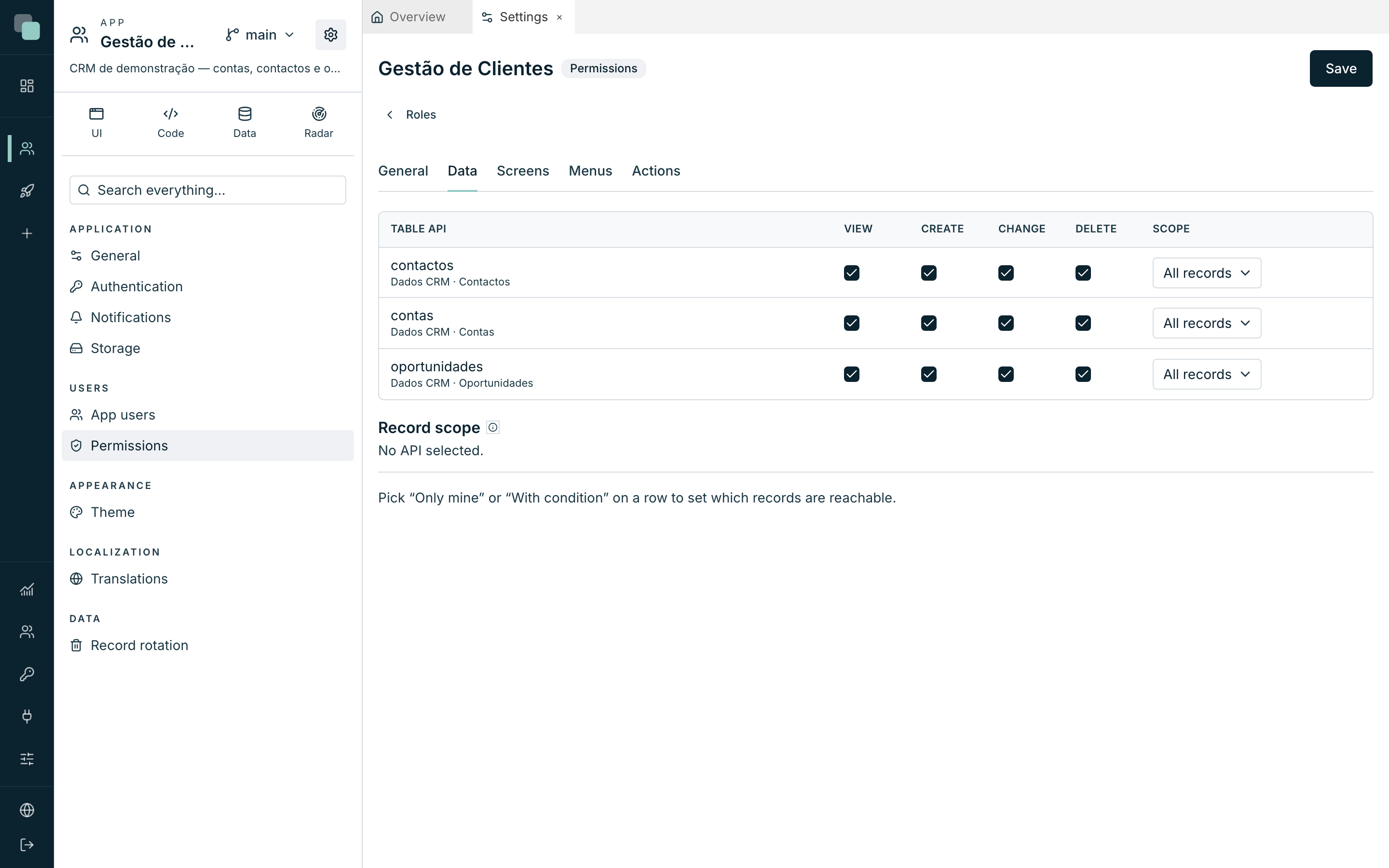
| Scope | Means |
|---|---|
| All records | No row restriction. |
| Only mine | Only the records whose "Field that says whose it is" is the signed-in user. |
| With condition… | Only the records matching a filter — with fixed values or values coming from the session of whoever is using the app. |
And the sentence that decides the security architecture of a whole app:
"The scope is applied on the server, on every read and write — in screens, in code, in reports and in workflows. With no rule at all, this role sees nothing from this API."
In other words: a report does not pierce the permissions, a workflow does not pierce the permissions, a screen event does not pierce the permissions. They all pass through the same filter, on the server.
In writes, the scope applies to the record that changes and to the values it carries. Changing or deleting only happens on records within the role's reach; creating or changing with values that would fall outside it (another owner, another region) is refused with the reason. Relations too: if the role has rules for an entity's API, that entity's rows read through another one (a customer's orders) follow those rules.
Screens
For each screen and each device — Web, Tablet, Phone — an access level:
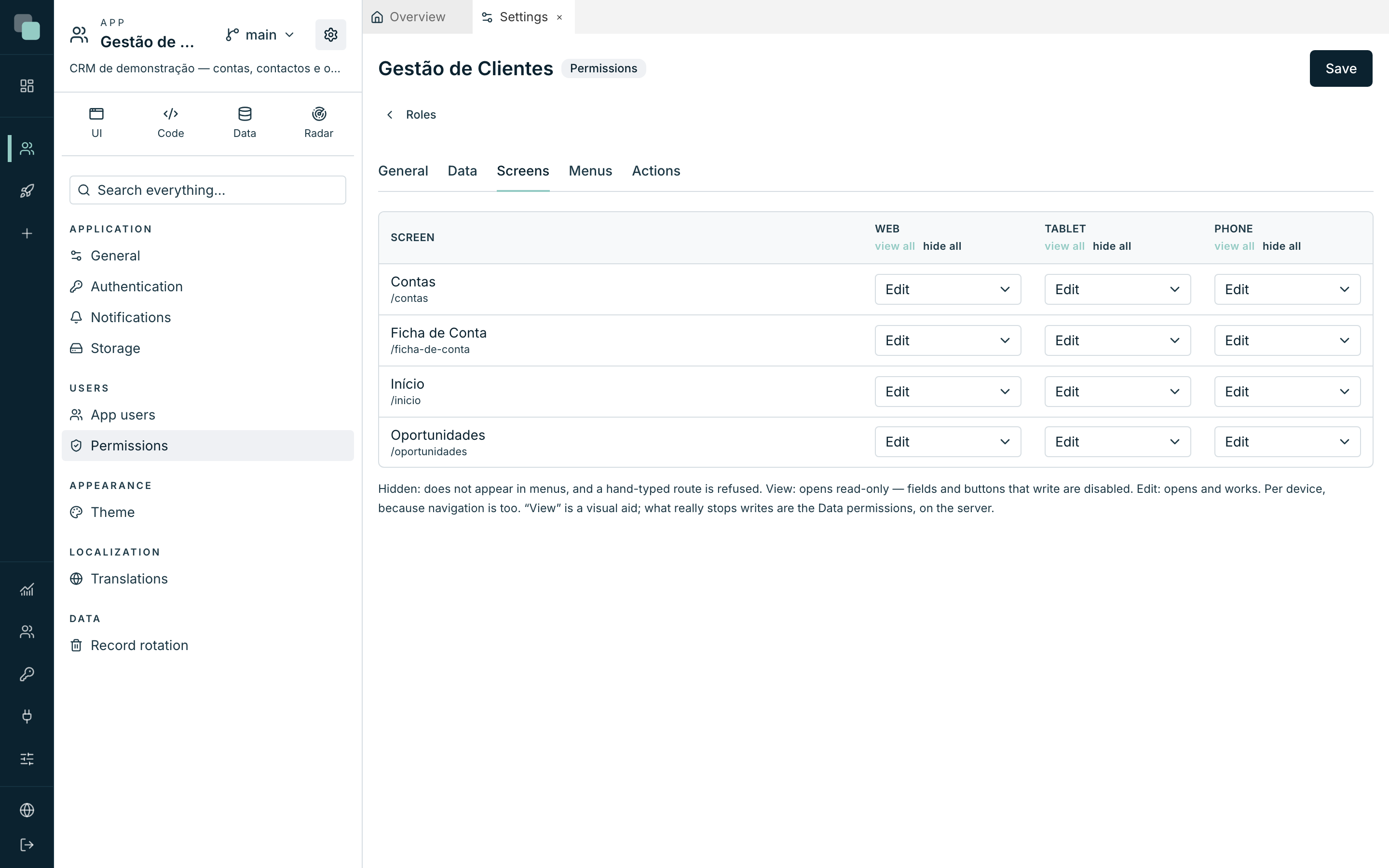
| Level | What it does |
|---|---|
| Hidden | "Does not appear in menus, and a hand-typed route is refused." |
| View (read-only) | "Opens read-only — fields and buttons that write are disabled." |
| Edit | "Opens and works." |
The view all / hide all shortcuts, in the header of each column, fill in the whole device at once.
Warning
"“View” is a visual aid; what really stops writes are the Data permissions, on the server." A read-only screen prevents mistakes; it stops nobody determined. The door that really shuts is the Data one.
A screen hidden on every device doesn't even reach the browser of someone who can't open it: the server refuses the document.
Menus
Unlike screens, a menu is visible by default — "the door is the screen, and that one is already shut". Here you hide the rest: a whole menu group, the notifications bell, a specific entry, per device. Unchecking a group takes its children with it.
Actions
Actions are "the verbs that only exist in this app: approve, close,
export". They are declared once, in the Actions panel of the role list
— a Key (aprovar-oportunidade) and a Name ("Aprovar
oportunidade"), button New action — and each role checks the ones it
grants.
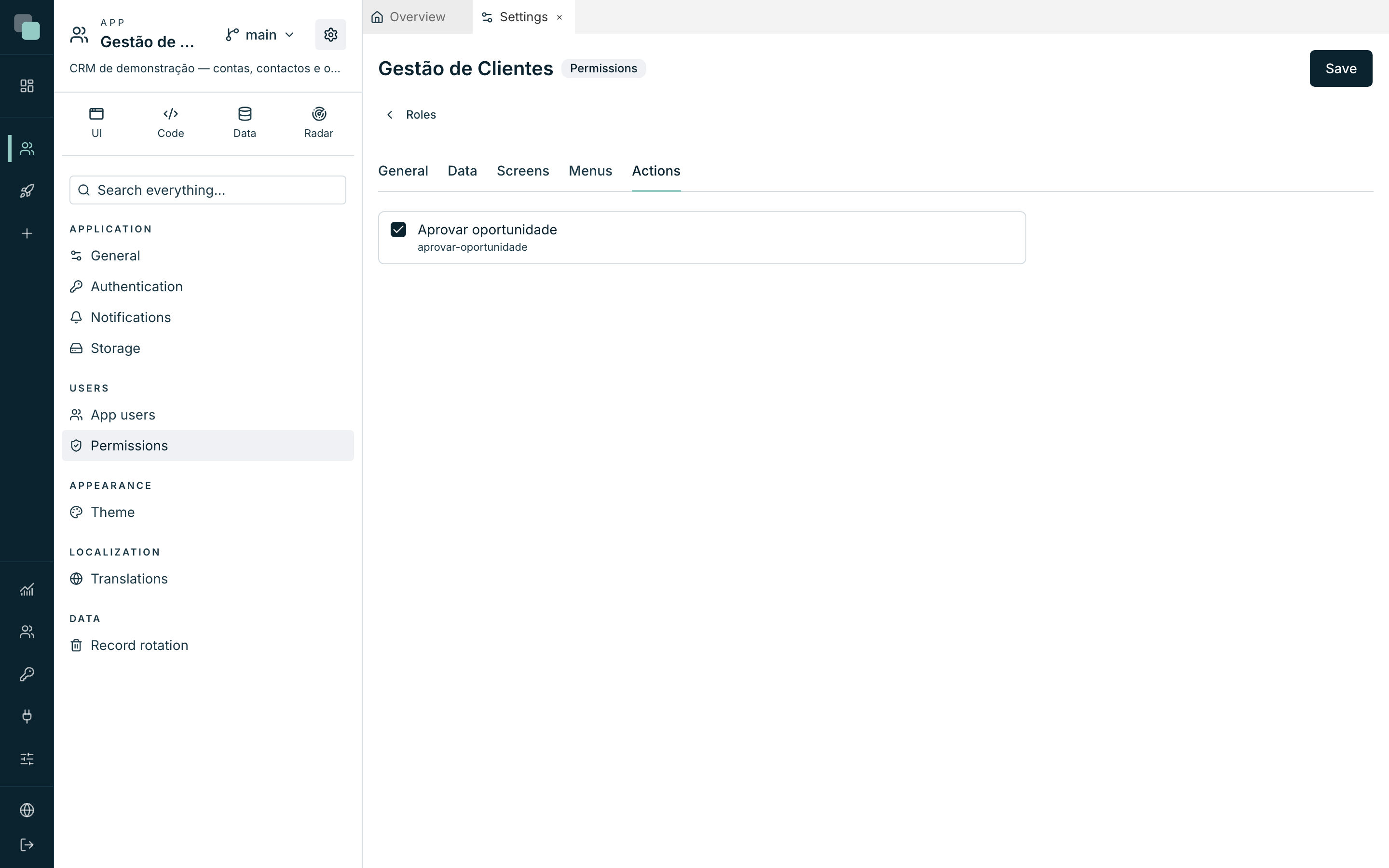
They are used in two places:
- in the properties of any widget, in the Access field, so the widget only appears to whoever has the action;
- in TypeScript code:
keplin.session.can("aprovar-oportunidade").
An action nobody grants appears marked as "no role grants it" — a sign that either it still needs assigning, or it no longer serves any purpose.
Everything is saved at once, with Save.
How this comes together at runtime
When a person signs in to the published app:
- They authenticate with the app's account.
- Their roles add up: they get the best of each.
- The menus and the screens are filtered before the page draws.
- Every read and every write passes through the data scope, on the server — whether it comes from the screens, a report, a workflow or a script.
An account's session lasts 12 hours and renews itself while the person works, on the web and in KeplinGo: only prolonged inactivity ends it. When it ends, the screen says the session has ended and asks to sign in again.
Frequently asked questions
I created the account, the person signs in, and sees nothing. They probably have no role. See the amber warning on the user list. If they do have a role, check that role's Data tab for rules — "with no rule at all, this role sees nothing from this API".
I want each salesperson to see only their own opportunities. On the Data tab, scope Only mine, with the Field that says whose it is pointed at the owner field. It works everywhere, including in reports.
Can an app user sign in to the platform? No. They are accounts from different worlds, stored separately. An app user has no access whatsoever to the platform, and a platform account does not enter the built app without an account of its own there.
Do the accounts travel when I export the app? By default no: "the application travels, with its roles and permissions, not the people using it". Only the export with secrets, protected by passphrase carries the accounts too. See Importing and exporting apps.