Authorizing and revoking
The authorization screen, what it says before you grant access, the list of active connections and how a client's access is cut.
Connecting an agent is an explicit act, done in the browser, by you. The client asks; you authorize or refuse. There are no keys to copy and no secrets to keep — and that is why the decision is a single one and happens on one screen.
How to authorize
- Configure your AI client with the MCP endpoint you copied on the previous page.
- Tell the client to connect. It opens the browser on the platform.
- If you have no session started, sign in first — the authorization carries on right after, in the same place it was going.
- The Access authorization screen appears.
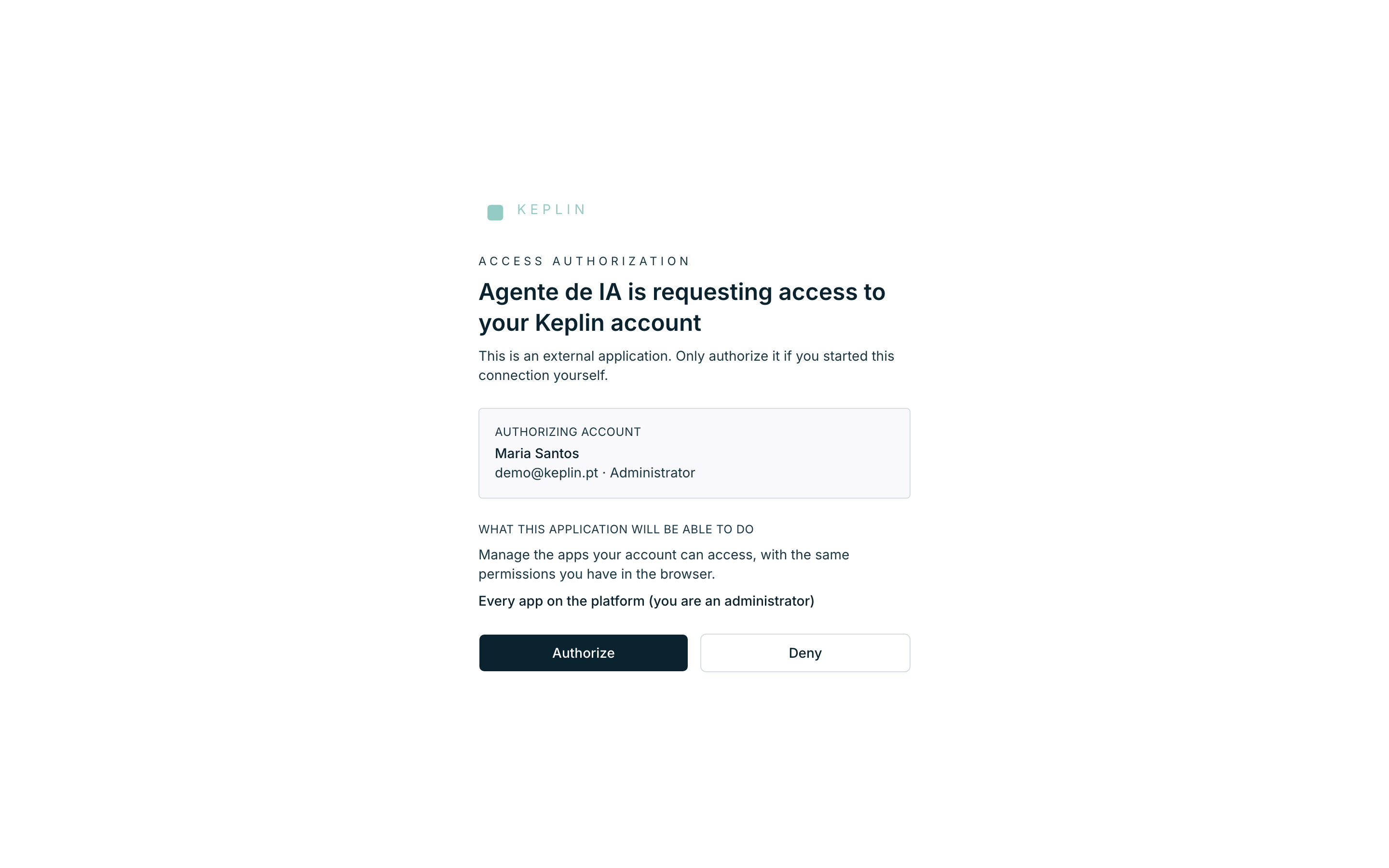
The screen says three things, in this order, and each one exists for a reason.
Who asks
The title carries the name the client registered — "AI Agent is requesting access to your Keplin account" — and, below it, the warning: "This is an external application. Only authorize it if you started this connection yourself."
Warning
The name is written by the client itself. A pretty name proves nothing. The question to ask is always the same: was it me who started this connection, just now? If this screen appears without you having done anything, press Deny.
Who authorizes
The Authorizing account panel shows the name, the email and the profile of the session you are in — Administrator or Developer.
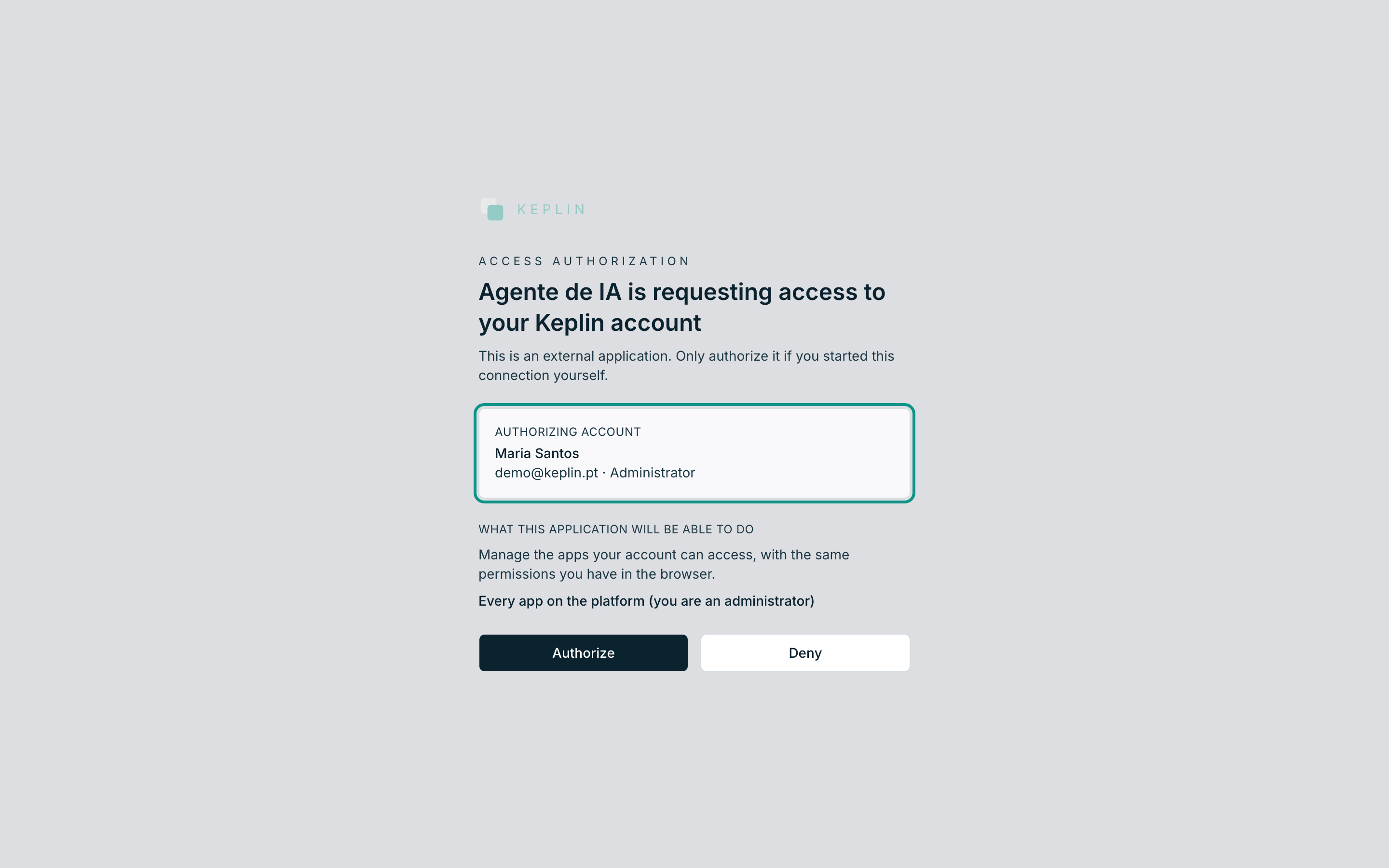
It is there because authorizing with the wrong session is the classic mistake: someone who signed in with the administrator account for one task, forgot, and gives an agent access to the whole platform instead of one app. Read this box before pressing the button.
What the access grants
The What this application will be able to do section explains the reach: "Manage the apps your account can access, with the same permissions you have in the browser." — and, right below, the list of the apps by name.
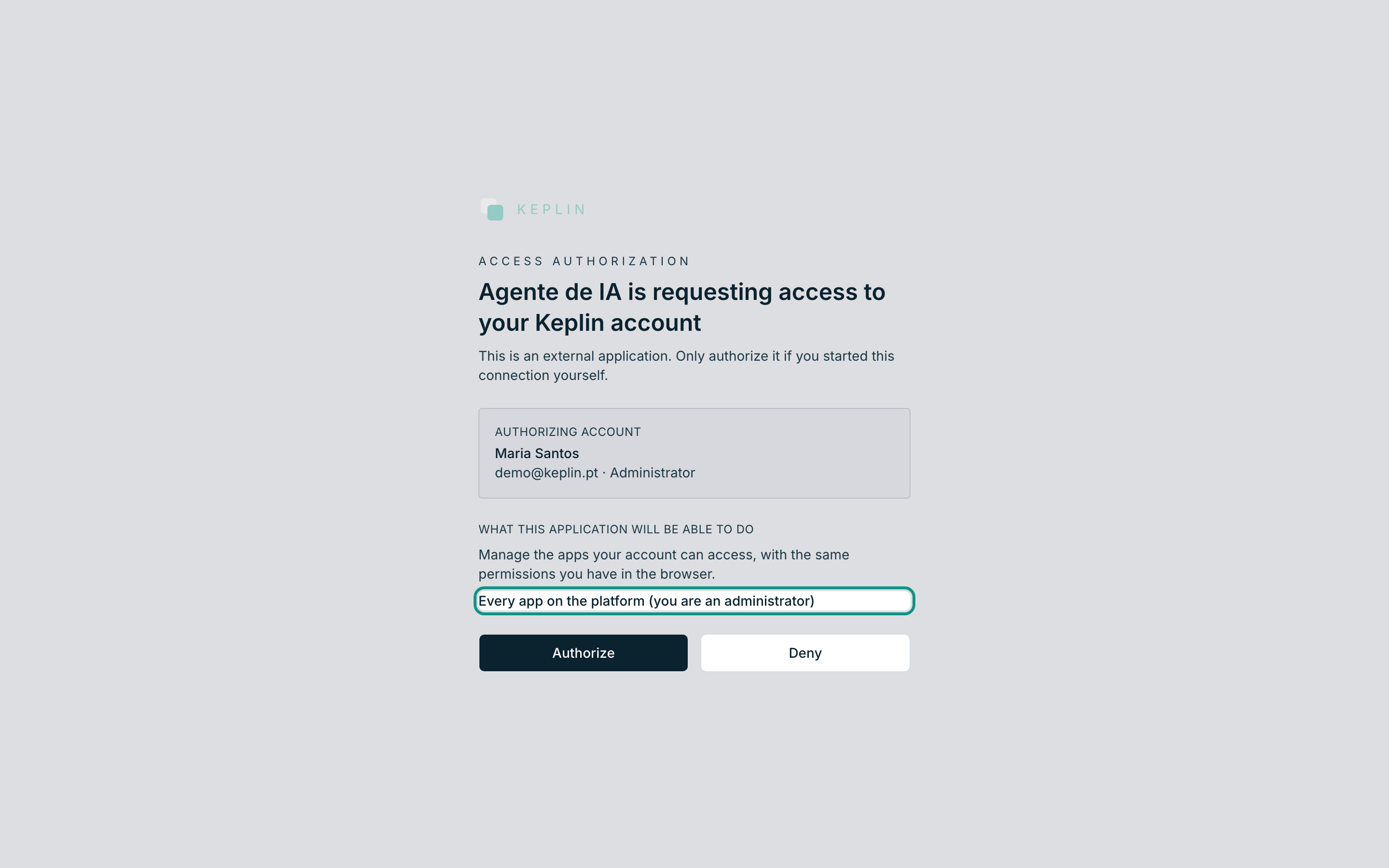
Three possible cases:
| What appears | What it means |
|---|---|
| The list of the apps, one by one | The access is exactly to those. |
| "Every app on the platform (you are an administrator)" | The access is to everything, including what is yet to be created. |
| "No apps — your account has no apps assigned yet" | The agent connects and sees nothing. Apps still need assigning to your account. |
- Click Authorize to grant access, or Deny to refuse it. Both hand control back to the client; only one of them gives it the key.
When the screen refuses before asking
Two situations where the platform does not even show the request:
| Title | What is going on |
|---|---|
| "Invalid authorization request" + "The application that made this request is not registered on this platform." | The client did not register before asking. Configure it again and retry. |
| "Invalid authorization request" + "The return address does not match the one the application registered. The request stops here, for safety." | The return address does not match what the client registered. |
The second is the most important: the platform never forwards a request to an address that was not registered. It is what stops a forged request from handing the access to someone else.
Seeing the active connections
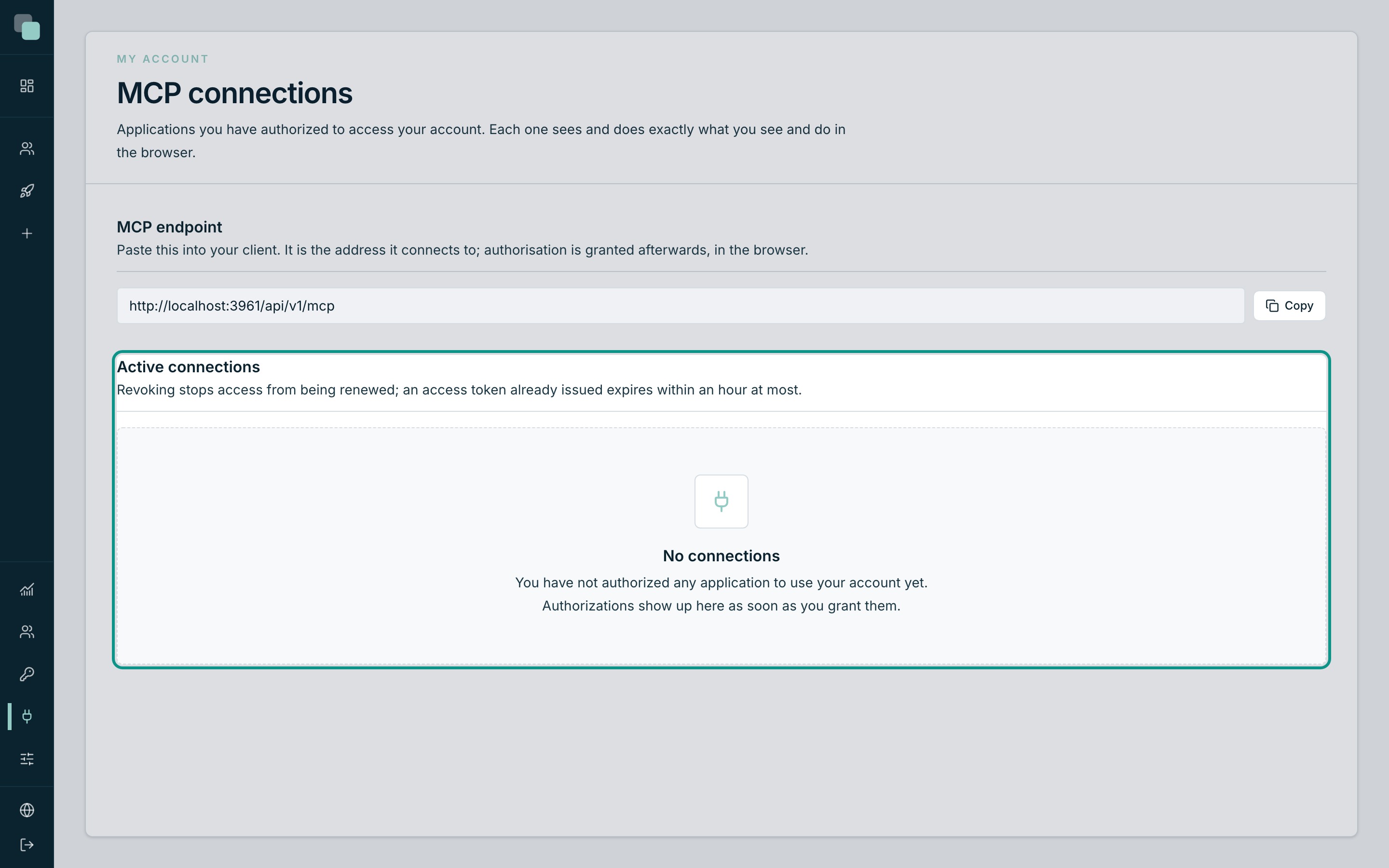
Open MCP connections in the sidebar. The Active connections panel — "Revoking stops access from being renewed; an access token already issued expires within an hour at most." — lists what you authorized.
| Column | What it shows |
|---|---|
| Application | The name the client registered. |
| Authorized on | When you granted the access. |
| Last used | The last time the client used the connection, or Never. |
While you authorize nothing, the panel says "No connections" and explains: "You have not authorized any application to use your account yet. Authorizations show up here as soon as you grant them."
Tip
The Last used column is your inventory. A connection unused for months is an open door with nobody on the other side — revoke it. Authorizing again is one click.
Revoking a connection
- In MCP connections, on the client's row, click Revoke.
- Confirm in 'Revoke access for AI Agent?' — "The application will no longer be able to renew its access. To get back in it must ask for authorization again."
- The confirmation says "Access for AI Agent revoked." and the row leaves the list.
What happens next, with precision:
| Immediately | The client can no longer renew the access. |
| Up to an hour later | An access token already issued keeps working until it expires — an hour at most. |
| To come back | The client has to ask for authorization again, and you have to grant it again on this screen. |
Warning
Revoking does not undo what the agent already did. Its changes are in the apps, in the history and in the audit, like anyone else's. If something went wrong, the way back is the app's history — Revert this change or Restore the app to this state.
Cutting everything at once
Revoking is per client and per account. When what you want is to cut a person's access — because they left the team, or because their account was compromised — the right place is another: Users → their record → Access → turn off Account active.
That cuts the platform, the apps and every MCP connection of theirs at once, without depending on anyone remembering to revoke them one by one.
Why don't I see…?
- …the connection I just authorized? Refresh the page. The list is read on load.
- …a colleague's connections? They do not exist for you. The page belongs to your account; nobody sees anyone else's authorizations.
- …the Revoke button? It only appears on the rows of the list. With no connections, there is nothing to revoke.
- …the authorization screen? The client may not have opened the browser. Many show the address for you to paste by hand — paste it and the authorization opens.