History and merge
Reading an app's history, undoing a change, restoring an old state, and bringing elements from one version into another with the selective merge.
Everything saved in an app is recorded. The history answers three questions — what changed, who changed it and when — and gives two ways of going back. The selective merge does the opposite: it takes changes from one version into another, element by element, without mixing what you do not want.
Opening the history
- Open the app and click the versions button, in the app bar header.
- On the row of the version you want to inspect, click the clock icon — See this version's history.
- A History of … tab opens in the workspace.
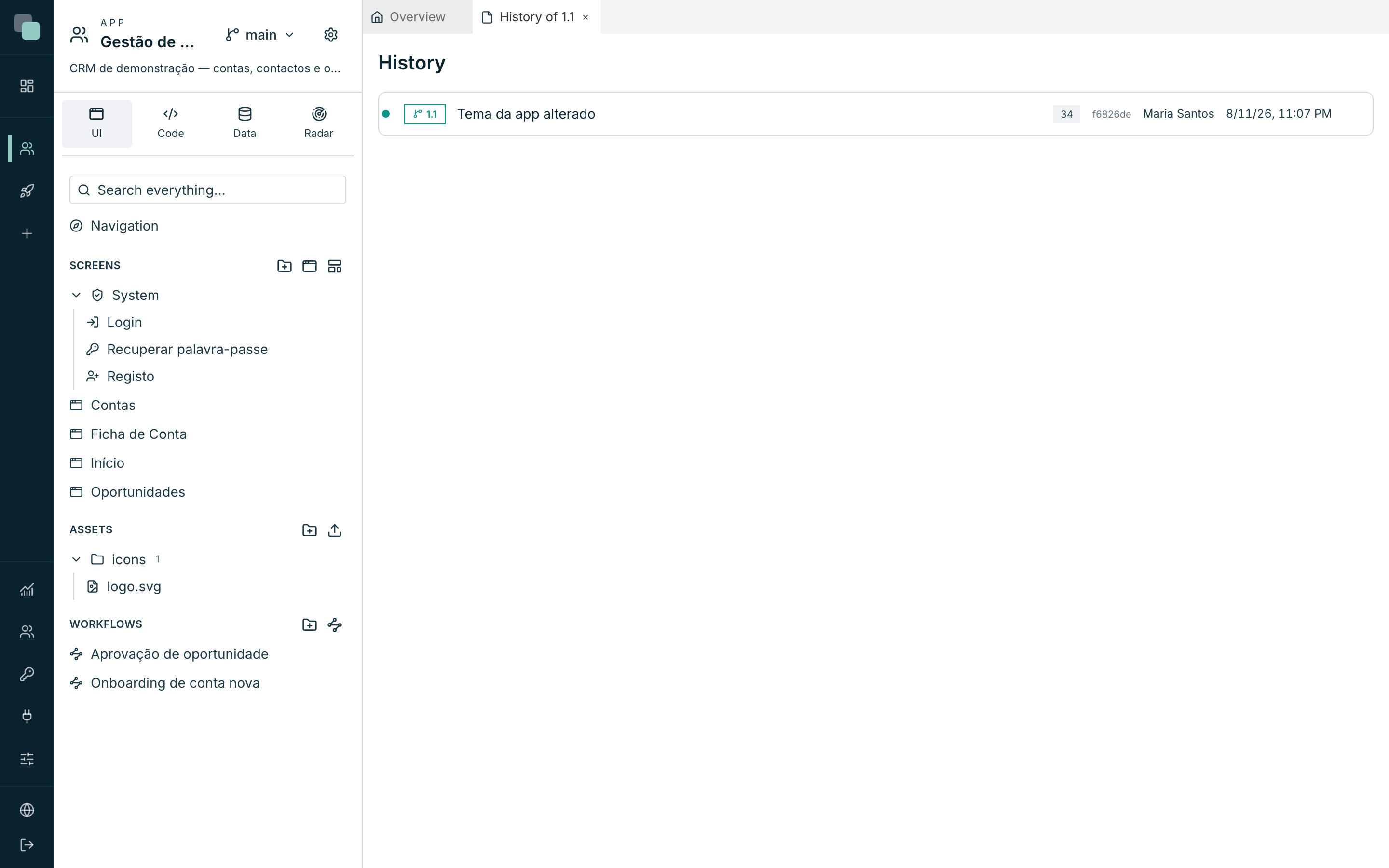
Each row is a save, and it reads left to right:
| Element | What it is |
|---|---|
| The colored stroke | The branch the save belongs to. Different versions have different colors, and the drawing shows where they split. |
The tags (main, 1.1) |
The versions that save is in. A save prior to the split appears in both. |
| The sentence | What was saved — "Tema da app alterado", 'Ecrã "Contas" gravado', 'Script "importar" criado'. |
| The number | How many files the save touched. |
| The short code | The save's identifier. |
| The name | Who saved. |
| The date | When. |
Click a row to open it and see what was touched: the list of the elements, each with the mark of what happened to it — created, changed, deleted or renamed. A save with no detail kept says "No files recorded in this save."
Note
Saves prior to a version's creation belong to every version descending from it. When there are many in a row, the panel groups them into one line — "N changes shared by all versions — expand" — so the drawing does not become illegible. Click to open them.
Seeing an element's history
The history panel also opens focused on a single element, when you want the story of one screen and not the whole app's. There, the list shows only the saves that touched it, and an app with no changes on that element says "This item has no recorded changes."
Undoing: reverting a change
Reverting creates a new save that cancels an old one. It is for taking one change out of the middle without throwing away what came after it.
- In the history, hover over the save's row.
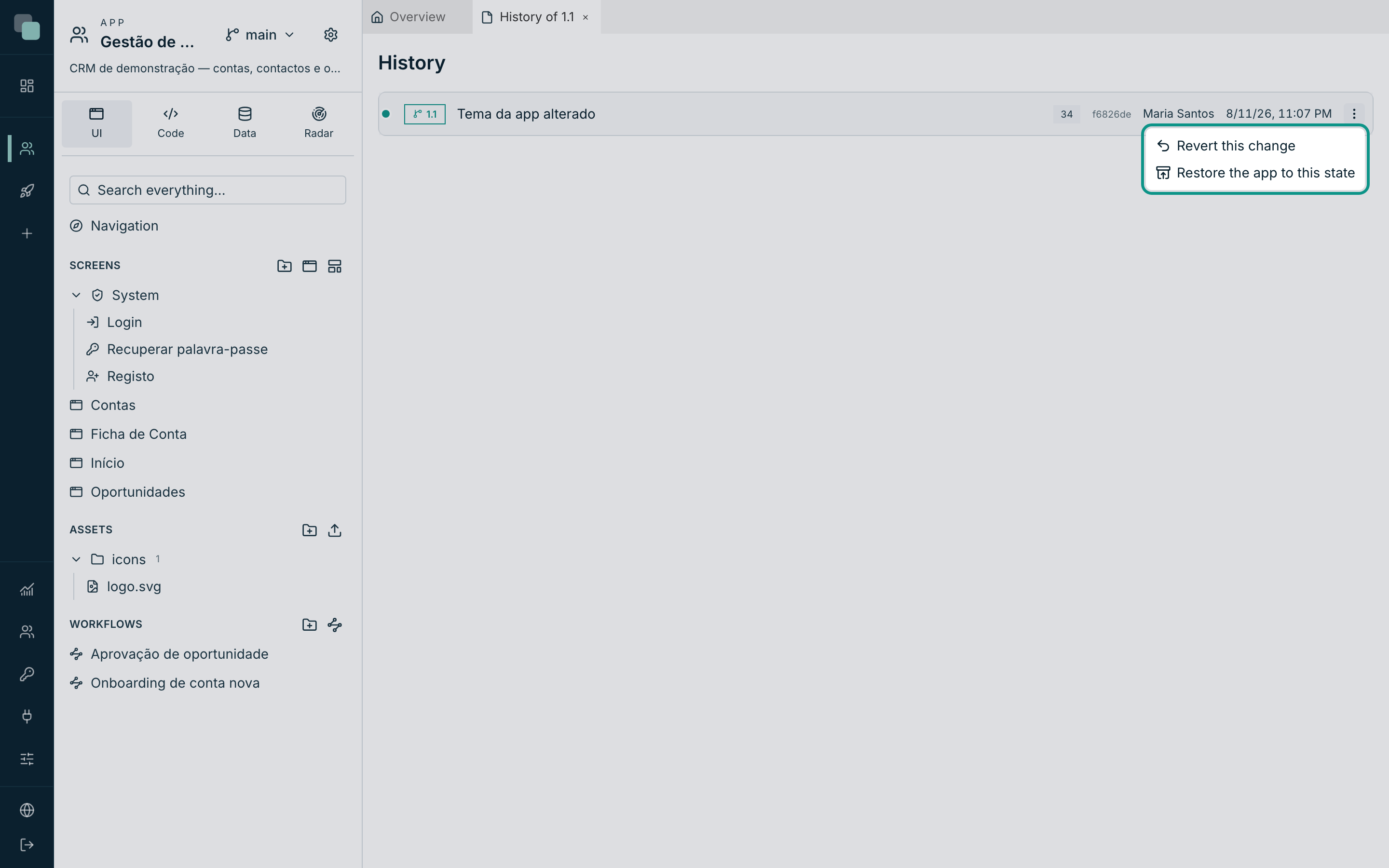
- Click the three-dots icon on the right — Commit actions.
- Choose Revert this change.
- Confirm in 'Revert this change?' — "Creates a NEW commit undoing “…”. History is never rewritten — undoing the undo is one more step forward."
- The confirmation says "Change reverted — new commit in the history."
Going back: restoring a state
Restoring is more radical: it writes the content of an old moment over the current design.
- In the same Commit actions menu, choose Restore the app to this state.
- Confirm in 'Restore the app to this state?' — "Writes the content from … over the current design and commits AGAIN. Everything after it is undone — but stays in the history."
- The confirmation says "State restored — new commit in the history." If the app was already exactly in that state, the platform commits nothing and warns: "The app is already exactly in that state — nothing to commit."
Tip
The rule holds for both actions: history is never rewritten. Neither reverting nor restoring deletes saves — both add one. That is why you can always go back again: undoing the undo is one more step forward.
Selective merge: bringing from another version
When a version's work is ready to enter another, the selective merge brings the elements you choose — and only those.
- Open the Versions menu in the app header.
- Click Selective merge…. (The option only becomes active from two versions up; with just one there is nowhere to bring from.)
- The Selective merge modal opens, with the explanation: "Bring elements from another version into “main”. The merge brings and updates — it never deletes; references are validated before anything is committed."
- Choose the Source version in the selector at the top.
- The list fills with that version's elements, grouped by category.
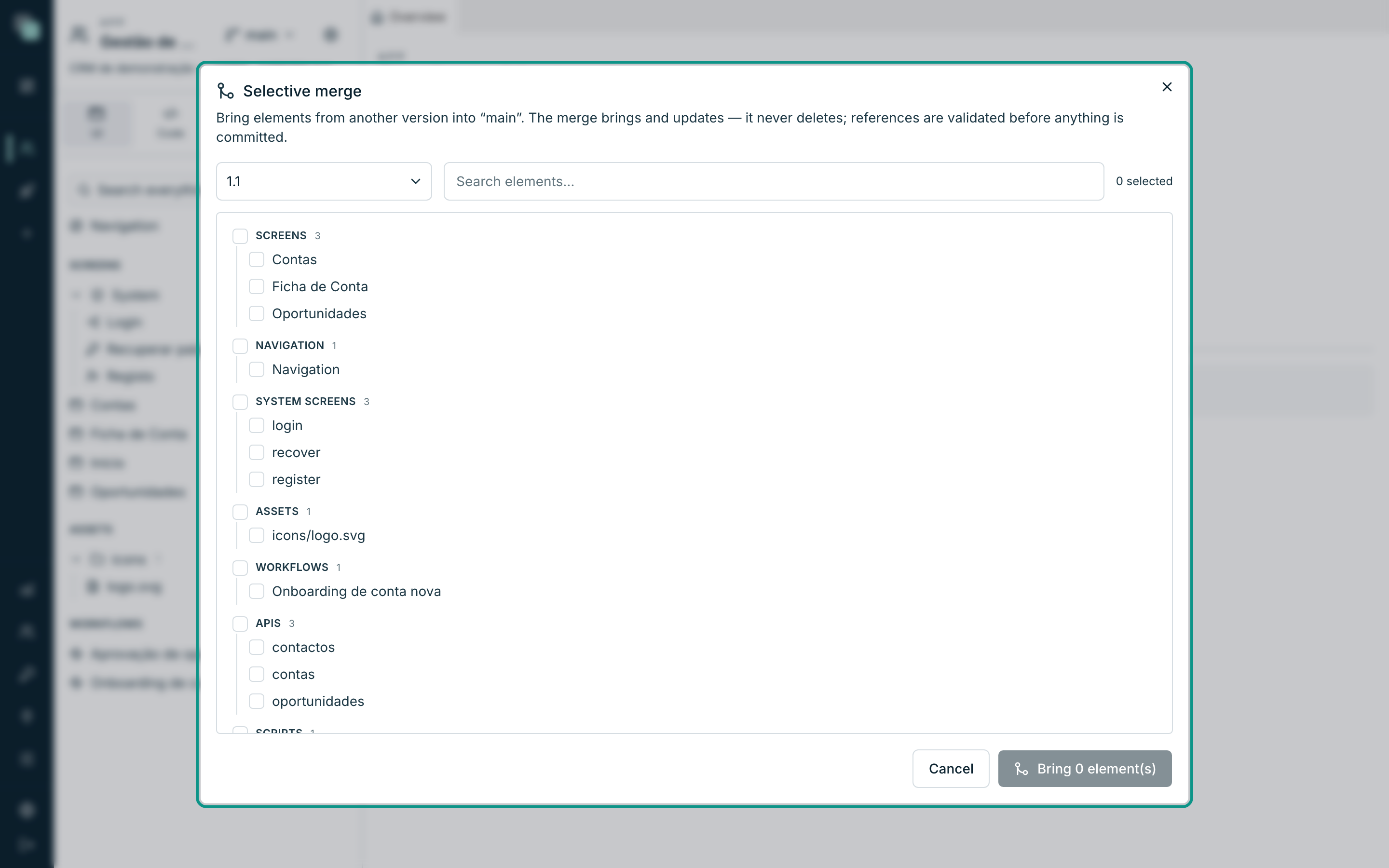
The categories are the app's pieces: Screens, Layouts, Widgets, System screens, Navigation, Model, Enums, APIs, Datasources, Scripts, Schedules, Triggers, Reports, Workflows, Permissions, Translations, Theme, Assets, Storage, Channels and App settings.
- Check what you want to bring. The counter at the top follows along — "3 selected".
- Use the Search elements… box to filter when the list gets long.
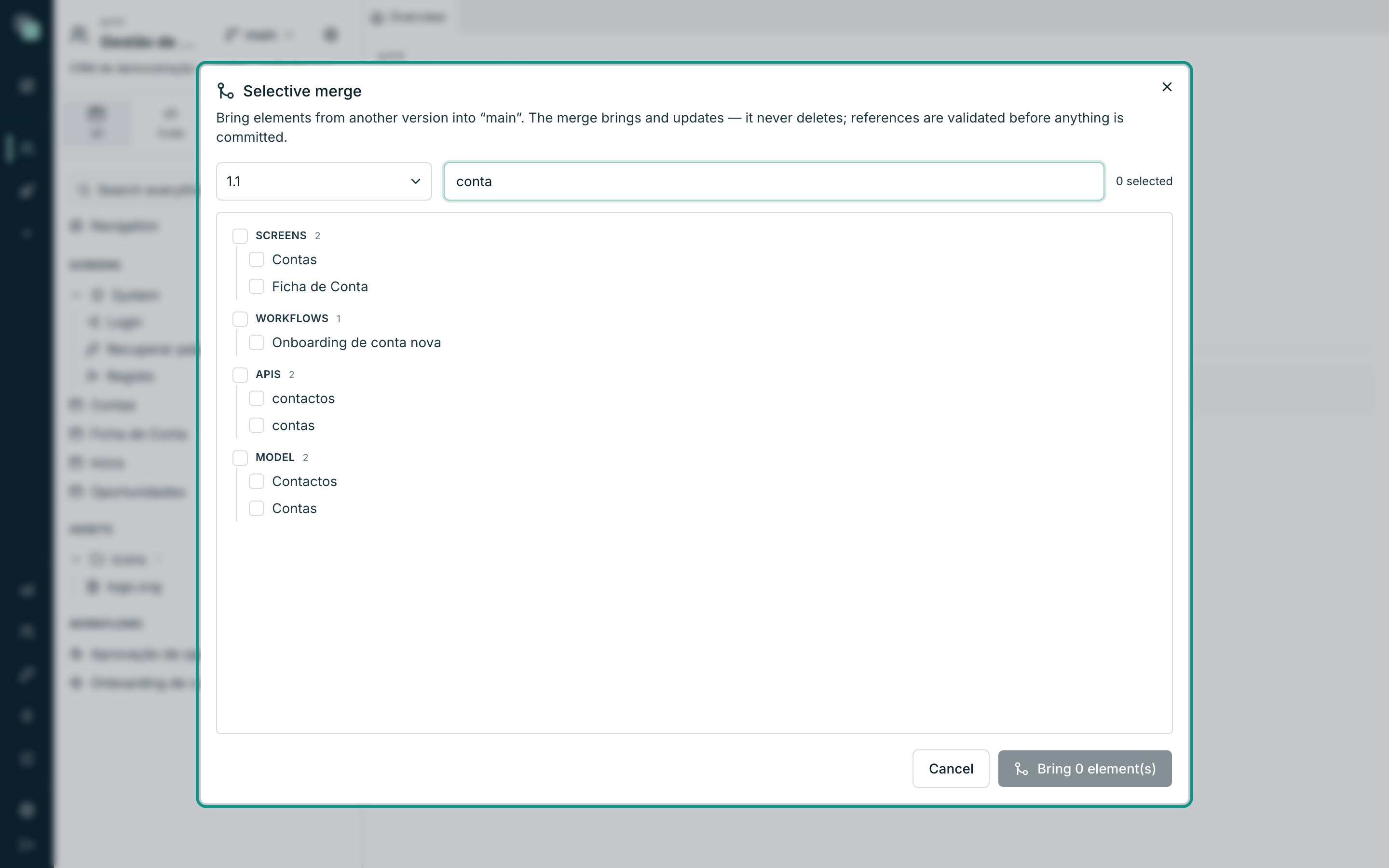
- Click Bring 3 element(s).
- The confirmation says "Merge from 1.1 done — 3 element(s) brought over.", and the workspace reloads with what came in.
What the merge does — and what it never does
| Does | Never does |
|---|---|
| Brings elements that did not exist in the destination version | Deletes what exists in the destination version and was not selected |
| Updates the ones that already existed, with the origin's version | Touches the data — the merge is of the design, not the tables |
| Validates the references before committing | Mixes versions automatically: nothing moves without somebody checking it |
That last row is the safety net. If what you selected points at anything that does not exist in the destination — a screen using a widget that was not brought — the merge does not commit and explains: "The merge was not committed — the resulting tree had broken references:", with the list of the problems. Bring what is missing too and repeat.
Warning
The merge does not delete. If you deleted a screen in the origin version, the merge does not delete it in the destination — it only brings and updates. Deleting remains an explicit act, done in the version where it should be deleted.
Frequently asked questions
- Does the merge bring the data? No. It brings the design. Each version's tables, records and files are its own.
- Can I merge in both directions? Yes. The merge is always "bring into the version I am on" — switch versions and make the reverse trip.
- Reverting somebody else's change? You can: the history actions apply to any save of the version you are on, whoever the author. Their name stays in the history, and yours goes on the save that undoes it.
- Why is the Selective merge option greyed out? The app has only one version. Create another and the option lights up.