App templates
What a template is, how to create an app from one, how to save an app as a template, and how a template from this platform becomes a system template.
A template is an app that serves as a starting point: the data model, the screens, the scripts, the reports — everything that is design — ready to take a new name and get to work. It is the difference between opening a blank app and opening an app that already knows what it is.
Two families live side by side in the gallery, told apart by a badge:
| Badge | Where it comes from |
|---|---|
| System | Installed by whoever manages the installation — the base offer, the same for everyone. |
| From this platform | Saved here, from an app of this platform. Only this platform sees it. |
Creating an app from a template
- Click New app in the sidebar and pick the From a template card.
- The gallery shows the available templates, with name, description and version. Pick one.
- Type the New app name — the slug derives from it, as in any creation.
- Click Create from template.
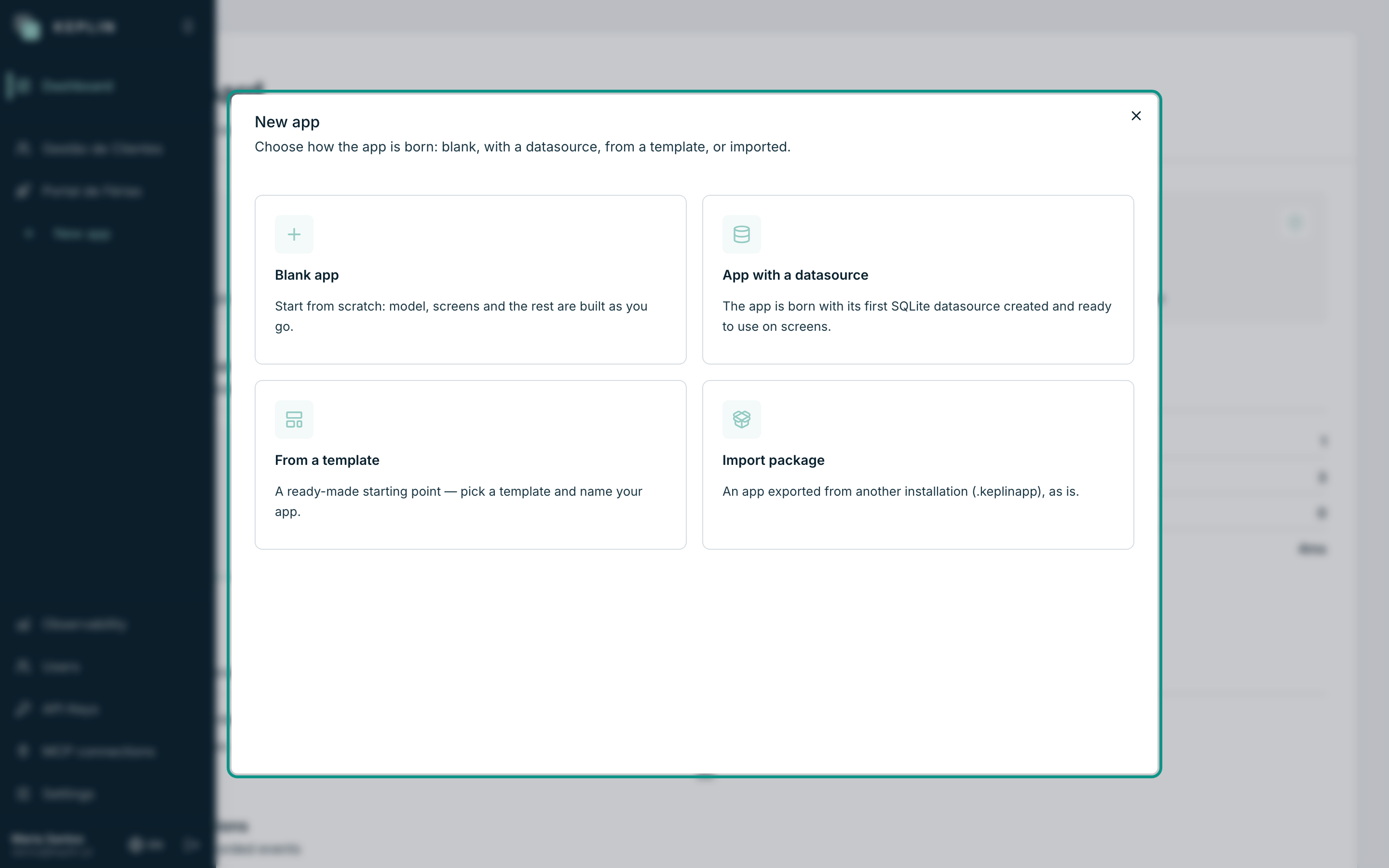
The new app is yours from the first second: changing what it brings does not touch the template, and updating the template later does not touch the apps born from it.
Note
A template brings the APPLICATION, never the people: there are no user accounts, no inbox, no uploaded files. And schedules arrive disabled — a newborn app does not wake up working on its own.
Saving an app as a template
Any app of this platform can become a starting point:
- Open the app's Settings and click Save as template (next to Export).
- Give it a Name, a Description — what this template gives to whoever starts from it — and a Version.
- Click Save. The template joins this platform's gallery.
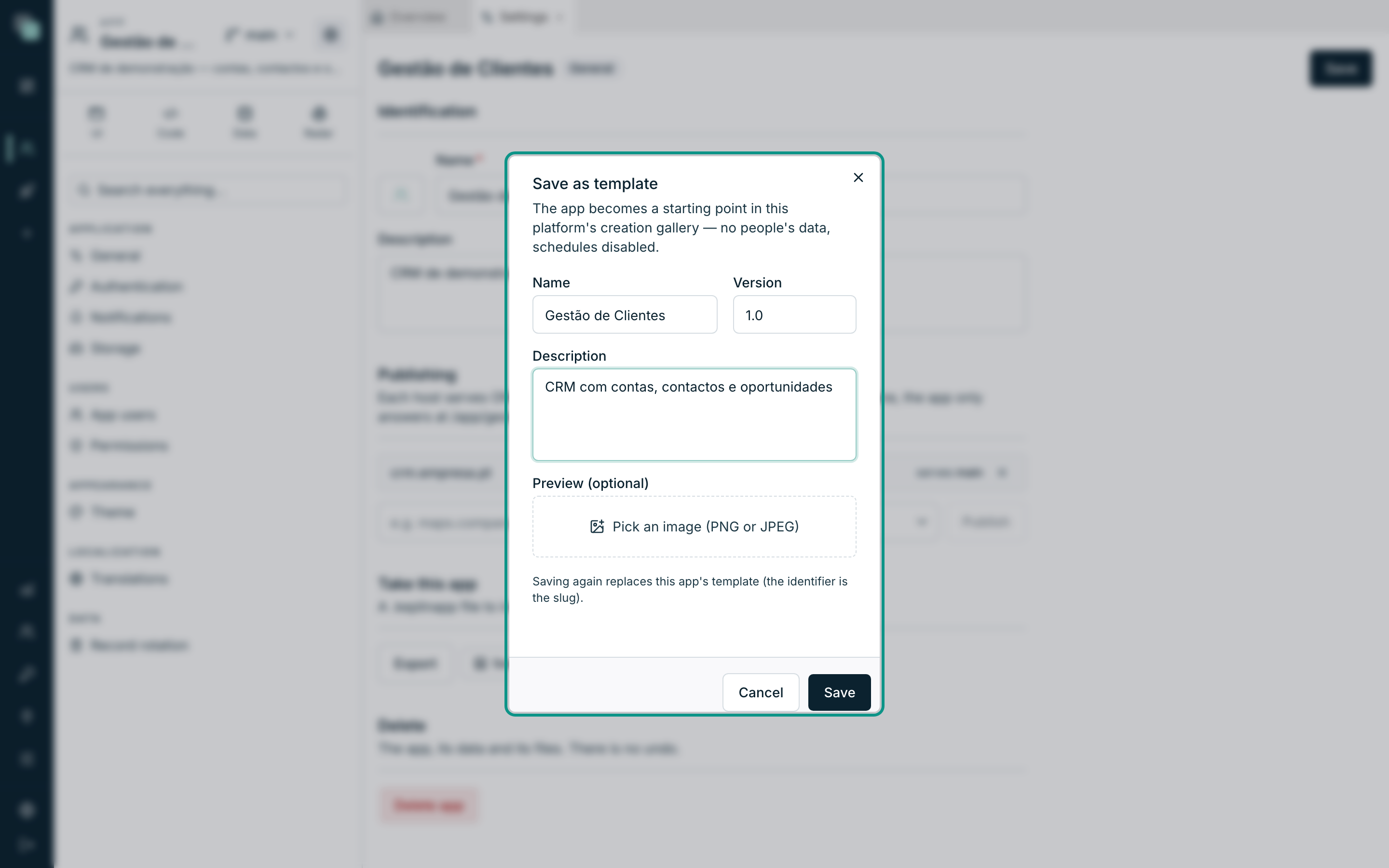
Saving the same app again replaces its template — the identifier is the app's slug, and that is how the offer stays fresh without piling up copies.
Taking a template to system template
A template saved here can be promoted to the installation's base offer:
- After saving, click Download .keplintemplate.
- Get the file to whoever manages the installation — that management uploads it in the back office and makes it visible to every platform.
The same file also installs on any other installation: it is a complete package, with no network dependencies.
Why don't I see…?
- …templates in the From a template card? The gallery is empty until there are system templates installed or templates saved on this platform. Save an app as a template, or talk to whoever manages the installation.
- …the original app's data in the template? Not an oversight: a template is the design, never the data of whoever uses the source app.
- …the Save as template button? It belongs to administrators, like everything that creates and manages apps.