Connecting the phone to an app
The QR connection, the hand-typed connection, what happens on the first sign-in, and what works (and does not work) on the phone.
An installed KeplinGo knows nothing: neither which installation it connects to, nor which app it will open. That configuration is done once, on the first opening, and is never asked for again.
There are two ways of doing it. The QR one is what you use when you are preparing phones for other people; the hand-typed one is what you use when nobody is preparing anything.
The QR connection
The QR code is generated on the platform and already carries inside it the installation's address and the chosen app.
- Open Settings in the sidebar.
- Scroll down to the Mobile app panel and find Connect by QR.
- Open the Pick the app… selector and choose the app — for example Customer Management.
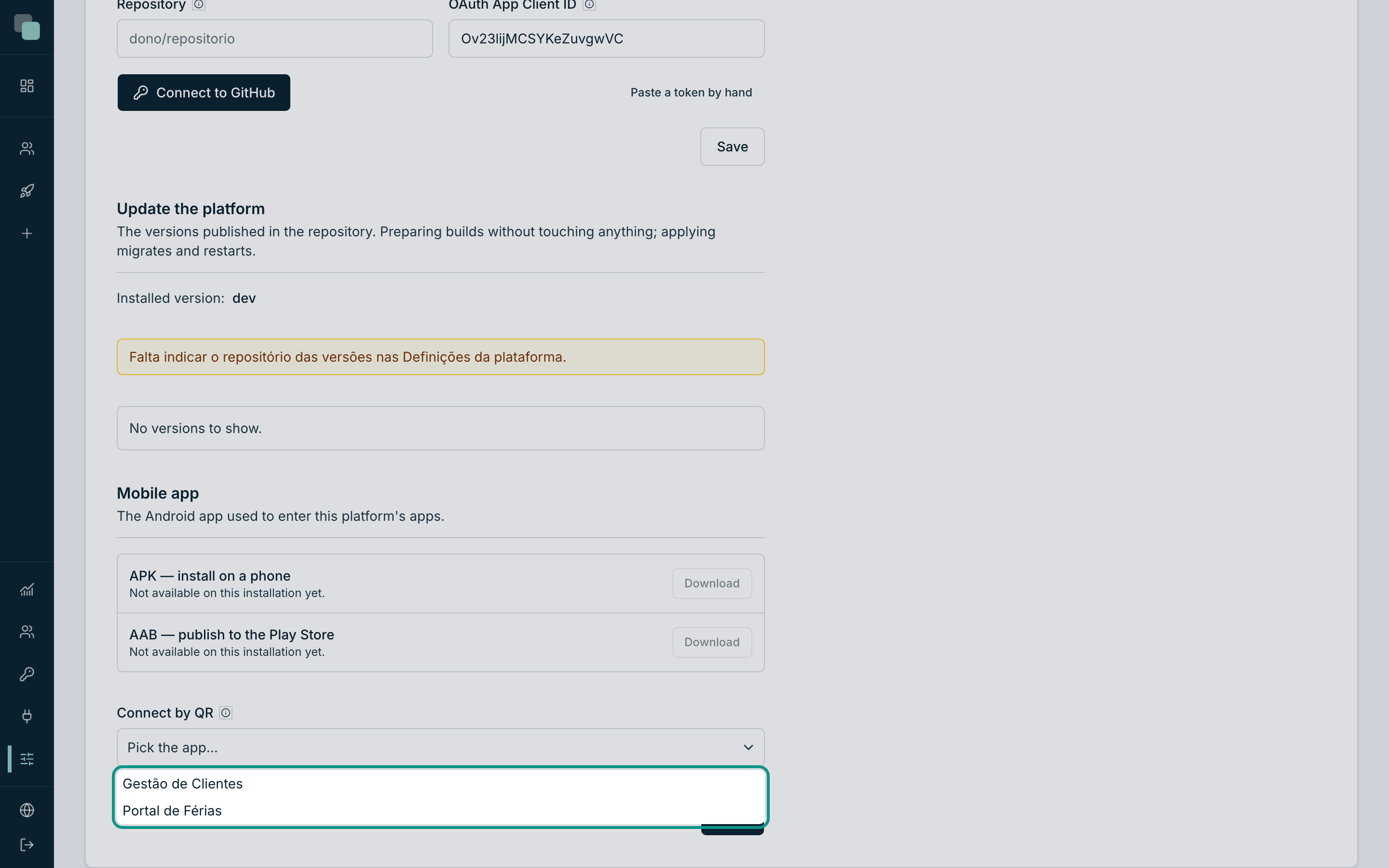
- The code appears right below, with the link written beside it and a Copy link button.
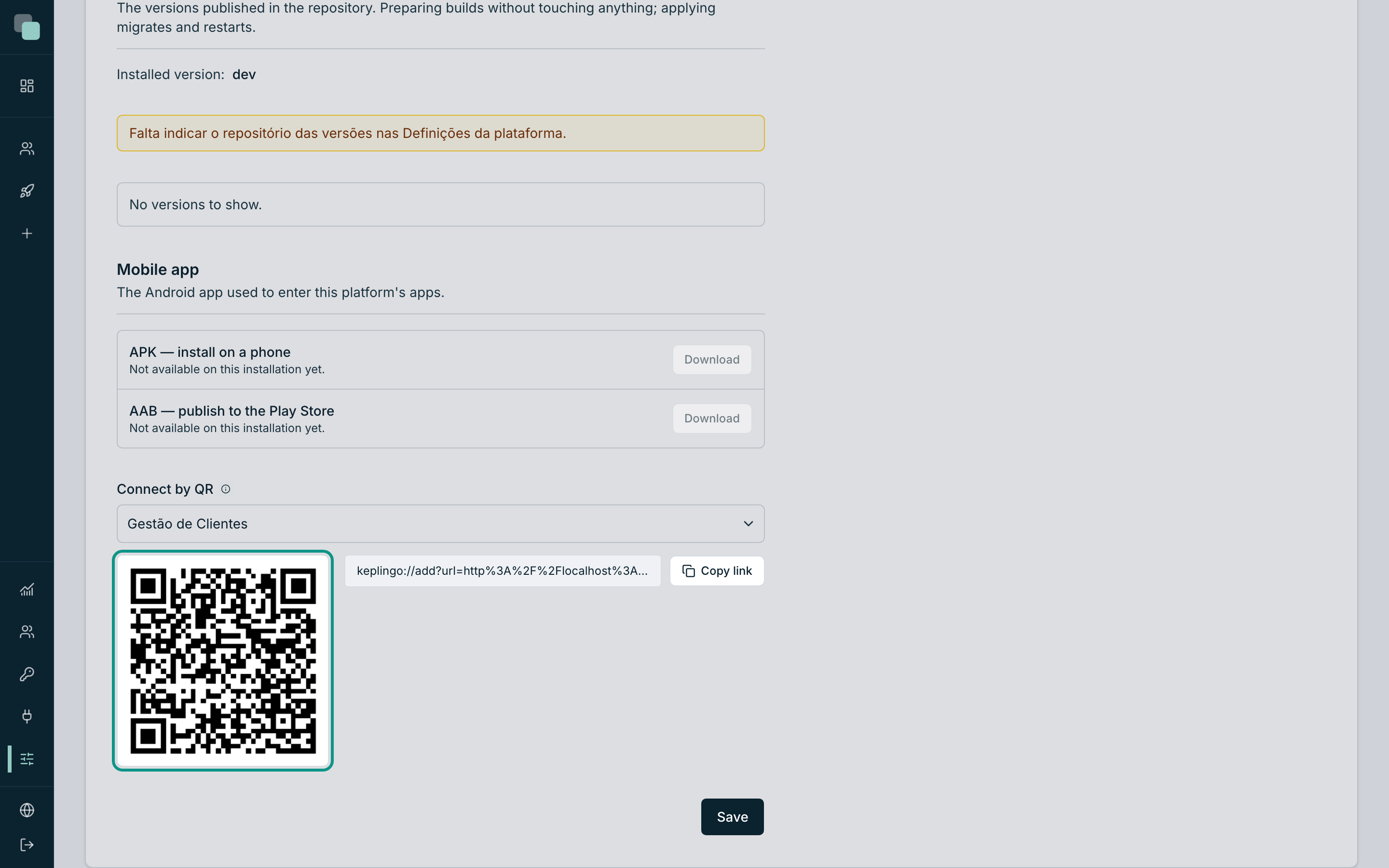
- On the phone, with KeplinGo installed, point the camera at the code.
The panel's help says exactly what that does: "With KeplinGo installed, pointing the camera at this code fills the onboarding with this installation's address and the chosen app."
Fills — it does not sign in. The QR saves the typing; the confirmation and the credentials go on being an act of whoever is using the phone.
Tip
The QR is the practical way of preparing a whole team: project it in a meeting, or put it printed next to the phones. Each person points the camera and only has to sign in with their own credentials.
The hand-typed connection
Without QR, the same two values are typed on the phone:
- Open KeplinGo. The Connect to the application screen appears.
- Type the Server address — the address the platform answers on,
like
https://a-tua-app.exemplo.pt. - Type the App — the application's short identifier, like
gestao-clientes. It is the same one that appears in its addresses and in each user's access panel. - Tap Validate address.
The app will ask the server whether that exists, and answers in one of two ways:
| Answer | What to do |
|---|---|
| «You are connecting to "Customer Management"» | It is right — carry on to the credentials. |
| "That server does not have that app." | The address is fine, the app's identifier is not. |
| "Could not connect to that address." | The address is wrong, or the phone cannot reach the server. |
| "That address is not an app of this platform." | The address answers, but it is not a Keplin installation. |
Note
The validation exists so that the app's name is read before credentials are given to anyone. That is why it stays an explicit tap, even when the QR has already filled everything in.
Signing in
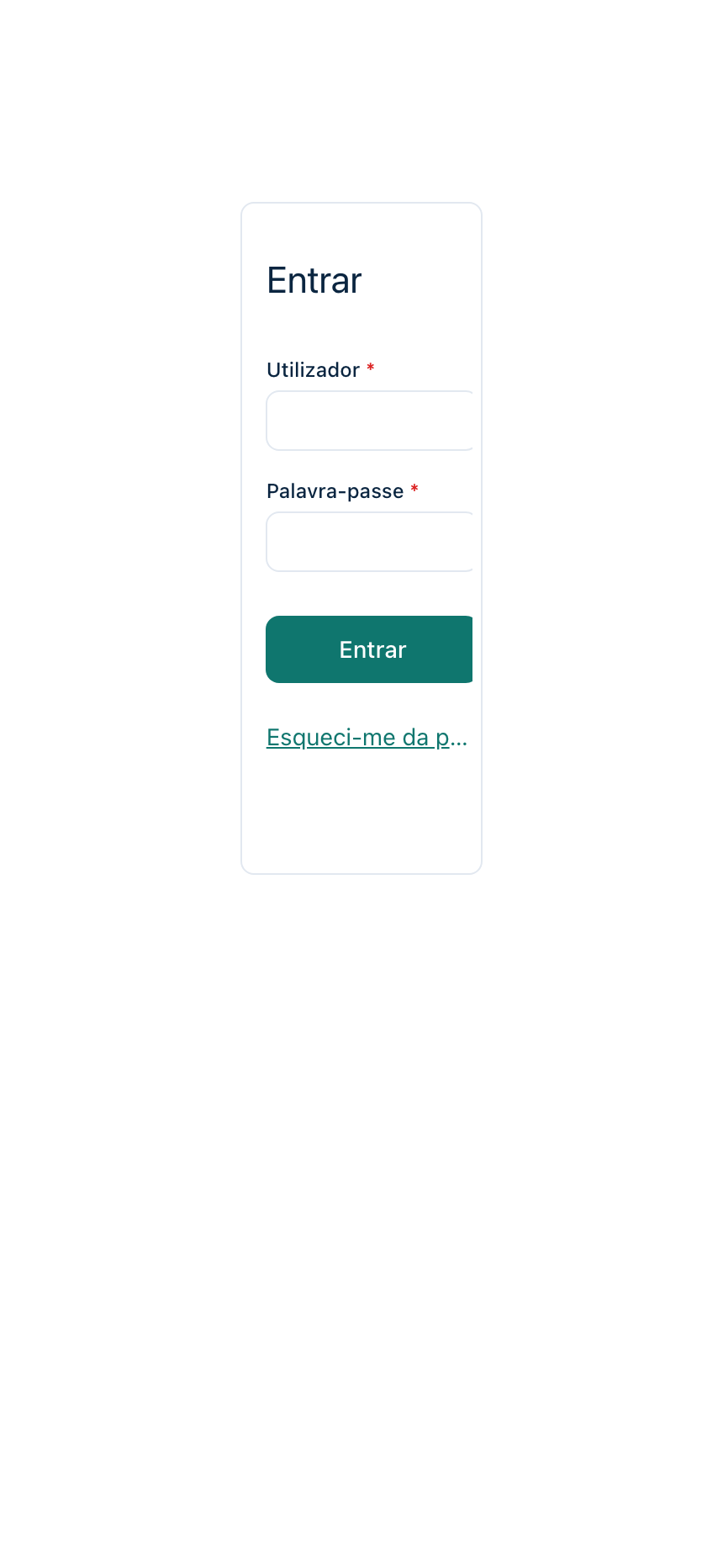
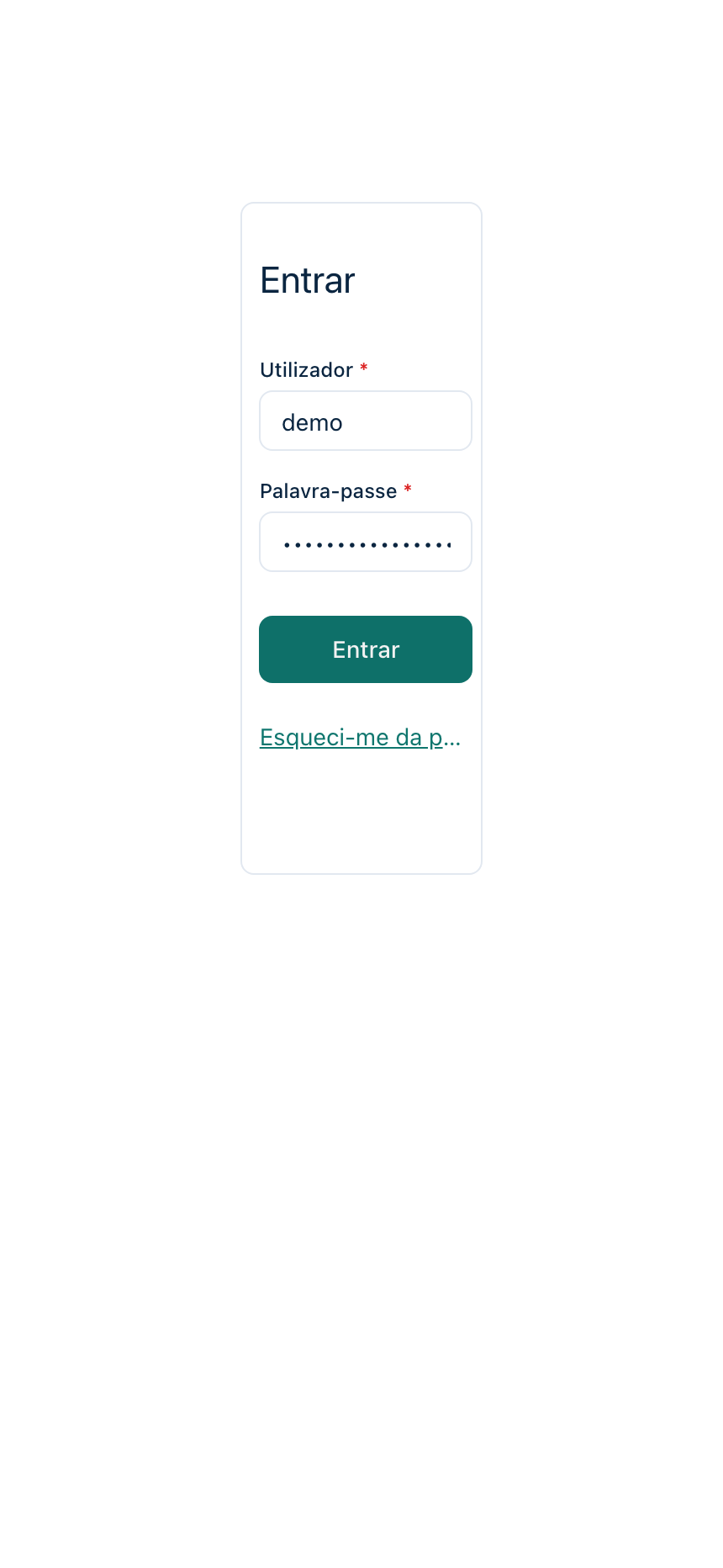
With the app's name confirmed, two fields appear — user and password — and the Sign in button.
The credentials are the application's, not the platform's. They are the accounts managed in the app's settings — exactly the same ones used to sign in through the browser, on the application's sign-in screen:
Once signed in:
- the address and the app are kept and are not asked for again;
- the session is stored securely on the device;
- on the next openings, the app starts directly on the home screen.
What you see on the phone
The app opens with the navigation you designed for the phone — as a side menu or a bottom bar, depending on how you configured it — and with the screen you marked as home.
The screens are the same ones you designed — the mobile app draws them in native Android components, with the same geometry they have in the browser. There is no second version of the application to maintain.
What the mobile app respects, with no extra configuration:
| Piece | How it behaves |
|---|---|
| Theme | The app's colors are the ones you set in its theme. |
| Navigation | The phone menu, with the home screen you chose. |
| Permissions | The same as the browser: a screen off-limits to that person is not even drawn. |
| Translations | The app's dictionary, in its language. |
| Notifications | The app's notification centre, with the unread count. |
The components drawn in the editor are drawn here too — texts, panels, buttons, text and number boxes, selections, lists and cards, tables, charts, indicators, calendars, task boards, Gantt maps, formatted text, dates, colors, file uploads, reports and the state of the processes.
When the network fails
The app keeps a copy of the last screen it loaded successfully. If the network dies, it shows that copy with a notice at the top — "No connection — showing the saved copy of this screen."
The rule is strict, and it is the right one: the copy only steps in when the network fails. If the server answers — even if with an error — what you see is its answer. The cache never gets in the way.
Signing out and switching installation
In the app's menu, at the bottom, there are two exits with very different effects:
| Option | What it does |
|---|---|
| Sign out | Leaves the account. The address and the app stay kept; you sign back in with just user and password. |
| Switch server | Clears everything — address, app and session — and returns to the Connect to the application screen. |
Switch server is what you use when the same phone starts being used on another installation, or on another app of the same installation.
Why doesn't…work?
- …the QR? Check that the phone already has KeplinGo installed. Without the app installed, the code opens nothing.
- …the connection, with the right address? The phone has to reach the server. An internal company address does not answer outside its network.
- …my platform password? The credentials are the app's, not the builder's. Whoever builds signs in to the platform through the browser.
- …a screen that exists in the browser? The permissions are the same: a screen off-limits to that account does not appear. Check its role in the app's permissions.
- …the app showing fresh data? You are offline, looking at the saved copy — the notice is at the top of the screen.