Relations and enums
Linking tables to each other — cardinality, navigators, physical and virtual relations — and closing a field's set of values with an enum.
A table on its own keeps a list. An application needs more: contacts that know which account they belong to, opportunities that know whose they are, a status field that only accepts the statuses that exist.
Those are this page's two pieces: the relations, which link entities to each other, and the enums, which close the set of possible values of a field.
The relations
On the model diagram, each relation is a line between two entities, with a
label that says the path's name and the cardinality — in Customer
Management, conta · 1:N between Contas and Contactos, and
another one just like it between Contas and Oportunidades.
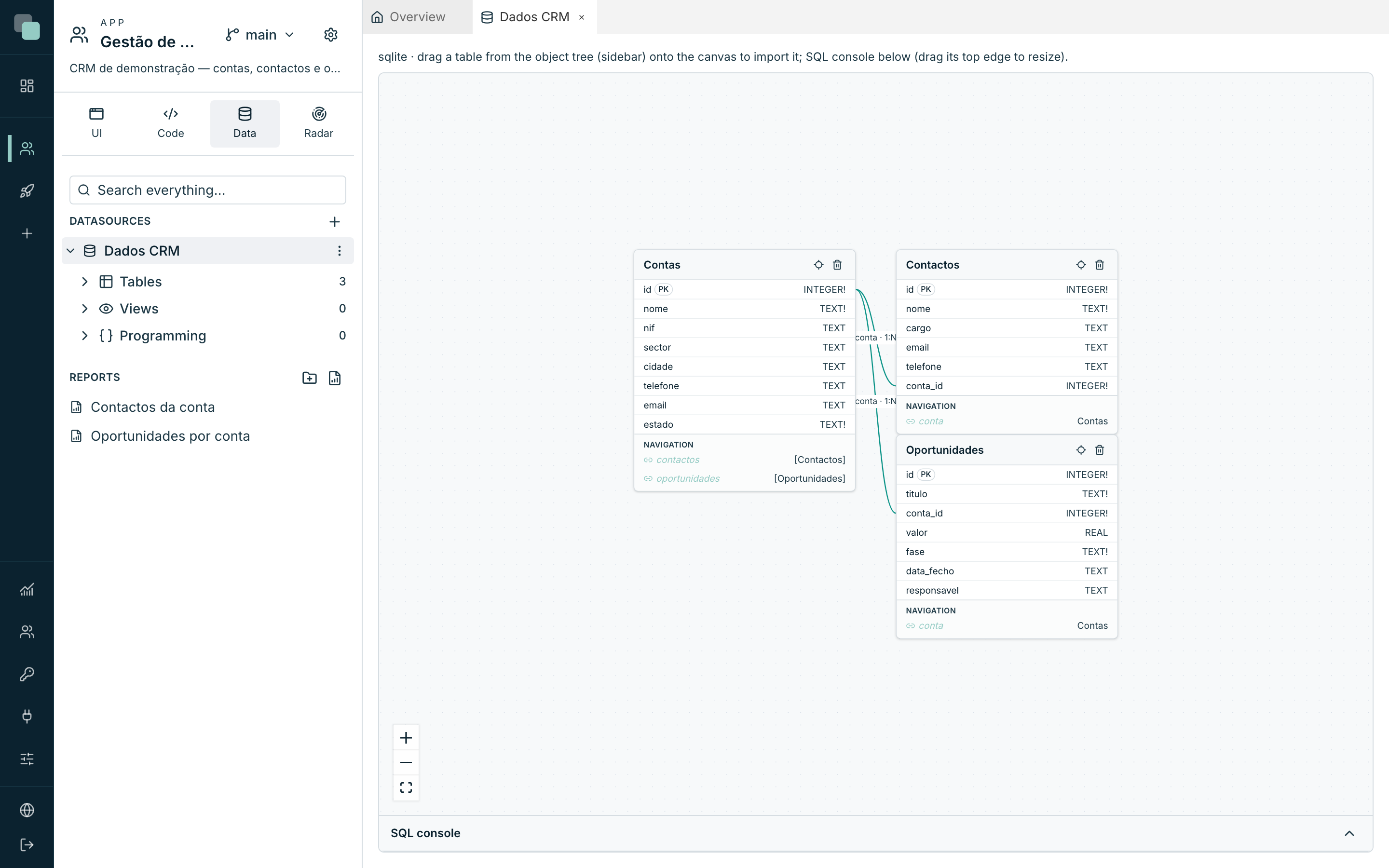
A relation always has two sides:
- The child side, which holds the reference — the
conta_idcolumn of thecontactostable. - The parent side, which is referenced — the
idcolumn of thecontastable.
Creating a relation
Relations are drawn on the diagram, by linking one field to another:
- Hover over the field on the child side — the row answers with the hint Drag to a field of another table to link.
- Drag from that field to the field on the parent side (typically the other entity's primary key) and drop.
- The New relation dialog opens, the two entities and the two columns already filled in — they came from the drag and are not edited there.
- Fill in the rest (next) and confirm with Create relation.
The cardinality
The dialog's first field is the Cardinality — how many on each side:
| Option | When it is used |
|---|---|
| One-to-many (1:N) | An account has several contacts. It is the most common case. |
| Many-to-one (N:1) | The same, seen from the other side. |
| One-to-one (1:1) | One record for one record — an account and its tax file. |
| Many-to-many (N:N) | Many to many — tags on accounts, trainers on courses. It needs a junction table. |
Depending on the choice, the dialog shows Child (holds the FK) and Parent (referenced) — or, in the N:N case, Entity A and Entity B.
The navigators
The next two fields are the navigators — the heart of the relation, and what makes it useful outside the diagram.
A navigator is a virtual field that does not exist in the database: it is for jumping from a record to the related records and for bringing the other side's columns along in the APIs. They are what makes a query of contacts return, with each contact, the name of the account it belongs to — with no second query and no code.
- Navigator on Contactos → Contas — the path from the child to the
parent. A name in the singular:
conta. - Navigator on Contas → [Contactos] — the path from the parent to the
children. A name in the plural:
contactos. The square brackets on the label say that this side returns a list.
Leaving one of the fields empty is a legitimate decision: that side simply is not exposed. If nobody needs to go from an account to its contacts, you do not create the path.
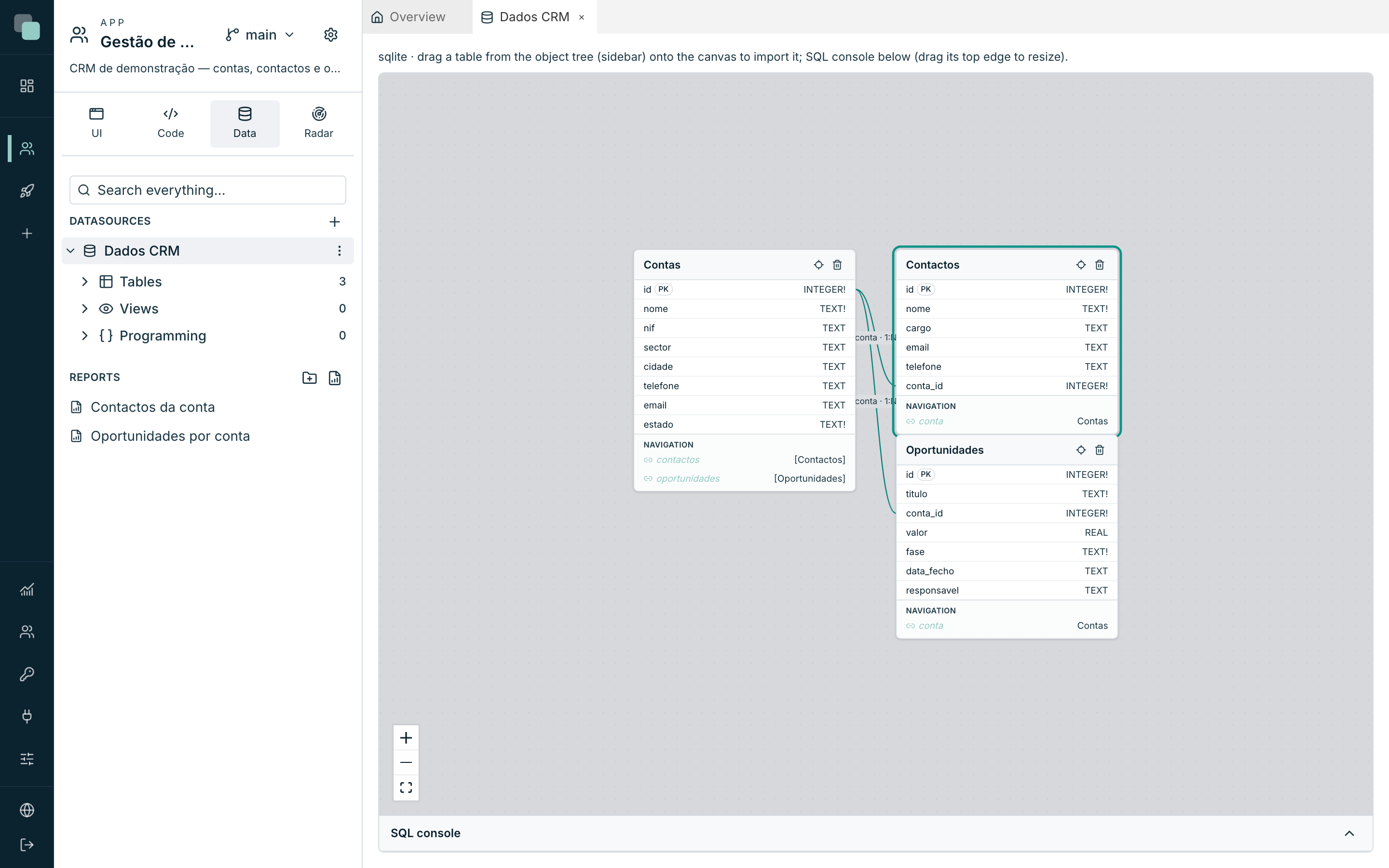
On the entity's card, the navigators appear in the Navigation section, with the name on the left and the destination on the right — in square brackets when it is a list.
Tip
Treat the navigators' names as part of the app's language: conta,
contactos, linhas, responsavel. They are what you will be reading
in the APIs, in the screens' datastores and in the event code — and a
badly chosen fk_ct_2 today is confusion forever.
Physical or virtual
The Relation type field decides whether the relation is also written in the database:
| Option | What it does |
|---|---|
| Virtual — only in the platform model | The relation exists for the platform: navigators, APIs, screens. The database is not touched. |
| Physical — creates the FK in the database | Besides the model, the foreign key is created in the engine: it becomes the engine itself refusing a conta_id that does not exist. |
The physical relation is safer — the integrity stops depending on whoever writes. The virtual one is what is left when you cannot (or do not want to) touch the database schema: third-party databases, tables shared with other systems, historical data that would not pass the check.
When the parent is deleted
When the parent is deleted (ON DELETE) says what happens to the children when the parent record is deleted:
| Option | What happens |
|---|---|
| Nothing (blocks if there are children) | The deletion fails while there are children. |
| Restrict — blocks immediately | The same, checked right away. |
| Cascade — deletes the children | Deleting the account deletes its contacts and opportunities. |
| Set NULL — detaches the children | The children are left without a parent (the column becomes empty). It requires the column to accept empty. |
On a physical relation, this rule is enforced by the engine. On a virtual relation, it is kept in the model and takes effect if one day the relation is materialized.
Warning
Cascade is convenient and it is irreversible: deleting an account takes contacts, opportunities and everything hanging off it. On business data, the custom is to prefer Nothing and treat deletion as a process — only what no longer has anything depending on it gets deleted.
Many-to-many
With Many-to-many (N:N) the dialog asks for three more things, because a relation like this needs a table in the middle (the junction table), with a reference to each side:
| Field | What it is |
|---|---|
| Junction table | The table that links the two — for example conta_etiqueta. |
| Column → A (child) | The junction column that points at the first entity. |
| Column → B (parent) | The junction column that points at the second. |
The junction table has to exist beforehand: create it like any other (see Tables and fields).
Relations that come ready-made
When importing a table into the model, the foreign keys that already exist in the database come in by themselves as relations, with navigators proposed from the tables' names. That is how Customer Management was born with its two relations — you only need to confirm that the navigators' names are the ones you want to read in the rest of the app.
Removing a relation
Click the relation's line on the diagram and confirm. The question is explicit: Remove this relation from the model? — and so is the answer: the relation leaves the platform's model and a physical FK already created in the database is NOT removed. If you really meant to undo the foreign key in the engine, that is done in the database.
What they are for, afterwards
Once the relation is made, it appears everywhere:
- In the APIs, as nested fields: a query of contacts can return
conta { nome, cidade }. - In the screens' datastores, to build master-detail — the contacts
table filtered by the
idof the loaded account (see Datastores and data). - In the data's integrity, when the relation is physical.
The enums
An enum is a closed set of values for a field: an account's estado
is Active, Suspended or Lost, and nothing else. Instead of letting
the field accept free text — and ending up with "activa", "Activa",
"ACTIVA" and "activo" in the same column — the set is declared once.
Creating an enum
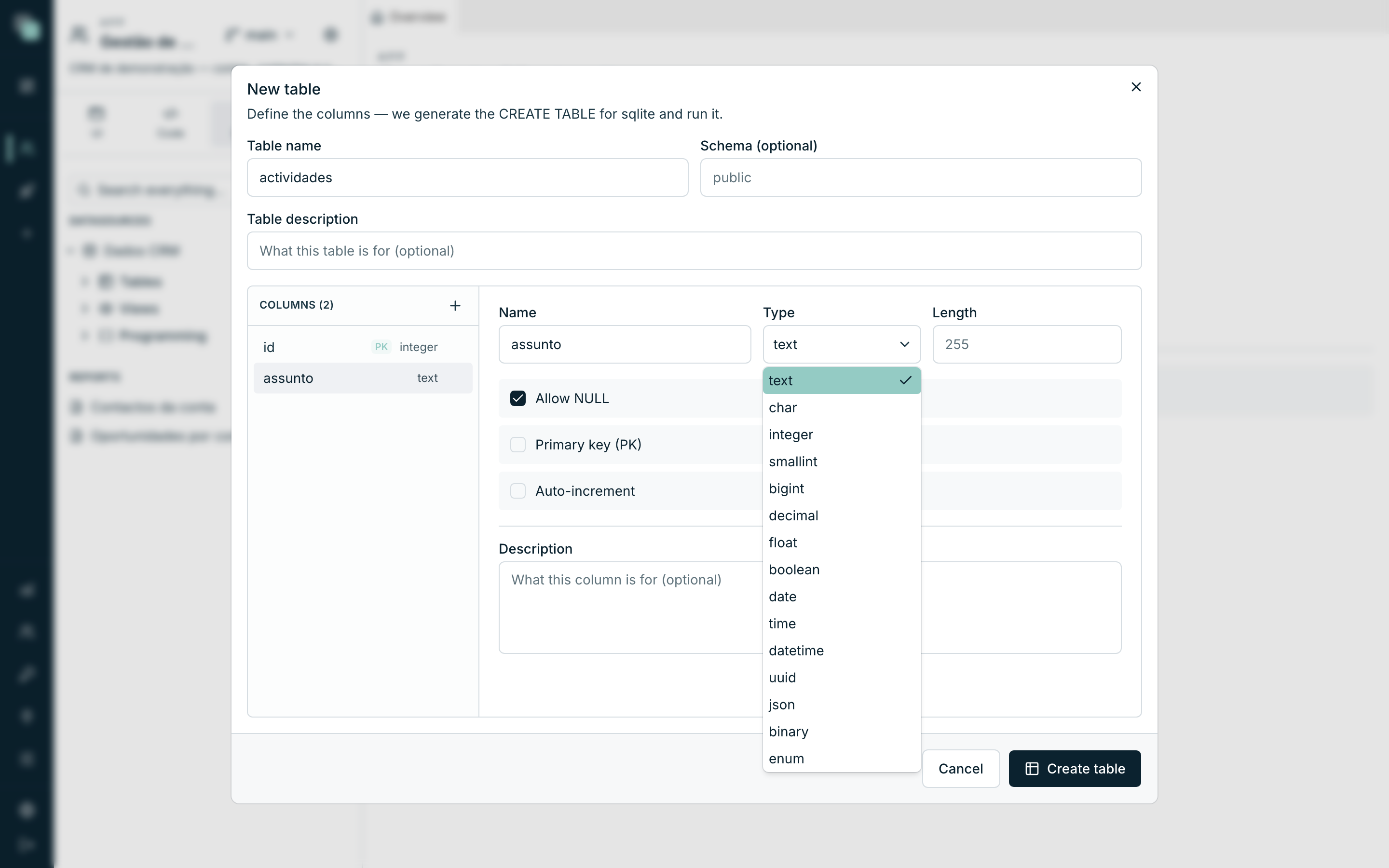
The enum is born on the column, at the moment you give it the type:
- In the New table dialog (or in Edit structure), select the column.
- In Type, choose
enum. - The Enum items box appears. Click Add item for each value.
- Fill in each item's three columns:
| Column | What it is |
|---|---|
| Value | The stored value. Letters, digits and _, starting with a letter — by convention in capitals: ATIVO, EM_ANALISE. |
| Label | The text people see: Active, Under review. |
| Color | An optional color, used by the widgets that paint statuses (the Kanban, the formatting rules). |
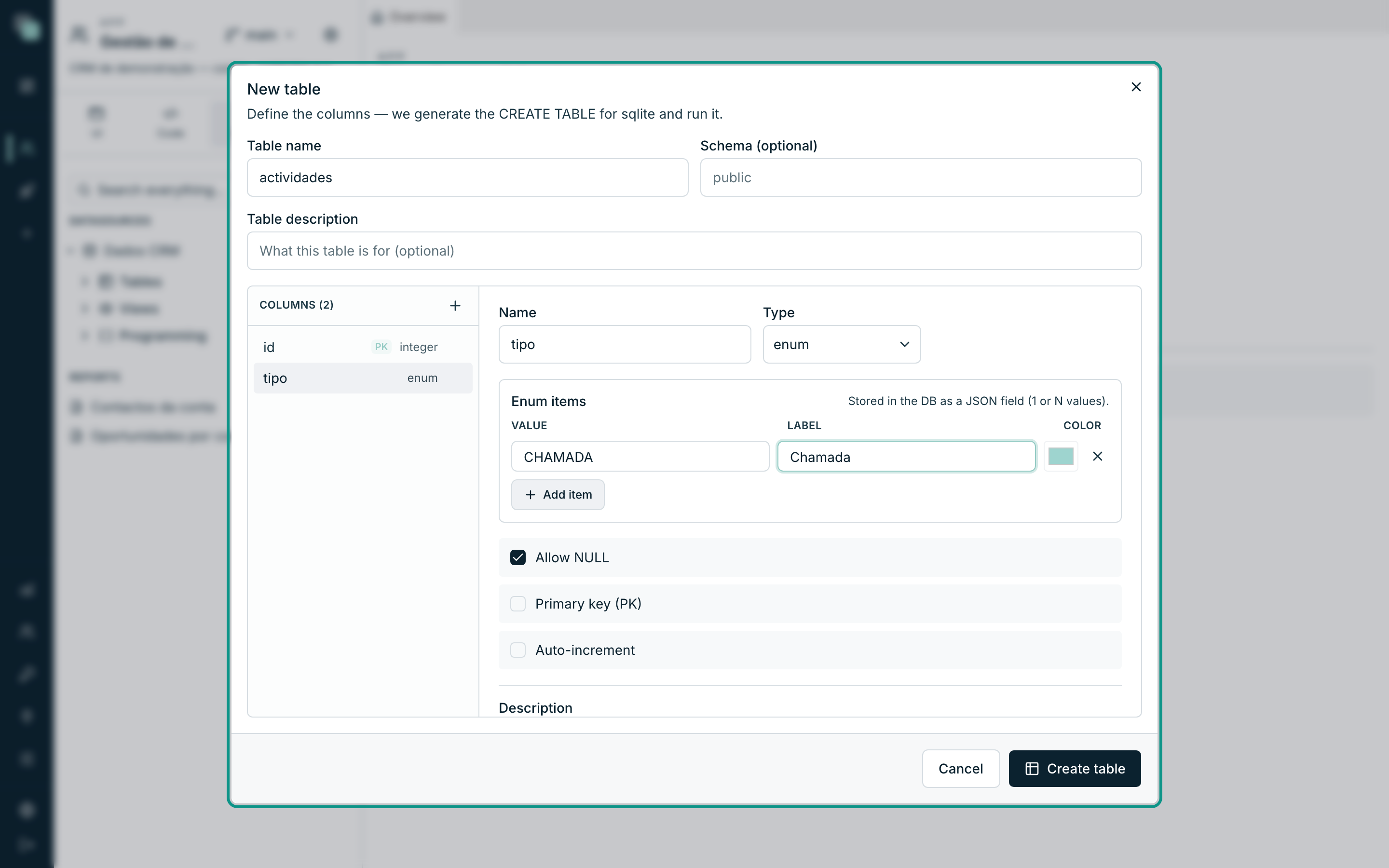
Each enumerated column has its own enum, and its name is derived from
the table and the column — the tipo column of the actividades table
gives the ActividadesTipo enum.
Note
In the database, an enum column is stored in a structured field — the box itself warns: Stored in the DB as a JSON field (1 or N values). That is what lets the same field serve a single choice today and a multiple choice tomorrow, without changing the schema.
Changing an enum
Reopen Edit structure on the table, select the column and work on the Enum items: add, change the label, change the color, remove with the ×. Confirm with Apply changes.
Changing the label or the color is safe — they are presentation only. Changing or removing a value is not: the records that already had the old value are left with a value the enum no longer knows.
Where enums show up
An enumerated field stops being free text across the whole platform:
| Where | What changes |
|---|---|
| On the diagram | The field appears in italics, with the enum's name in the type's place. |
| In the APIs | The field gets a fixed-values type, and the API refuses any value outside the list. |
| In the Dropdown widget | In Options source, you choose Model enum and then the Enum field — the options and the labels come from the model, and there are no lists to maintain in two places. |
| In the Kanban | In Columns source, the Enum option creates one column per enum value, colors included. |
| In the formatting rules | The conditions compare against the enum's values. |
Tip
Whenever a field has a known set of values — status, type, priority, channel — make it an enum instead of a textbox. You gain the translatable labels, the colors, the right filters and a Kanban for free.
Why doesn't…?
- Why can't I drag from one field to the other? The drag starts on the row of the field on the child side and ends on the row of the field on the parent side. If you are dragging the whole card, you are moving it on the diagram — grab the field's row.
- Why doesn't the API return the related table's data? The navigator on that side is missing. An empty navigator is a side that was not exposed on purpose — create the relation again with the name filled in.
- Why did creating the physical relation fail? A foreign key is only accepted if the existing data respects it. If there are children pointing at parents that do not exist, the engine refuses — clean up the orphans first, or create the relation as virtual.
- Why do I keep seeing the relation after removing it? You removed it from the model; the foreign key in the database is still there and it is what the reimport brings back.
- Why does my enum field show the value instead of the label? The widget is not bound to the model's enum — instead of a fixed list, choose Model enum and point the Enum field.