Signing in to the platform
Sign in to Keplin, sort out a forgotten password, change the language and end the session safely.
Everything starts on the sign-in page. This page explains what you need in order to get in, what to do when the password refuses to cooperate, and the two account controls you will use from day one: the language and Log out.
Before you start
Keplin is installed by your organization, so there is no public registration: the account is created for you by an administrator. Make sure you have:
| What you need | Where to get it |
|---|---|
| The address of the installation | Whoever administers Keplin in your organization (e.g.: keplin.company.com). |
| Your email | The corporate email the account was created with. |
| The initial password | Handed to you by the administrator through a secure channel. |
Note
This page is about signing in to the platform — the door of the people who build. Whoever uses a built application comes in through the app's own address, with an account of the app; that login is a different one and is described in the publishing chapter.
Signing in
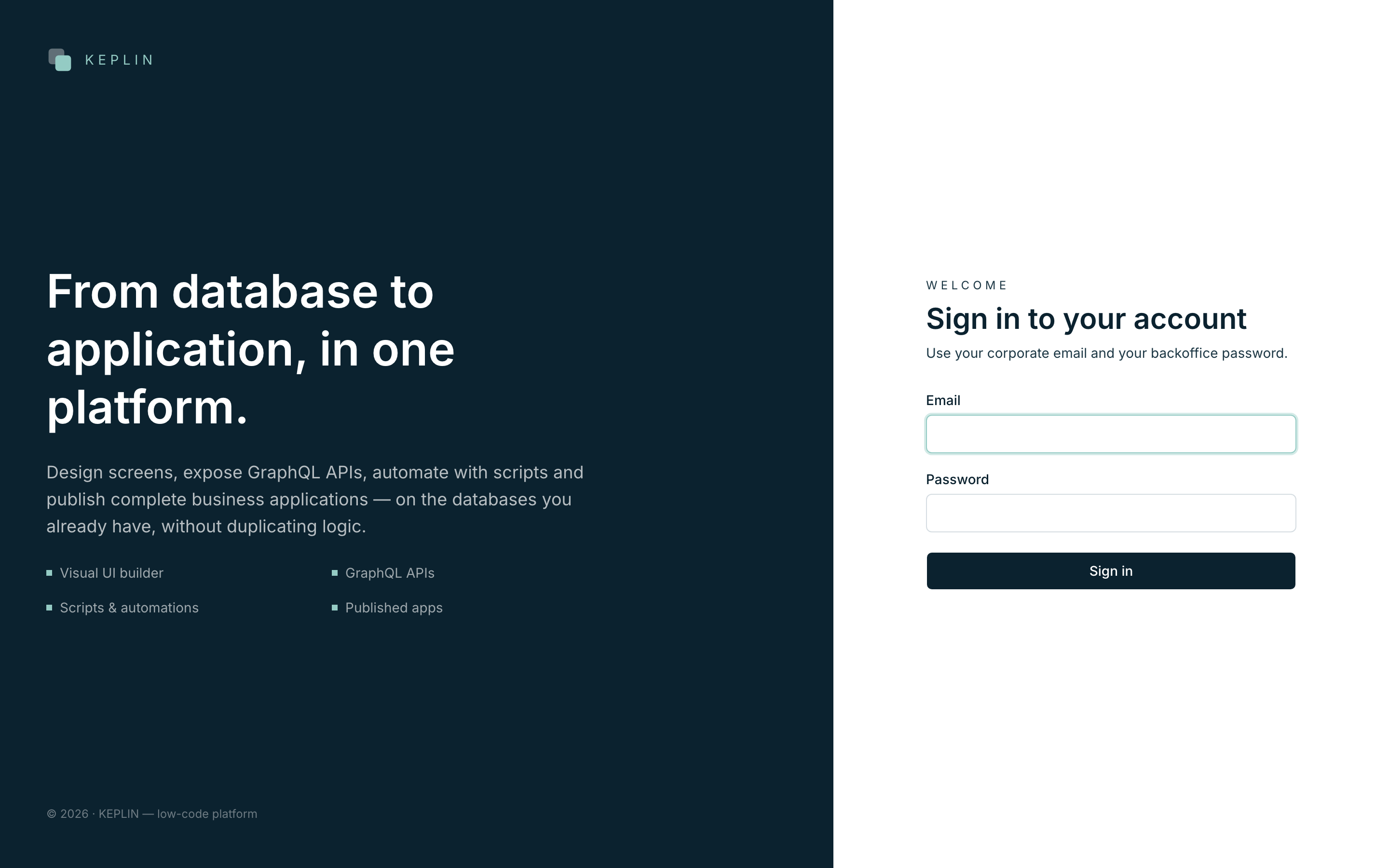
- Open the address of the installation in the browser. If you have no session, the sign-in page appears — the presentation of the platform on the left, the Sign in to your account form on the right.
- Fill in the Email with your corporate email.
- Fill in the Password.
- Press Sign in. While the session opens, the button shows Signing in….
If the credentials are right, you go straight:
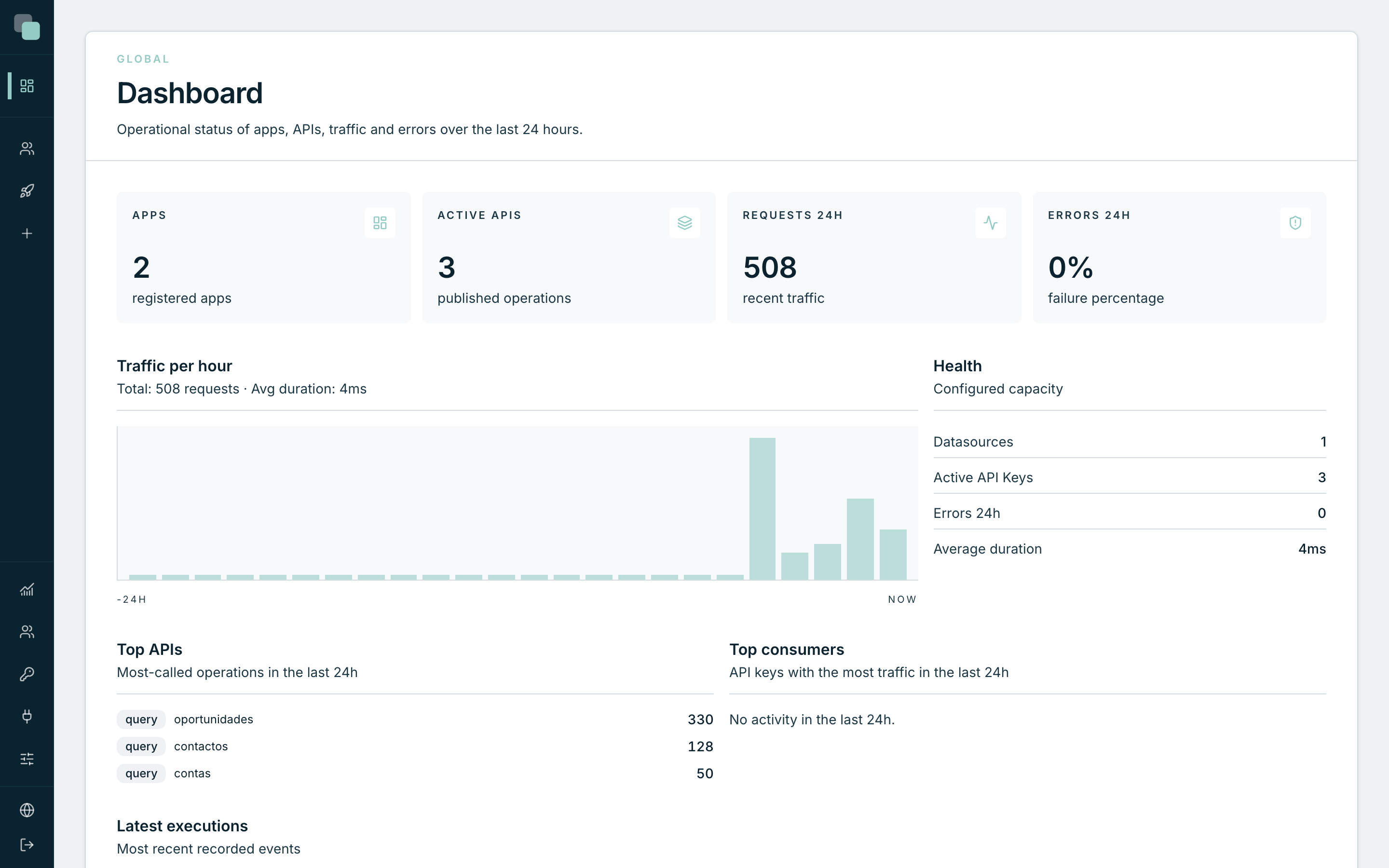
- to the Dashboard, the platform's home panel; or
- to the page you were trying to open, if you reached the login through a direct link (for example, a colleague sent you the link of an app).
If something fails, the form shows the error on the screen itself — with wrong credentials you see Could not authenticate. Check the email (no extra spaces) and the password, and try again.
Warning
If the account has been disabled by an administrator, you stop being able to sign in with the usual error message — there is no special warning. When in doubt, confirm the state of the account with whoever administers it.
Recovering access when the password is lost
The platform's sign-in page has no "forgot my password" — the reset is done by an administrator, in the Users menu. It is a security decision: the accounts of the people who build give access to whole apps and data sets, and the reset is always recorded and in the hands of someone identified.
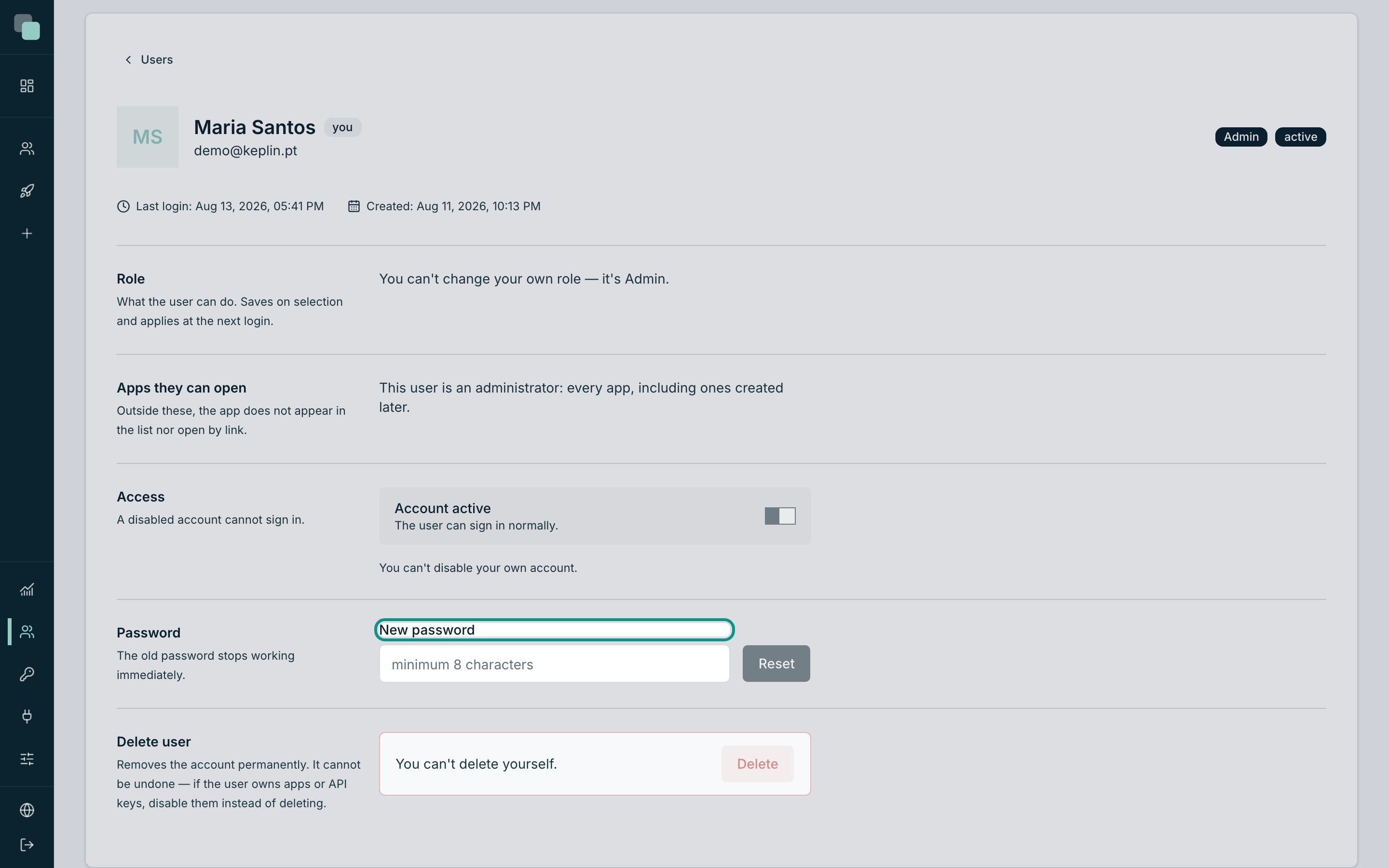
If you have lost access, ask an administrator to do the following:
- Open Users in the sidebar (only administrators see this menu).
- Open the person's account in the list.
- In the Password card, type the New password.
- Press Reset. The old password stops working immediately.
- Hand the new password over through a secure channel — never written down in a shared place.
Note
The "Forgot my password" you may know does exist — but in the screens of the built apps, for their users. Each app has its own Recover password screen, which sends a link by email when the app's email channel is configured. It is of no use for platform accounts.
Changing the language of the platform
The platform speaks ten languages, and the choice is yours — it affects nobody else, nor the built apps (those have translations of their own).
- At the bottom of the left sidebar, press the Language button (the globe, with the code of the current language beside it).
- Choose yours: Português, English, Español, Français, Italiano, Deutsch, Nederlands, Suomi, Svenska or Norsk.
- The interface changes immediately, without reloading and without losing what you were doing.
Logging out
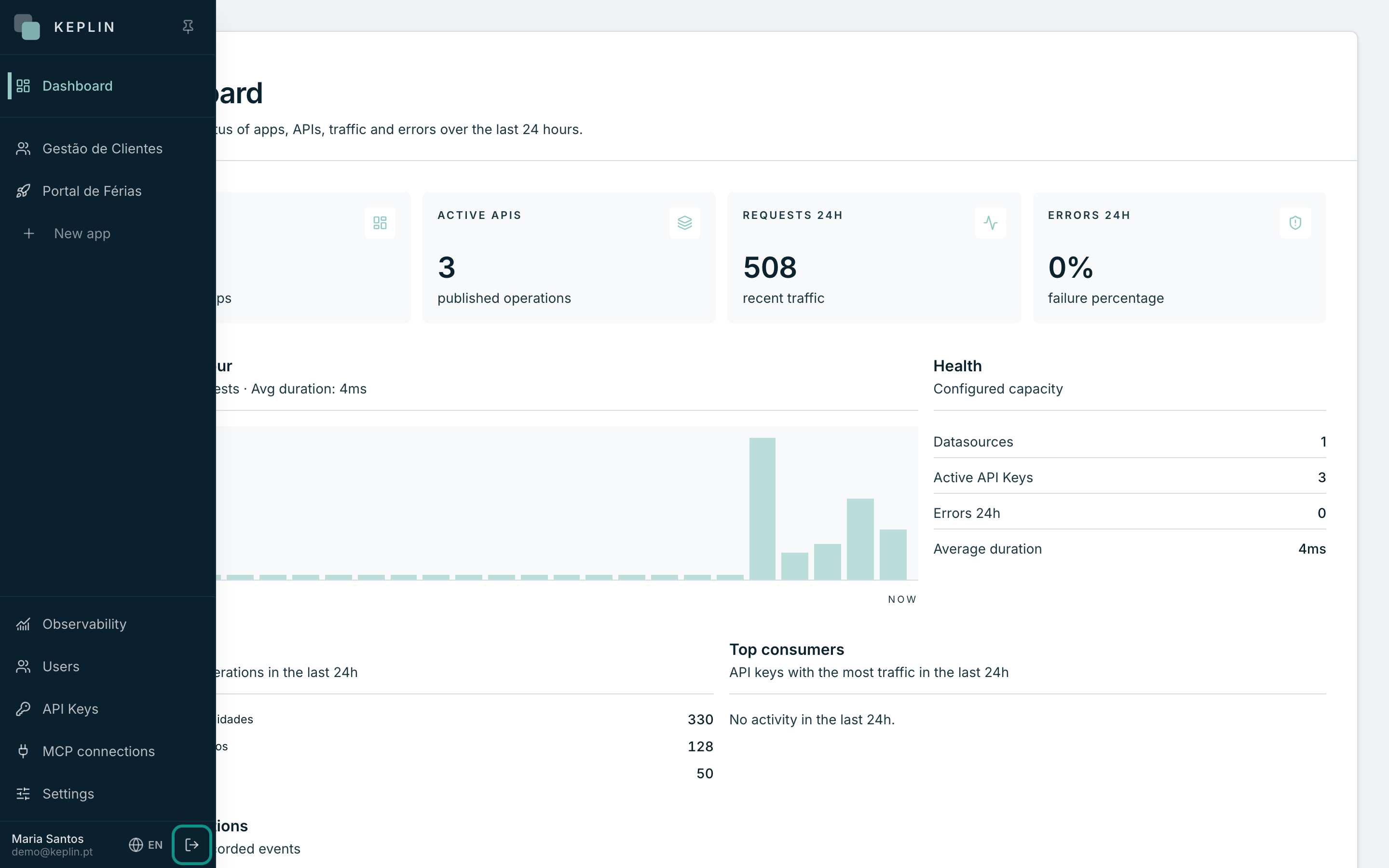
- At the bottom of the left sidebar, next to your name and email, press Log out.
- You are back on the sign-in page, with the session closed.
Tip
On a shared computer, always leave with Log out — closing the browser does not close the session. An open session is worth hours: when an administrator disables an account, for example, the sessions already open for it can still last up to 12 hours.
Why don't I see…?
Why don't I see any app after signing in? Your account is a developer and has no apps assigned yet — with no apps assigned, the list stays empty. Ask an administrator to assign you the apps in Users ▸ your account ▸ Apps they can open.
Why don't I see the Users, API Keys or Settings menus? They are administrator menus. A developer account sees the Dashboard, its apps, Observability and MCP connections — and that is enough: everything that is building happens inside the apps.
I signed in, but landed on a page saying I have no access. The link you opened points to an app that is not assigned to you. The app does not appear in your list nor open by direct link — it is the expected behavior, not an error.