The test environment
Where tests write each database, the test datasource of external databases with write access, the test users, simulated HTTP responses, the merge gate, the scheduled run and the limits.
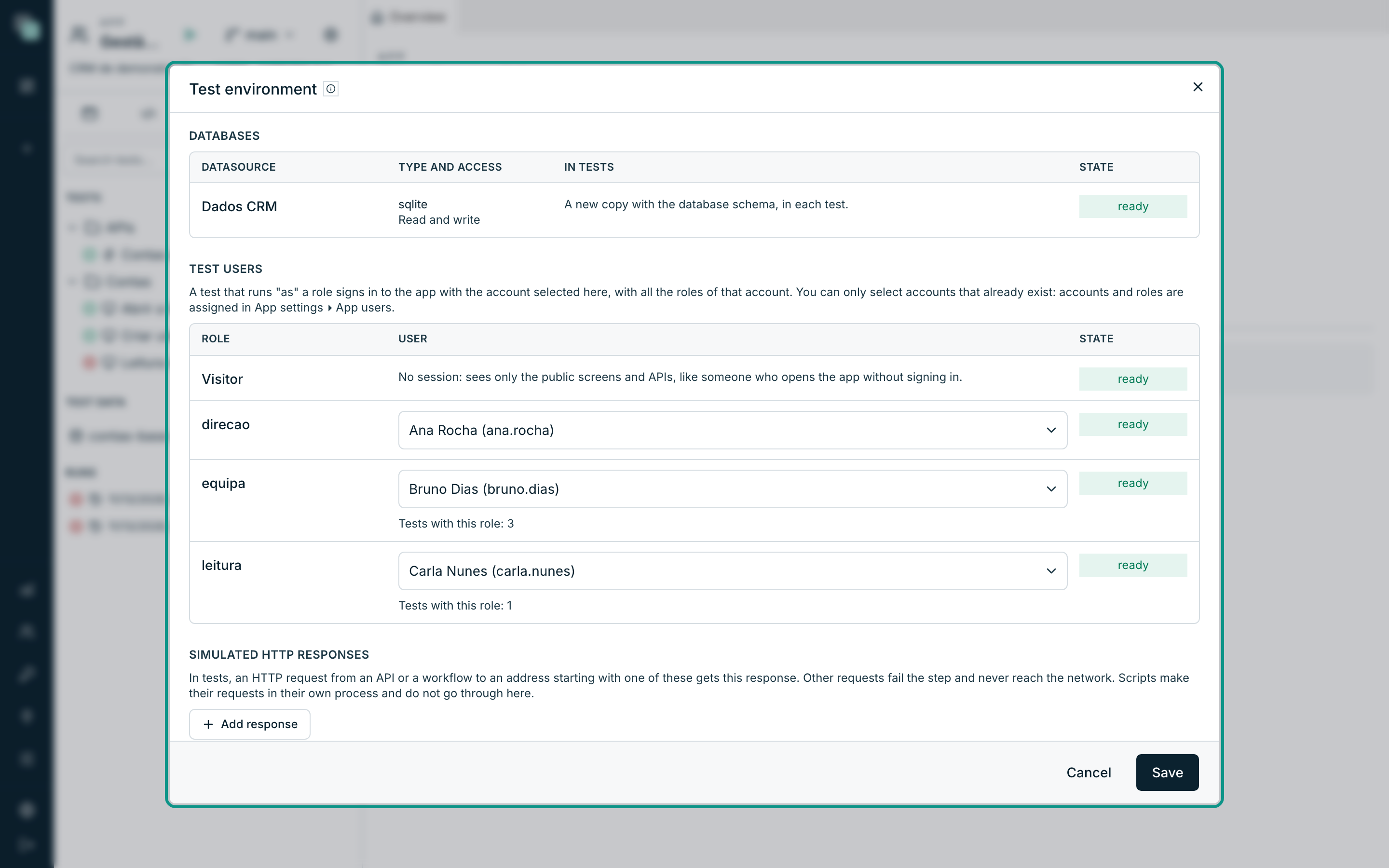
The test environment says where tests write, which accounts they sign in to the app with, and what happens to effects outside the app. Open it in the Tests minitab, with the Test environment button.
Note
Only an administrator changes the test environment. A developer can see it.
Databases
Each datasource of the app appears with its type, its access and what happens in tests:
| Datasource | In tests |
|---|---|
| The app's internal database | A new copy with the database schema, in each test. |
| Internal PostgreSQL | A temporary database on the managed server, with the schema of the real one, in each test. |
| External database with write access (Read and write or Protected structure) | The selected test datasource, mandatory. The tables of the test data are emptied before each test. |
| External Read only database | The real database, read only. Tests read it and never write to it. |
The test datasource of external databases
An external database with write access cannot be copied for each test. The tests use another datasource of the app, connected to a test database with the same structure. Connections are always created in the datasources, in the Data section, and the test environment only selects which one to use.
- In the Data section, create a datasource of the same type, with write access, connected to the test database. It can also be an internal datasource.
- Open the Test environment.
- On the external database's row, click Select the test datasource and choose it from the list.
- Click Save.
The state changes to ready. On the row of the selected datasource, the environment says which database it is the test datasource of, and the tests use it as it is.
Warning
While an external database with write access has no test datasource selected, no test of the app runs, not even the ones that seem not to use that database. A test reaches any database of the app through a screen, an API or a script, and there is no safe way to know beforehand which databases it reaches. The run is Blocked and says which database is missing.
An external Read only database does not need a test datasource: tests read the real database, and the platform refuses any write to it, as it already does outside tests. Full assurance comes from connecting that database with a user that only has read permissions.
Test users
A test that starts as a role signs in to the app with the account selected here for that role, with all of that account's roles.
- In Test users, on the role's row, click Select the user.
- Search for and choose an active account that has that role. No user undoes the choice.
- Click Save.
Only existing accounts can be selected: accounts and roles are given in App settings › App users. The Visitor row has no account: a test without a role has no session and sees only the public screens and APIs, like someone who opens the app without signing in.
Each row says how many tests use that role. A test with a role that has no selected account fails with «The role … has no test user».
Simulated HTTP responses
In tests, an HTTP request from an API or a workflow never goes out to the network: it receives the simulated response whose address is the start of the request's address (and the method, if it gives one). A request without a simulated response fails the step with the address, so you know what is missing.
To add one, click Add response and fill in the method, the address (for
example https://api.exemplo.pt/v1/), the code and the body.
Note
Scripts make their requests in their own process and do not go through the simulated responses.
When they run on their own
- Before merging into main: with the gate on, merging a version into main first runs the tests with the given tags (or all of them, without tags) in the source version. If they do not pass, nothing is merged. See Running and reading results.
- Run all tests at the time of this cron expression: the scheduled run,
for example
0 2 * * *(every night at 02:00). It needs the platform scheduler to be on.
Limits
- Seconds per step: how long a step can take (and how long a screen check waits). By default, 30.
- Minutes per run: how long a run can take. By default, 10.