App AI models
Give names to the models the app's scripts use, choose the default for each use and change models without touching the code.
Scripts do not name providers or models. They use an alias: a short
name, such as texto or vectores, that the app's settings link to an
authorised model of a provider. Changing an alias's model changes every
script that uses it, without touching the code.
The AI steps of workflows and APIs use the same aliases.
In the sample app Gestão de Clientes, the alias texto points to a text
model of the local provider, and the alias vectores to an embeddings
model of the same provider.
Note
Aliases are part of the app's design: they change in the working version, stay in the history and go in the package when the app is exported. Providers and credentials belong to the tenant and do not go.
Where they are
Open the app's settings and choose AI models, in the Artificial intelligence group. Accounts with a developer profile see the aliases; only accounts with the app's administrator profile change them.
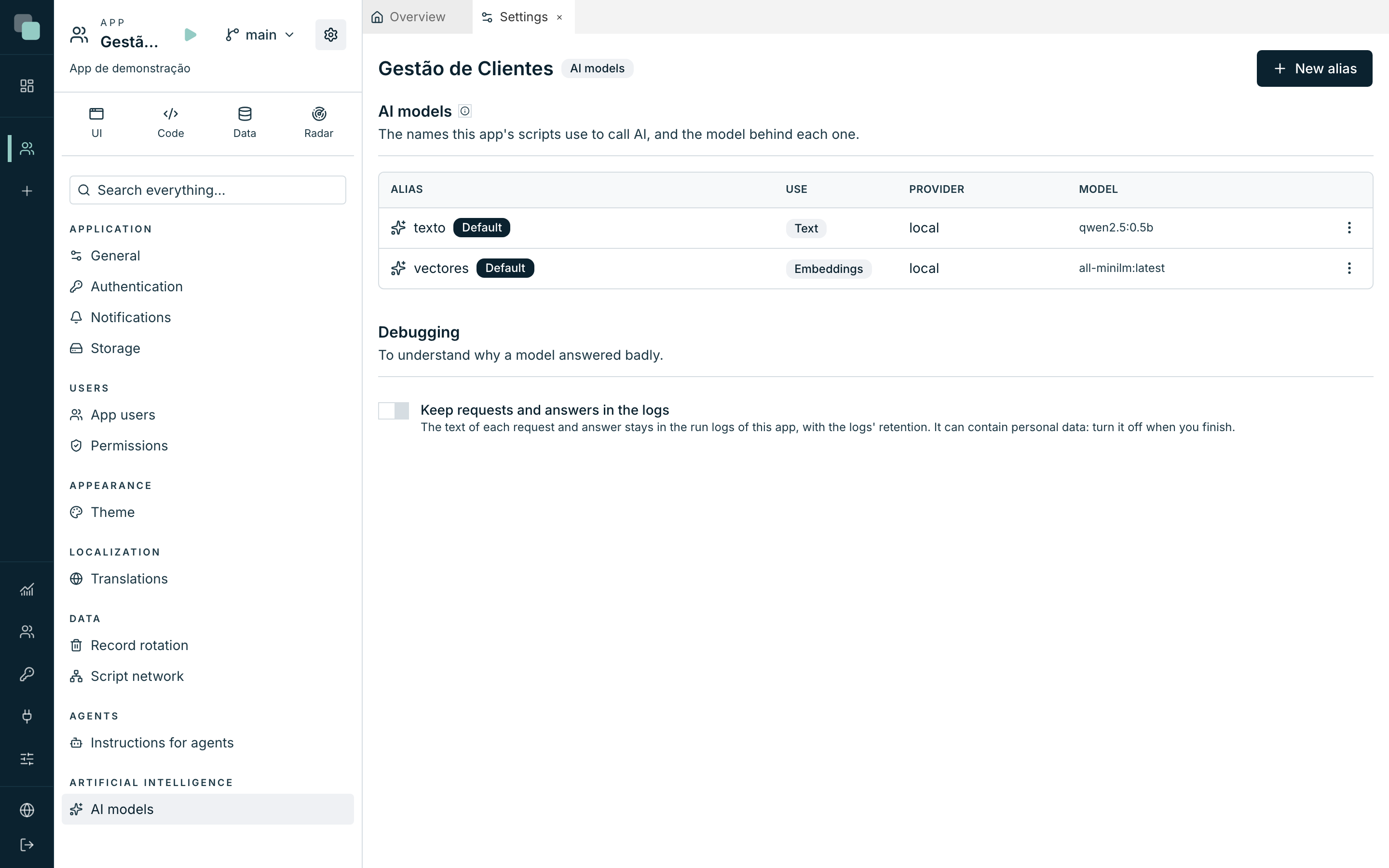
Create an alias
- Click New alias.
- Type the Name: lowercase letters, digits, hyphens and underscores,
starting with a letter. This is what scripts write in
model=. - Choose the Use: Text, Embeddings, Images, Transcription or Speech.
- Choose the Provider. Only enabled providers with authorised models for that use appear.
- Choose the Model, among the ones the provider authorises for that use.
- For a text alias, you can set the Maximum answer size (tokens). When blank, the platform's value applies.
- Turn on Default for this use if this alias should apply when a script does not name a model. There is only one default per use: turning one on clears the previous one.
- Click Save, in the header.
Change an alias's model
- In the alias's ⋮ menu, click Edit.
- Choose another Provider or another Model.
- Click Save.
Because aliases live in the app's version, the change happens in the working version. People who use the app get the new model when that version is published.
Delete an alias
In the alias's ⋮ menu, click Remove and confirm above the list. The scripts that use that alias fail until you choose another one.
Apps imported from another tenant
An exported app takes the aliases with each one's provider name. If this tenant has no provider with that name, the alias shows Missing provider. Edit it and choose a provider from this tenant.
If the provider exists but the alias's model is not authorised in it, the alias shows Model not authorised. Choose another model, or ask the administrator to authorise it in the provider.
Debugging
When a model answers badly, it helps to see exactly what was sent to it. Below the list of aliases, in the Debugging section, turn on Keep requests and answers in the logs. From then on, each call from a script writes the request (the instruction, the messages and the file names) and the answer in the run's logs, up to 4000 characters each.
Warning
The text of the requests often carries personal data, and it stays in the run logs, with the app's log retention. Turn debugging on only while you need it.
Like the aliases, debugging is part of the app's design: it changes in the working version, and only applies to the published version after you publish it.
Frequently asked questions
The New alias button does not appear. This tenant has no AI providers yet. An administrator adds them in Settings > Artificial intelligence > Providers (see AI providers).
The model I want does not appear. Only the models the administrator authorised in that provider for the chosen use appear.
Does an alias with the same name in another app interfere with this one? No. Each app has its own aliases.