Sign in with authentication providers
Register Microsoft Entra ID, Google, an OpenID Connect or OAuth 2.0 service and Active Directory, choose each app's sign-in methods and link the external accounts to the users.
By default, the users of an app sign in with the username and password that the app keeps for them. A company that already keeps its accounts in its own service prefers people to sign in with those accounts: with the Microsoft 365 account, the Google account or the domain account. Authentication providers are for that.
A provider only confirms who the person is. Accounts and roles are still managed in each app, in App users: signing in through a provider never creates users, and a person without an account in the app does not get in, even with a valid account at the provider.
The work has three parts:
- Register the provider, once, in the platform Settings.
- Choose, in each app, how its users sign in.
- Set, on each app user, the external account they sign in with.
Note
Providers are for the people who use the apps. Platform accounts, used to build the apps, keep signing in with their email and password.
The provider types
| Type | What it is for |
|---|---|
| Microsoft Entra ID | The company's Microsoft 365 accounts. |
| Google Workspace or Google accounts. | |
| OpenID Connect | Keycloak, Okta, Auth0, ADFS and other services with OpenID Connect. |
| OAuth 2.0 | Services with OAuth 2.0 without OpenID Connect. The account comes from the profile requested from the service. |
| Active Directory | The company's Active Directory. Only exists in installations with a single tenant. |
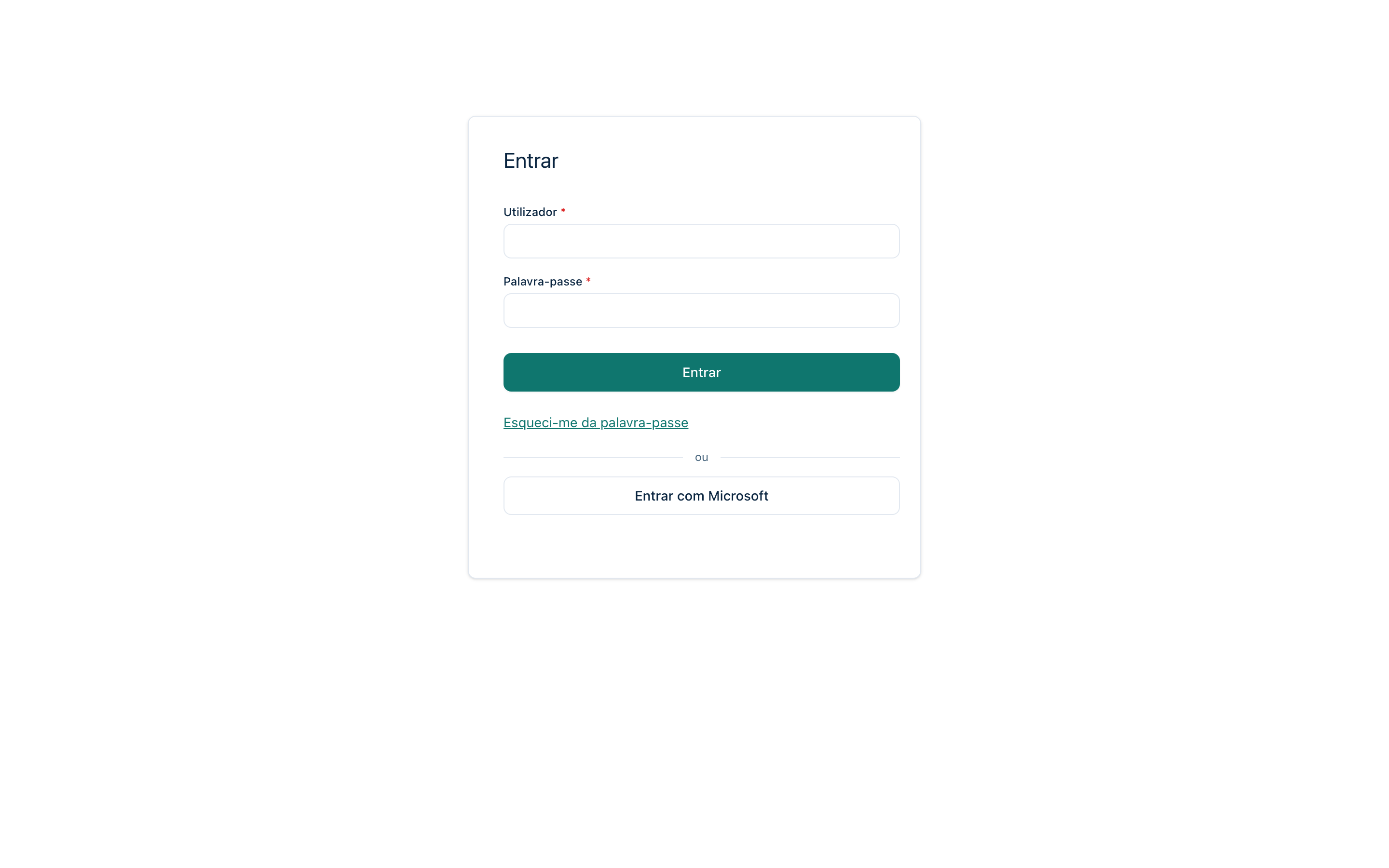
The first four open the service's sign-in page and come back to the app with the person identified. Active Directory does not leave the app: the person types the domain account and the password in the User and Password fields of the login screen, and Keplin checks them against the domain.
Register a provider
Only an administrator registers providers.
- In the sidebar, open Settings and, in the Apps group, the App authentication section. The Authentication providers page lists the existing ones, with the type, the state and the apps that use them.
- Click New provider.
- In Type, choose the service. The type does not change after it is created.
- In Name, type the name the apps will use to choose the provider, for
example
entra-empresa. It accepts lowercase letters, digits, hyphen and underscore, and it does not change after it is created, because it is part of the redirect address. - Optional: in Button text, type the text of the button on the apps' login screen. Empty, it keeps the type's default text (for example, «Sign in with Microsoft»), in each app's language.
- Fill in the Connection fields, which depend on the type and are described in the following sections of this page.
- Copy the Redirect address with Copy and register it in the service, as a redirect address. It is the same for every app, even for apps with their own domain.
- Click Test connection. The result appears below and gives the cause when it fails.
- Click Save.
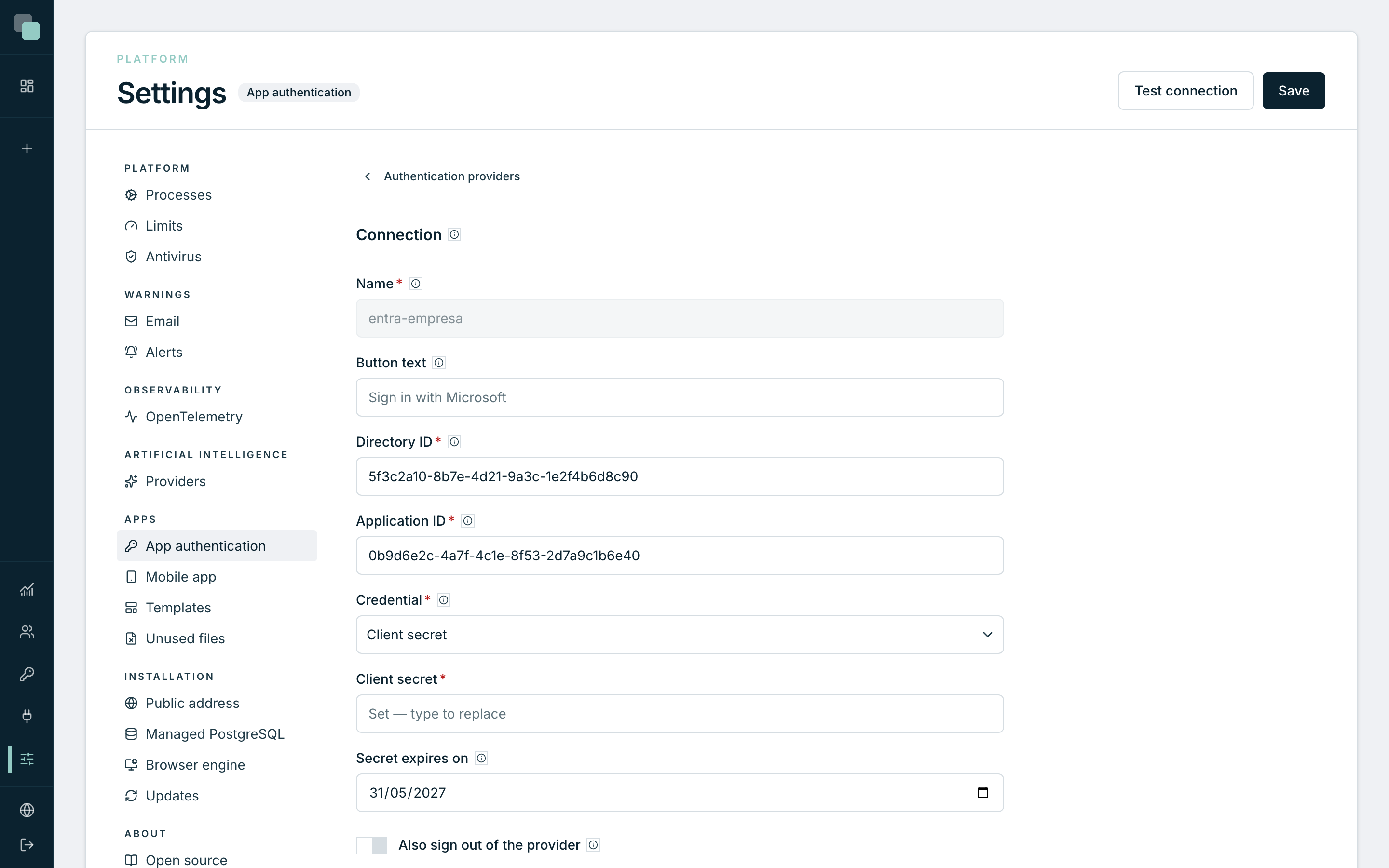
Credentials (secrets, private keys and passwords) are stored encrypted on the server and never reach the browser or the scripts. Once saved, they do not come back to the screen: to keep the saved one, leave the field empty; to change it, type the new one.
The Enabled switch turns a provider off without deleting it: when it is off, no app shows it and the credentials stay stored.
Warning
Microsoft Entra ID and Google only accept redirect addresses on https.
The redirect address is built from the installation's Public address
(see Platform settings):
with a public address on http, these two providers do not work, and the
form warns you.
Microsoft Entra ID
In the Microsoft Entra portal, register an application for Keplin and add the Redirect address as a redirect URI of the Web platform. Then fill in:
| Field | What to type |
|---|---|
| Directory ID | The company's directory (tenant) ID, as a GUID. Only accounts of this directory get in. The values common, organizations and consumers are refused, because they accept accounts of any company. |
| Application ID | The application (client) ID of the registration. |
| Credential | Client secret or Certificate. |
| Client secret | With Client secret: the value of the secret created in the registration. |
| Secret expires on | With Client secret: the secret's expiry date. The alerts warn 30 days before. |
| Private key and Certificate thumbprint | With Certificate: the private key of the certificate uploaded to the registration, in PEM (PKCS #8), and the SHA-1 thumbprint that Entra shows. With a certificate, Keplin signs the requests and there is no secret to expire. |
| Also sign out of the provider | On, signing out of the app also signs out of the Microsoft account in this browser. |
In the Google Cloud console, create an OAuth client of the Web application type and add the Redirect address to the authorised redirect URIs. Then fill in the Client ID and the Client secret.
Optional: in Google Workspace domain, type the company's domain (for
example, empresa.pt) so that only accounts of that domain get in.
OpenID Connect
| Field | What to type |
|---|---|
| Issuer address | The service's address. The configuration is read from /.well-known/openid-configuration at that address. |
| Client ID | The identifier of the client registered in the service. |
| Client authentication | How Keplin presents itself when it exchanges the code for the token: Secret in the header (client_secret_basic), Secret in the body (client_secret_post) or Private key (private_key_jwt). |
| Client secret or Private key | Depending on the chosen authentication. The private key goes in PEM (PKCS #8), and the service must know the public key. |
| Scopes | The requested scopes. They must include openid. |
| Account claim | The token claim compared with the account declared on the app user: email, preferred_username or upn. |
| Require verified email | With the email claim: only links the account when the token says the email was verified. |
| Also sign out of the provider | On, signing out of the app also signs out of the service account in this browser. |
OAuth 2.0
For services that only speak OAuth 2.0, the account comes from the profile that Keplin requests from the service after signing in.
| Field | What to type |
|---|---|
| Authorization address and Token address | The service's two OAuth 2.0 addresses. |
| Profile address | The address requested with the access token. The response must be JSON. |
| Client ID and Client secret | The client registered in the service. |
| Scopes | The requested scopes. |
| ID field | The profile field that never changes (for example, id). It is stored on the first sign-in. |
| Account field | The profile field compared with the account declared on the app user (for example, email or login). |
Active Directory
Active Directory only needs the server and a read-only account. Keplin reads the rest from the domain.
- In Server, type the IP address or the name of a domain controller. To have alternatives, type more, one per line.
- In User and Password, type the account that Keplin uses to look up
people in the domain. The name is enough (
keplin); it also acceptsEMPRESA\keplinorkeplin@empresa.local. It only needs read access. - Click Test connection. The Read from the domain block shows the Domain, the NetBIOS name, the Base DN, the Controllers and the Server certificate.
- If the certificate is not from an authority that the Keplin server knows, check the Fingerprint (SHA-256) with the Active Directory administrator and click Accept this certificate. Keplin starts trusting it for this provider, and renewing a controller's certificate does not stop the sign-ins.
- In How people type their user name, choose the form accepted on the login screen: name only, domain and name, or the address.
- Optional: in Required group, click Choose group and search for the group whose members can sign in, also through groups inside it. The group does not give roles.
- Click Save. Without the connection test, saving is refused, because Keplin has to read the domain from the server.
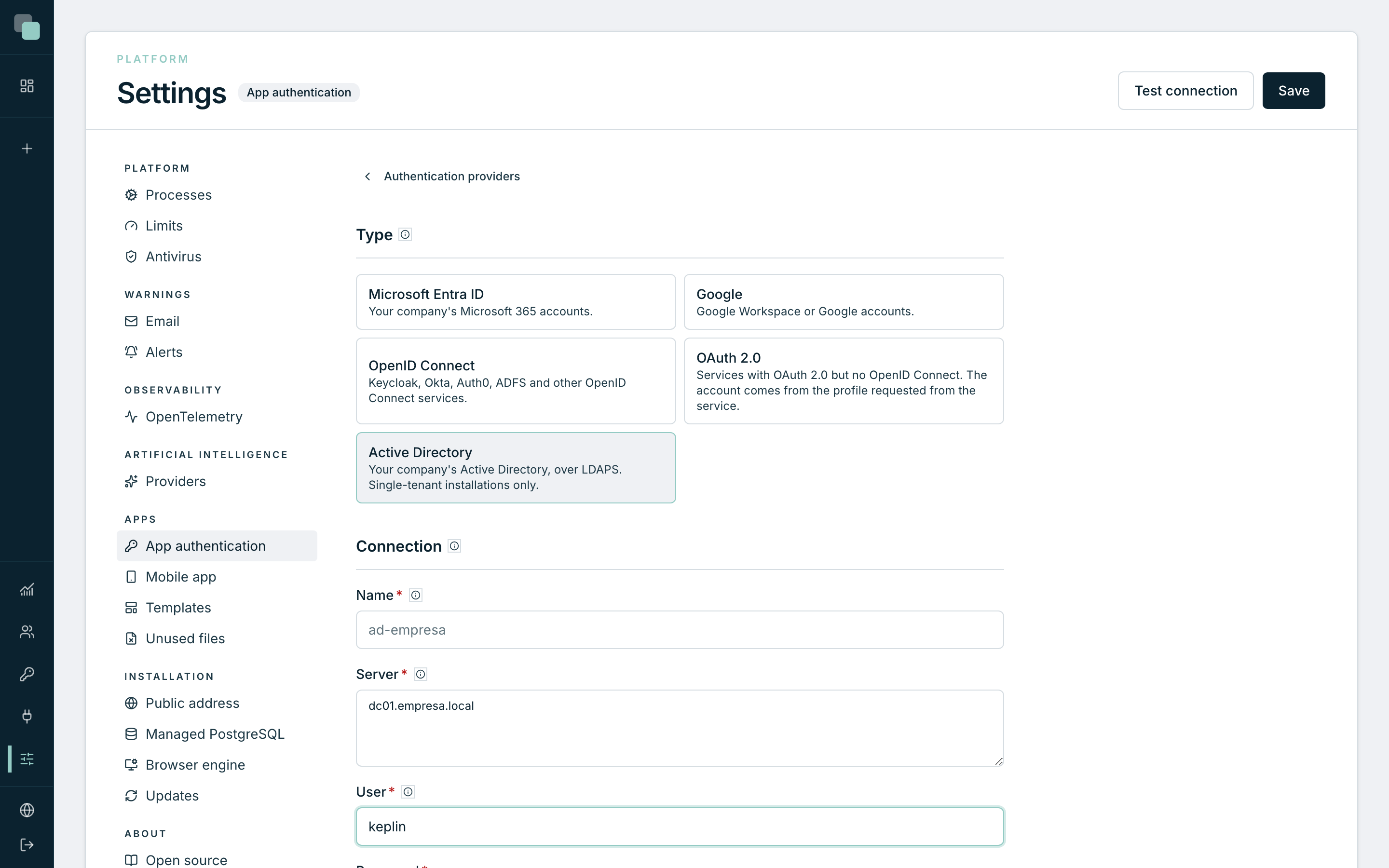
Advanced options holds the Security (LDAPS (port 636) or StartTLS (port 389)), the Timeout (s) to wait for each controller before moving to the next, and the CA certificate, in PEM, to use the company's CA instead of the certificate accepted in the test.
Keplin never sends passwords without encryption: a controller that accepts neither LDAPS nor StartTLS is refused in the test, and the Active Directory administrator has to install a certificate on it.
Choose an app's sign-in methods
- Open the app and, in the App settings gear, the Authentication section.
- In Sign-in methods, turn on the ones the app uses: Username and password (the credentials managed in App users) and the providers registered in the platform Settings.
- Order them with Move up and Move down. The order of the list is the order of the buttons on the login screen.
- Optional: in Sign in directly, choose a provider. People who open the app go straight to it, without the login screen. After signing out, or after a refused sign-in, the login screen appears.
- Click Save.
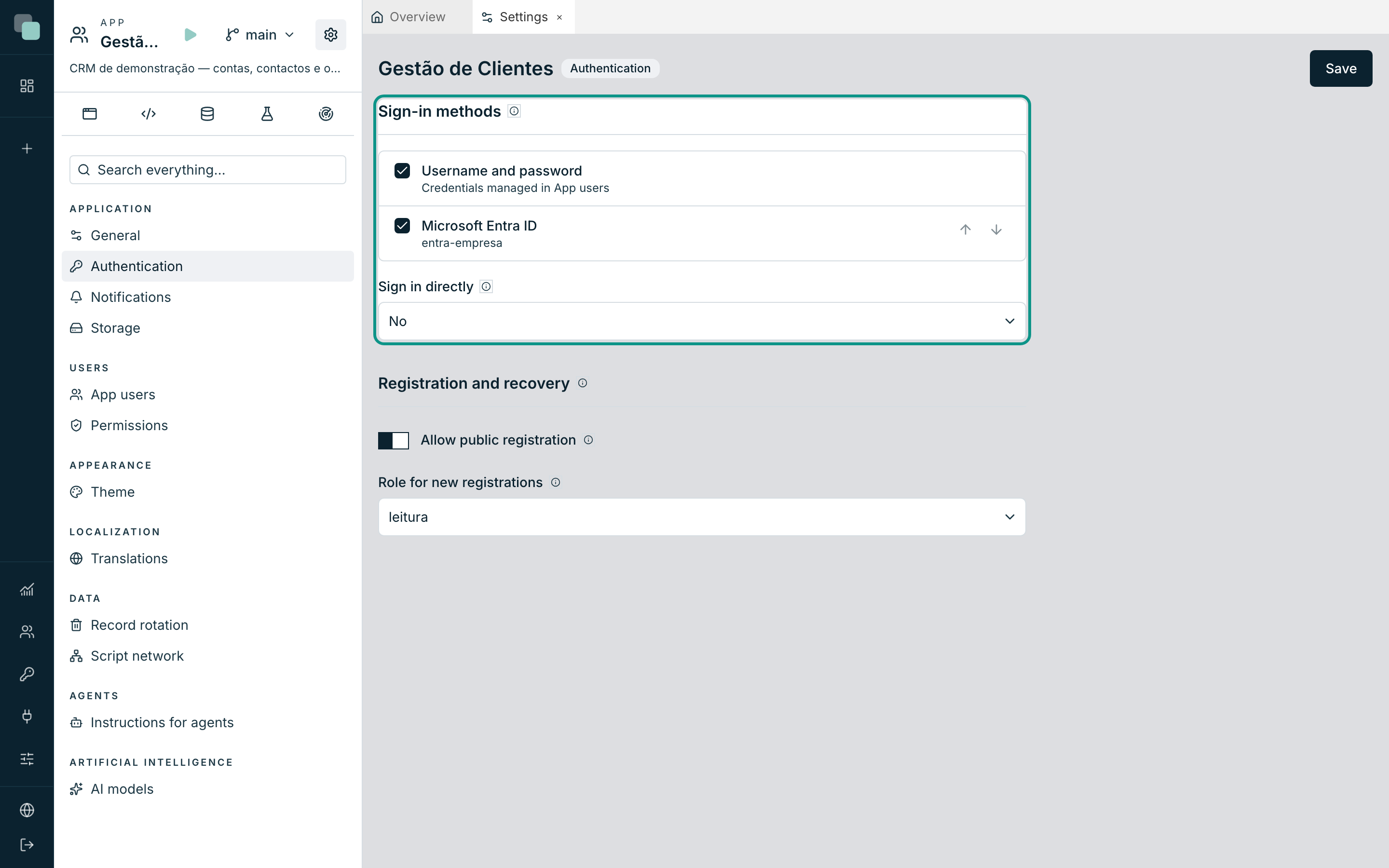
The system login screen shows the provider buttons on its own. On a login screen designed in the app, the buttons appear where the Sign-in providers widget is: without it, the section warns that the buttons do not appear. Active Directory has no button, because it uses the User and Password fields.
Public registration and password recovery only serve people who sign in with a password.
Link the external accounts to the users
Each app user states which account they use at each provider.
- In App settings › App users, open the user's record.
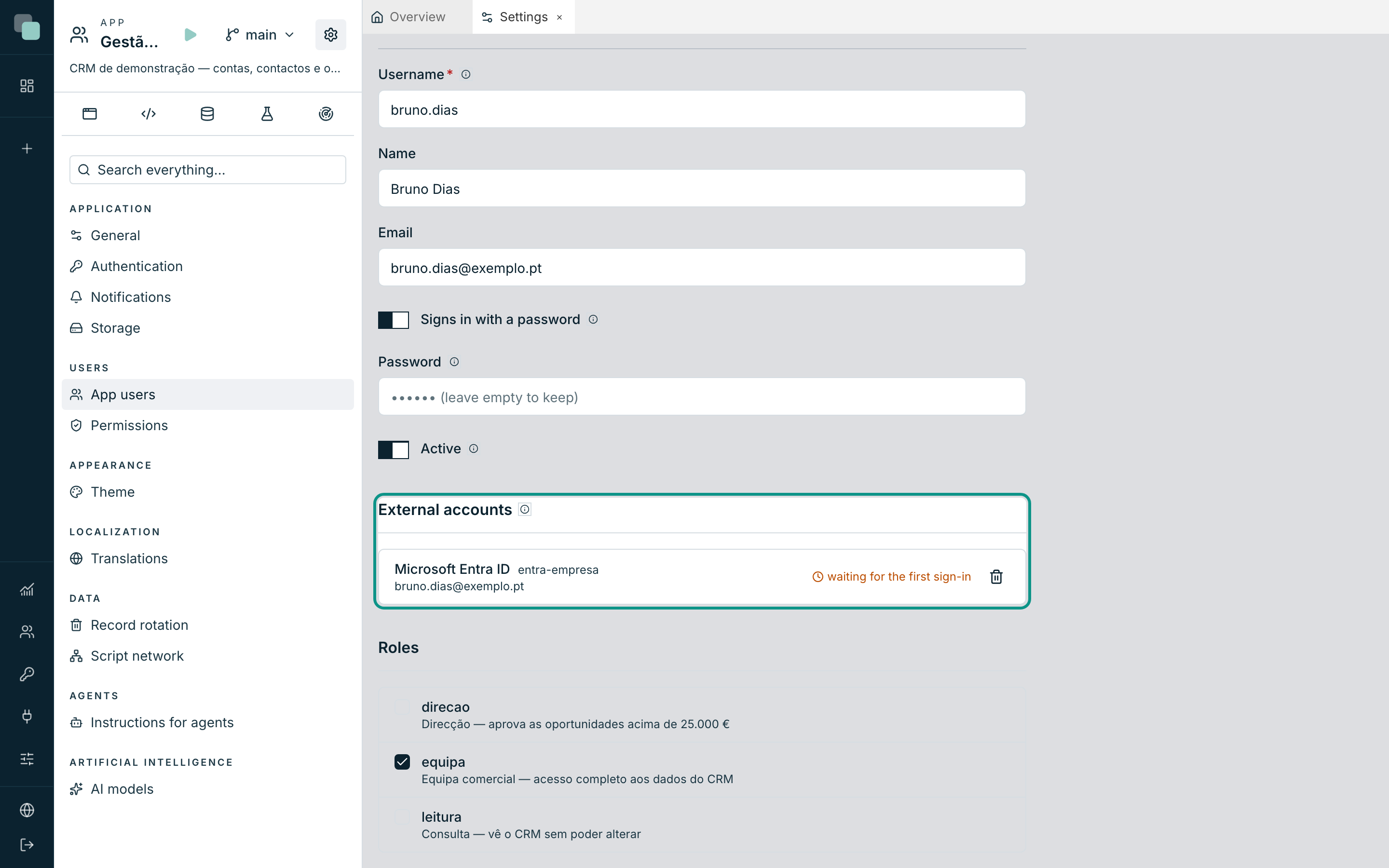
- In External accounts, choose the provider and type the Account: the email, the UPN or the domain user, depending on the provider.
- Click Add and then Save.
A person who only signs in through providers does not need a password: on a new account, the Password field is only required when the record has no external accounts, and on an existing account you turn off Signs in with a password. When it is off, the password is deleted and password recovery stops working for that person.
The account stays waiting for the first sign-in. When the person signs in for the first time, Keplin confirms the account and stores the provider's identifier that never changes; the account becomes linked with the date. From then on, changing the person's email or name at the provider does not undo the link.
In the user list, the All sign-in methods filter shows only the people who sign in with one method, or only the accounts Waiting for the first sign-in.
In KeplinGo
In KeplinGo, signing in through a provider opens the service's page in a Chrome tab, because Google and Microsoft conditional access can refuse sign-ins inside the app. When the person finishes signing in, KeplinGo comes back to the front with the app already open. Active Directory signs in through the app's form, as in the browser.
The Microsoft Entra secret about to expire
A Microsoft Entra provider with Client secret has the date in Secret expires on. Thirty days before, the platform alerts warn by email; with the secret expired, nobody signs in to the apps through that provider. To renew it, create a new secret in Microsoft Entra and type it, with the new date, in the provider.
Frequently asked questions
The person signed in at the provider and the app says they have no access. The app has no user with that external account, or the user is disabled. Check in App users that the account typed in External accounts is the same one the person uses at the provider.
Can I delete a provider that the apps use? You can. The removal says how many apps use it, and people who only sign in through it can no longer get in. To stop it without losing the configuration, turn off Enabled.
The provider button does not appear on the login screen. Check that the provider is Enabled and turned on in Sign-in methods and, on a designed login screen, that the screen has the Sign-in providers widget.