AI providers
Register the tenant's AI services and choose the models the apps can use, with the credentials encrypted on the server.
The apps' scripts call artificial intelligence models through the scripts SDK. Before that, an administrator registers the providers: the AI service, the access credentials and the models the apps can use.
The credentials stay encrypted on the server. They never reach the browser, the scripts' code, or the package of an exported app.
Note
Providers belong to the tenant: they apply to every app. Each app chooses, in its own settings, which models it uses among the ones authorised here (see App AI models).
Where they are
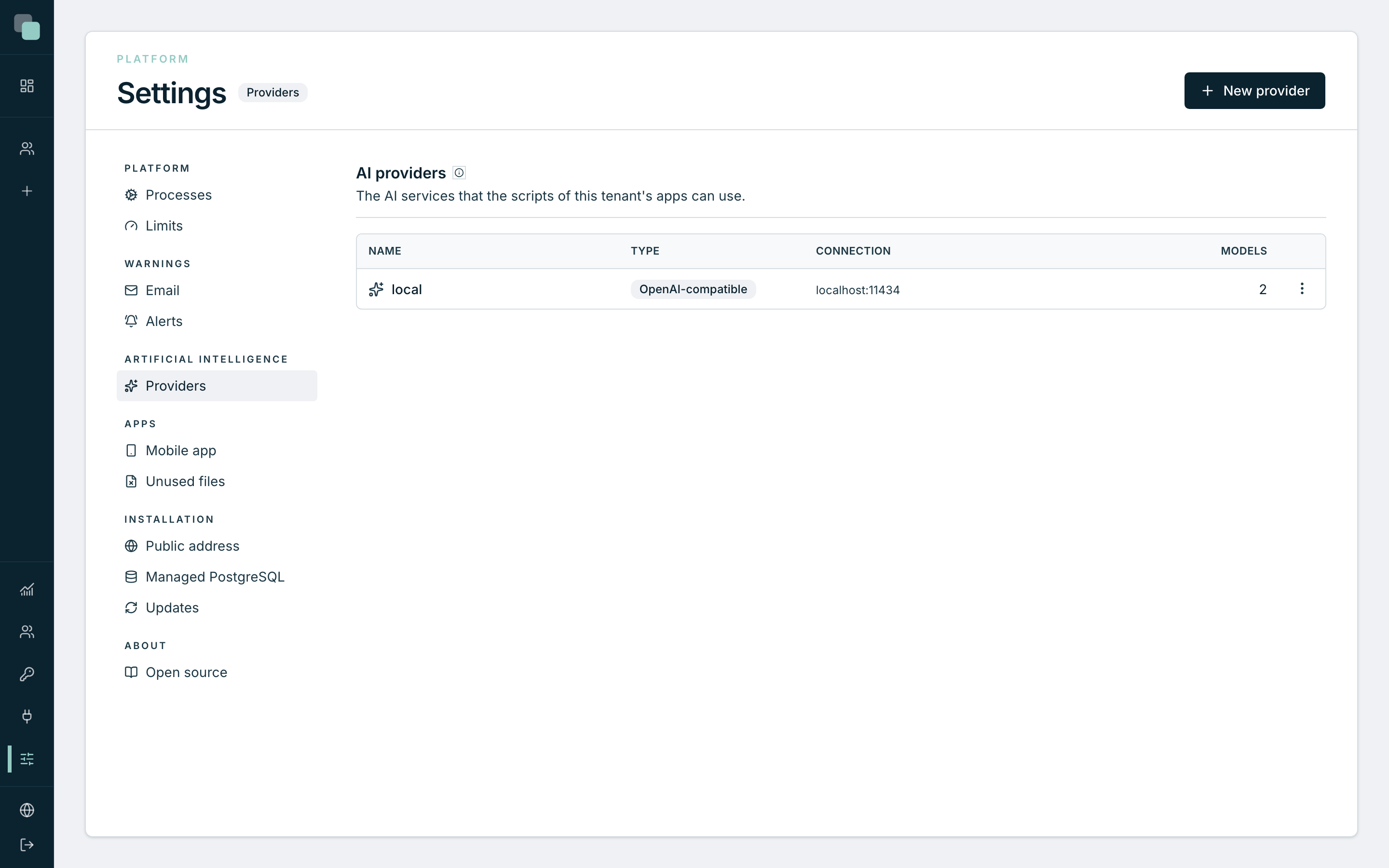
Open Settings, at the bottom of the sidebar, and choose Providers in the Artificial intelligence group. Only accounts with an administrator profile get in.
The list shows each provider's name, its type, the connection (the address or the region, never a credential) and how many models are authorised.
Provider types
| Type | What you fill in | Notes |
|---|---|---|
| OpenAI | API key; Organisation and Project are optional | OpenAI's models. |
| Anthropic | API key | Claude models. Anthropic has no embeddings models. |
| Microsoft Foundry | Resource endpoint and API key | Each model's name is the deployment name in the resource. Claude models only work on a services.ai.azure.com address. |
| Amazon Bedrock | Region, Access key ID and Secret access key | The IAM key needs permission to invoke the models. For the test to list the models, it also needs bedrock:ListFoundationModels. |
| Google Cloud | Service: with the Gemini API, the API key; with Vertex AI, the Google Cloud project, the Location and the Service account (JSON) | The service account needs the Vertex AI User role. Claude models only work through Vertex AI. |
| OpenRouter | API key; Application name is optional | Models from many vendors with a single key. |
| OpenAI-compatible | Base URL and, if the server asks for one, the API key (optional) | Ollama, LM Studio, vLLM and other servers with OpenAI's API. |
Warning
For an OpenAI-compatible provider, the address must be reachable from
the platform server, not from the computer of whoever uses the app.
localhost is the platform server itself.
Create a provider
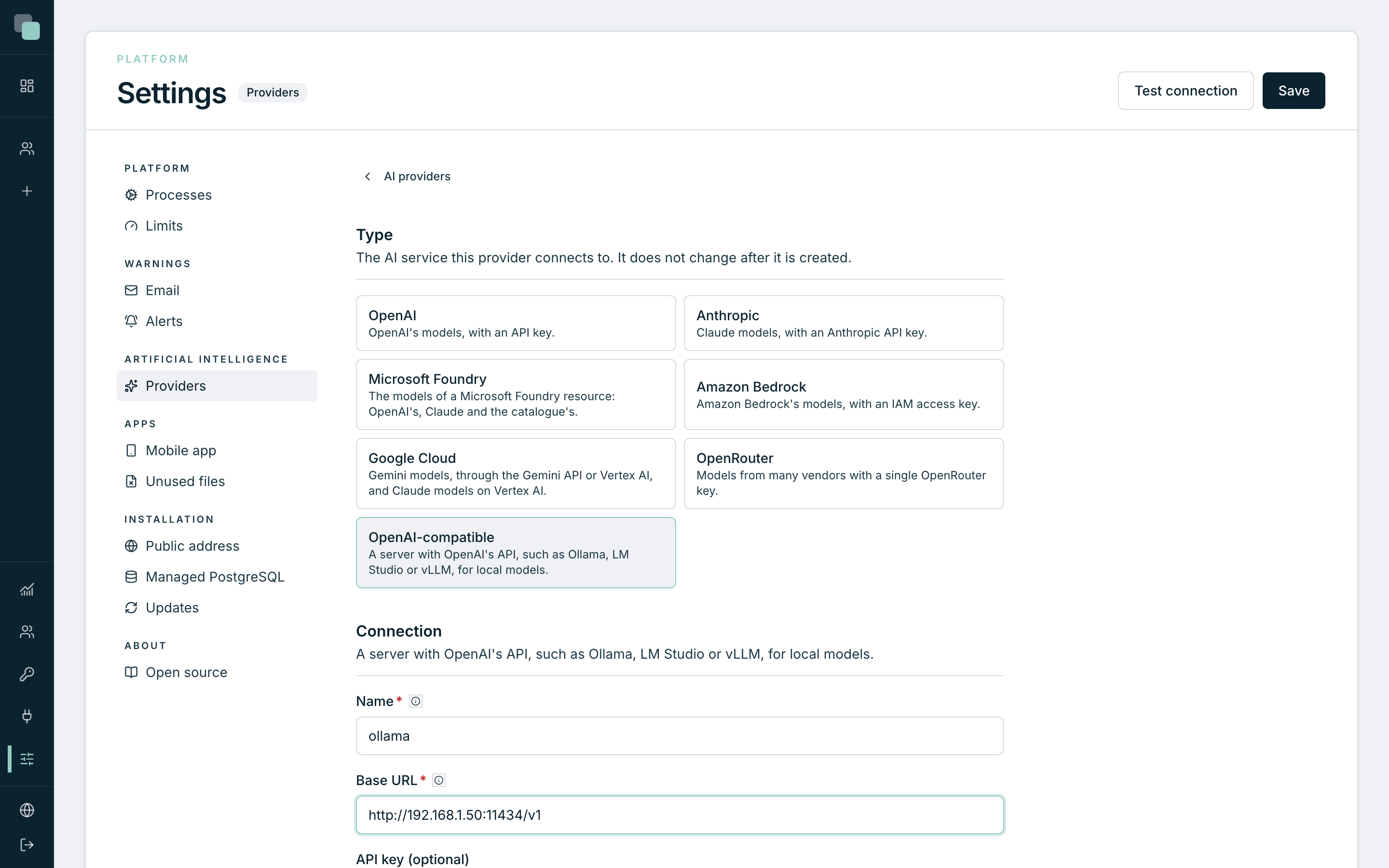
- In Providers, click New provider.
- Choose the Type. The type does not change after the provider is created.
- Type the Name. Apps choose the provider by this name: lowercase letters, digits, hyphens and underscores. It does not change after the provider is created either.
- Fill in the Connection fields, which depend on the type.
- Click Test connection, in the header. The test uses what is typed, without saving anything, and says whether the connection and the key were accepted. When the provider has a model list, the list appears under Authorised models.
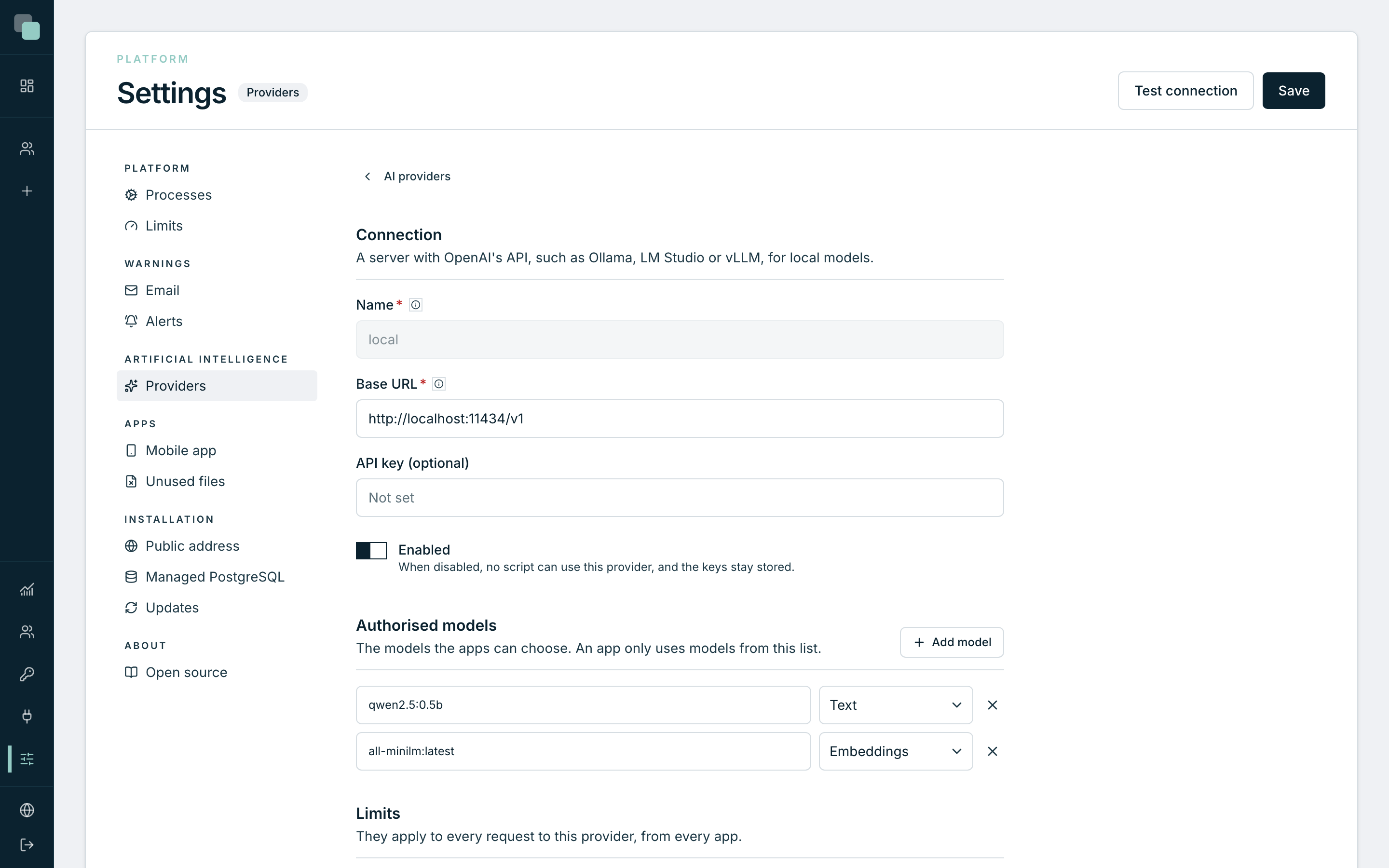
- Under Authorised models, tick the models the apps can use, or click Add model and type the name. Choose each model's use: Text, Embeddings, Images, Transcription or Speech. In Microsoft Foundry, also choose the format: OpenAI format or Anthropic format (Claude).
- Review the Limits and click Save.
Credentials
- You type them and they never come back to the screen. The field says Set — type to replace or Not set.
- Leaving the field empty when you save keeps the stored credential.
- If you change the address (the Microsoft Foundry Resource endpoint or the Base URL of a compatible server), the stored credential does not follow to the new address: you have to type it again. This way nobody can send a key they cannot see to a server of their own.
- The audit log records which credentials were written, never the value.
Limits
- Maximum time (s): how long a request can take, from 5 to 600 seconds (120 by default). A reasoning model can need more than a minute.
- Simultaneous requests: how many requests to this provider run at the same time, across all apps (4 by default). The others wait their turn.
- Enabled: when disabled, no script can use the provider, and the credentials stay stored.
Edit and delete a provider
- To edit, click the provider's name, or open the row's ⋮ menu and click Edit.
- To delete, open the row's ⋮ menu and click Remove. The confirmation appears above the list. The apps that use the provider can no longer call AI until they choose another provider.
Frequently asked questions
The test says «Could not connect to the provider» for a local server. The address must be reachable from the platform server. Check the address and the port, and that the server accepts connections from outside its own machine.
The Microsoft Foundry test shows no models. In Foundry, the models you call are the resource's deployments, which the API does not list. The test confirms the key; type the deployment names in Add model.
Who can see the keys? Nobody. The screen only says whether each credential is set, the scripts never receive them, and exporting an app does not take them along.