Updating or deleting several rows
How to update or delete every row that meets a condition, with a preview of before and after, a rehearsal, a typed confirmation and a copy to restore.
To change many rows at once (move every account in prospeto to ativo,
or delete the test records), the operations on several rows work by
condition: you choose the rows with a condition, see the before and after
of each one, and only then run the operation.
The preview is a read: nothing is written before you click Run. Before running, Keplin saves a copy of the rows, and the operation can be restored for 30 days in the operations history.
Opening an operation
- Open the table in its own tab (see Viewing and editing the data in a table).
- If you want, filter the grid with Filter…: the operation starts with the grid filter as its condition.
- Click Operations and choose Update rows… or Delete rows…. Below each option, the menu shows how many rows the grid filter has.
The dialog has two choices at the top:
- Update or Delete: the operation. You can switch without losing the condition.
- Builder or SQL: the way to write the condition.
On the left, you define the operation. On the right, the preview shows the affected rows.
Choosing the rows with the builder
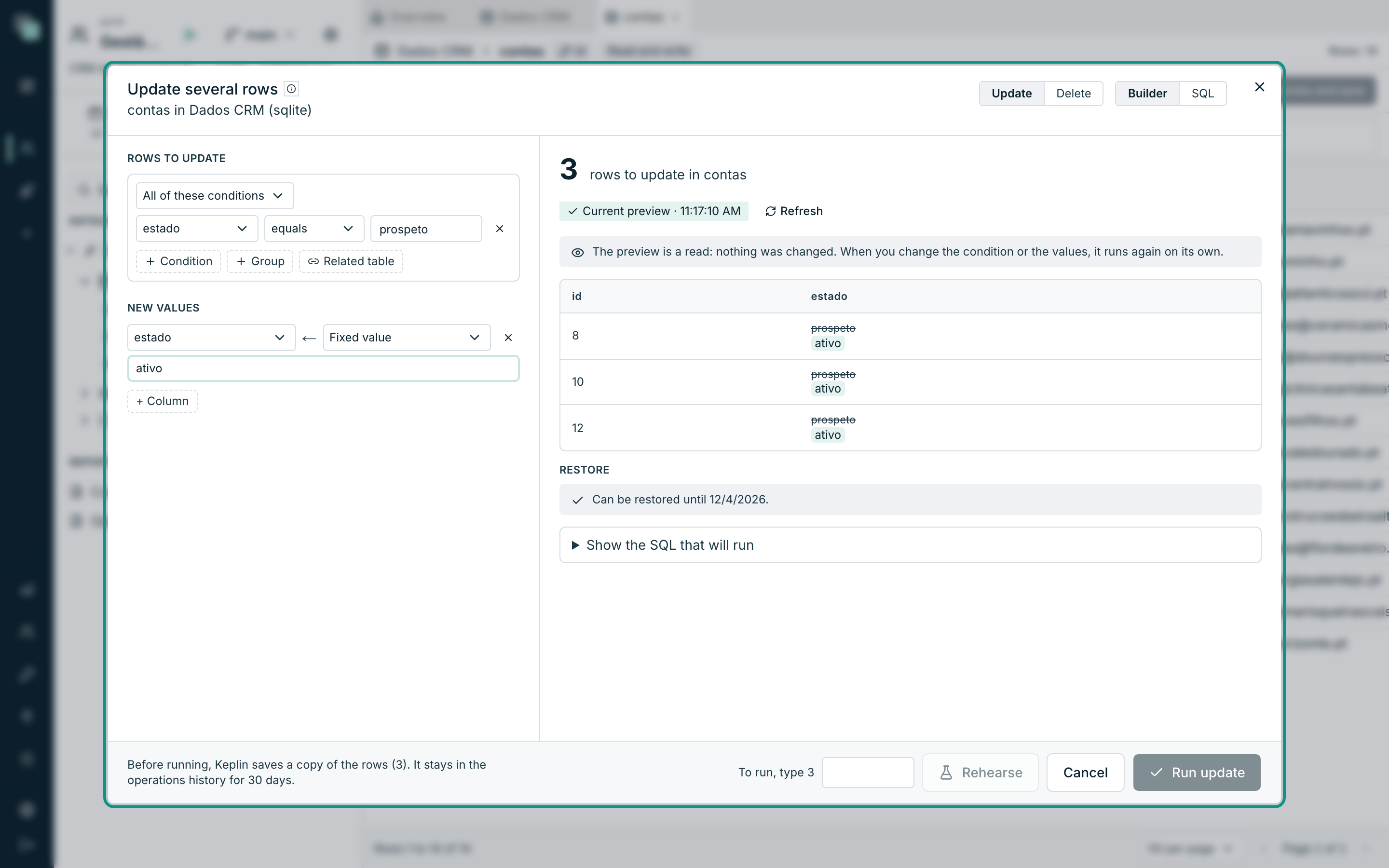
The Rows to update (or Rows to delete) section is a group of conditions:
- All of these conditions joins the conditions with AND; Any of these conditions joins them with OR.
- Condition adds a condition: the column, the operator and the value. The operators depend on the column type (for example, contains and starts with on text, greater than on numbers and dates). is one of and is none of accept several comma-separated values.
- Group adds a group inside the group, to mix AND and OR.
- Related table adds a condition on another table, linked to this one by a foreign key. For example, Rows of contactos that point to this one with has none with chooses the accounts without contacts. The conditions inside the related table are on its columns.
On a column with a list of values, the value is chosen from the list.
Warning
An unfinished condition (without a value) turns red, and Keplin refuses the whole operation while it is there. An empty condition never counts as "every row".
To apply the operation to every row in the table, tick Every row in the table (no condition). In that case, the confirmation asks for the table name instead of the number of rows.
Defining the new values
When updating, the New values section has one line per column to change: the column, the mode and the value. Column adds another one.
| Mode | Columns | What it does |
|---|---|---|
| Fixed value | All | Writes the given value. |
| NULL | Those that accept NULL | Clears the value. |
| Value of another column | All | Copies the value of another column of the same row. |
| Add, Subtract, Multiply, Divide | Numbers | Does the calculation with the current value. |
| Add percentage | Numbers | Adds the given percentage to the current value. |
| Prepend text, Append text | Text | Joins the given text to the current value. |
| Replace text | Text | Swaps the Text to replace for the text in Replace with. |
| Uppercase, Lowercase | Text | Changes the letters of the current value. |
| Current date and time | Dates | Writes the date and time at the moment of running. |
| Add days | Dates | Adds the given number of days to the current value (negative, to subtract). |
The primary key, the columns that the database always generates and the computed columns are not in the list, because they do not change.
Reading the preview
The preview runs on its own whenever you change the condition or the values, and shows:
- The number of rows, for example 3 rows to update in contas.
- Current preview, with the time of the read, and Refresh to read again.
- The list of rows, with the value before struck through and the value after below it, on the columns that change. The list shows up to 200 rows. When there are more, the count says how many are left out of the list.
- Restore: until when the operation can be restored, or the warnings that prevent a full restore.
- Show the SQL that will run: the statement that Keplin is going to run.
Writing the condition in SQL
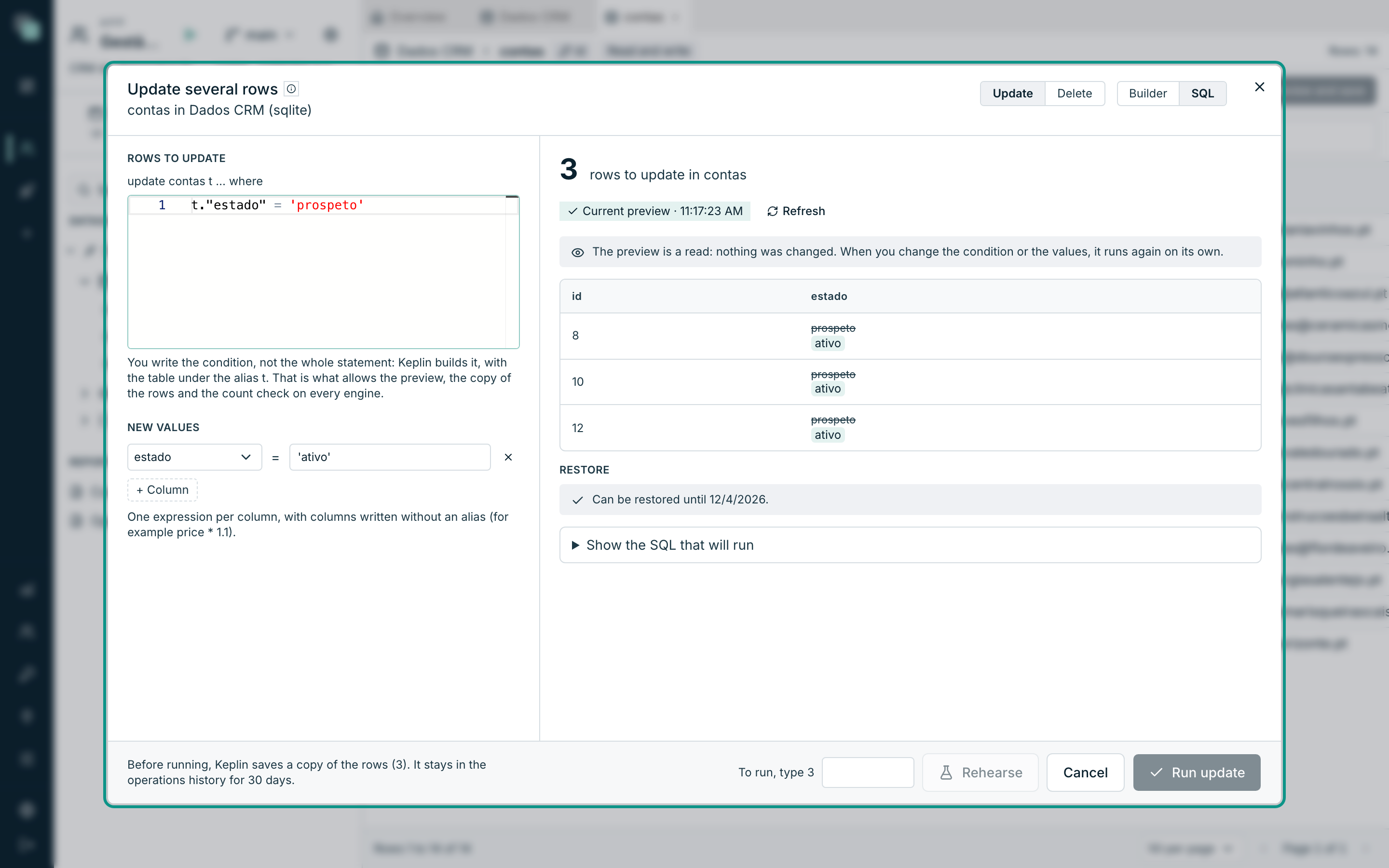
In SQL, you write only the condition, not the whole statement: Keplin
builds it, with the table under the alias t. For example:
t.estado = 'prospeto' and t.criado_em < '2026-01-01'
The new values are one SQL expression per column, with the columns written
without an alias (for example price * 1.1).
When you switch from Builder to SQL, Keplin converts the builder's condition and values. If you had already written SQL, your SQL stays as it was, and the Replace with the builder button swaps it for the conversion.
The condition must be a single read expression: no ;, no writes and
with the quotes closed. That way, the preview, the copy and the count
check work on every database engine.
Deleting several rows
Deletion uses the same condition. Besides the rows, the preview shows the Tables that point to the table section, with what happens in each linked table:
| What appears | What it means |
|---|---|
| Also deleted | The key deletes in cascade: the linked rows go with the table's rows. The copy includes them. |
| Left without a link | The key becomes NULL in the linked rows. |
| Linked | The key does not allow deleting rows that have links. |
In the last case, the preview shows The database will refuse, and Run deletion is turned off. Add a Related table with has none with to the condition, or deal with the linked rows first.
For a request to erase personal data, tick Delete without saving a copy. The operation keeps no copy and, therefore, cannot be restored.
Rehearsing and running
- Check the preview.
- In the To run, type field, type the number of rows that the preview counted (or the table name, when the operation has no condition).
- Optional: click Rehearse. Keplin runs the operation in a transaction and undoes it at the end, and shows how many rows would be affected. The rehearsal confirms that the table's keys and triggers accept the operation, without saving anything.
- Click Run update or Run deletion.
Keplin saves the copy of the rows, runs the operation in a transaction and shows Rows updated or Rows deleted, with the number.
Two safeguards run at the moment of running:
- The count: if the number of rows that meet the condition changed after the preview, nothing is changed, and the preview runs again.
- The limit: an operation affects at most 50,000 rows. Above that, split the condition into parts.
Warnings before running
The Restore section warns about the cases in which the operation cannot be fully restored, or in which the result goes beyond the table:
| Warning | What it means |
|---|---|
| Triggers | The table has triggers that run on each row. What they write to other tables does not appear in the preview and is not undone when restoring. |
| Cascade | The deletion also deletes rows from other tables. The copy includes them. |
| Columns the copy does not store exactly | On restore, those columns may not come back exactly the same. |
| Key always generated by the database | Deleted rows cannot come back with the same key. |
| Missing permissions | The database user cannot insert, update or delete in this table. The operation or the restore is going to fail. |
| Table without transactions | A failure halfway is not undone automatically, and the rehearsal is turned off. The copy is the only way to restore. |
When a warning prevents a full restore, tick I am running this knowing it cannot be fully restored. before running.
Frequently asked questions
- Can I write a full UPDATE or DELETE? Not in this dialog: you write only the condition, so that Keplin can preview, copy and count. For free SQL, administrators have the SQL console.
- Why did the operation answer "Nothing was changed"? Another person or another program changed rows between the preview and the run. Review the new preview and run again.
- Why is Rehearse turned off? The table has no transactions (for example, a MyISAM table in MySQL), and a rehearsal on that table could not be undone.
- Does the operation appear in the history? Yes, with the condition, the values and the copy of the rows.