Viewing and editing the data in a table
How to open a table in its own tab, change values in the grid or in the record panel, add and delete rows, and save everything at once after a review.
A table's tab shows the real rows of the database in a grid, and lets you change them without writing SQL: change a value, add a row or delete another, review what is going to change and save. Nothing reaches the database before you click Save. Each save keeps a copy of the rows as they were before, so you can restore them for 30 days (see Operations history and restore).
To change many rows at once, by a condition, use the operations described in Updating or deleting several rows.
Opening a table
- In the app studio, open the Data panel.
- Expand the datasource and the Tables group.
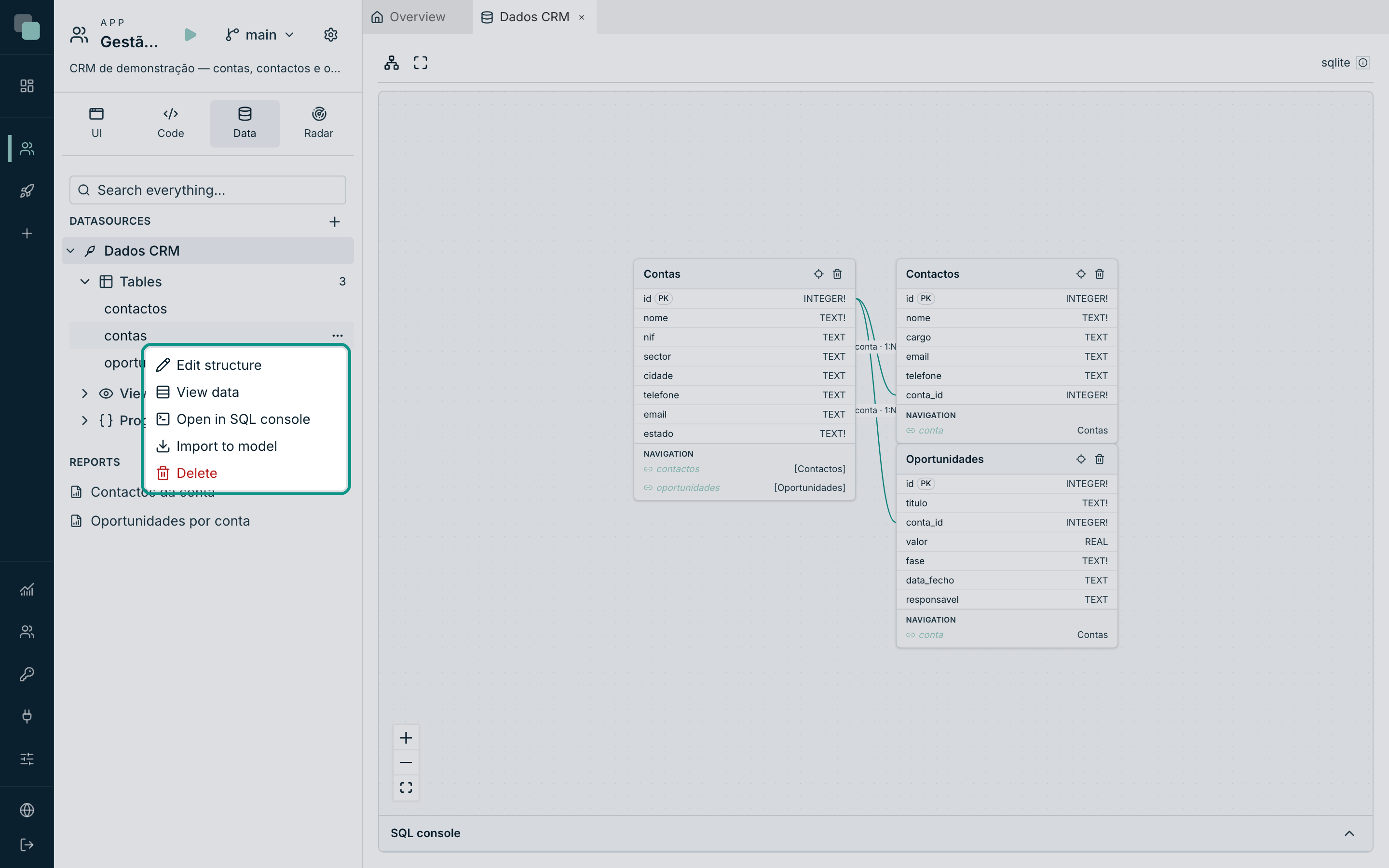
- Open the table's ⋯ menu and choose View data. You can also double-click the table name.
The table opens in its own tab, next to the other studio tabs. The same
menu has Open in SQL console, which opens the console below the model,
with a select ready for that table.
The table's tab
The tab has four areas:
- The header: the datasource and the table, the primary key (with the key icon), the access (Read and write) and the total number of rows (Rows: 14).
- The action bar: Add row, Delete row, Refresh, Record and Operations. On the right, the count of unsaved changes and the Discard and Review and save buttons.
- The grid: one column per table column. Each column title shows the
name, the type in the database and
not nullon required columns. The Filter… field above the grid filters the rows by conditions on the columns. - The footer: the visible rows (Rows 1 to 14 of 14), the number of rows per page and the page navigation.
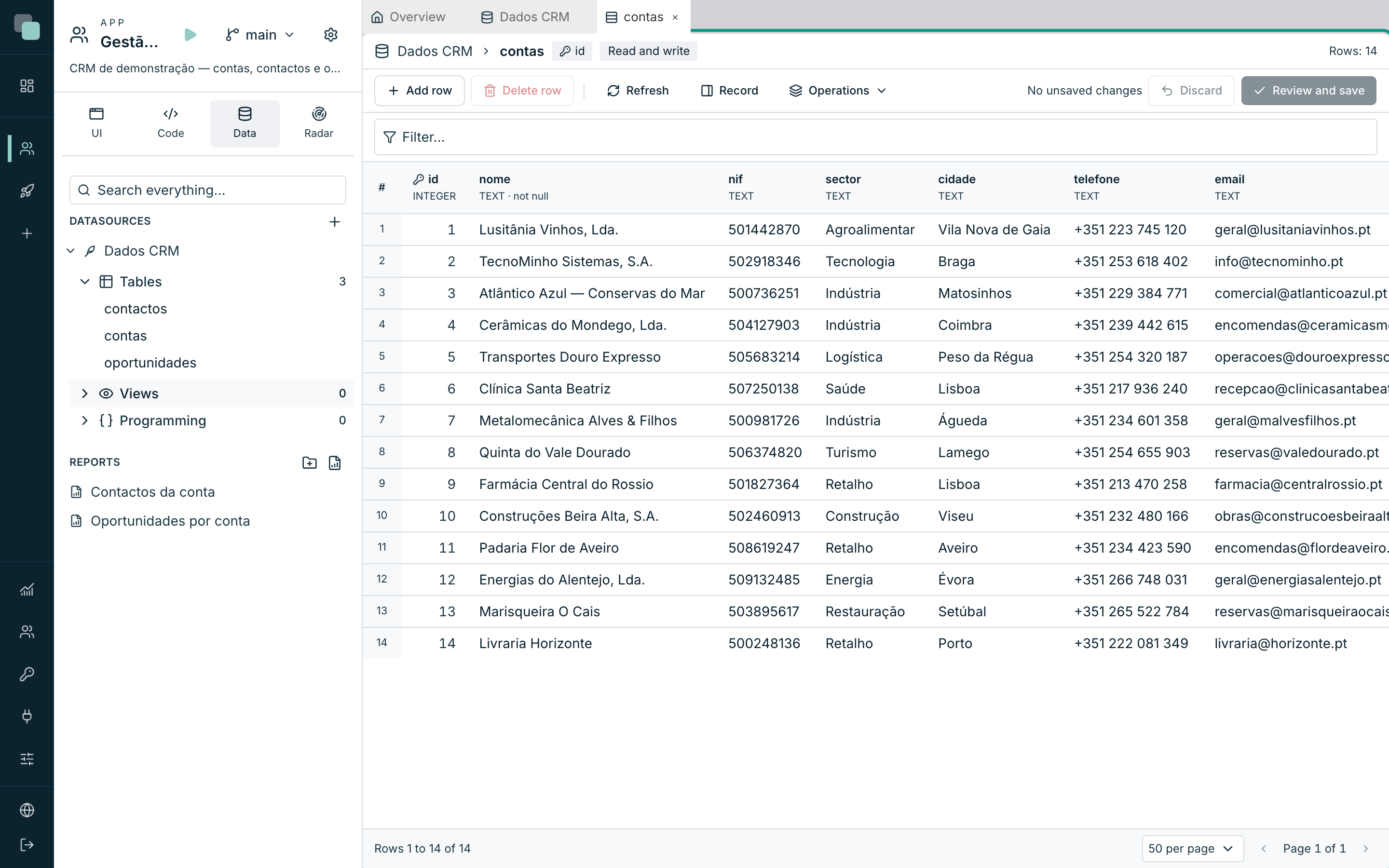
To sort, click a column title: the first click sorts in ascending order, the second in descending order, and the third removes the order. Long text, JSON and binary columns do not sort.
Refresh reads the current page from the database again. Use it to see changes made by other people or by other programs.
When the table opens read only
In three cases, the grid shows the data but does not let you change it, and a message at the top explains why:
| Case | Why |
|---|---|
| The table is a view | A view shows data from other tables. Change the source tables. |
| The table has no primary key | Without a key, there is no way to identify each row when saving. The data can still change in the SQL console. |
| The datasource is Read only | The datasource access does not let Keplin change data. To change this, change the datasource access. |
Changing a value
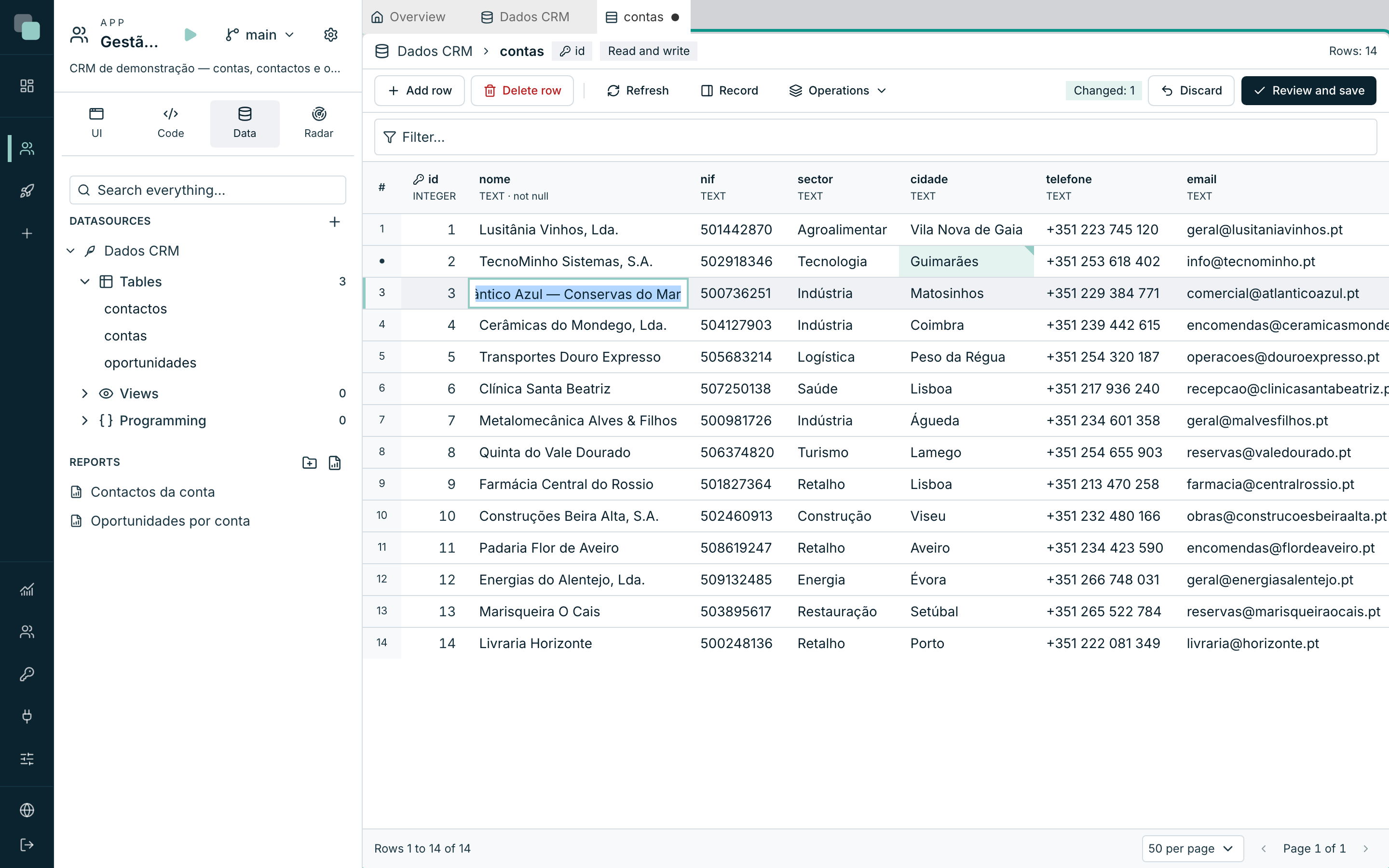
- Click the cell. With the keyboard, reach the cell with the arrow keys and press Enter or F2.
- Type the new value.
- Press Enter to confirm. Esc cancels, and Tab confirms and moves to the next cell (Shift+Tab, to the previous one).
The changed cell gets a marked corner, the row number gets a dot, and the action bar counts the change (Changed: 1). The value is not in the database yet: it stays in the list of unsaved changes until you click Review and save.
How each column type is edited
| Column | How it is edited |
|---|---|
| Text | In the cell. When the column has a character limit, a counter shows how many you have used (for example, 16/120). |
| Text with line breaks | In the record panel. A single-line field would cut the line breaks. |
| JSON | In the record panel. Saving refuses invalid JSON. |
| True or false | A click on the cell (or the Space key) switches the value. |
| List of values | A list with the value and the name of each option. This applies to the database's own enums and to fields linked to an enumeration of the app model. |
| Foreign key | A search in the parent table (Search the parent table), by the key or by the first text of the parent row. |
| Date and time | In the cell, in the format YYYY-MM-DD, YYYY-MM-DD HH:MM:SS or HH:MM:SS. |
| Binary | Not edited. Download saves the content to a file. |
The primary key, the columns that the database always generates and the computed columns are not edited. On a new row, generated columns show generated and columns with a default value show default: leave them empty for the database to fill in.
Note
When the table is in the app model and a field uses an enumeration, the column shows the list of that enumeration, and saving refuses a value that is not in the list. If the database itself already defines the column's list, the database's list applies.
Values to fix
A value that does not suit the column turns red, with the reason below it. For example:
- Required.
- Must be a whole number.
- Text longer than the column allows.
- More digits than the column allows (with the whole digits and the decimals that the column accepts).
- Value not in the column's list.
While there is a red value, the bar shows Some values need fixing (in red). and Review and save is turned off.
The record panel
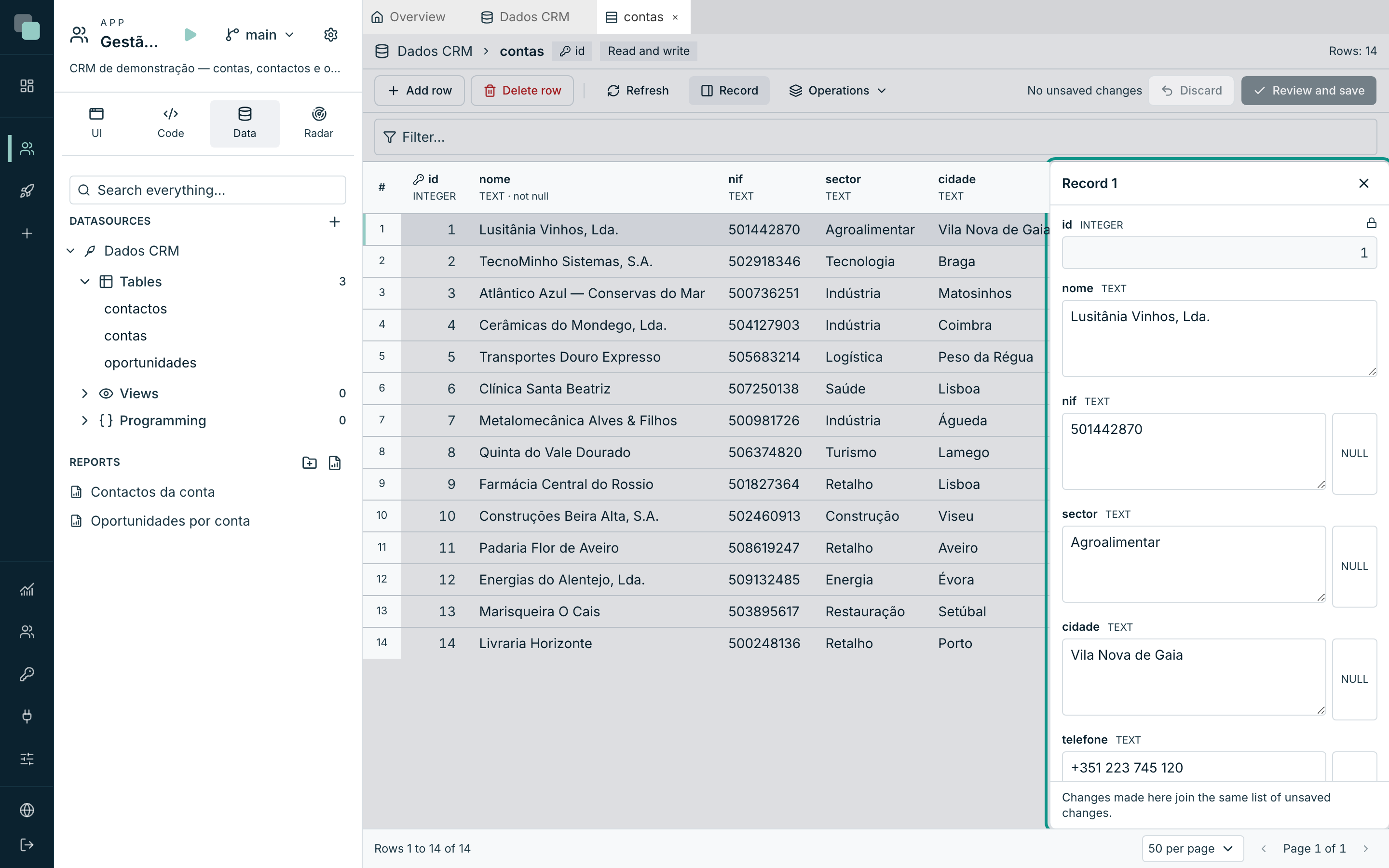
The record panel shows all the columns of a row, one below the other, and it is the place for long values.
- To open it, click Record in the action bar, or the Open in the record panel button on the row number.
- On columns that accept NULL, the Set to NULL button clears the value.
- On a changed field, Before: shows the value that is in the database.
- To close it, click Close the panel.
Changes made in the panel join the same list of unsaved changes as those made in the grid.
Adding a row
- Click Add row. The new row opens in the record panel, with the title New row.
- Fill in the required columns. Those with a default value or that the database generates can stay empty.
- The action bar counts the row (New: 1).
To drop a new row before saving, select it and click Remove new row.
Deleting a row
- Select the row (click one of its cells).
- Click Delete row. The row is marked to delete, and the bar counts it (To delete: 1).
The row only leaves the database when you save. To cancel, select the row and click Restore row.
If other tables point to this one with cascading deletion, the review warns that those rows also go. The save's copy includes them, and restoring reinserts them.
Reviewing and saving
- Click Review and save. The Review changes dialog shows the changes grouped into Changed rows, New rows and Rows to delete, with the value before and the value after.
- Read the warnings, if there are any (for example, the cascade or the table's triggers). When a warning says the save cannot be fully restored, tick I am running this knowing it cannot be fully restored.
- Click Save (the button shows the number of changes, for example Save (1)).
Saving runs in a single transaction: it saves everything or nothing. At the end, the message Changes saved: 1. appears, and the save goes into the datasource's operations history.
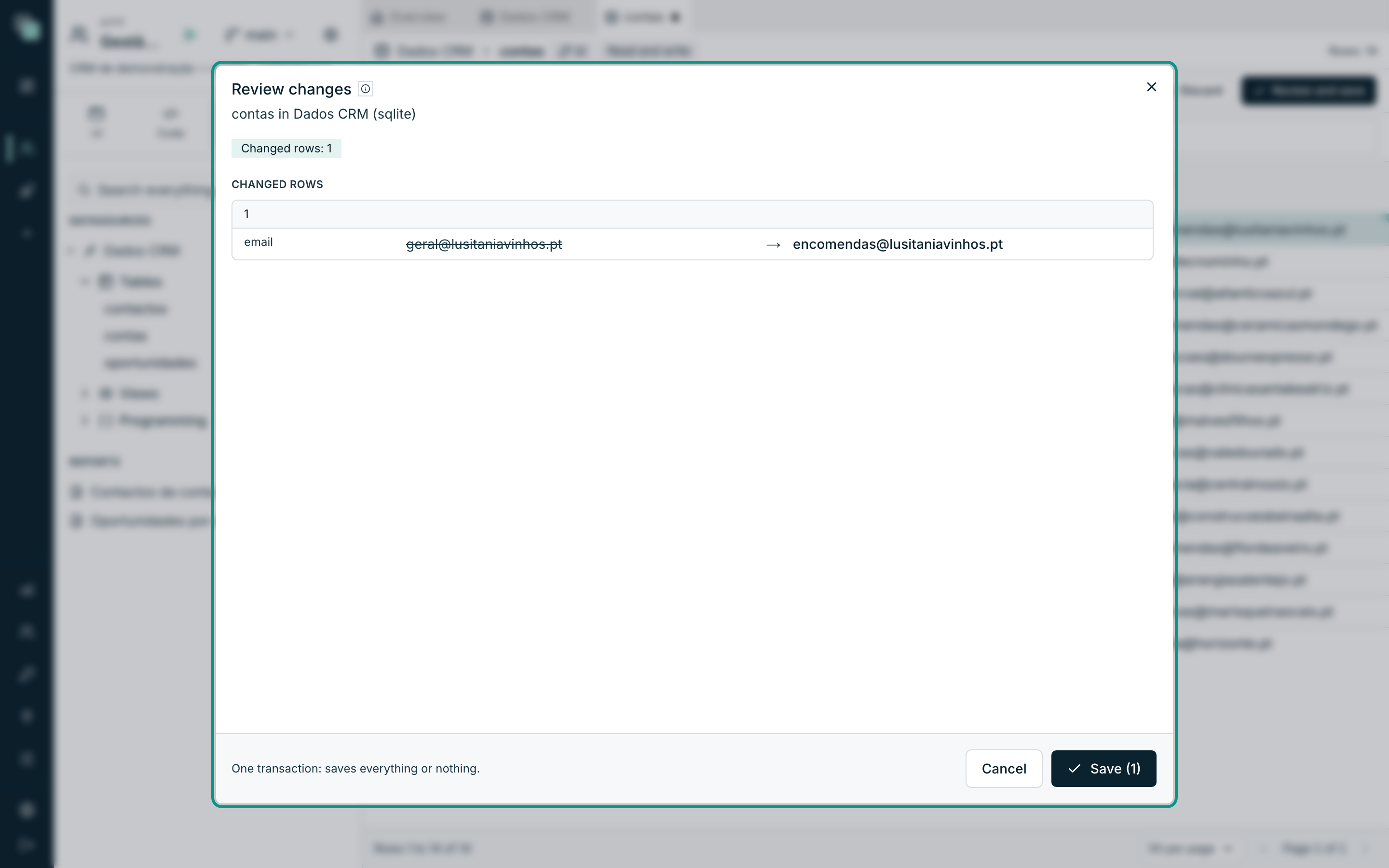
To take a change out of the list without leaving the review, click Remove this change. To throw away all unsaved changes, close the review and click Discard: the grid shows the database values again.
When the row changed in the database
Before writing, Keplin compares each row with what you read. If another person or another program changed the same row in the meantime:
- Nothing is saved. The review shows Conflict: the row changed in the database, with your value and the value that the database now has.
- For each conflict, choose Keep my value or Use the database value.
- Click Save again.
If the row no longer exists, the review shows This row no longer exists in the database.
Who can edit
Viewing and editing the data in tables belongs to the app's Developer profile (and to the profiles above it). Each save goes into the platform audit and into the datasource's operations history, with the author and the date.
Frequently asked questions
- Why does a cell open the record panel instead of editing in the grid? The value has line breaks, or the column is JSON. Both are edited in the panel, so that the line breaks are not lost.
- Does changing a cell save to the database right away? No. The changes stay unsaved until you click Review and save and Save.
- What if I close the tab with unsaved changes? The tab title shows a dot while there are unsaved changes. When you close it, Keplin asks for confirmation (Unsaved changes), and confirming discards the changes.
- Can I undo a save? Yes, for 30 days, in the operations history.
- Why are Add row and Delete row turned off? The table opens read only (a view, a table without a primary key or a datasource that is Read only).