Operations history and restore
Where the grid saves and the operations on several rows are kept, what the copy of each one stores, and how to restore the earlier values.
Each save made in a table's grid and each operation on several rows goes into the datasource's Operations history, with a copy of the rows as they were before. For 30 days, the history shows what changed, lets you download the copy and restores the earlier values.
Opening the history
The history belongs to the datasource: it gathers the operations of all its tables. Open it in one of these ways:
- In a table's tab, click Operations and choose Operations history.
- In the Data panel, open the datasource's ⋯ menu and choose Operations history.
The history opens in its own tab, with the datasource name (for example History · Dados CRM). Above the list, Keplin shows the space the copies take up and how long they are kept.
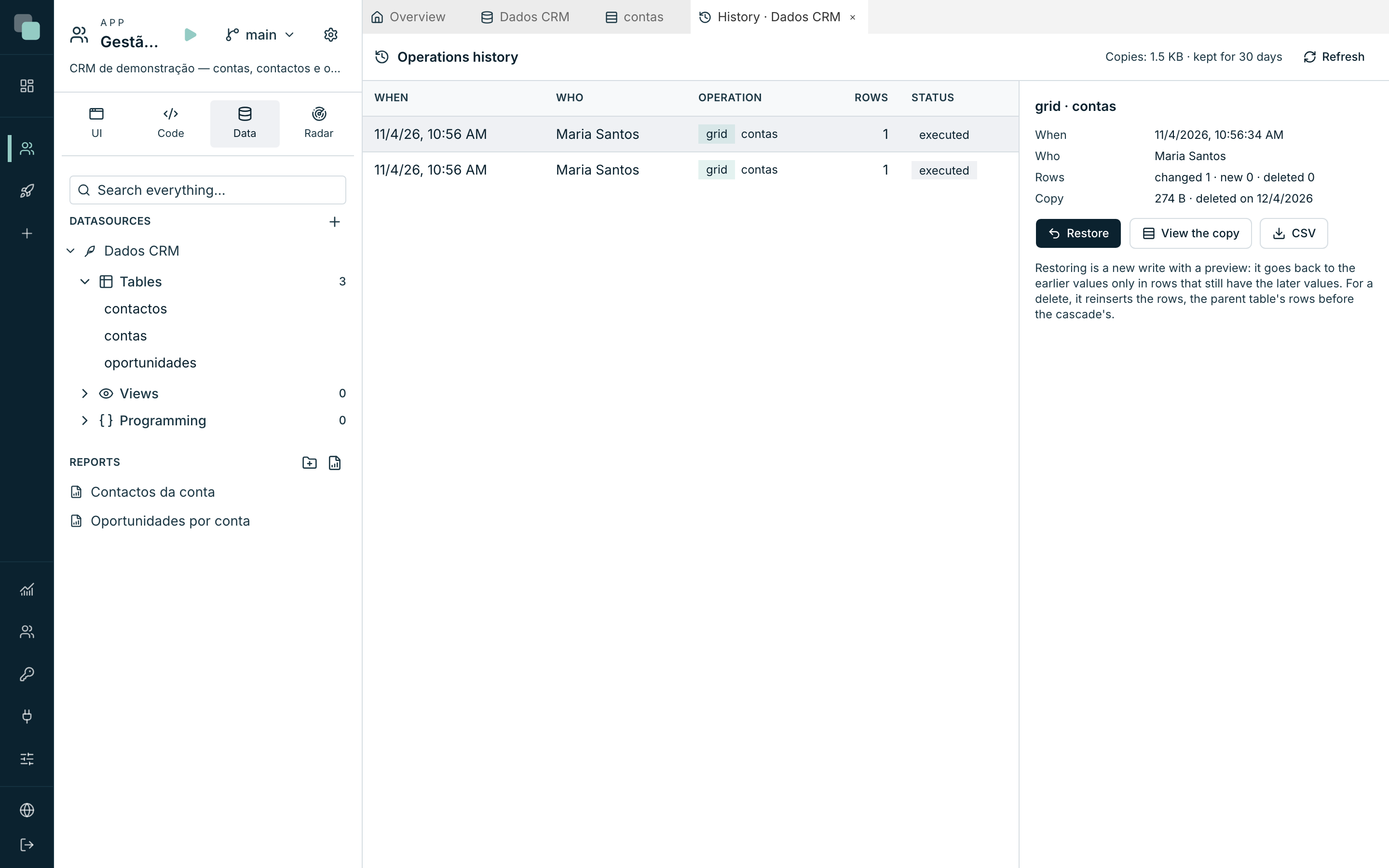
The list of operations
Each line of the list is an operation, with the columns When, Who, Operation, Rows and Status. The Operation column gives the type (grid, update or delete) and the table.
| Status | What it means |
|---|---|
| executed | The operation was saved in the database and can be restored. |
| pending | The operation is running. If the end is not recorded (for example, because the connection dropped), Keplin checks in the database whether the operation was saved and moves it to executed or rolled back. |
| rolled back | The database undid the operation (a failure halfway through the transaction). Nothing changed, and there is nothing to restore. |
| restored | The operation was fully restored. |
| partly restored | The restore left rows out. You can restore again, for the rows that now allow it. |
The detail of an operation
Click an operation to see the detail on the right:
- When and Who.
- Condition and Values, on operations on several rows.
- Rows: how many were changed, inserted and deleted, and how many went by cascade.
- Copy: the size of the copy and the date on which it is deleted.
- The warnings that the operation had when it ran.
Below the detail, three buttons:
- Restore opens the restore (see the next section).
- View the copy shows the rows of the copy, with the type of change (changed, inserted or deleted), the table, and the values before and after.
- CSV downloads the copy to a CSV file.
Restoring an operation
Restoring is a new write, with a preview. It goes back to the earlier values only in rows that still have the values that the operation left there, so that changes made afterwards are not erased.
- In the list, select the operation.
- Click Restore. The Restore the operation dialog shows:
- Rows that come back, with the number.
- Rows left out so that later changes are not erased, with the reason for each one.
- Click Restore (the button shows the number of rows, for example Restore (2)).
At the end, the message says how many rows were restored and how many were left out (for example Restored: 2. Left out: 0.), and the status of the operation becomes restored or partly restored.
What the restore does depends on the operation:
| Operation | What the restore does |
|---|---|
| Update (in the grid or on several rows) | Writes the earlier values again. |
| New row (in the grid) | Deletes the row. It needs DELETE permission in the database. |
| Deletion | Inserts the rows again, with the same key. The table's rows go in before the rows that went by cascade. |
The reasons for a row to be left out are:
| Reason | What it means |
|---|---|
| changed after the operation | Someone changed the row after the operation. Restoring would erase that change. |
| the row no longer exists | The row was deleted after the operation. |
| the key already exists | When restoring a deletion, a row with the same key already exists. |
| the key is always generated by the database | The database does not let the row be inserted with the original key. |
Note
The table's triggers run again during the restore, as on any write. What a trigger wrote to other tables during the original operation is not undone.
Where the copies are kept
- The copies are encrypted, in the platform files, outside the app versions. Switching versions or publishing does not take them along or delete them.
- Each copy is kept for 30 days and is then deleted automatically. After that period, the operation can no longer be restored.
- Deleting the app deletes its copies.
- A copy is only restored in the database it came from. If the datasource now points to another database, the restore is refused.
Warning
The copy keeps the data of the rows for 30 days. For a request to erase personal data, use Delete without saving a copy. on the deletion of several rows (see Updating or deleting several rows).
Frequently asked questions
- Can I restore an operation older than 30 days? No. The copy has already been deleted.
- Why did the restore leave rows out? Those rows changed after the operation. The restore does not write over more recent changes. For those rows, use View the copy and change them by hand in the grid.
- Can I restore twice? A restored operation cannot be restored again. A partly restored operation can be restored again, for the rows that allow it in the meantime.
- Who sees the history? Anyone with the Developer profile or above in the app.